Tracking and analytics IDs
In short: Add your Meta Pixel, Google Analytics and Tag Manager IDs, connect Google Search Console, and see how visitor consent controls tracking.
- If you run ads or want to see who visits your store in Google Analytics, you give PersonaCart one number per service.
- Your store then reports visits and purchases to that service.
- The Tracking and analytics screen is where you paste those numbers, and where you connect Google Search Console to see how people find you on Google.
You do not need any of this to sell. "No ads? Skip this page: your shop works without it."
Where to find it
- Settings → Visitors and Google → Tracking and analytics.
- Each service also has its own row in that card (Google Analytics, Meta Pixel, Tag Manager, Search Console) that jumps straight to its section.
- You need access to storefronts with permission to edit.
- Anyone else sees "Only the owner or an admin can change this."
Tracking IDs are available on every plan.
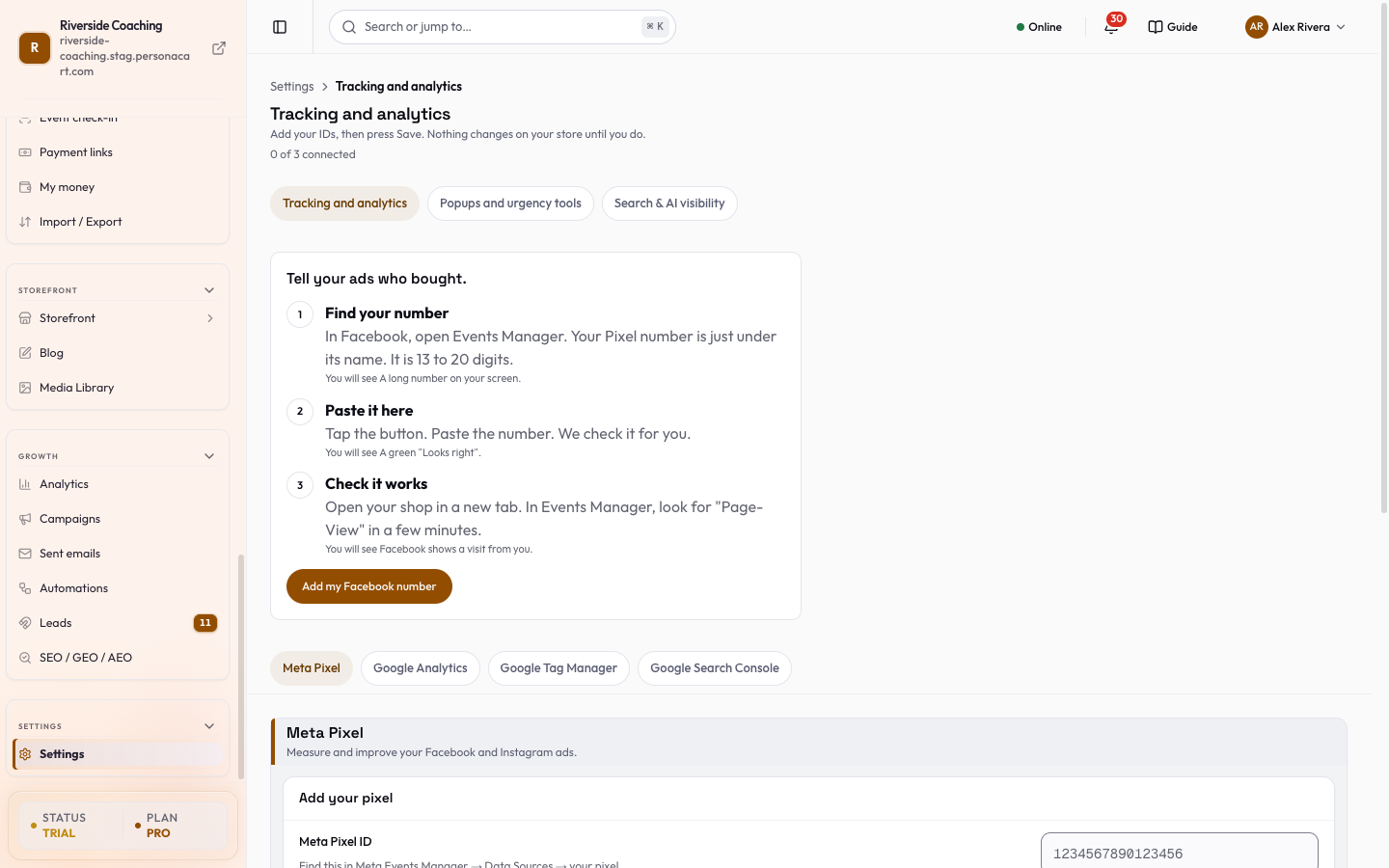
The sections
- A jump bar at the top takes you to Meta Pixel, Google Analytics, Google Tag Manager and Google Search Console.
- The three ID sections are drafts: typing changes nothing on your store until you press Save in the bar at the bottom.
- Discard puts the saved values back.
- If you leave the page with unsaved IDs, a box asks whether to save or discard.
| Section | Field | What it is | Format |
|---|---|---|---|
| Meta Pixel ("Measure and improve your Facebook and Instagram ads.") | Meta Pixel ID | Find it in Meta Events Manager → Data Sources → your pixel. | 13 to 20 digits, no letters or symbols, for example 1234567890123456 |
| Google Analytics ("See who visits your store and what they do.") | GA4 Measurement ID | Find it in Google Analytics → Admin → Data Streams → your storefront stream. | G- followed by 8 to 12 letters or numbers, for example G-ABC123XYZ9 |
| Google Tag Manager ("One container that holds all your other tracking tags.") | GTM Container ID | Find it in Google Tag Manager, at the top of the workspace beside the workspace selector. | GTM- followed by 6 to 10 letters or numbers, for example GTM-ABC1234 |
Google Analytics and Tag Manager sit under a closed More services row ("Google Analytics and Tag Manager. Most people only need the Facebook number."). It opens by itself when one of them already has a value.
Rules that apply to all three:
-
Type a wrong ID and an error appears under the field when you leave it. Type a right one and a green Looks right appears.
-
GA and GTM IDs are saved in capital letters, and spaces around any ID are removed.
-
A value in the wrong format shows an error under the field and nothing is sent until you fix it.
-
Leaving a field empty and saving removes the saved ID. That turns that service off.
-
Only the fields you changed are sent.
The quick Facebook setup
At the top of the page, while no ID is saved yet, a card titled Tell your ads who bought. walks you through three steps: Find your number (in Facebook Events Manager, under the pixel's name), Paste it here, and Check it works.
- Press Add my Facebook number. A sheet opens: Add my Facebook number, "This is called a Pixel ID. It is only digits."
- Paste the number in Pixel number (13 to 20 digits). Spaces are ignored.
- Read What will happen when you tap the button: the number is saved, your shop starts telling Facebook about visits and purchases (nothing new is shown to customers), and removing the number stops it right away.
- Press Save my number. If the number is wrong, the sheet says why: paste a number first, only digits, or it must have 13 to 20 digits. If it is right, a message says "Facebook number saved." with Undo, which removes the number again.
- Open your shop in a new tab and look for PageView in Events Manager after a few minutes. PersonaCart cannot see that check from here.
This quick setup writes only the Meta Pixel field and saves at once. Any other IDs you have typed stay as drafts. Once any ID is saved, the card goes away and you edit IDs in the sections below.
Google Search Console
The Google Search Console section shows what people searched for on Google before they found your store. It is a separate connection from the three IDs: its buttons act at once.
In the Your Google connection card:
- Google account: Connect Search Console starts the Google sign-in. Once connected it reads "Connected as …" and offers Disconnect (which asks first). If Google needs another permission or has stopped accepting the connection, the row says so and offers Sign in to Google.
- Site (once connected): the Google site Pie reads numbers for, with Change site.
- The picker lists every site in your Google account, marks the one In use, and offers Use this for another.
- If your store is not listed it says "Pie can add and verify … for you. It takes about a minute." (Let Pie add my site).
- Set up for you: "Pie adds your store to Search Console, verifies it and sends your sitemap." Press Verify with Pie. While it runs it reads "Pie is setting up Search Console for your site…". If it does not finish, you can press Try again.
- Search results: "Clicks, searches and positions are on Search & AI visibility." Open takes you to the SEO agent screen.
What happens on your store
Tracking scripts respect your visitors' cookie consent: events fire only after a visitor accepts marketing cookies. Visitors who do not accept are not tracked by these services.
Good to know
- Nothing changes on your store until you press Save (except the quick Facebook setup and the Search Console buttons, which act immediately).
- Removing an ID stops that service, and it takes effect right away.
If your ad account says it sees no visits, check the format first: Facebook numbers are digits only; GA4 starts with G-; GTM starts with GTM-.
Questions
Do I need a pixel to sell?
No. Your store works without any tracking ID. Add one only if you run ads or want visitor reports.
Where do I find my Meta Pixel ID?
In Meta Events Manager, under Data Sources, on your pixel. It is a number of 13 to 20 digits.
Why did the page refuse my ID?
The format does not match: Meta Pixel is digits only (13 to 20), GA4 starts with G- and GTM with GTM-. Fix the ID and Save again.
How do I turn tracking off?
Clear the ID and press Save, or use Undo right after the quick Facebook setup. It stops straight away.
Does tracking run for every visitor?
No. Tracking runs only after a visitor accepts marketing cookies.
What is Search Console for?
It shows what people searched on Google before they found your store. Connect it once and Pie can set up the site, verify it and send your sitemap.
Related
Part of Online Store and Storefront Guide · Product page: PersonaCart features