Store basics
In short: Set your store name, country and currency, and learn what changing the country or currency does to payments, tax and prices.
Your store basics is the short screen where you answer three questions that prices, tax and payouts lean on: what your store is called, which country your business is in, and which currency you charge in. You can come back and change them later, but the currency deserves care (see below).
Where to find it
Settings → About your store → Your store basics. You need permission to manage the store. Anyone else can read the three answers and sees a note saying only the owner (named on screen) can change them.
Old links to the former tabbed Store page still work. They now land on the matching screen: Business details, Payments, Shipping or Localization.
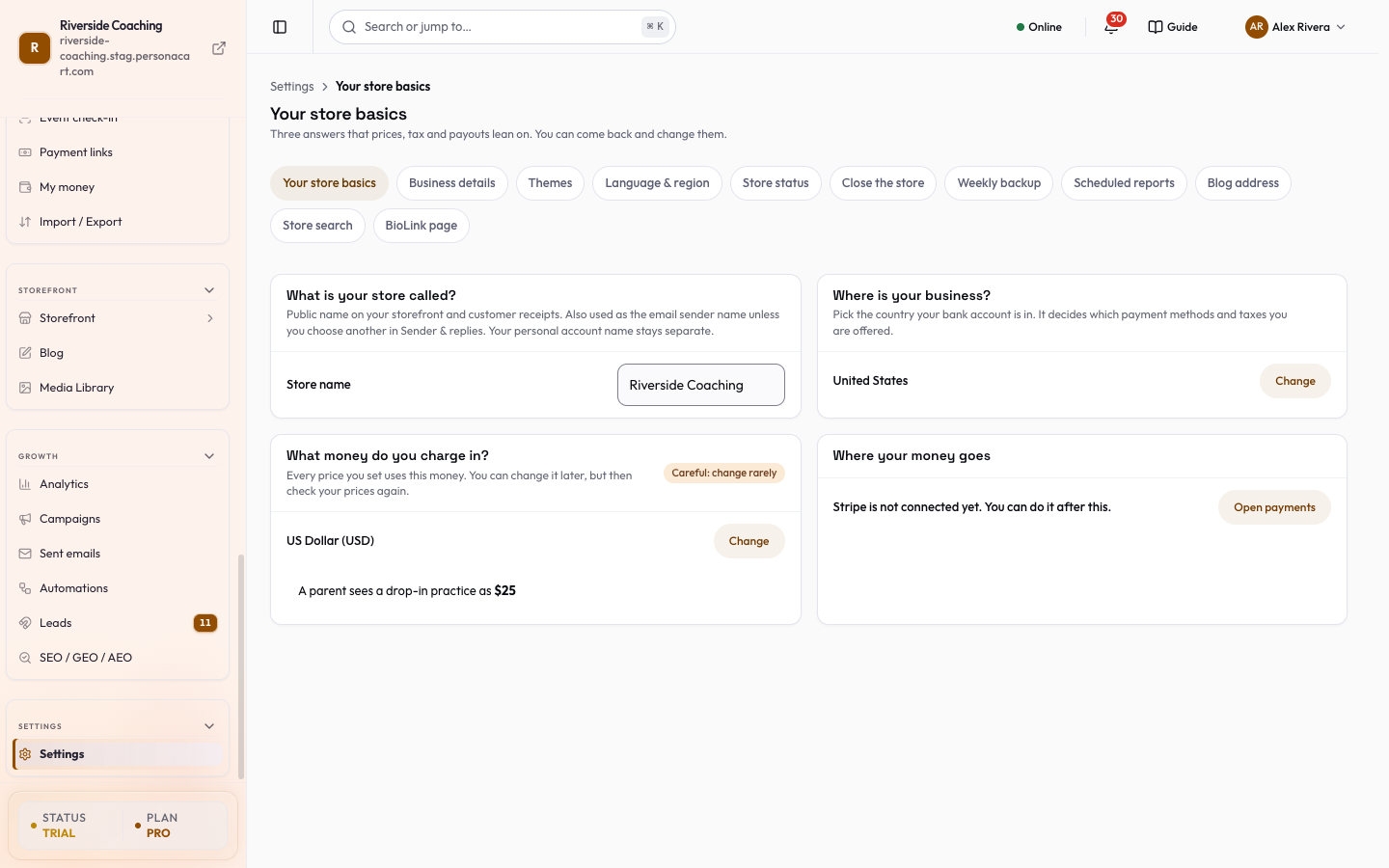
The three answers
| Card | What it asks | What you do |
|---|---|---|
| What is your store called? | Store name (up to 100 characters). The public name on your storefront and customer receipts. It is also the email sender name unless you choose another in Sender & replies. Your personal account name stays separate. | Type the name. A save bar appears; press Save (or Discard). A message says "Saved. Your store is now …" with Undo for 10 seconds. |
| Where is your business? | The Place of Business (country). Pick the country your bank account is in. It decides which payment methods and tax names you are offered. | Press Change (or Choose). |
| What money do you charge in? | The Store Currency. Every price you set uses it. A Careful: change rarely tag marks this card. A line underneath, "A parent sees a drop-in practice as …", shows how a price will look in that currency. | Press Change (or Choose). |
A fourth card, Where your money goes, only reports: "Stripe is connected. Payouts go to the bank account you added." or "Stripe is not connected yet. You can do it after this." Open payments takes you to Payments.
A suggestion from your computer
- If your browser's language points to a country and currency different from the saved ones, a box reads Suggested from your computer ("Country, currency. Is that right?").
- Use these saves both.
- If prices already exist, it opens the currency dialog so you can choose what happens to them instead.
Change the country
- Press Change on Where is your business?. The dialog is Change Place of Business.
- Choose the New country. PersonaCart checks your payment gateway first ("Checking your payment gateway and Stripe…") and shows what changes under Payment methods: for example Razorpay, PayU, PhonePe and Stripe become available when you move to India, and only Stripe stays when you move out of India.
- Press Change Place of Business. Past orders and payments stay as they were.
- Some changes are blocked until you disconnect something first.
- The dialog says so with a button:
- Disconnect Stripe and continue: a connected Stripe account cannot be moved to India. Disconnect Stripe, change your country, then connect Stripe for India.
- Disconnect … and continue: for an India-only gateway, which only works in India and pays out in INR.
- If PersonaCart could not check your payment setup, it tells you the country was NOT changed.
Change the currency
- Press Change on What money do you charge in?.
- Choose the New currency. If you have priced products, the dialog asks you to choose once what happens to your prices.
- Pick one option: Convert my prices at today's rate or Keep the numbers, only change the currency symbol. A preview table shows each product's price Today and After.
- Press the button that matches: Convert … prices and switch to …, Keep numbers and switch to …, or Switch to … if you have no priced items.
What each option does:
- Convert changes every price at today's exchange rate, then applies your Rounding: Nice endings (.99), round up, Exact, no rounding, Round up to the next 10 or Round up to the next 100.
- The dialog shows the Rate, Markup and Rounding used, and lists what else changes with Convert: fixed-amount discounts, shipping rates, and booking and subscription prices.
- It cannot be undone by converting back, because the rate will have changed.
- Keep the numbers leaves every number alone, so buyers see the same numbers in the new currency until you fix each price yourself. You tick I understand the price numbers will not change.
- If no exchange rate can be found, Convert is not available. The dialog offers Retry rate, and you can still keep the numbers or try again later.
What stays as it is: past orders and payments (in the old currency), payment links and checkout sessions already created, and prices you set for each currency separately.
If you have open orders in the old currency, a confirmation tells you they will still be completed in it. Families who already pay by subscription keep their current price in the old currency until you move them to a new price; only new sign-ups use the new currency.
If a payment gateway is connected that only pays out in one currency (an India gateway pays out in INR), the dialog asks you to disconnect it first.
Good to know
- The store name here is the same field as the store name in Business details. Changing it in one place changes it in the other.
- Country and currency here are the same ones you see in Payments. Changing one place changes both.
Past orders and payments are never rewritten when you change the country or currency.
Pick the currency before you set many prices. It saves a conversion later.
Questions
Can I change my store name later?
Yes. Edit Store name, press Save, and use Undo in the message that appears if you change your mind within 10 seconds.
What does the country change?
It decides which payment methods and tax names you are offered. Past orders and payments stay as they were.
Will my prices change when I change currency?
Only if you choose Convert. Convert changes each price at today's rate with your rounding choice. Keep the numbers leaves the numbers as they are, so you fix each price yourself.
Why can't I change my country?
A connected payment gateway may not support the new country. The dialog names the gateway and gives you a button to disconnect it first. Past payments are not changed.
Why can I only read this page?
Only the owner can change the three answers. A team member sees them and a note naming the owner.
Related
Part of Online Store and Storefront Guide · Product page: PersonaCart features