SEO and page metadata
In short: Set the search title, description and social image for each page, set store-wide sharing defaults and choose what search engines and AI can read.
- Every page on your storefront has a few hidden details that search engines and social networks read: the title and description shown in Google results, the image shown when someone shares the link, whether the page is allowed in search, and its canonical address.
- This page explains where each one lives, what every field does, and what PersonaCart does for you automatically (sitemap and robots.txt).
Video transcript
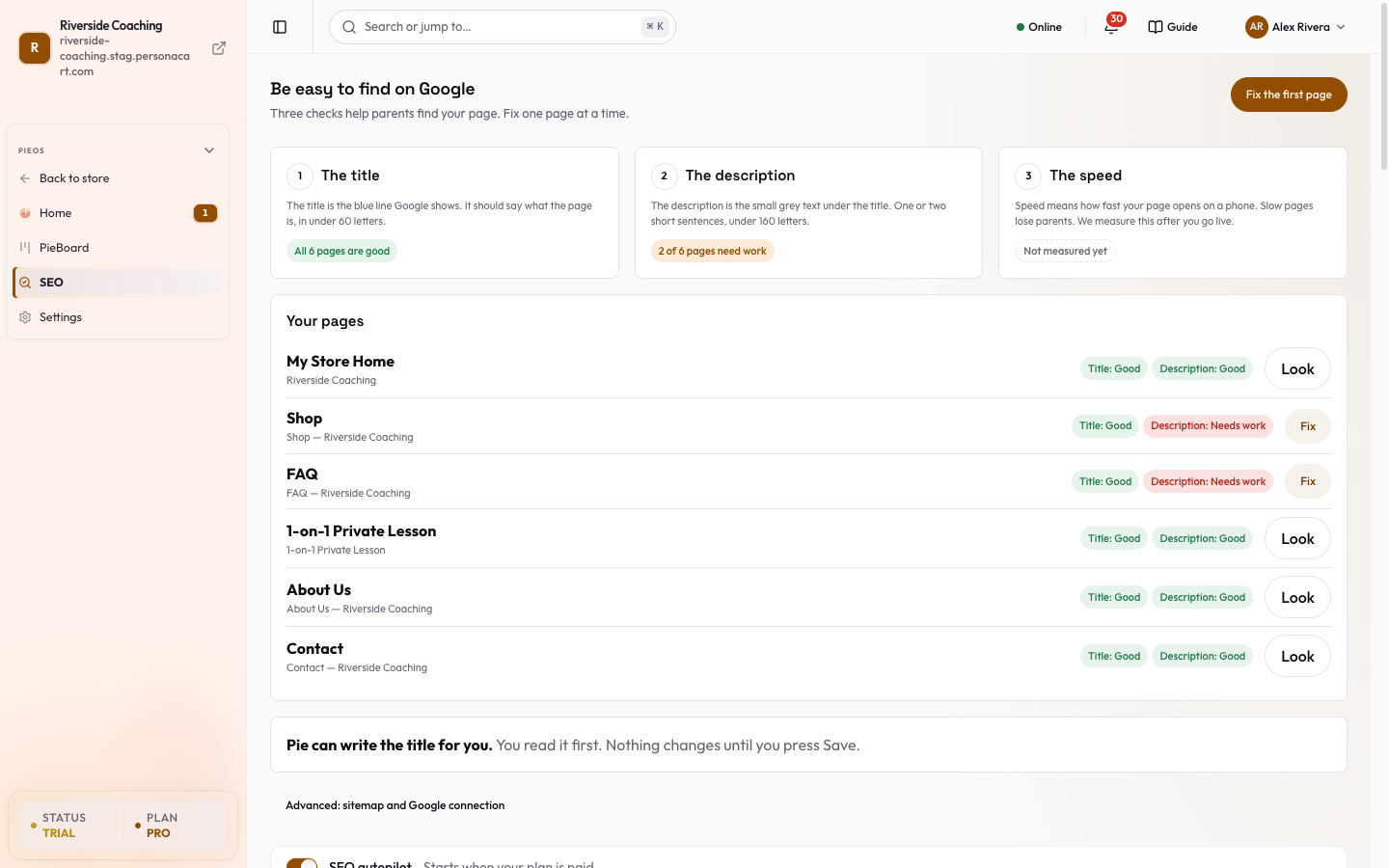
In this video you will learn how to fix one page so Google shows a clear title and description for it. It is for anyone who sells on PersonaCart and wants to be found. You will read the three checks, open the fix panel, and know what Save does before you press it. The title is the blue line Google shows. Keep it under sixty letters. The description is the grey text under it. Write one or two short sentences. This chip counts the pages that still need work: three of nineteen here. Fix these first lists your weakest pages. FAQ scores sixty out of one hundred. Pie can write the title for you. You read it first, and nothing changes until Save. In Your pages, Small fixes counts pages with a gap to close: twelve. Ready means nothing to do. Seven pages are already ready. Press Fix on the FAQ row. That opens the fix for this page. A panel opens for this page. It asks what Google should show, with a preview. Common mistake: a title over sixty letters. Google cuts it, and the counter warns you. I will not press Save, as it changes a real page. Google updates days after Save. So: press Fix, write a short title, read the preview, then Save. Thank you so much for watching PersonaCart. To read the full guide, go to docs dot personacart dot com. To try PersonaCart yourself, go to personacart dot com. And subscribe, so you do not miss the next tutorial.
For the bigger picture (how SEO, GEO and AEO fit together, and what Pie can do for you), read SEO, GEO and AEO. Product SEO fields are described in Product fields.
Where to find it
There are two levels, and they live in different places.
| Level | Where | What it controls |
|---|---|---|
| One page | In the page editor, the SEO tab in the right rail (next to Inspect). Also in the page side sheet of the SEO page (Be easy to find on Google). | That page's search title, description, social image, indexing, keywords, FAQ and structured data. |
| Whole store | SEO / GEO / AEO (sidebar GROW → SEO / GEO / AEO, or the Visitors and Google card in Settings), in the Setup section. | Sharing defaults, Google and Bing verification, whether pages show in search, and which AI assistants can read your store. |
Changes in the page SEO tab save by themselves a moment after you stop typing. A small Saved tick appears at the top.
Page SEO tab (one page)
- The top of the tab shows a rating word (Good, OK, Needs work or Not set), a summary such as "5/6 checks pass", and an AI fill button that drafts the fields for you.
- The draft appears for review ("AI draft ready. Review and tweak before it saves.").
- The checks listed below the summary are clickable: each one jumps to the field it is about.
The checks are: Title length (30-60 chars), Meta description (70-160 chars), OG image set (1200x630 recommended), Canonical URL configured, Page is indexable, and Structured data has no mistakes.
Basic
| Field | What it does |
|---|---|
| Page Title | The blue title in Google results. Aim for 30 to 60 characters; Google cuts off longer titles. Left empty, the page's own title is used. |
| Meta Description | The grey text under the title. Aim for 70 to 160 characters. Left empty, Google writes its own snippet. A Google snippet preview updates as you type. |
| OG Image | The picture shown when the link is shared. Paste a full https:// address or press Library to pick from your media library. Recommended 1200x630. Left empty it is taken automatically from the page's first image (shown as "Auto: …"). An address that is not a full https:// link is flagged because social networks would ignore it. |
| Allow search engines to index | Switch. Off asks search engines not to list the page. Drafts are always hidden from search regardless of this switch. |
Social
- OG Title and OG Description (used by Facebook, LinkedIn and others; they default to the page title and description), Twitter Title and Twitter Description (default to the OG ones), and Twitter Image URL (defaults to the OG image).
- Facebook share and Twitter card previews show the result.
Advanced
- Keywords: up to 20 keywords, each up to 64 characters. Type one and press Enter; press the small cross to remove it.
- Custom Canonical URL: "Only set this if you know why." By default the canonical address is the page's own address on your main domain. If you set one it must be a full
https://address. - Structured data for Google: advanced. Paste JSON-LD that describes the page, for example a Product. A Valid or Invalid badge tells you if the brackets and quotes are right. The top-level value must be an object.
FAQ (for AI search)
Add question and answer pairs (up to 50). They publish as FAQ structured data so Google, ChatGPT and other AI engines can quote your answers. Leave the list empty to use any FAQ sections already on the page.
Auto-generated
Read-only facts PersonaCart works out for you: Canonical URL, Robots meta, Schema.org type, SEO score and Last enriched.
Store-wide settings
Open SEO / GEO / AEO (the page headed Be easy to find on Google) and find the Setup section ("Things you set once").
To set the sharing defaults:
- In the row of jump links under the heading, press Sharing. The page scrolls to Sharing defaults.
- Type your Meta title, then your Meta description. The preview below the form updates as you type.
- Under the form, switch the preview between Google, Facebook and X (Twitter) to see what each one will show.
- Open X (Twitter) card type and choose Small card (text only) or Large card (with image).
- Press Save changes. A toast confirms it, and the Unsaved changes tag disappears.
The jump links also take you to Get found and AI assistants, which are described below.
Sharing defaults
How your store appears when shared on social media, and which address is the real one. Edit the fields and press Save changes. An Unsaved changes tag shows while something is not saved.
| Field | What it does |
|---|---|
| Social share image | Recommended 1200x630px. Shown on Facebook, LinkedIn, Slack and X (Twitter) large-image cards. |
| Meta title | Up to 60 characters. Seeded from your store name. |
| Meta description | Up to 160 characters. A short summary shown in search results and social shares. |
| X (Twitter) handle | For example @yourhandle. |
| X (Twitter) card type | Small card (text only) or Large card (with image). |
| Canonical base URL | The preferred address of your storefront. Must be a bare https:// address with no path, query or #, such as https://yourstore.com. Leave it empty to follow your primary domain automatically. |
A live preview shows how the store will look on Google, Facebook and X. Page-level fields above override these defaults for a single page.
Get found
A checklist headed Getting found ("A few steps to make your store show up in search and AI answers."):
- Verify with Google Search Console: paste the Verification code Google gives you; PersonaCart adds it to your store so Google can confirm you own it. Also verify with Bing takes a Bing verification code.
- Connect Google Analytics: paste your Measurement ID (starts with
G-). This is the same setting as in Tracking and analytics IDs. - Store visibility: Show in search or Hide from search. Hiding sets all your pages to hidden after a confirmation ("Hide your store from search?"). Anyone with the link can still open them. Each page also has its own setting.
- Submit your sitemap: shows Your sitemap URL with Copy link and Open Search Console. PersonaCart cannot submit it for you because its Search Console access is read-only, so you paste the link there once.
AI assistants
- A master switch, Let AI assistants read my store, and one switch per crawler: OpenAI · ChatGPT, Google · Gemini & AI Overviews, Perplexity, Anthropic · Claude and Common Crawl.
- They save the moment you tap a switch. There is no Save button on this card.
- Turning one off blocks that assistant from reading your store, so it cannot recommend your products.
- This does not change what Google or Bing show.
The card also reports Your AI feed is live (a file for AI assistants, auto-generated from your published pages, or your own override) and IndexNow ("Auto-submits to Bing & Yandex the moment you publish").
Sitemap and robots.txt (automatic)
You do not have to build either one.
- Sitemap. Your store serves a sitemap at
/sitemap.xmlon your own domain. It lists your products, collections, pages and blog posts in separate files, and updates as you publish. - robots.txt. Your store serves it for you.
- On your live domain it allows crawling, keeps private areas such as checkout, account, cart and orders out of search, and lists your sitemaps.
- It also reflects the AI assistant switches above.
- A domain that is not your canonical one, and staging copies, ask search engines not to crawl.
- Both files are refreshed about once an hour. Changing the AI switches or Show in search is picked up after the next refresh.
Good to know
- Write the title and description for people first. A clear title near 50 characters and a description near 150 usually fit.
- Hiding the whole store from search is useful before launch. Switch it back to Show in search when you are ready.
- The page-level Canonical is for rare cases such as a page that is a copy of another. Most stores never need to set it.
- Changing a custom domain changes your page addresses. See Domains.
A draft page is always hidden from search, so publish it first.
Questions
Where do I set the Google title for one page?
Open the page in the editor and use the SEO tab in the right rail. Page Title and Meta Description are the first two fields.
What image is used when someone shares my page?
The OG Image of that page. If you leave it empty, the first image on the page is used. The store-wide Social share image is the default for the store.
Why is my page not in Google?
Check that the page is published (drafts are always hidden), that Allow search engines to index is on, that the store is set to Show in search, and that you have verified your site and submitted your sitemap in Search Console.
Do I need to make a sitemap or robots.txt?
No. PersonaCart serves both for your domain and keeps them up to date.
What do the AI assistant switches do?
Each one allows or blocks a specific AI crawler from reading your store. Allowing them helps your products be recommended in ChatGPT, Gemini, Perplexity and Claude. They do not change what Google or Bing show.
Can Pie write my titles and descriptions?
Yes. AI fill in the page SEO tab drafts the fields for you to review, and the Pie SEO agent can propose changes across your store. See the SEO agent page.
Related
Part of Online Store and Storefront Guide · Product page: PersonaCart features