Pages
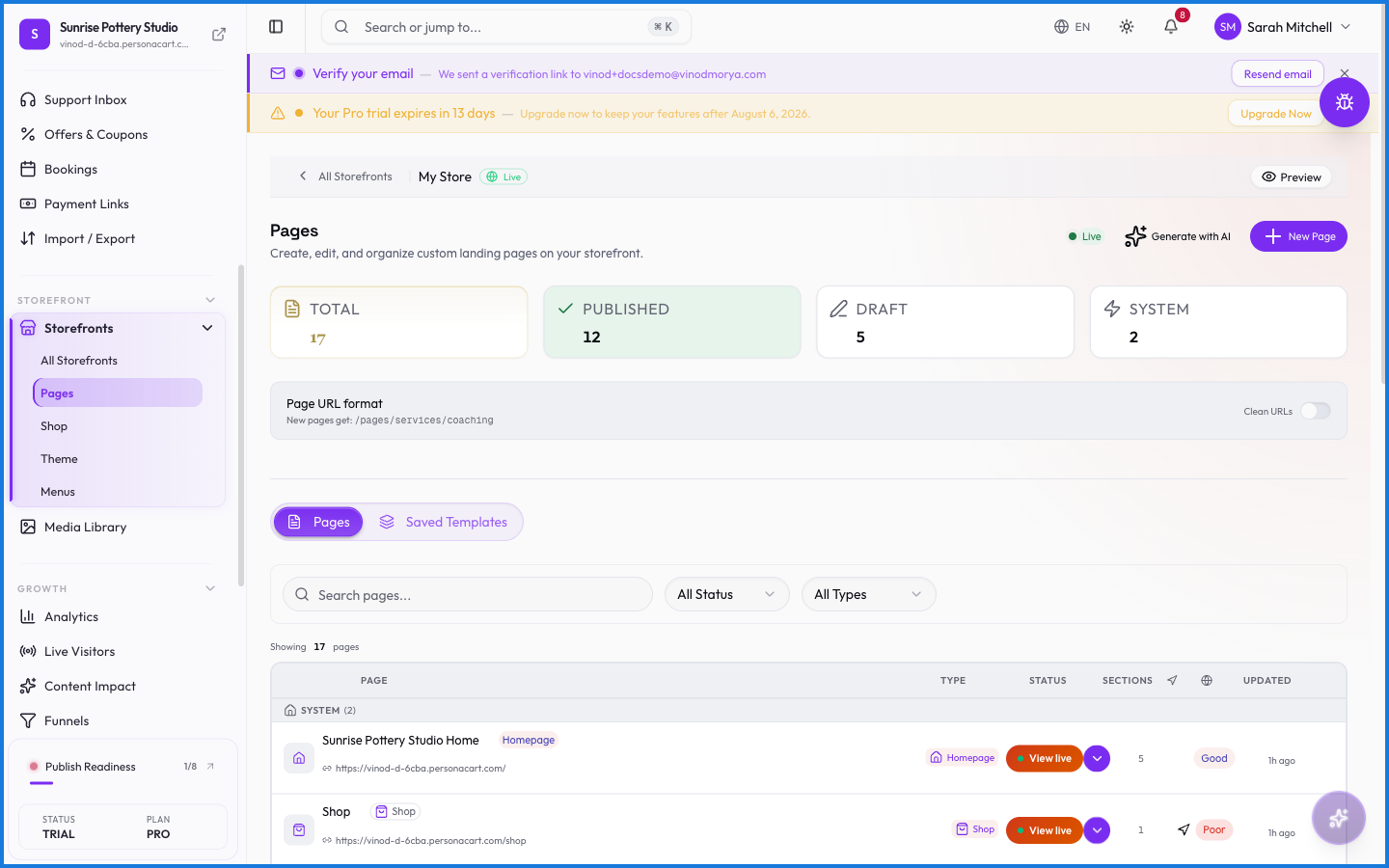
Pages is the table of contents for your store's website: your homepage, about, contact, and any custom pages you build. From here you see what's live, add pages, and open one in the visual editor.
Where to find it
Sidebar → STOREFRONT → Storefronts → Pages.
What you see
A context bar names the storefront you're editing (helpful if you run more than one). Quick stats show total pages, how many are published, and total sections across all pages. Each page lists its status and opens into the editor when you click it.
Building a page
Open a page and you're in the Editor — the visual builder where you add sections, drop in blocks, and arrange them. When it looks right, publish. New pages start from a blank canvas or a starting layout.
What happens — and what doesn't
- A page can be published or draft; drafts aren't visible on your storefront.
- Pages belong to a storefront — if you have several storefronts, each has its own set of pages.
- Publishing a page pushes it live at its URL immediately.
- Deleting a page removes it from the storefront; links pointing to it will break, so update your menus too.
How do I edit a page?
Open it from the Pages screen and you land in the visual editor, where you add and arrange sections and blocks. Publish when you're happy.
Do draft pages show on my store?
No. Only published pages appear on your storefront. Drafts stay private until you publish them.
Can different storefronts have different pages?
Yes. Pages belong to a storefront, so each storefront you run has its own set.
Every field on this screen
Every control here, read straight from the live app.
| Field | Type | What it accepts | What it does |
|---|---|---|---|
| Page Type | Dropdown | — |
1 field, read from the live app. Which ones you see depends on the product type and your plan.
What this screen looks like in every state
| State | When you'll see it | What you see, and what to do |
|---|---|---|
| Empty | You haven't created anything here yet | “No pages found” — with a shortcut to create the first one. Nothing is wrong; there's just nothing to show yet. |
| Loading | The screen is fetching your data | A skeleton in the shape of the finished page. It should be brief — if it persists, the load has failed rather than stalled. |
| Error | The data couldn't be loaded | A message with a retry. Retry first: most of these are a dropped request, not a broken store. If it repeats, the outage is upstream and reloading won't help. |
| No access | Your role doesn't include this screen | A permission notice instead of the page. An owner or admin can grant access under Settings → Team. |
When something goes wrong
These are the messages this screen can show you, and what each one means.
| If you see | What to do |
|---|---|
| "…" is reserved for a built-in store page (like cart or checkout). Choose a different slug. | Retry the action. If it keeps happening, contact support with what you were doing. |
| Cannot delete the shop page. | The change didn't save. Retry — if it keeps failing, the request isn't reaching the server. |
| Delete the product to remove this page. | The change didn't save. Retry — if it keeps failing, the request isn't reaching the server. |
| Page title is required. | A required field is blank. Fill it in and save again. |
| This page is protected and cannot be deleted. | The change didn't save. Retry — if it keeps failing, the request isn't reaching the server. |