Menus
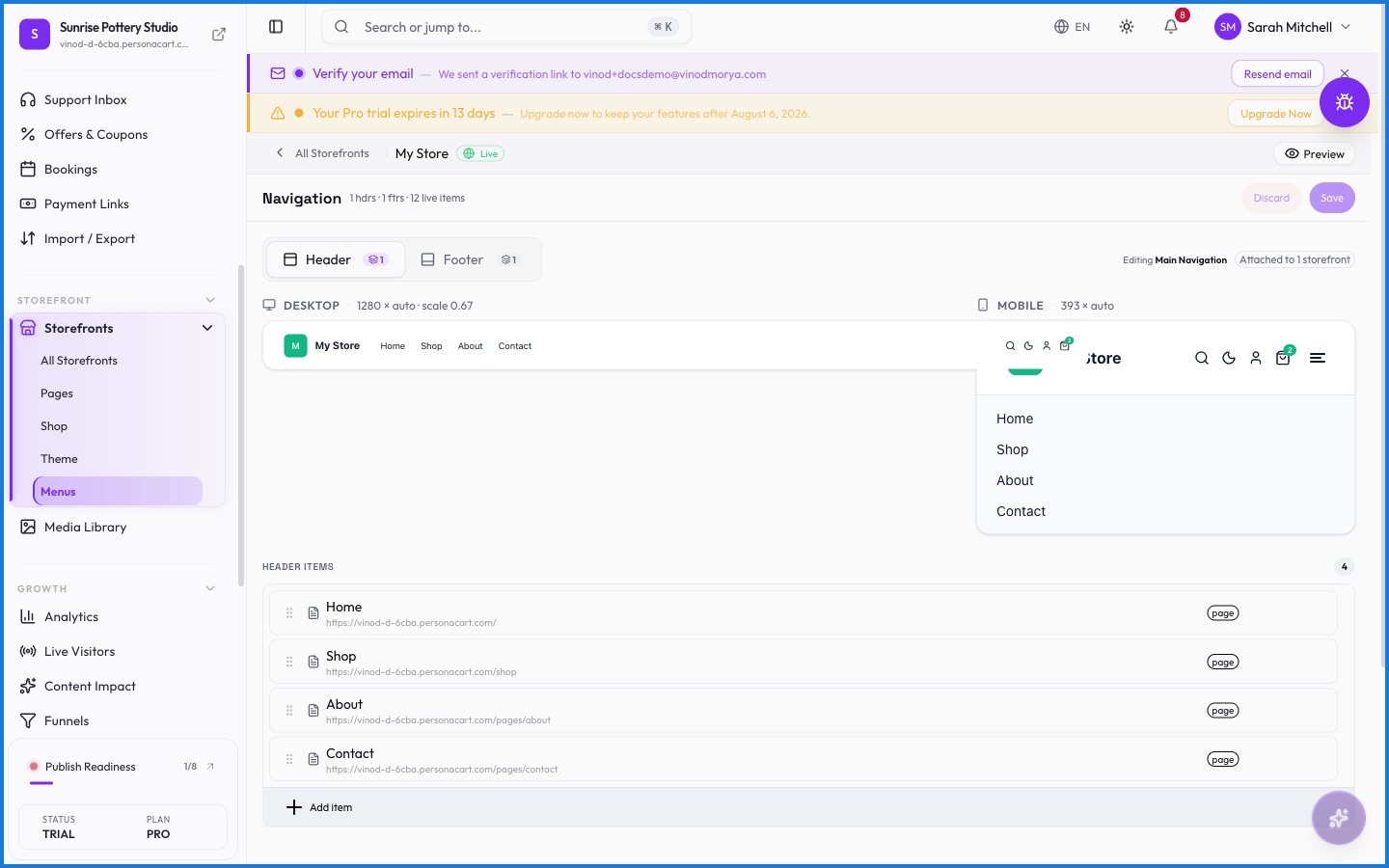
Menus are your store's navigation — the links in the header at the top of every page and the footer at the bottom. You decide what they point to (pages, collections, products, or outside URLs) and the order buyers see them in.
Where to find it
Sidebar → STOREFRONT → Storefronts → Menus.
Building a menu
Each menu is a card marked Header or Footer, showing how many items it holds. Open one to add links — point each to a page, a collection, a product, or an external URL, and drag to reorder. Create Menu starts a new one.
What happens — and what doesn't
- Menus are shared across your store. They're defined once at the account level and reused, rather than rebuilt per storefront — so your navigation stays consistent.
- Header and footer menus are separate, so your top nav and bottom links can differ.
- A menu item that points to an unpublished page will lead nowhere for buyers — keep menus in sync with what's live.
- Reordering items by drag changes the buyer-facing order immediately on save.
What can a menu item link to?
A page, a collection, a product, or an external website. Mix and match, and drag items into the order you want.
Are header and footer menus the same?
No — they're separate menus, each marked Header or Footer, so your top navigation and footer links can be different sets.
Do menus carry across my storefronts?
Menus are defined at the account level and shared, which keeps your navigation consistent rather than something you rebuild for each storefront.
Every field on this screen
Every field for a menu item. Read straight from the live app, so it matches what you see.
| Field | Type | What it accepts | What it does |
|---|---|---|---|
| /sale or /seasonal | Text | — | |
| Column {number} heading | Text | — | |
| Display Label | Checkbox | — | e.g. Menu item label |
| Menu item label | Text | — | |
| Open in new tab | Text | — | e.g. /sale or /seasonal |
| Search collections | Text | — | |
| Search pages | Text | — | |
| Search products | Text | — | |
| Target Collection | Text | — | e.g. Search collections... |
| Target Page | Text | — | e.g. Search pages... |
| Target Product | Text | — | e.g. Search products... |
| URL | Checkbox | — | e.g. https://example.com |
| URL Path | Text | — | e.g. /sale or /seasonal |
13 fields, read from the live app. Which ones you see depends on the product type and your plan.
What this screen looks like in every state
| State | When you'll see it | What you see, and what to do |
|---|---|---|
| Empty | You haven't created anything here yet | “No header items yet” — with a shortcut to create the first one. Nothing is wrong; there's just nothing to show yet. |
| Loading | The screen is fetching your data | A skeleton in the shape of the finished page. It should be brief — if it persists, the load has failed rather than stalled. |
| Error | The data couldn't be loaded | A message with a retry. Retry first: most of these are a dropped request, not a broken store. If it repeats, the outage is upstream and reloading won't help. |
| No access | Your role doesn't include this screen | A permission notice instead of the page. An owner or admin can grant access under Settings → Team. |
When something goes wrong
These are the messages this screen can show you, and what each one means.
| If you see | What to do |
|---|---|
| Attached to … storefront(s) — detach it first | Retry the action. If it keeps happening, contact support with what you were doing. |
| Could not update attachments. Please try again. | The change didn't save. Retry — if it keeps failing, the request isn't reaching the server. |
| Save your changes before cloning a new version. | The change didn't save. Retry — if it keeps failing, the request isn't reaching the server. |