Media Library
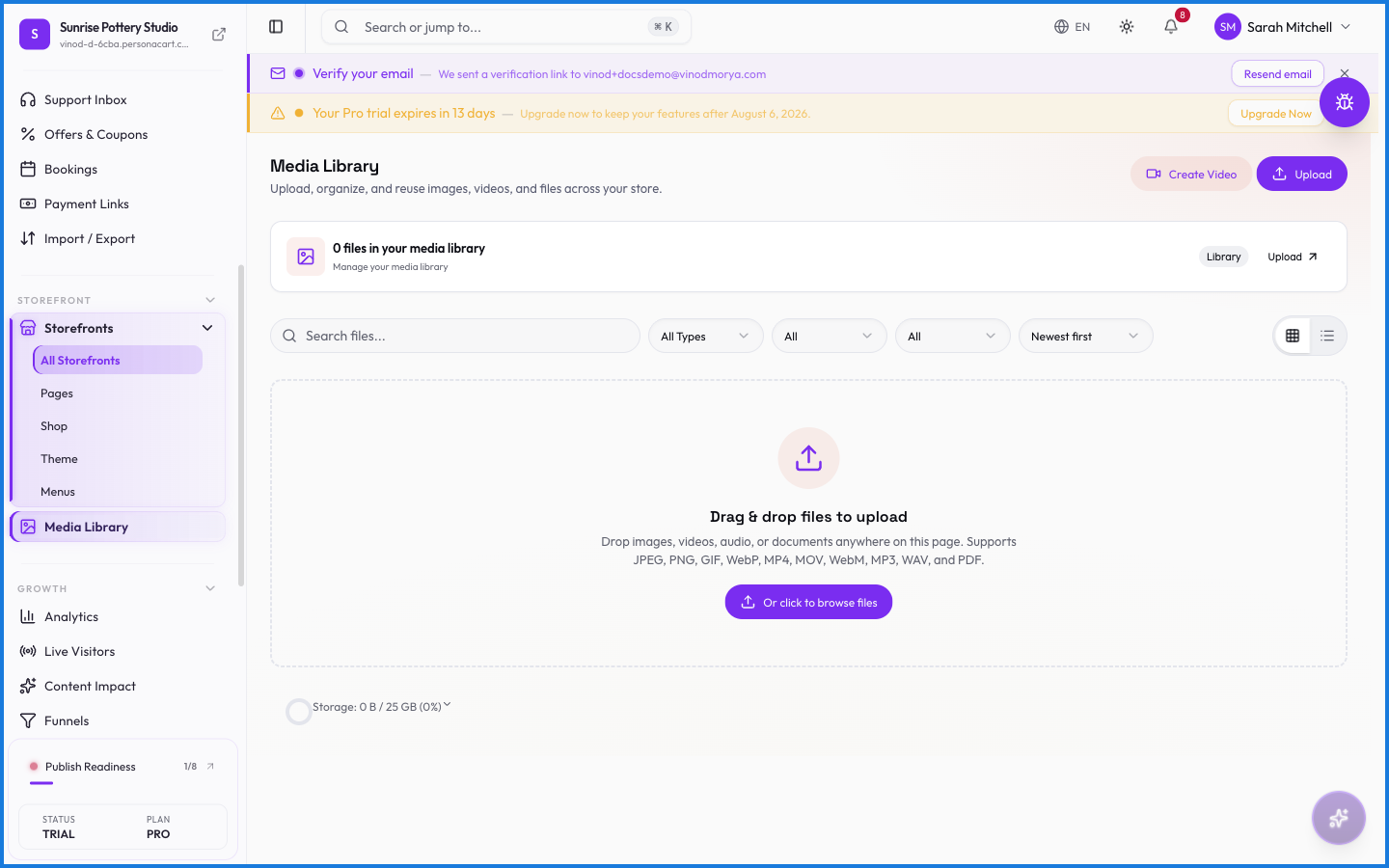
The Media Library is the shared folder for every file your store uses — product photos, course videos, audio, PDFs, your logo. Upload once, use anywhere, and see which products or pages already use a file before you delete it.
Where to find it
Sidebar → STOREFRONT → Media Library.
Uploading and organizing
The Upload button opens a drag-and-drop zone. A storage bar shows how much of your plan's storage you've used, expandable to a breakdown by file type and by public-vs-secure. Files can be tagged, and each shows where it's used across your store.
Public vs. secure files
Every file is either public (visible on the open internet — product photos, your logo) or secure (locked behind buyer authentication — a course video, a paid PDF). Secure files only reach a buyer who's entitled to them, which is how paid downloads stay paid.
What happens — and what doesn't
- Storage counts against your plan. The bar warns you as you approach the limit, and turns red past 90%.
- The library tracks usage — before deleting a file, you can see the products and pages that reference it, so you don't break a live page by accident.
- A secure file is never handed out on a pre-payment page; access follows entitlement.
- Uploading here makes a file available everywhere in your store, rather than tied to one page.
What's the difference between a public and a secure file?
Public files (like product photos) are visible on the open web. Secure files (like a paid course video) are locked behind buyer authentication and only reach entitled buyers.
How do I know if a file is still in use before deleting it?
The Media Library tracks usage. Each file shows which products and pages reference it, so you can avoid breaking a live page.
What happens when I run low on storage?
The storage bar warns you as you approach your plan's limit and turns red above 90%. You can upgrade storage or remove unused files.
Every field on this screen
Every field on a media item. Read straight from the live app, so it matches what you see.
| Field | Type | What it accepts | What it does |
|---|---|---|---|
| After Label | Text | — | |
| Alt Text * | Text | — | |
| Before Label | Text | — | |
| Call to Action | Text | — | |
| Category | Dropdown | — | |
| Collection Name | Text | — | |
| Comparison Features | Text | — | |
| CTA Text | Text | — | |
| Customer Name | Text | — | |
| Customer Quote | Text | — | |
| Discount % | Slider | — | |
| Filename | Text | — | |
| Left Product | Text | — | |
| Original Price | Text | — | |
| Price | Text | — | |
| Product Name | Slider | — | |
| Product Title | Text | — | |
| Products | Text | — | |
| Rating | Text | — | |
| Review Text | Text | — | |
| Reviewer Name | Text | — | |
| Right Product | Text | — | |
| Sale Price | Text | — | |
| Sale Text | Slider | — | |
| Security Policy | Choice | — | |
| Sort | Dropdown | — | |
| Status | Dropdown | — | |
| Store Name | Text | — | |
| Subtitle | Text | — | |
| Tagline | Text | — | |
| Tags * | Tags | — | e.g. Add a tag... |
| Title | Dropdown | — | Choices: CrossfadeSlideZoom |
| Transition Style | Dropdown | — | Choices: CrossfadeSlideZoom |
| Type | Dropdown | — | |
| Variants | Text | — |
35 fields, read from the live app. Which ones you see depends on the product type and your plan.
What this screen looks like in every state
| State | When you'll see it | What you see, and what to do |
|---|---|---|
| Empty | Nothing matches the filters or search you have applied | “No files match your filters” — the data may well exist; clear the filters or widen the date range to see it. |
| Loading | The screen is fetching your data | A skeleton in the shape of the finished page. It should be brief — if it persists, the load has failed rather than stalled. |
| Error | The data couldn't be loaded | A message with a retry. Retry first: most of these are a dropped request, not a broken store. If it repeats, the outage is upstream and reloading won't help. |
| No access | Your role doesn't include this screen | A permission notice instead of the page. An owner or admin can grant access under Settings → Team. |
When something goes wrong
These are the messages this screen can show you, and what each one means.
| If you see | What to do |
|---|---|
| File URL not available | The file was rejected. Check its size and type against what the field accepts. |
| No preview URL available | Retry the action. If it keeps happening, contact support with what you were doing. |
| No preview available | Retry the action. If it keeps happening, contact support with what you were doing. |
| Secure assets cannot be downloaded | Retry the action. If it keeps happening, contact support with what you were doing. |
| Secure assets don't have public URLs | Retry the action. If it keeps happening, contact support with what you were doing. |
| Secure assets require authenticated access | Retry the action. If it keeps happening, contact support with what you were doing. |
| Upload blocked for your safety | Do what the message asks, then try again — it names exactly what's missing. |
| Upload failed | Do what the message asks, then try again — it names exactly what's missing. |