Create Video
In short: Make a short promo video in your browser: answer a few questions, pick a ready-made design, add music and save it to your Media Library.
- Create Video turns a product, some photos or just your words into a short, designed video, ready for your page, Reels, Shorts, Stories or YouTube.
- You answer a few quick questions, pick a ready-made design that is already filled with your own content, make a few final touches and press Make video.
- The finished video is saved in your Media Library.
Where to find it
Media Library → Make a video. A product's editor also has an Intro video card that opens the same designs (see below).
Create Video needs a plan that includes it; a notice explains if yours does not.
The video is made in your browser, on your device. Use Chrome, Edge, Firefox 130+ or Safari 26+ ("This browser can't make videos" appears elsewhere). Keep this tab open until it says ready: if you switch tabs the video pauses, and closing the page stops it with nothing saved.
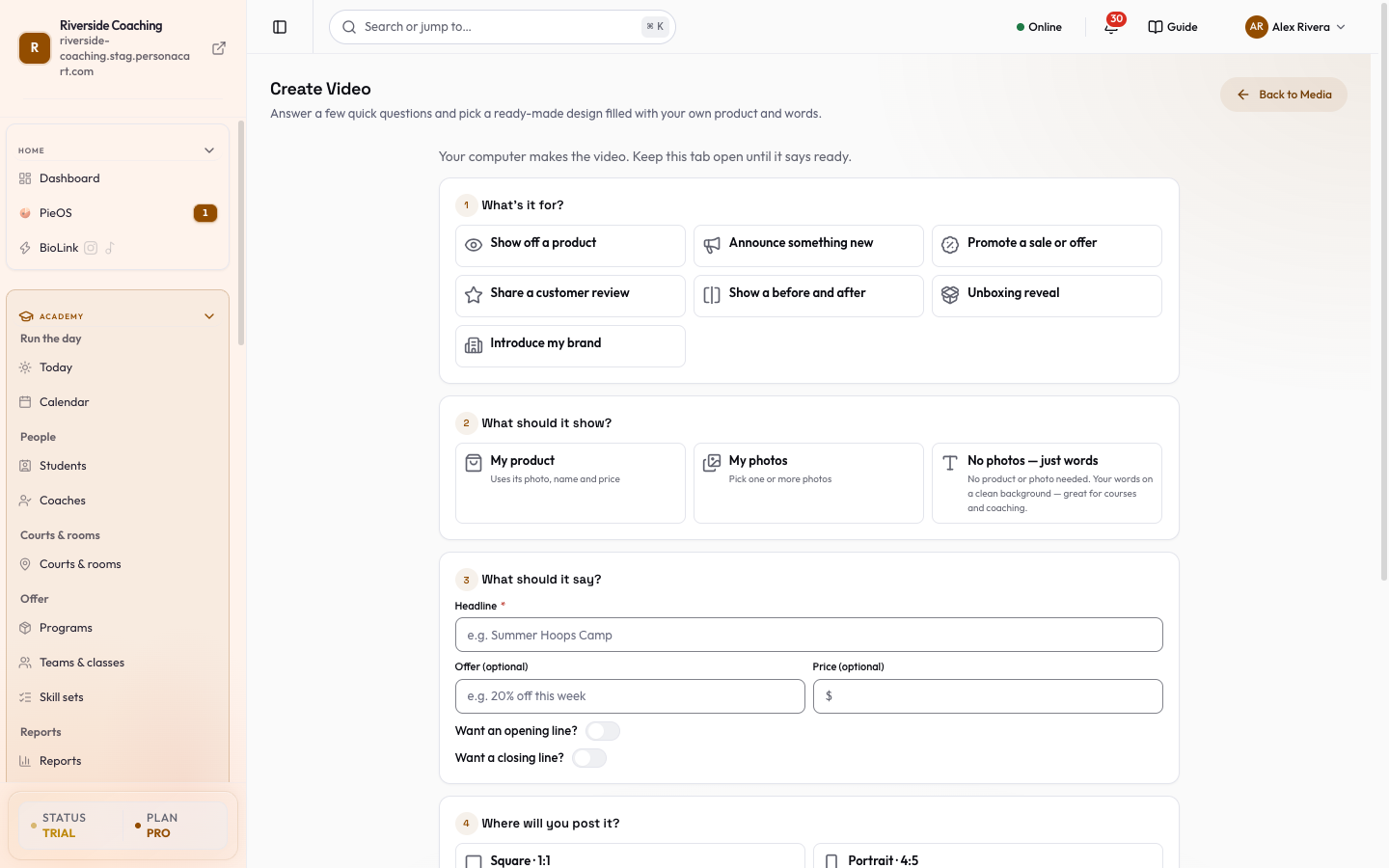
The questions
The page description reads "Answer a few quick questions and pick a ready-made design filled with your own product and words."
| Question | Choices |
|---|---|
| What's it for? | Show off a product, Announce something new, Promote a sale or offer, Share a customer review, Show a before and after, Unboxing reveal, Introduce my brand. |
| What should it show? | My product (uses its photo, name and price; Choose a product), My photos (pick one or more) or No photos — just words ("Your words on a clean background: great for courses and coaching"). |
| What should it say? | Headline (for example "Summer Hoops Camp"), Offer (optional) (for example "20% off this week") and Price (optional). |
| Where will you post it? | Square (product page and feed posts), Portrait (listing cards and taller feed posts), Vertical (Reels, Shorts and Stories) or Landscape (website banner and YouTube). |
| How long? | Video length in seconds, with a hint: Quick for Reels and Stories, Standard with room for a few photos, Long for YouTube or your website. |
The button is off until you have picked a goal, chosen what to show and added a headline ("Pick what the video is for", "Choose what the video should show", "Add a headline"). Show my videos takes you back to your finished videos.
Pick a design
- Pick a design shows how many designs were made with your content.
- At the top, Best for you lists the three that fit your answers best ("Not sure? Pick the first one.").
- More designs (and Show N more designs) shows the rest; narrow them by mood (All, Bold, Calm, Fun, Clean, Classic) and colour (Bright or Deep).
- Press play on a card to watch a preview.
- If nothing fits, "No designs fit these answers yet" suggests a different length, post size or goal; Change answers goes back.
The designs cover many styles:
- Product Showcase, Sale Announcement, Slideshow, Before / After, Brand Intro, Testimonial, Flash Sale, Unboxing Reveal, Collection Grid, 3D Carousel, Side by Side.
- Cinematic looks such as Luxury Reveal and Beauty Macro.
- Mood families such as Bold Sale, Calm Luxury, Playful Pop, Fitness Energy, Course & Coaching, Countdown Offer, Neon Night and Vintage Film.
Press Use this on the one you like.
Final touches
The next step is Final touches: (design name):
- Headline, Offer and post size: change them here too, without going back. Vertical is picked by default.
- Photo order: Photo 1, Photo 2... with Move photo N earlier and Move photo N later, Add photos and Remove photo N. Product (tap to change) swaps the product.
- Opening line: switch on Want an opening line? and type it ("Shown at the very start.").
- Closing line: switch on Want a closing line? ("Shown at the very end.").
- Music: Add music (use music you own or have the rights to use), Change, Remove music and Music volume.
Your answers are kept for this browser tab, so if you close the window by mistake you can pick up where you stopped.
Then press Make video. Progress reads Making your video… N%, Uploading… N% and Saving to your Media Library…. Cancel stops it: "Stopped. Nothing was saved."
When it is ready
Your video is ready: "It's saved in your Media Library." Buttons: Download, Open Media Library and Make it again. In the library, a video made here re-opens in Create Video with its design and words, so you can edit it later.
Intro video on a product
A product's editor has an Intro video card: "A short video made from this product's photos and words. No price, so it never goes out of date."
- Create intro video lets you Pick a design; Change words or design adjusts it.
- The result is "Added to this product's media. Press Save to keep it."
- Its closing line depends on the product type (for example "Shop now" for a physical product, "Enroll now" for a course, "Book now" for a service).
Good to know
- Photos come from your library or can be added in the flow; a design that needs a photo shows No photo if you have none ("Add a photo to make a picture video, or make a video with just the words"; Use words only).
- Videos count toward your storage.
Nothing is saved until the video finishes. Closing the page mid-way stops it ("Stop making this video?" lets you Keep making or Stop and close).
Questions
Can I make a video without photos?
Yes. Choose No photos — just words. Your words appear on a clean background; designs marked Words only are made for this.
Why did my video pause?
Your computer makes the video, and it pauses when you switch tabs. Come back to the tab and keep it open until it says ready.
Where does the finished video go?
To your Media Library. Download it from the finished screen or from the library to post it on social media.
Can I add my own music?
Yes, use Add music in Final touches. Please use music you own or have the rights to use.
Related
Part of Online Store and Storefront Guide · Product page: PersonaCart features