Popups and urgency tools
In short: Switch on the exit popup, sale countdown, sticky add-to-cart bar and trust badges on your store, and see how each did in the last 30 days.
- Small helpers on your storefront that turn visitors into buyers: a popup with an offer for someone about to leave, a countdown on sale products, a buy bar that stays in view, and badges that build confidence.
- The Popups and urgency tools screen is the switchboard.
- It has one switch per tool, a plain line saying what visitors will see and when, and the last 30 days of results.
- The words and the look of each tool are edited in a side sheet over your live store.
Where to find it
Settings → Visitors and Google → Popups and urgency tools. You need access to storefronts and a plan that includes conversion tools (Starter and above). A team member who can read but not change storefronts sees the page with a read-only notice.
The page has three tabs at the top (Tracking and analytics, Popups and urgency tools, Search & AI visibility) and a jump bar for Popups and urgency and Help visitors decide. When you change a switch, a bar at the bottom shows how many changes are waiting, with Discard and Save.
- You can also open the same tools in the page editor, from the target-icon button Popups and urgency tools in the editor header (under More on a narrower window).
- A sheet opens over your live store, with three rates for the last 30 days at the top (Cart Add Rate, Checkout Rate and Purchase Rate, a dash until your store has tracked visitors) and the four tabs described below.
- See the editor for the rest of the editor.
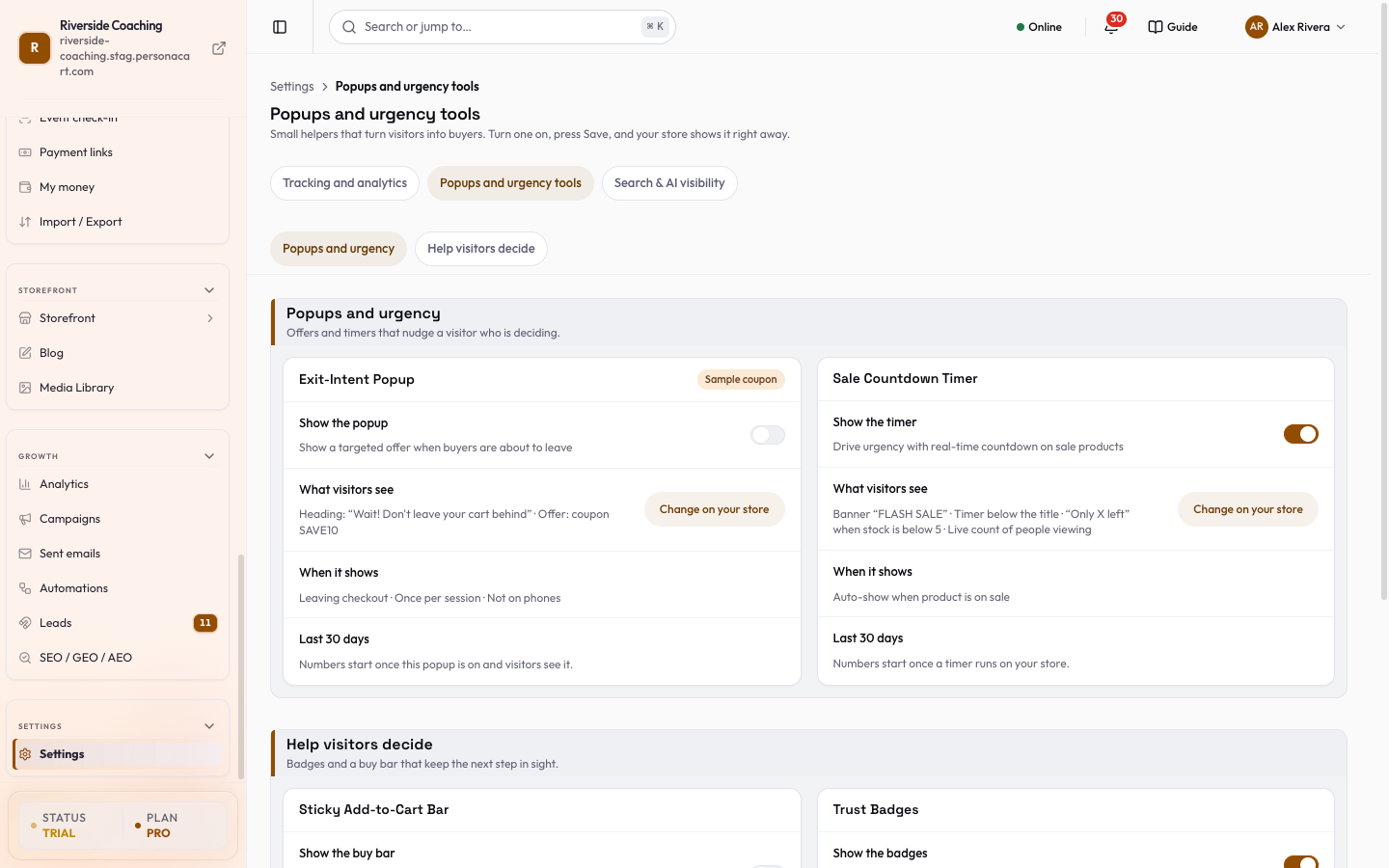
The switchboard
Turn a tool on or off with its switch, then press Save in the bar at the bottom. Nothing is sent until you press Save (or Discard). Your store shows the change right away after saving. Until the page has loaded, the switches stay locked so a half-loaded page cannot overwrite your settings.
If none of the tools is on yet, the page says "None of these are on yet. Most stores start with the exit popup." and offers a one-tap way to switch the popup on.
Every tool card has the same rows: the switch, What visitors see (a one-line summary with a Change on your store button), When it shows, and Last 30 days (figures appear only for tools that have them).
Popups and urgency
Section Popups and urgency: "Offers and timers that nudge a visitor who is deciding."
| Card | Switch | What visitors see | Last 30 days |
|---|---|---|---|
| Exit-Intent Popup | Show the popup | A popup with your heading and, if you set one, an offer: a coupon code, a percent off, or nothing. | Popups shown, Carts recovered, Revenue saved |
| Sale Countdown Timer | Show the timer | Your banner text, a timer in the position you chose, and optionally "Only X left" and a live count of people viewing. | Active timers, Timer views, Purchases |
The exit popup card carries a Sample coupon tag while its offer is still the example coupon code. Change it before you rely on it.
Help visitors decide
Section Help visitors decide: "Badges and a buy bar that keep the next step in sight."
| Card | Switch | What visitors see |
|---|---|---|
| Sticky Add-to-Cart Bar | Show the buy bar | A bar at the top or bottom of the screen with the Add to Cart button, plus whichever of image, price, quantity and variant picker you left on. Its When it shows row has an Open Theme button, because product pages are controlled in Theme. |
| Trust Badges | Show the badges | The badge texts you wrote, above or below Add to Cart, at checkout or everywhere. With nothing written, "Nothing to show yet. Write a badge's text and it appears here." |
| Platform Security Badges | switch | Verified platform security signals (SSL, encryption, secure payments, GDPR) in your storefront footer. These are fixed by PersonaCart; you can only show or hide them. |
Change the words and the look
- Each Change on your store button opens the Popups and urgency tools sheet over your live store, on that tool's tab: Exit Intent, Sticky ATC, Trust Badges or Countdown.
- Each tab opens with the tool's master switch (Enabled or Disabled), a live preview, and the settings below.
- Edits are saved with Save Changes; Reset to defaults puts the starting values back.
- Changes appear live on your storefront once saved.
Exit Intent
- Last 30 Days: popups shown, carts recovered and revenue saved. They count only visitors who accepted analytics cookies. Carts recovered are orders placed with the popup's coupon code, so they are attributed by code.
- Content: Heading, Subheading, Button text and Secondary link (the "No thanks" text).
- Trigger: When to show popup is Leaving checkout (highest intent), Leaving cart (cart page only) or Any page (broadest coverage).
- Display frequency is Once per session, Once per day or Once ever.
- Show on mobile turns it on for phones and tablets.
- Delay before enabling is a slider from 0 to 30 seconds.
- Offer: No discount, Existing coupon (pick one of your own active coupons; with none yet, the card says so and links to Create a coupon) or Auto % off (5 to 50 percent). Show countdown timer adds a 15 min, 30 min or 1 hour timer to the offer.
Sticky ATC
- Display: Product pages (turned on or off for every product page in Theme → Product page → Mobile Sticky Buy Bar; one product page can override it on its own hero), Collection pages, Show on mobile.
- Elements: Product image, Price, Quantity selector, Variant selector (off to start with).
- Style: Bar position, Bottom (recommended) or Top. The bar appears when the main Add to Cart button scrolls off screen.
Trust Badges
- Position: Below ATC, Above ATC, Checkout or All.
- Built-in Badges: the badges you can reorder by dragging.
- Badge text is exactly what buyers read.
- PersonaCart never fills these in for you, so a badge you leave empty stays hidden.
- Add Custom Badge adds your own, and Reset badges puts them back.
- Numbers are not checked against your shipping or returns settings, so write only what is true.
- Extras: Estimated delivery date and Return policy near ATC.
Countdown
- Auto-Detect: Auto-show when product is on sale (shows when the compare-at price is higher than the price) and Show on collection pages (a timer badge on product cards).
- Manual Control: Sale end date & time, or Use product schedule to take it from the product's own schedule.
- Urgency Elements: "Only X left in stock" with the Show when field, a number of units below which the message appears, and Social proof viewers, a live count of people viewing.
- Banner text: leave empty to hide the banner.
- Style: Timer position (Above image, Below title, Above ATC) and Color scheme (Red (urgency), Brand, Custom).
Turn on the exit popup
- Open Settings → Popups and urgency tools and switch Show the popup on.
- Press Change on your store next to What visitors see.
- On the Exit Intent tab write the Heading and Button text, choose the Offer and set the Trigger.
- Press Save Changes, then check the live preview and your store.
Good to know
- The switch on the page and the switch in the sheet are the same setting. Changing it in one place changes the other.
- Numbers show a dash until there is something to count. Popup figures start once the popup is on and visitors see it; timer figures start once a timer runs on your store.
- Visitors who have not accepted analytics cookies are not counted in the popup figures.
- Trust badge text is shown exactly as you write it. Keep delivery and returns claims in line with your own settings.
Saving applies to your live store at once. Unlike page edits, these tools do not wait for Publish, and they are store-wide, not per page.
If the exit popup is on without a coupon, popups are counted but recovered orders cannot be attributed. Choose an Existing coupon so recovered carts are counted.
Questions
Why is nothing happening on my store after I flipped a switch?
Press Save in the bar at the bottom of the page. Nothing is sent until you save, and Discard puts back what the server has.
Where do I change the popup text?
Press Change on your store. It opens the Exit Intent tab of the sheet over your live store, where you edit the heading, subheading, button text, offer and trigger.
Does the sticky bar work on product pages?
Yes, and product pages are controlled in Theme (Product page, Mobile Sticky Buy Bar). The Open Theme button on the Sticky Add-to-Cart Bar card takes you there.
What is the Sample coupon tag?
The exit popup is still offering the example coupon code. Choose your own offer before you rely on it.
Why does the Carts recovered figure show zero?
Recovered orders are counted by the popup's coupon code. Set the Offer to an Existing coupon so orders can be attributed.
Can I edit the security badges?
No. They reflect platform-level security and can only be shown or hidden.
Related
Part of Online Store and Storefront Guide · Product page: PersonaCart features