Webhooks
In short: Send events from your store, such as new orders, payments and bookings, to a web address you control. Add an endpoint, check signatures and fix a failing one.
A webhook sends a message to a web address of your choice the moment something happens in your store: an order is placed, a payment succeeds, a booking is made. It is how you connect PersonaCart to Zapier, Make, n8n, your own server, or any tool that can receive a web request.
Where to find it
Sidebar → SETTINGS → Developer tools → Webhooks. The page has Endpoints (the addresses we send to and how each one is doing) and Security (how your server checks a request is real).
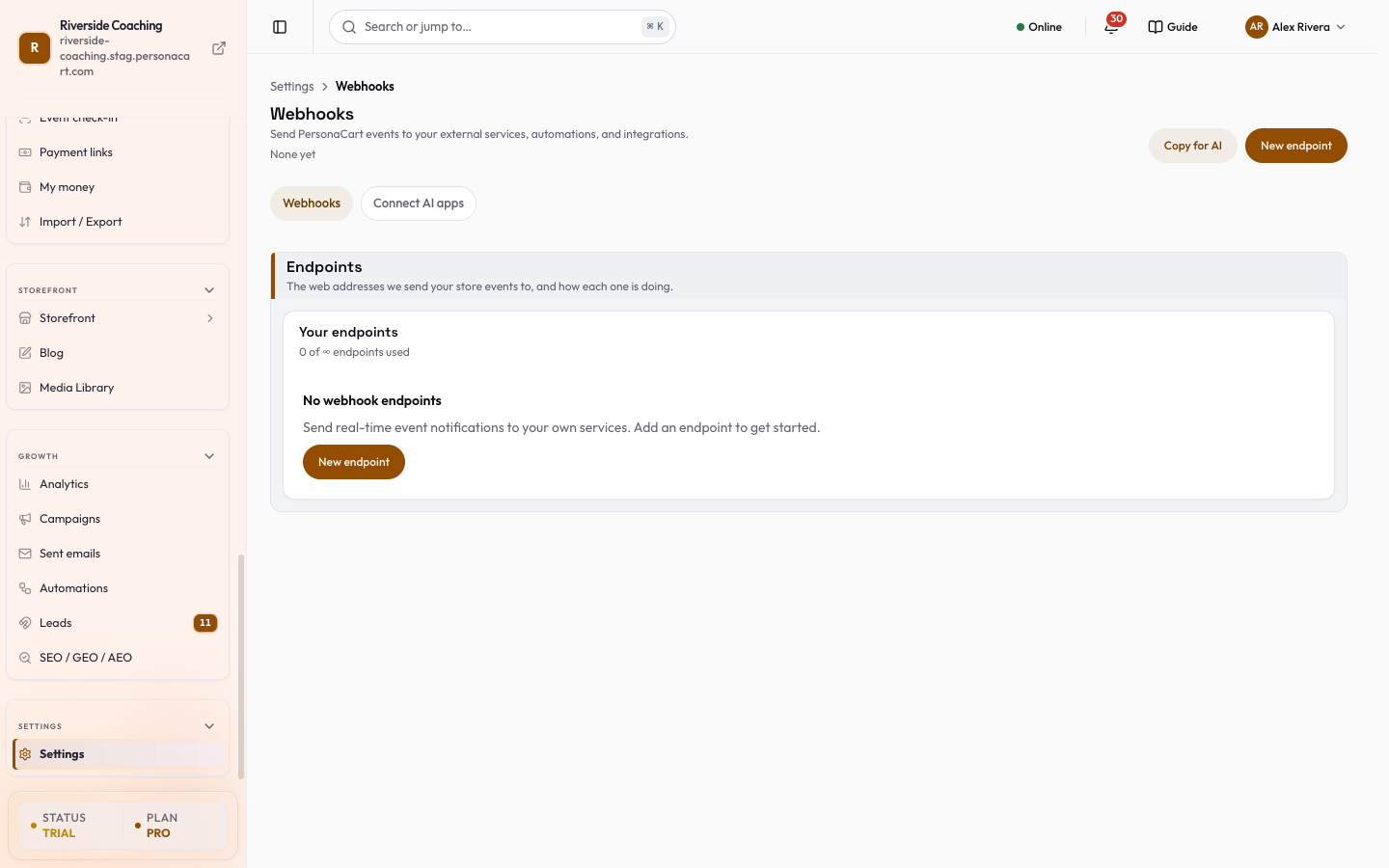
Add an endpoint
- Press New endpoint.
- Enter the Endpoint URL. It must start with https. Addresses that point to localhost or a private network are not accepted.
- Add a Description so you remember what it is for.
- Tick the events it should receive. You must pick at least one. Press View sample payload next to an event to see the exact data first.
- Press Create endpoint. A signing secret appears once. Copy it and store it safely; it is not shown again.
Press Send test on an endpoint to send a sample event right now and see that your server receives it.
Which events can you send
Events are grouped by what happened. Examples:
| Area | Events |
|---|---|
| Orders | created, updated, completed, fulfilled, delivered, cancelled, refunded, disputed |
| Payments | succeeded, failed, refunded |
| Bookings | created, confirmed, updated, rescheduled, cancelled, completed, no-show |
| Customers and leads | customer created or updated, lead created or converted, contact form submitted, newsletter subscribed |
| Checkout | started, completed, abandoned |
| Subscriptions | created, renewed, payment failed, cancelled |
| Products | created, updated, deleted, low stock, price dropped |
| Courses | enrolment created, lesson completed, course completed, certificate issued |
| Other | invoices, reviews, support tickets, wishlist changes, campaigns |
- The endpoint form shows the exact list for your store.
- On the Starter plan, order, payment, booking, customer and lead events are sent.
- Other events are saved on the endpoint, marked Pro, and start sending when you upgrade, with no setup again (see Plans, limits and what is included).
Check a request really came from us
Anyone can send a request to your URL, so check before you act on one. Every webhook is signed with that endpoint's signing secret, using the Standard Webhooks method:
- Check the signature. The headers
webhook-id,webhook-timestampandwebhook-signaturecarry it. A Standard Webhooks library does the check for you when you give it your secret. If the signature does not match, ignore the request. - Refuse old requests. Anything older than 5 minutes is rejected, so a copied request cannot be replayed later.
- Handle each event once. We may send the same event again (a retry). Save each
webhook-idand skip ones you have seen. - Using Zapier, Make or n8n? Add an extra header (name and value) when you edit the endpoint. It is sent with every webhook and the value is stored encrypted and never shown again.
We do not publish fixed sending IP addresses, so do not rely on an IP allowlist. Check the signature.
Rotate the signing secret
Press Rotate secret to get a new one. You choose when the old one stops working: in 24 hours, in 1 hour, or right now (use this if it leaked). That gives you time to update your server.
Watch the delivery log
- Open View Deliveries on an endpoint to see each attempt: time, event, status (success, failed, pending, retrying), response and duration.
- Filter by status, event or date.
- Retry sends one failed delivery again, and Retry all failed queues every failed one.
- The log is kept for 3 days on Starter, 7 on Pro and 30 on Scale.
Each endpoint shows sent, delivered and failed counts, a success rate and a health label.
Pause, resume and failing endpoints
- Pause stops sending to an endpoint without deleting it. Resume starts again.
- If an endpoint keeps failing, or its server answers that the address is gone (HTTP 410), we stop sending and mark it Disabled — failing. Fix the URL or your server, then press Re-enable. Events from the last 72 hours are sent again.
- If your plan allows fewer endpoints than you have, the newest ones show Paused by plan. Nothing is deleted. Upgrade or remove another endpoint and they send again.
Good to know
Deleting an endpoint stops every delivery to it and cannot be undone. Webhooks also send your store's data to another service, so only add addresses you control or trust.
AI tools can only set up a new webhook with your approval. See Connect AI.
Questions
Do webhooks need an API key?
No. We send them to your server, and each endpoint has its own signing secret. API keys are only for AI tools and scripts that connect to PersonaCart.
How many endpoints can I add?
There is no cap on the paid plans. Your plan sets which events are sent and how long the delivery log is kept.
I lost my signing secret.
It is shown only once. Use Rotate secret to get a new one.
Why does my endpoint say Disabled?
It kept failing, so we stopped sending. Fix your server or the URL and press Re-enable; the last 72 hours of events are sent again.
Related
Part of Store Settings Guide · Product page: PersonaCart features