Team
Team settings let you bring other people into your store — a virtual assistant, a business partner, a designer — and control what each can touch through roles. You invite by email; they see your store in their own account.
Where to find it
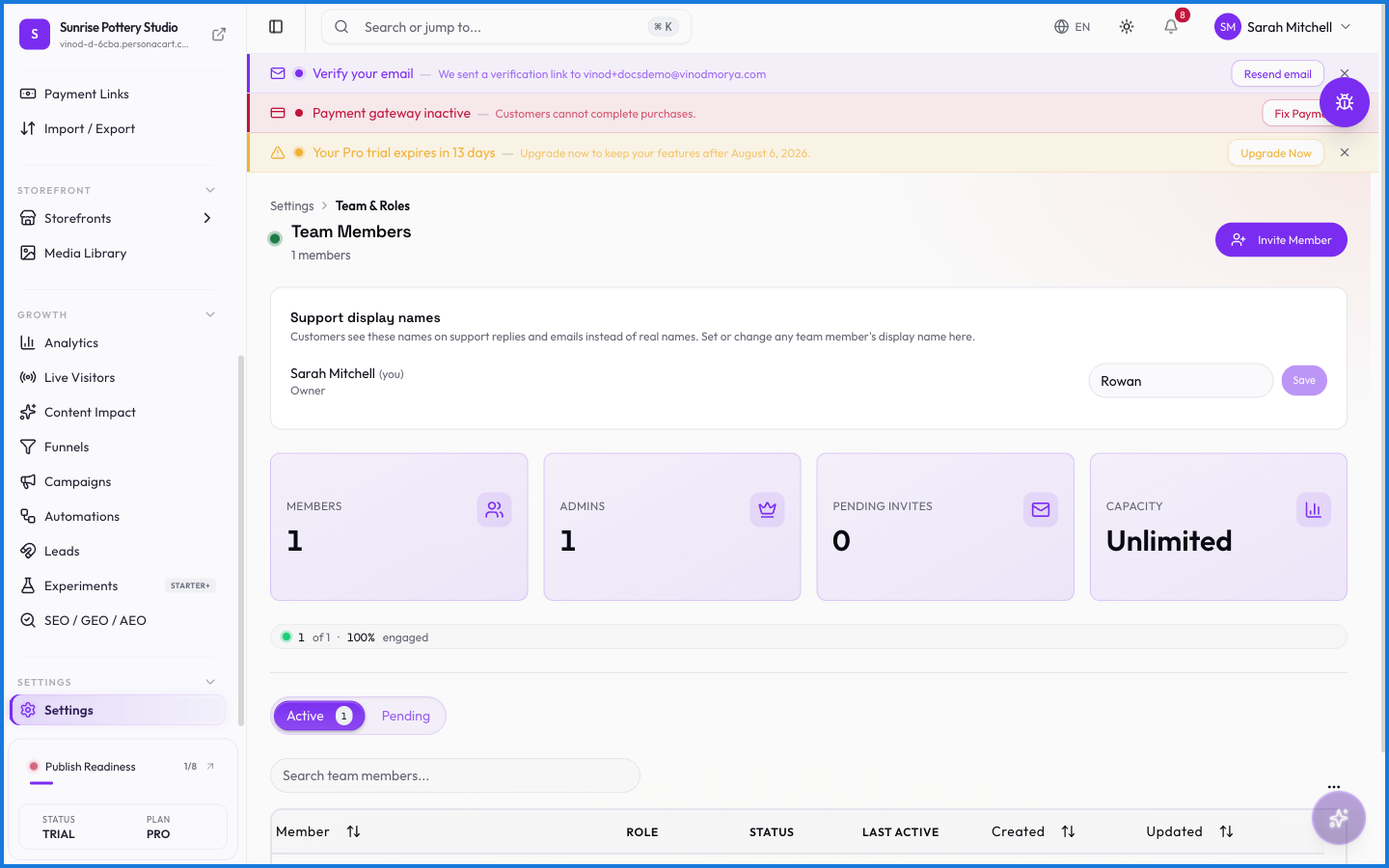
Sidebar → SETTINGS → Settings → Team & Roles.
Roles and access
Each member has a role that decides their permissions — what they can view and change. You own the store; invited members act within the role you give them. They manage this store from their own login, seeing it in their My Stores list.
What happens — and what doesn't
- A member's role follows them per store — someone could be an editor here and an owner of their own store elsewhere.
- Invites go by email; the person accepts and gains access at the role you set.
- Removing a member revokes their access immediately; it doesn't touch the store's data.
- What a member can do everywhere in the store follows their role — the permission model is consistent.
How do I give someone access to my store?
Invite them by email from Team & Roles and assign a role. They accept, and the store appears in their own My Stores list with the access that role grants.
Can I control what a team member can change?
Yes. Each member has a role that sets their permissions across the store, so you decide how much they can view and edit.
Every field on this screen
Every field for inviting someone and setting what they can touch. Read straight from the live app, so it matches what you see.
| Field | Type | What it accepts | What it does |
|---|---|---|---|
| Email Address | Dropdown |
| e.g. [email protected] |
| New Role | Dropdown | — | |
| Role | Dropdown | — |
3 fields, read from the live app. Which ones you see depends on the product type and your plan.
What this screen looks like in every state
| State | When you'll see it | What you see, and what to do |
|---|---|---|
| Empty | You haven't created anything here yet | “No active members yet” — with a shortcut to create the first one. Nothing is wrong; there's just nothing to show yet. |
| Loading | The screen is fetching your data | A skeleton in the shape of the finished page. It should be brief — if it persists, the load has failed rather than stalled. |
| Error | The data couldn't be loaded | A message with a retry. Retry first: most of these are a dropped request, not a broken store. If it repeats, the outage is upstream and reloading won't help. |
| No access | Your role doesn't include this screen | A permission notice instead of the page. An owner or admin can grant access under Settings → Team. |
This screen has more than one empty state depending on what you're looking at: “No active members yet”, “No pending invitations”.
When something goes wrong
These are the messages this screen can show you, and what each one means.
| If you see | What to do |
|---|---|
| Couldn't save — please try again | The change didn't save. Retry — if it keeps failing, the request isn't reaching the server. |
| Invalid email: … | The value isn't in the expected format. Check it against the field's rules above. |
| Please enter an email address | Do what the message asks, then try again — it names exactly what's missing. |
| Two rows have the same email. Please remove the duplicate. | That value is already used. Pick a different one. |