Scheduled reports
In short: Have sales, orders to ship, new customers or top products emailed to you and your team on a schedule: how often, what time and who receives each report.
Scheduled reports put the numbers you check most in your inbox, automatically. Pick a report, how often, and who gets it.
Where to find it
Sidebar → Settings → the Scheduled reports tab. The page is titled "Report emails". Anyone on staff can read the page; adding, changing and deleting schedules need the owner or an admin.
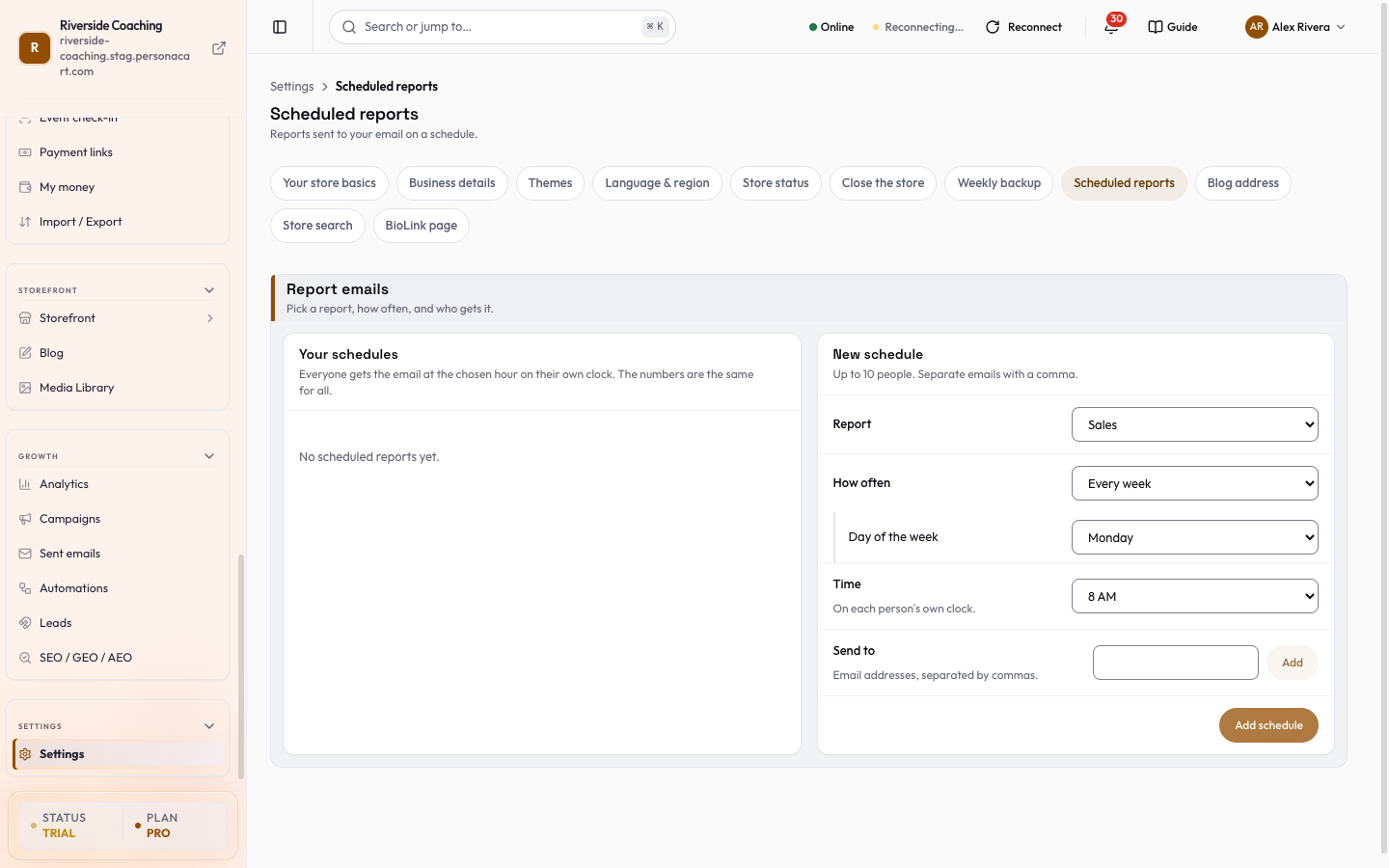
Your schedules
Each schedule under Your schedules shows its report, timing and recipients, with:
- An On switch. If a schedule fails three sends it pauses: "Paused after 3 failed sends (reason). Turn it on to resume."
- Send a test to me, which sends the email to you straight away.
- Delete (with a "Yes, delete" confirmation).
When there are none, the page says "No scheduled reports yet."
New schedule
Fill in:
- Report: Sales, Orders to ship, New customers or Top products.
- How often: Every day, Every week (choose the Day of the week) or Every month (choose the Day of the month, 1 to 28 so it works in every month).
- Time. The hour, on each person's own clock.
- Send to. Email addresses, up to 10 people. Add each with Add; Remove takes one off. For each address you can pick a time zone, or Store's time zone.
Add schedule stays greyed out until you have added at least one email. Then press it, and the new schedule appears under Your schedules.
Steps: a Monday morning sales report
- Open Report schedules.
- Under New schedule, leave Sales, Every week and Monday as they are.
- Leave the Time at 8 AM, type your email in Send to and press Add.
- Press Add schedule, then Send a test to me to see what it looks like.
- To pause it, switch On off. To remove it, press Delete, then Yes, delete.
Good to know
Everyone gets the email at the chosen hour on their own clock. The numbers are the same for all.
For deeper analysis, see Analytics.
Questions
Can two people in different time zones get the report at their own morning?
Yes. Set the hour once and give each recipient their own time zone. Each person gets it at that hour on their own clock.
Can I send a report right now?
Yes. Use Send a test to me here, or Send now under Scheduled sends in My money.
How many people can get one report?
Up to 10 email addresses on one schedule.
Why did my schedule turn off?
After 3 failed sends it pauses and shows the reason. Fix the problem and turn it on again.
Related
Part of Store Settings Guide · Product page: PersonaCart features