Privacy and customer data
In short: The privacy tools in PersonaCart: cookie banner, visitor tracking, customer data requests, forgetting a visitor, exports and erasure, and data terms.
This page lists the privacy tools that exist in PersonaCart today and what each one does. It is not legal advice. Rules differ by country and state, so ask a lawyer about your own case. In this video you will learn the Privacy and legal page. You will see the summary, the checklist, the cookie banner, legal pages and data requests. It is for any creator with a store. Before parents pay you is a short checklist to finish. The cookie banner asks visitors about cookies. Legal pages are the pages visitors read before they pay. So: finish the checklist, and keep your legal pages set. Thank you so much for watching PersonaCart. To read the full guide, go to docs dot personacart dot com. To try PersonaCart yourself, go to personacart dot com. And subscribe, so you do not miss the next tutorial.Video transcript
Where to find it
- Sidebar → SETTINGS → Privacy & legal.
- Only the owner or an admin can change these settings.
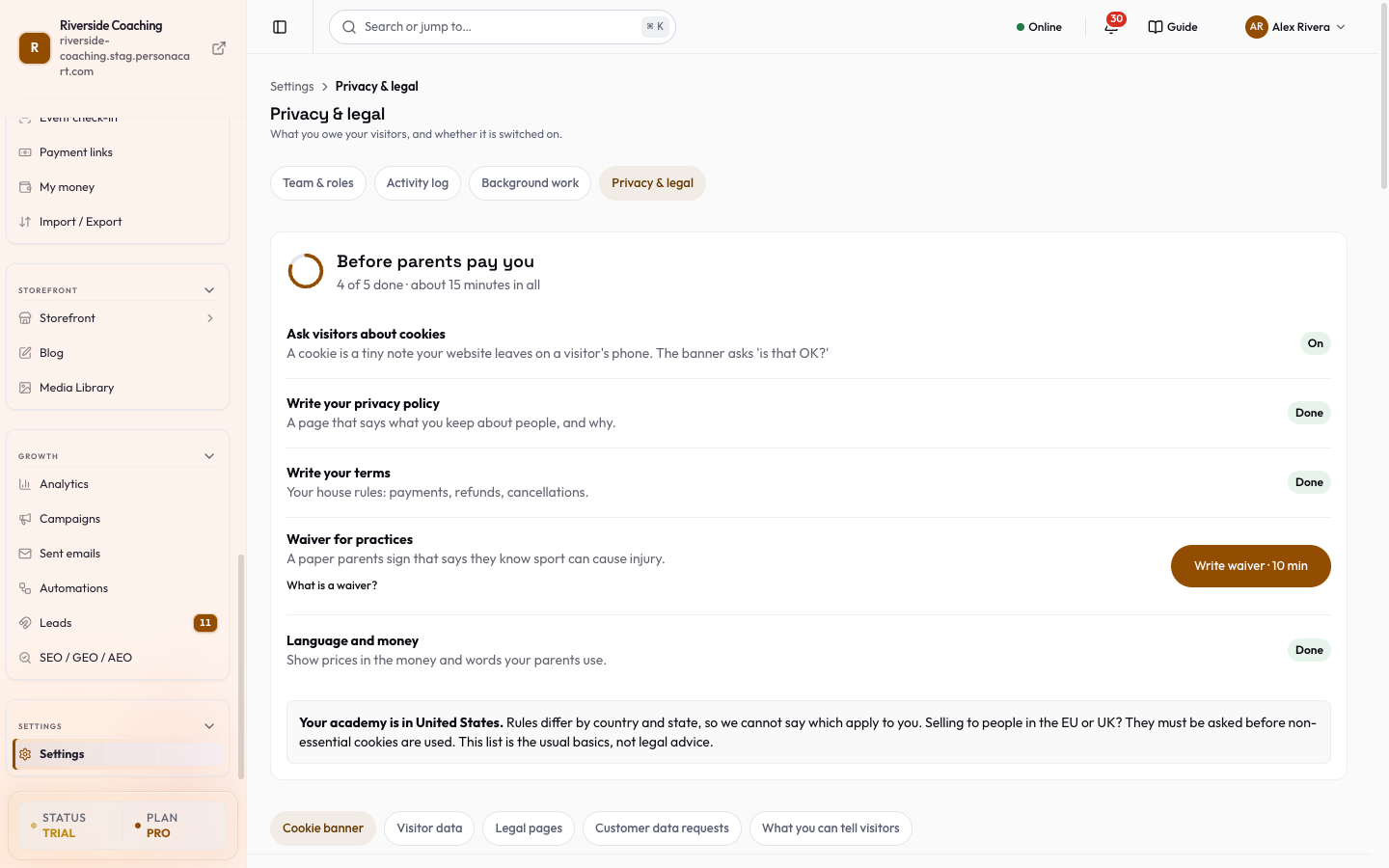
- The screen has a jump bar: Cookie banner, Visitor data, Legal pages, Customer data requests and What you can tell visitors.
- The older Compliance address opens the requests section.
Cookie banner
- The Show the cookie banner switch is on by default for every store.
- Switch it off and a warning appears: you must then get consent yourself wherever the law asks.
- A bar slides up at the bottom with Discard and Save. Nothing reaches your live store until you press Save; Discard puts every switch back.
- The banner asks visitors to accept or decline cookies the first time they open your store.
- A visitor picks from essential, analytics, marketing and functional cookies.
- The choice is remembered for one year and logged.
- Changes reach your live store within a minute or two.
If you turn the banner off, you are responsible for getting consent wherever the law requires it. The screen warns you about this.
Visitor data
Under Visitor data you control what your store records about people who browse it.
- Track anonymous visitors. Gives each visitor a cookie-based ID so your analytics show real people. When off, anonymous visitors are not counted and "Recently viewed" is not shown to them. Signed-in buyers are still tracked.
- Respect the browser's "do not track" setting. When on, visitors whose browser sends that signal are not tracked.
- Data Retention (30, 60, 90 or 365 days, a drop-down list). The choice is saved, but the screen marks it Not enforced yet: events are not deleted automatically after this period.
The checklist: Before parents pay you
The top of the screen is a short checklist called Before parents pay you, with a ring that reads "n of 5 done" and "about 15 minutes in all". A row with a Turn on or Write button still needs you. Rows that are done show Done:
| Row | What it asks | Button |
|---|---|---|
| Ask visitors about cookies | Turn the cookie banner on. | Turn on |
| Write your privacy policy | A page that says what you keep about people, and why. | Write |
| Write your terms | Your house rules: payments, refunds, cancellations. | Write |
| Waiver for practices | A paper parents sign that says they know sport can cause injury. | Write waiver · 10 min |
| Language and money | Show prices in the money and words your parents use. | They are right |
- What is a waiver? opens a short explanation.
- The country your store is in is shown under the list, with the reminder that rules differ by country and state and that this is not legal advice.
- If no country is set, the screen asks you to add it in Business details.
- Only the owner or an admin can change these; others see a lock message.
Legal pages
- Your terms and privacy policy are pages on your store.
- The card Your legal links has two fields, Terms of service and Privacy policy, which the store footer, payment pages and email footers link to.
- You can write the pages from a template in Storefront → Pages.
- Both parts are described in Legal pages.
Customer data requests
When a customer asks for a copy of their data or for it to be deleted, use the section Customer data requests (called Data Export Requests on the table).
- Submit Data Request takes the Customer email, a Request Type and an optional Reason, and Submit Request sends it. The types are Personal Data Export (GDPR), All data for this customer, Order History Export and Data Deletion (Right to Erasure).
- The table shows Requested By, Request Type, Status (Pending, Processing, Completed or Failed), Requested and Completed. Search it, or filter by status and type. A number tells you how many are pending.
- Download appears when a request is Completed.
- The button A parent asked me to delete data opens four steps: write down the parent's email, submit the request, wait for Done, and tell the parent. Orders you must keep for tax stay.
Forget a visitor
Forget one visitor erases the browsing profile of one person. Orders, emails and chats are kept, and it cannot be undone.
- Press Find the visitor by email and type The email the parent used.
- Check the result: "We found n visitors with n page views." Press Not this person if it is wrong.
- Press Erase browsing profile. You see "Done. This visitor's browsing profile is erased. Orders, emails and chats are kept."
If no one is found, check the spelling or ask which email they used. On a store where finding by email is not switched on yet, the sheet says "Finding a visitor by email is not ready yet. Nothing was erased." and shows the older code form below it.
There is also an older way for people who know the code from the visitor's browser: Forget this visitor with the Storefront slug and the Visitor ID (pc_vid).
What you can tell visitors
The last section, What we collect about anonymous visitors, is a plain-language summary you can paste into your own privacy policy.
It covers an anonymous ID kept in two cookies for up to 2 years, pages and products viewed, approximate city and country (never the raw IP address), the device type, how browsing links to an account once a visitor signs up or buys, and how erasure works.
Export or erase one customer
Open the customer's page (Customer 360).
- Export this customer builds one file and emails a download link to the store owner only. The link works for 24 hours. A store can export 3 customers per day. Owners and admins only.
- Erase personal data schedules a redaction after a cancel window of 3, 10 (the default) or 30 days. You can cancel any time before it ends. Owners and admins only.
- Erased: name, email, phone, notes, addresses, wishlist, reviews, support messages, visit history, linked login and similar personal details.
- Kept: orders, totals, invoices, payments and refunds, for your accounting. Addresses and notes on orders are redacted.
- Not covered by this tool yet, so handle these yourself if a customer asks: order phone number and IP address, course enrolments, store credit balance, bookings, event tickets, signed waivers and lead-form entries.
What buyers can do themselves
In their account, under Settings → Privacy & Data, a buyer can:
- Export Data and download a copy of their data as a file.
- Delete Account. The account is scheduled for deletion with a 30-day grace period. During that time the buyer can press Cancel Deletion. After 30 days their orders, addresses and personal data are anonymized permanently.
A buyer with an active subscription or enrollment cancels it first, then requests deletion. The buyer gets an email when deletion is scheduled or cancelled, and you get an email when a buyer schedules deletion. Copies you hold outside PersonaCart, such as spreadsheets, are yours to remove.
Closing your store or account
- Close the store (Settings → Close the store) hides the whole store, optionally until a date. Visitors see your message, and orders and bookings stop. You type CLOSE to confirm, and you can open it again at any time. Nothing is deleted.
- Delete account (Settings → Security) removes your account, store and data after a 30-day grace period. You can cancel during that time, and the store comes back unpublished.
PersonaCart's own data documents
PersonaCart's data terms (rolling out) describe how PersonaCart handles the customer data you hold. They are listed here and will be linked from Settings → Privacy & legal once they are live:
- Data processing terms (rolling out): the Data Processing Agreement.
- You are the controller of your customers' data and PersonaCart is your processor, as in section 7.5 of the Terms.
- The page covers what is processed, the security measures that exist in the product, how Sub-processors are added, how to answer customer requests with the tools above, breach notice "without undue delay", deletion when you close your account, and the CCPA service-provider terms.
- The Standard Contractual Clauses for GDPR are available on request.
- Data processing terms (rolling out): the sub-processors list.
- Every third party that can receive creator or buyer data: hosting, email, payments, AI, and the services you connect yourself.
- Each row says what it is used for, which data it gets, where it processes data (or "Not stated" when the product does not say), and whether it applies to every store or only when a feature is on.
- Text messages, for example, are off for every store until you turn them on.
- Data processing terms (rolling out): the HIPAA statement.
- PersonaCart is a commerce platform.
- It is not a HIPAA covered entity, it does not sign Business Associate Agreements, and it does not claim to be HIPAA compliant.
- If you are a covered entity or a business associate, do not put protected health information in PersonaCart.
- The page lists every place where people can type free text, including notes, forms, messages, AI chat and the Academy child record (allergies, medical conditions, medications, doctor details), so you can decide what to ask for.
Treat them as PersonaCart's current description of the product, not as a signed contract.
What PersonaCart does not do
PersonaCart does not sign Business Associate Agreements and does not claim HIPAA compliance. Do not store protected health information (PHI) through your store, including the Academy child record's medical fields.
- Automatic deletion after the Data Retention period is not running yet (see Visitor data above), so remove old data yourself if you need to.
- Storefronts do not show a "Do Not Sell or Share" link or read Global Privacy Control, so check what your own state requires.
- These pages claim no third-party certification such as SOC 2 or ISO 27001.
- Cancelling a paid plan keeps your data. To erase it, delete the account (Settings → Security) or ask support.
The data processing terms are a web page. Ask support if you need a signed copy.
PersonaCart's own privacy policy and terms are on personacart.com.
Questions
Does the cookie banner come on by itself?
Yes. The Show the cookie banner switch is on by default for every store. If you turn it off, you are responsible for getting consent wherever the law requires it.
Can I delete one customer's data?
Yes. Open the customer's page and use Erase personal data. Orders, invoices and payments are kept for your accounting. Only owners and admins can do this.
What can buyers do themselves?
In their account, under Privacy and Data, a buyer can export their data and request account deletion. Deletion has a 30-day grace period during which they can cancel.
Related
Part of Store Settings Guide · Product page: PersonaCart features