Payments
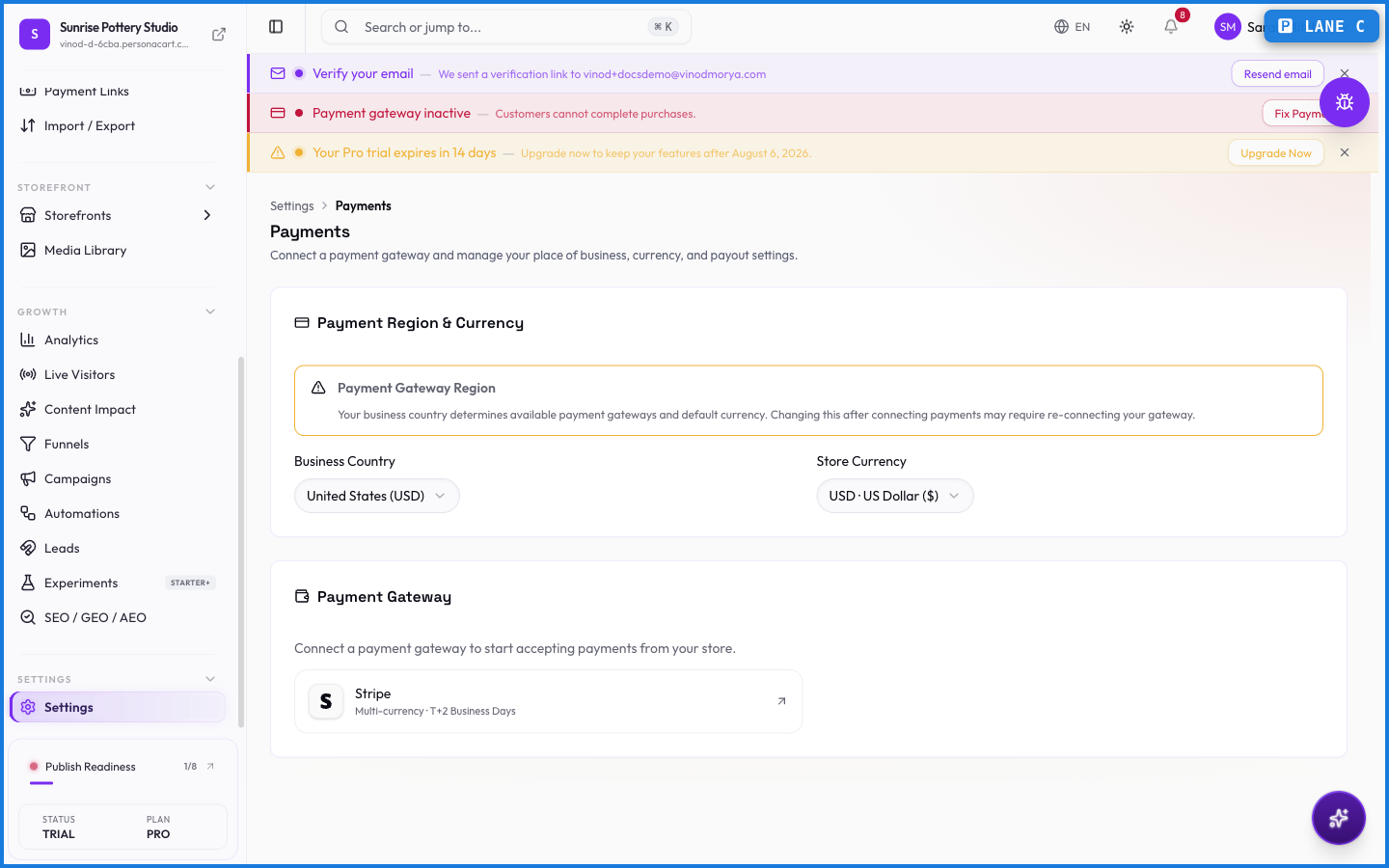
Payments is where you connect the gateway that collects money — Stripe, for example. The key thing: buyers pay into your own connected account, and PersonaCart takes a platform fee. Your revenue is never held by PersonaCart.
Where to find it
Sidebar → SETTINGS → Settings → Payments.
Test mode vs. live
New stores start in test mode — you can place practice orders, but no real money moves. A banner reminds you until you switch. When your gateway is connected and you're ready, switch to live and buyers can be charged.
What happens — and what doesn't
- Money goes to your gateway account, not PersonaCart. You're the merchant of record; PersonaCart charges a platform fee.
- Until you switch to live, no real charges happen — test mode is a safe sandbox.
- Because you're the seller of record, tax responsibility sits with you — see Taxes and Payment Links.
- Refunds and payouts follow your gateway's own rules and schedule.
Does PersonaCart hold my money?
No. Buyers pay into your own connected gateway account (like Stripe). PersonaCart charges a platform fee but never holds your revenue; payouts follow your gateway's schedule.
How do I start taking real payments?
Connect your gateway in Payments, then switch from test mode to live. Until you do, orders are practice only and no money moves.
Who's responsible for taxes on my sales?
You are. Because buyers pay through your account and you're the seller of record, choosing and remitting the right tax is your responsibility.
Every field on this screen
Every field for connecting a payment gateway. Read straight from the live app, so it matches what you see.
| Field | Type | What it accepts | What it does |
|---|---|---|---|
| Automatic Currency Conversion | On/off | — | |
| Business Country | Dropdown | — | |
| Conversion markup (%) | Number | — | |
| Rounding | Dropdown | — | Choices: NearestUp |
| Store Currency | Dropdown | — |
5 fields, read from the live app. Which ones you see depends on the product type and your plan.
What this screen looks like in every state
| State | When you'll see it | What you see, and what to do |
|---|---|---|
| Loading | The screen is fetching your data | A skeleton in the shape of the finished page. It should be brief — if it persists, the load has failed rather than stalled. |
| Error | The data couldn't be loaded | A message with a retry. Retry first: most of these are a dropped request, not a broken store. If it repeats, the outage is upstream and reloading won't help. |
| No access | Your role doesn't include this screen | A permission notice instead of the page. An owner or admin can grant access under Settings → Team. |