Order numbers
In short: Choose how each new order is numbered: the text before the number, how many digits it has, and which number comes next.
Every order gets a short, readable number such as ORD-00015. On this page you decide its look: the text in front, how many digits, and which number comes next. Changes apply to new orders only; orders you already have keep their number. In this video you will learn how order numbers work. You will see the two series, the format, your next order number, and where numbers show. It is for creators who invoice customers. Pick order numbers or invoice numbers here. Format sets the text before the number, and the zeros in front. Next number is where the count continues. Your next order previews the number you will get. Where it shows lists the places this number appears. So: pick a series, set the format, and check your next number. Thank you so much for watching PersonaCart. To read the full guide, go to docs dot personacart dot com. To try PersonaCart yourself, go to personacart dot com. And subscribe, so you do not miss the next tutorial.Video transcript
Where to find it
- Open Settings. The tabs at the top are Payments, Plan & billing, Invoice template and Order numbers.
- Sidebar → SETTINGS → Getting paid and billing → Order numbers.
- The same form is also in the "..." menu on the Orders page.
- It needs permission to manage orders; Support staff can read it but not change it.
- The row is hidden if the Orders module is switched off.
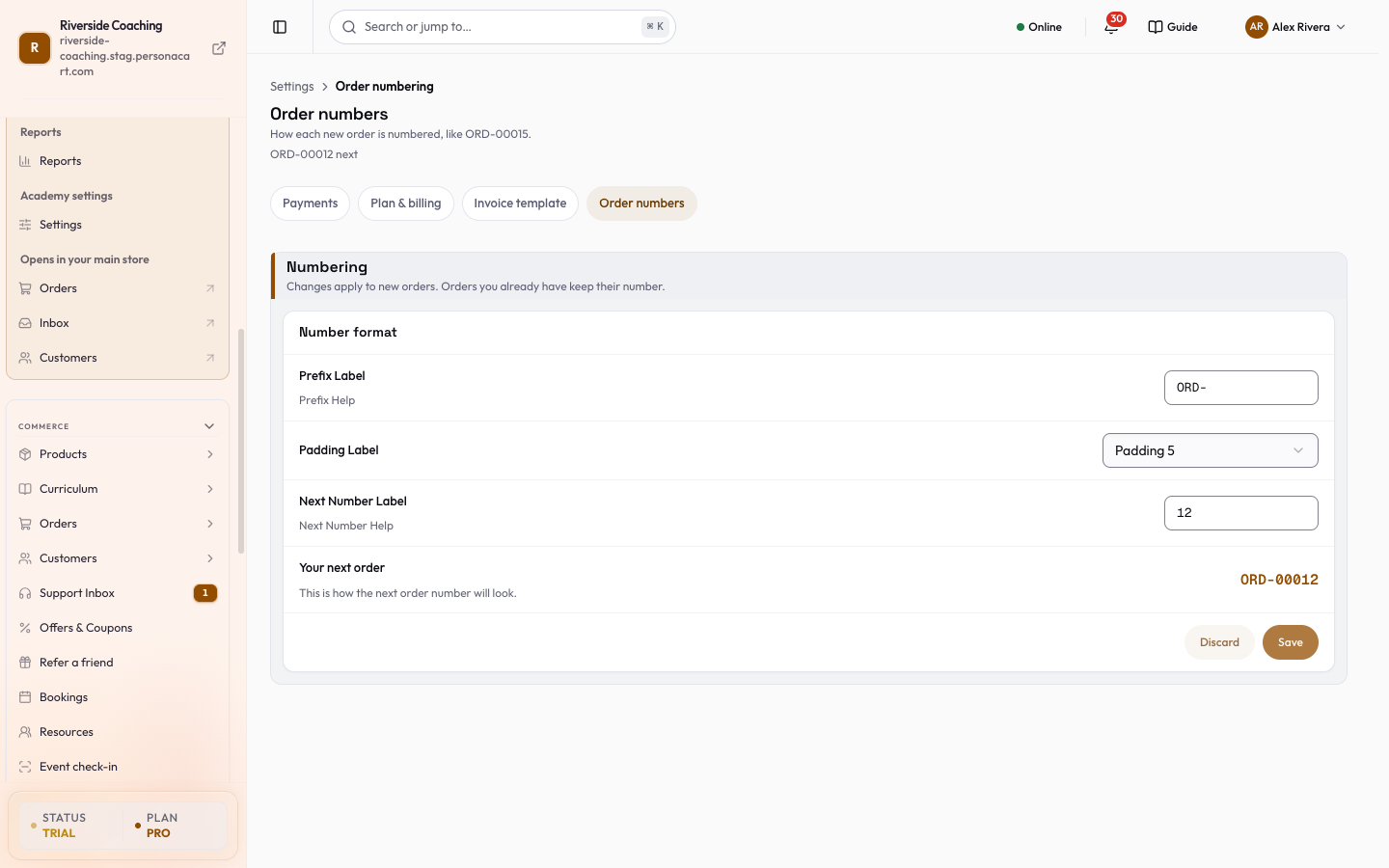
What is on the page
Two tabs sit at the top: Order numbers and Invoice numbers. Each is its own series with its own format and next number. Pick the tab first. Under Numbering the page shows:
- Format (prefix and padding) and Next number.
- Your next order, a preview of the number you will get.
- Where it shows, a list of the places this number appears.
The fields on the Number format card:
- Order prefix. Text put in front of every order number, for example
ORD-,INV-or#. Up to 10 characters. Leave it empty to use the default#. - Number padding. How many digits the number has: None (1, 2, 3…), 3 digits (001, 002…), 4 digits (0001, 0002…), 5 digits (00001, 00002…) or 6 digits (000001, 000002…). Padding adds zeros in front of short numbers.
- Next order number. The next order will use this number. Useful when you are continuing from an existing numbering sequence. A whole number from 1 up. Empty or invalid input becomes 1, and decimals are cut off.
- Your next order (preview). Shows how the next order number will look, as you type.
Save and Discard stay greyed out until you change something.
- Save applies the change to new orders.
- Discard puts the saved values back.
- Leaving the page with unsaved changes asks you first.
Steps: continue numbering from another system
- Open Order numbers.
- Type your prefix, for example
ORD-. - Pick the padding that matches your old numbers, for example 5 digits.
- Set Next order number to the number after your last old order, for example 1201.
- Check the preview ("ORD-01201"), then press Save.
Before you change the number
When you set Next order number, pick one higher than any number you have already used, so new orders do not repeat an old number.
Customers and your team see this short number, never a long internal ID.
Questions
Will changing the prefix rename my old orders?
No. Orders you already have keep their number. Only new orders use the new format.
Is the order number the same as the invoice number?
No. Invoice numbers are set on the Invoices page and have their own counter.
Can I leave the prefix empty?
Yes. An empty prefix uses the default `#`. A prefix can be up to 10 characters.
Related
Part of Store Settings Guide · Product page: PersonaCart features