Notification preferences
In short: Choose which messages reach you about your store by email or in the app and on your phone, set quiet hours, add number alerts and set up this device.
- This page is about the messages you receive: a new order, a failed payment, a booking, a low-stock warning.
- It is not about the emails your buyers receive from your store; those are the email templates.
- You tune which messages, how they reach you, and when PersonaCart stays quiet.
Video transcript
In this video you will learn how to test your alerts, set number alerts, choose Pie messages and tune this device. It is for owners who want alerts that actually reach them. After watching, you will send a test, find the three sections, and know what each controls. Email me a test sends one message to you only. We will not press it. Next, the Number alerts tab, which tells you when a figure changes. Number alerts watch a figure and warn you when it moves. Rules you make are listed here. Now, Messages from Pie. Messages from Pie are updates from your assistant. Choose where each kind reaches you. Now, On this device. On this device applies only to the one you use now. We stopped before Save. So: send a test, then check number alerts, Pie messages and this device. Thank you so much for watching Persona Cart. To read the full guide, go to docs dot persona cart dot com. To try Persona Cart yourself, go to persona cart dot com. And subscribe, so you do not miss the next tutorial.
Where to find it
Sidebar → SETTINGS → Your account → Notifications.
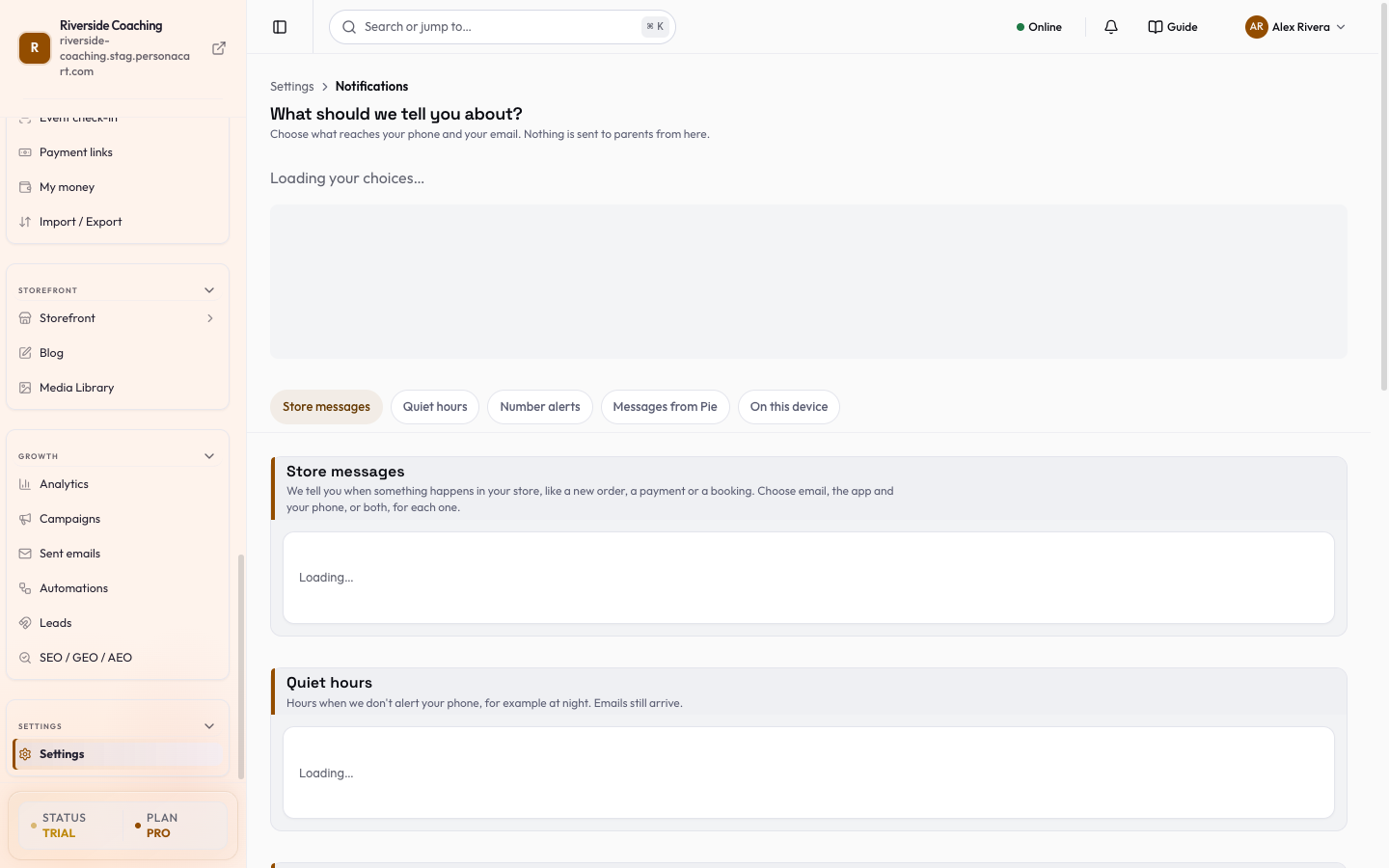
The page opens with a short card, What should we tell you about?, and below it come five parts. One Save bar at the bottom covers Store messages, Quiet hours and Messages from Pie; Number alerts and On this device act at once.
Start from a preset
The first card has four quick steps and is the fastest way in:
- Press Just the important ones, Everything or Almost nothing. The one you have now is marked This is what you have now.
- Under Which news, and where?, switch Phone or Email for Bookings, Messages and Payments. Choose one by one jumps to every single event.
- Under When should we stay quiet?, see your store time zone (with Change the clock in Business details) and press Change quiet hours.
- Under Check that it works, press Send me a test (phone or in-app) or Email me a test. Only you get it; nothing goes to parents.
Nothing is kept until you press Save. The bar lists your edits, and Discard throws them away.
Store messages
A list of things that can happen in your store, such as:
- Orders: new order, shipped, delivered, cancelled, refund issued.
- Customers: new customer, new review, review reply, support ticket and replies.
- Money: payout sent, payment failed, subscription renewed, subscription payment failed.
- Stock and bookings: low stock, out of stock, new booking, booking cancelled, booking rescheduled, booking reminders.
- Account: security alerts, platform updates, billing reminders, long imports finished, referral activity.
For each one, switch Email and In app & phone on or off. Each group also has buttons such as Turn off all email to change the whole group at once. Some messages, such as security alerts, are marked Always on. They are needed for account safety and cannot be turned off.
Quiet hours
Switch on Enable Quiet Hours, then set the start and end time. Optionally switch on Weekend Mode for Saturday and Sunday. Times follow your store's timezone, shown on the page with a link to change it.
During quiet hours, phone alerts are skipped, not sent later. Emails still arrive, and the bell in the app still lists everything.
Number alerts
- Number alerts watch a figure on your store and tell you when it passes a level you pick.
- Each rule has a name, a number to watch, a direction (increase or decrease), a level, how far back to look, what to compare it with (last hour, previous hour, same hour yesterday, or the last 7-day average), and a wait between alerts.
The numbers you can watch include traffic drop, traffic spike, cart abandon rate, conversion drop, payment failure spike, rage-click spike, and a visitor who returns several times without buying.
Alerts that go off are listed on the page and show on your dashboard. Press Got it once you have seen one, or Not useful if it should not have fired, so you can tune the rule.
Email and phone delivery for number alerts is not sent yet, as the form says.
Messages from Pie
Choose which of Pie's messages reach you and where: new orders, sales going up or down, something unusual, how a campaign did, things waiting for your OK, and ideas from Pie to grow your sales. See Chat with Pie and PieOS approvals.
On this device
These settings are for the browser or phone you are using now. They apply at once and are kept in this browser, not on your account.
- Push notifications: press Enable notifications on this browser to get order alerts and meeting reminders even when the app is closed. If your browser blocks them, allow notifications for the site in its settings and reload. On iPhone and iPad, add the site to your Home Screen first.
- Pop-up cards: show a card on screen when something new arrives, and choose where it appears.
- Sound: pick a tone for new notifications while the tab is open, or choose Silent. Test plays it.
- Send test notification checks the card, the bell, the sound and a system notification together.
Questions
How is this different from the Notifications page for email templates?
This page is about alerts that you receive. The email templates page controls the emails your buyers receive.
Will I miss an order during quiet hours?
Phone alerts are skipped during quiet hours, but emails still arrive and the bell lists every notification.
Why can't I turn off some messages?
A few, such as security alerts, are needed for account safety, so they stay on.
What are number alerts?
They watch a figure on your store, such as traffic or cart abandon rate, and tell you when it passes a level you pick. They show on your dashboard. Email and phone delivery for them is not sent yet.
Related
Part of Store Settings Guide · Product page: PersonaCart features