Video meetings and calendar
In short: Connect Google Meet, Zoom or Google Calendar so bookings get a meeting link, busy times block bookings, and new bookings land on your calendar.
If you sell calls or appointments, this is where you connect the tools you use for them. Once connected, PersonaCart can create the video link for each booking, keep your busy times from being booked, and add each new booking to your calendar.
Where to find it
- Sidebar → SETTINGS → Tools you connect → Video meetings.
- It is not limited to a plan, and changing it needs the settings permission.
- The page has Meeting tools and Bookings.
- You can also reach it from Connected apps, where Google Meet, Zoom and Microsoft Teams each have a Connect button that opens this page.
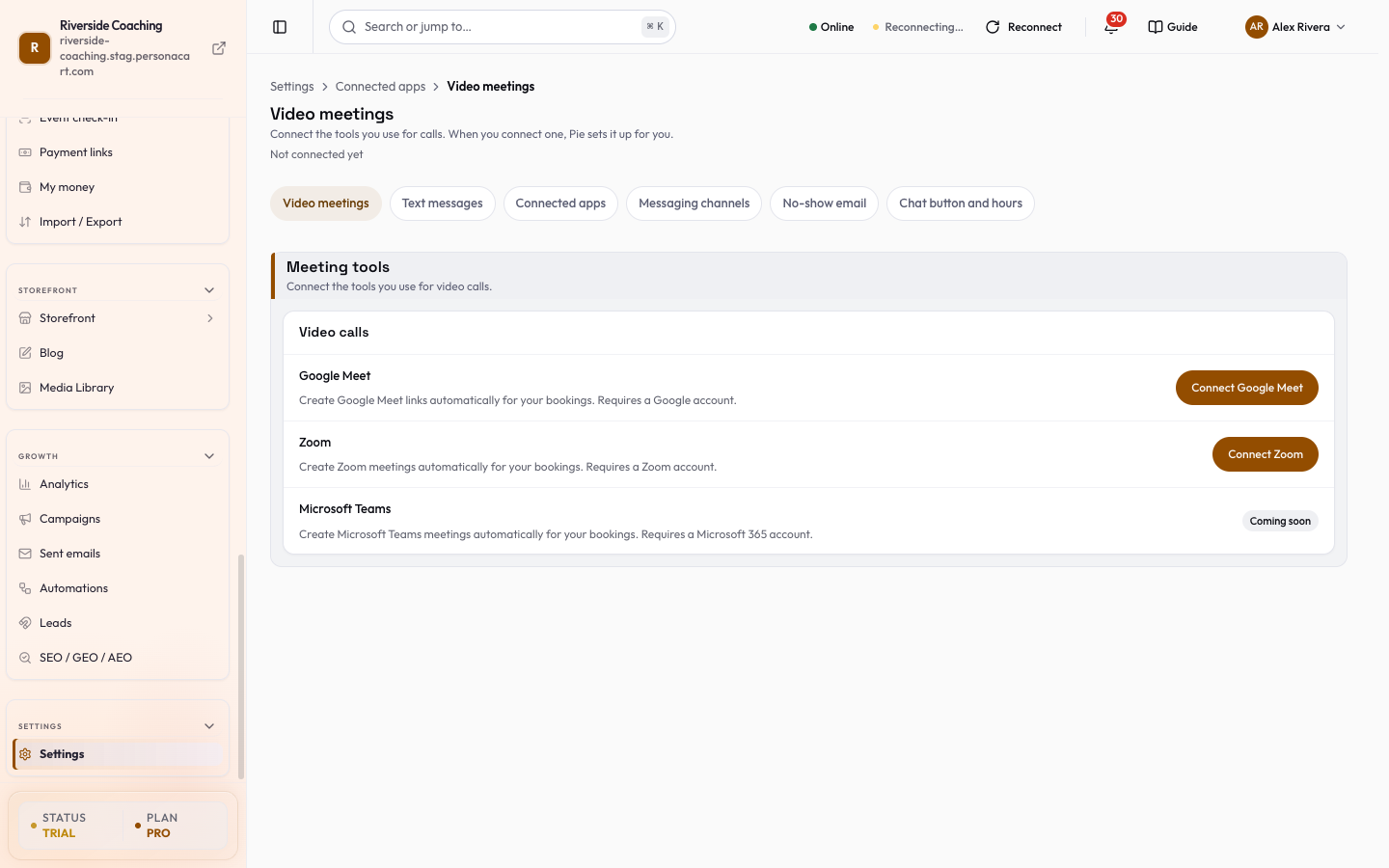
Meeting tools
| Tool | What it does |
|---|---|
| Google Meet | Creates a Meet link for your bookings. Needs a Google account. Connecting Google also lets PersonaCart read your calendars. |
| Zoom | Creates a Zoom meeting for your bookings. Needs a Zoom account. |
| Microsoft Teams | Creates a Teams meeting for your bookings. Needs a Microsoft 365 account. Shown as Coming soon until it is switched on for your store. |
A tool that is not yet switched on for your store shows Coming soon instead of a Connect button.
To connect, press Connect Google Meet (or Zoom). The tool opens, you allow access, and you come back to this page. Connected tools show your account email. If the connection was cancelled, nothing changed on your account and you can try again.
What happens when someone books
Connect a tool, then set these. Every change saves by itself.
- Default Provider. Which connected tool makes the link for new bookings. It only lists tools you have connected. Until you pick one it reads
Not chosen yet. - Auto-create meetings is set per product, not here. Press Open products, then turn it on or off in each bookable product's own settings (see Bookings).
- Include meeting link in confirmation email. Puts the link in the email the buyer receives.
- Include meeting link in calendar invite. Puts the link in the calendar event (.ics) attached to the confirmation.
Your calendars
-
When Google is connected, the Calendars card lists every calendar on that Google account, with a count such as
2 of 5 selected. -
Find a calendar searches the list, Tick all and Clear select or unselect everything, and the primary calendar is marked Primary.
-
If Pie cannot see any calendars on the account, the card says so, and Check again looks once more.
-
If it can no longer read your calendars, it asks you to reconnect Google.
-
Calendars that block bookings. If you are busy on any ticked calendar, people cannot book that time. Only events marked Busy count. If nothing is ticked, PersonaCart cannot know when you are busy, and the page warns you.
-
Add new bookings to. Every new booking is added to the calendar you pick. Read-only calendars (such as holidays) can block bookings but cannot receive new ones.
Google Calendar changes
When Google is connected, a Keep bookings and Google Calendar in step switch watches future bookings every 5 minutes.
- If you move a booking's event in Google, the booking shows Moved in Google and you choose to move it or put it back.
- If you delete it, the booking shows Deleted in Google. The booking and payment stay until you decide.
- If the customer declines the invite, it is shown as information only and the booking stays on.
- PersonaCart never cancels, refunds or moves a booking on its own.
If a connection stops working
- Changing your password or removing PersonaCart's access in Google or Zoom can break a connection.
- The tile then shows Needs reconnect.
- Until you press Reconnect, new bookings may not get a meeting link and busy times may not be checked.
- Your choices are saved, so reconnecting brings them back.
Disconnect
Pressing Disconnect shows what changes before you confirm:
- What stops: new bookings get no link from that tool; it is no longer your default; PersonaCart stops checking your calendars; new bookings are not added to your Google Calendar.
- What stays: meetings already booked keep their links and stay on your calendar, and your calendar choices stay saved.
A good habit
Make sure the email and calendar invite settings match how you want buyers to receive the link. A buyer who has the link in neither place has to ask you.
Pie asks for calendar access so it can check busy times. You can remove that access at any time from your Google account as well as from this page.
Questions
Does PersonaCart create a meeting link for every booking?
Only for products where Auto-create meetings is on. It is set in each bookable product's own settings.
Can it stop people booking when I am busy?
Yes, once Google is connected. Tick the calendars that should block bookings; events marked Busy on them hide those times.
What if I disconnect Google?
Existing bookings keep their links and stay on your calendar. New bookings no longer get a link, and busy times are no longer checked.
Can I use Microsoft Teams?
It is shown as coming soon.
Related
Part of Store Settings Guide · Product page: PersonaCart features