Language and region
In short: Set the date format buyers see, check your storefront language, currency and time zone, and add markets (groups of countries) with their own currency.
This page answers "what do buyers see in my store?" in terms of language, currency and how dates read. It also holds your list of markets: groups of countries such as "Europe" that can have their own currency and language.
Where to find it
Settings → Your store → Language & region. It is included from the Starter plan up, for roles with settings access. Two jump links at the top take you to Language and dates and Markets.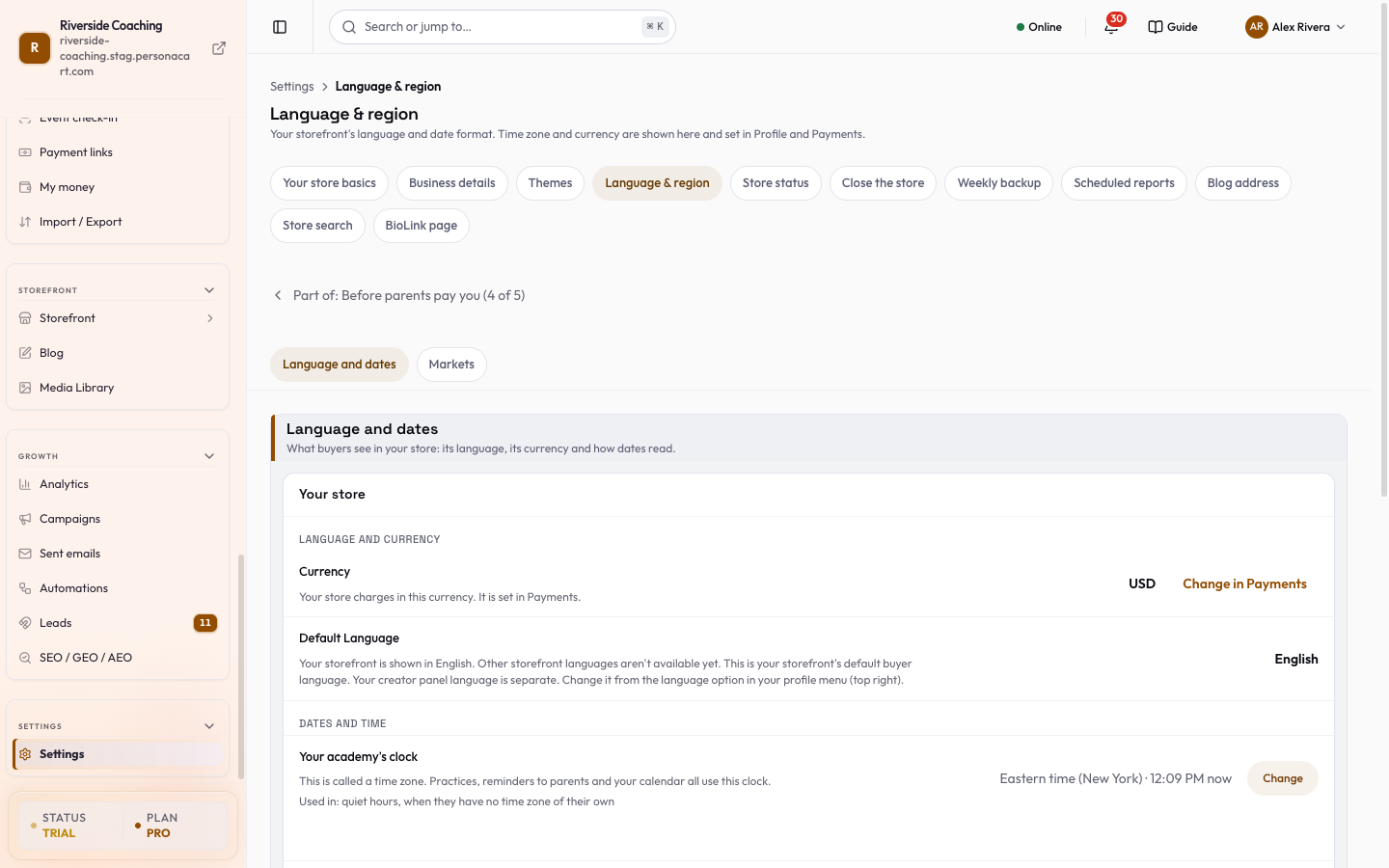
Language and dates
One card, Your store:
- Currency. Shown, not editable here. Your store charges in this currency; press Change in Payments to change it (see Store basics for what happens to prices).
- Default Language. Shows the language your storefront is displayed in. The page notes that your storefront is shown in English and other storefront languages are not available yet. Your creator panel language is separate: change it from the language option in your profile menu at the top right.
- Time zone. Owners and admins can set the store time zone right here (the same Store clock as in Business details); it decides when booking slots open, when discounts start and end and when dashboard days begin. Other roles see the zone and are told where it is changed.
- Date format (how dates display for buyers). Choose MM/DD/YYYY (12/31/2026), DD/MM/YYYY (31/12/2026), YYYY-MM-DD (2026-12-31) or DD-MM-YYYY (31-12-2026).
Use Save to apply the date format or Discard to drop your change. If you leave the page with an unsaved change, you are asked first. A store that once had several active languages shows a Reduce active languages? confirmation before saving, because saving keeps a single language.
Markets
- A market is a group of countries that use one currency and language, for example Europe.
- The Markets card lists them with columns Market, Countries, Currency, Language and Status (Active or Off), with an Active switch on each row.
- Your first market becomes the Primary market automatically. Its switch is locked and it has no delete option.
- When you have no markets, the page says "No markets yet" and shows a labelled example list that goes away when you add your first.
If buyers from a country have paid in a currency that none of your markets covers, a card says so (for example, a number of buyers from one country paid in a given currency) with an Add a market button.
Steps: add a market
- Press Add a market on the Markets card. A full page opens.
- In New market, type a Market Name (for example South Asia or Europe). Open Default Currency and choose one, such as EUR (you must choose one; it is never silently set to USD). Pick the Language if you want one other than English.
- Under Countries, type in Search a country and tap the result; each is stored as its two-letter code and shows as a chip you can remove. A country can be in only one market, and the page tells you which market already has it.
- Leave Market Active on, or switch it off to stop serving the market without deleting it.
- Press Create market. A message confirms the market was created and the new market joins the list.
Edit or delete a market
- Press Edit Market on a row to change its name, currency, language, countries or active state, then Save changes (or Cancel).
- To pause a market without losing it, flip its Active switch off (the label changes to Off).
- To remove one, open Actions on its row, choose Delete, then confirm "Delete ...?" with Delete Market. This cannot be undone.
Good to know
- Markets are saved here, but your storefront does not use them for prices yet. The page says this in the Markets card, so you can prepare your list ahead of time.
- Changing the store currency is done in Payments, not here, because it affects your prices.
- Dates in emails and invoices use your store time zone.
Questions
Which language will buyers see?
Your storefront shows in English. Other storefront languages are not available yet.
Where do I change my store currency?
In Payments, not here, because it affects your prices.
Do markets change my prices today?
Not yet. Markets are saved here, but your storefront does not use them for prices yet. You can prepare your list ahead of time.
Can I delete a market?
Yes, except the primary market (your first one). Open Actions on its row, choose Delete and confirm with Delete Market. This cannot be undone.
Related
Part of Store Settings Guide · Product page: PersonaCart features