Invoices
In short: Design the invoice your buyers get with each order: numbering, layout, which rows show, the words and footer, signature and seal, with a sample PDF.
This page sets up the invoice your buyers get with each order, as a PDF. (What you pay PersonaCart for your own plan lives in Billing and plans, under Bills.) You choose the numbering, the layout and which rows appear, and a live preview shows a sample invoice as you edit.
Where to find it
Settings → Your store → Getting paid and billing → Invoice template (the row reads "Set up how your invoices look and are numbered"). Roles with settings access can open it. A reminder at the top says changes apply to new invoices only; invoices already sent never change.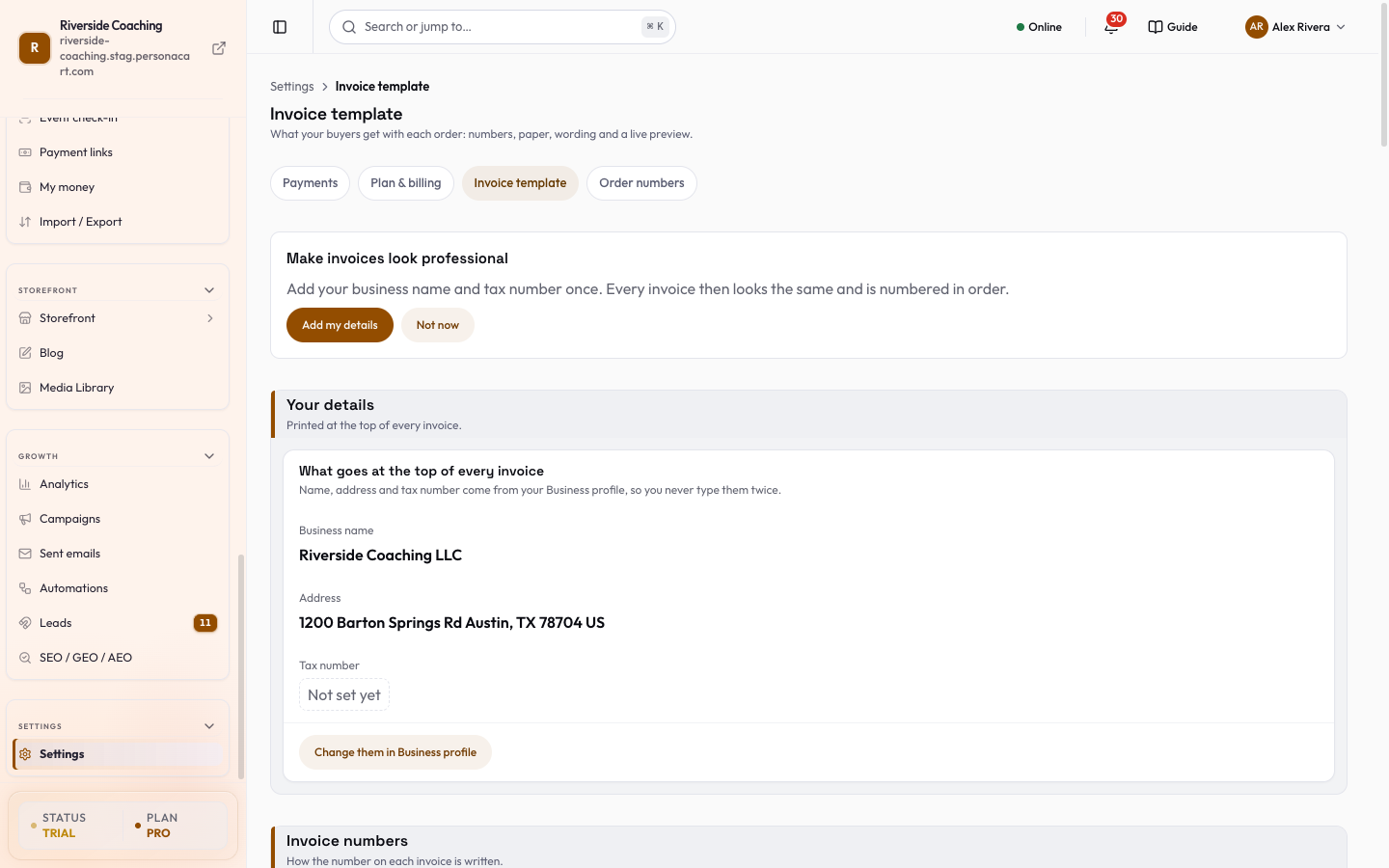
How saving works
- A single bar at the bottom counts your unsaved changes ("2 changes not saved") and offers Save changes and Discard.
- If one part fails (for example Invoice numbers), the bar says "... did not save. Your edits are still here." and offers Try again.
- Switching templates with unsaved edits asks you first.
Your details (printed at the top)
- Business name, Address and Tax number come from Business details, so you never type them twice.
- The tax number is labelled for your country: VAT number, Tax registration or another label for your country.
- A value that is missing shows "Not set yet", with Change them in Business profile.
- The Address printed on invoices is shown here with an Edit in Business details link; a missing address says "No address yet. Add one in Business details, under Taxes."
- The logo comes from your Theme; the page says whether you have one and links Change logo in Theme.
- If you have not added your details yet, a card "Make invoices look professional" offers Add my details (or Not now): add your business name and tax number once and every invoice looks the same and is numbered in order.
Invoice numbers
Card Number format:
- Prefix. 1 to 12 capital letters or digits (A to Z, 0 to 9).
- Next invoice number. A whole number from 1 to 1,000,000,000. It can only go up: the page shows the current next number ("Next number right now") and "Last one used", and refuses a lower number so no two invoices share a number.
- Your next invoice will be numbered shows a sample.
The rule is shown on the page: it applies to future invoices only, and numbers never repeat and never skip. Order numbers such as ORD-00015 are set separately: Open order numbers takes you to Order numbers.
Templates
- The Templates list shows the Active template and Other templates. New invoices use your Default template.
- New template asks for a Template name (only you see it, for example "Standard Invoice") and a starting layout. In the menu of each template: Set as default, Delete template. The default template cannot be deleted; set another as default first. Deleting cannot be undone.
- Layout: Compact (minimal, no buyer info, small type; best for receipts), Default (balanced, with buyer details and line items; best for most stores) or Detailed (full layout with tax breakdown, signature and seal, and HSN/SAC codes for GST-registered stores).
- Paper: Full page (A4 with every row you switch on) or Receipt, narrow (same rows on a narrow page, like a till receipt).
Edit template
- Title. Invoice Title (default INVOICE). Common values are INVOICE, TAX INVOICE, RECEIPT and BILL.
- What to show. Switches for Tax Breakdown, Shipping Cost, Discount, Notes, Payment method, Tax registration (shows your tax number) and HSN/SAC Codes (only for stores in some countries; the page explains who it applies to).
- Header and branding. Show logo, Logo width, Logo alignment (Left, Center, Right), Show tagline and Show company legal name.
- Words. Rename labels such as Bill to, Subtotal, Discount, Shipping, Tax and Total, for example to use another language.
- Footer. Footer message (for example "Thank you for your purchase!") and an optional Legal Disclaimer, printed in small grey text at the bottom.
- Signature and company seal (Detailed layout). Upload an Authorized Signature and/or Company Seal image (PNG, JPG, SVG or WEBP, under 5 MB; a transparent PNG or SVG works best). Use Replace or Remove to change them.
Preview, sample PDF and sample email
The Live preview updates as you edit and is marked SAMPLE with an example order. Download sample PDF prepares a PDF, and Email me a sample sends one to your own address.
Steps: set up your first invoice
- Open Invoice template.
- Check Your details (name, address, tax number). Use the links if something is missing.
- Set a Prefix and Next invoice number under Number format.
- Pick a layout and switch the rows you want under What to show.
- Write a footer message, then press Save changes.
- Press Email me a sample to see the real PDF.
Where invoices appear
- A buyer opens the invoice from their order history and can Download PDF.
- You download it from Order detail (Download Invoice) or from the row menu on the Orders list.
- Test orders carry the note "Test invoice - not a tax invoice".
Why can't I lower the next invoice number?
Invoice numbers never repeat and never skip, so with the same prefix you can only go up. To start a fresh series, change the prefix.
Will changing the template change invoices I already sent?
No. Changes apply to new invoices only. Invoices already sent never change.
Where does the logo come from?
From your Theme. The address and tax number come from Business details. Change them there and every invoice follows.
Can I make a narrow receipt instead of a full page?
Yes. Choose Receipt, narrow as the Paper when you create or edit a template.
Good to know
- Branding (logo, colours, name, address, contact) is pulled from your store settings, so changes there update your invoices automatically.
- Changes apply to new invoices only.
Related
Part of Store Settings Guide · Product page: PersonaCart features