Email templates
In short: Every automatic email your store sends: turn each on or off, change its wording in the live editor, send yourself a test, and set one look with Email design.
- Email templates is the main email page.
- It lists every email PersonaCart sends for you when something happens, such as an order, a booking, a refund or a course finished.
- For each one you can switch it on or off, change the words, and send yourself a test.
- A separate Email design page gives all of them one look.
Where to find it
- Sidebar → SETTINGS → Emails and web address → Email templates.
- The page is available on every plan.
- The neighbouring rows are Sender & replies, Email design, Are my emails arriving?, Emails per person per week and Domains.
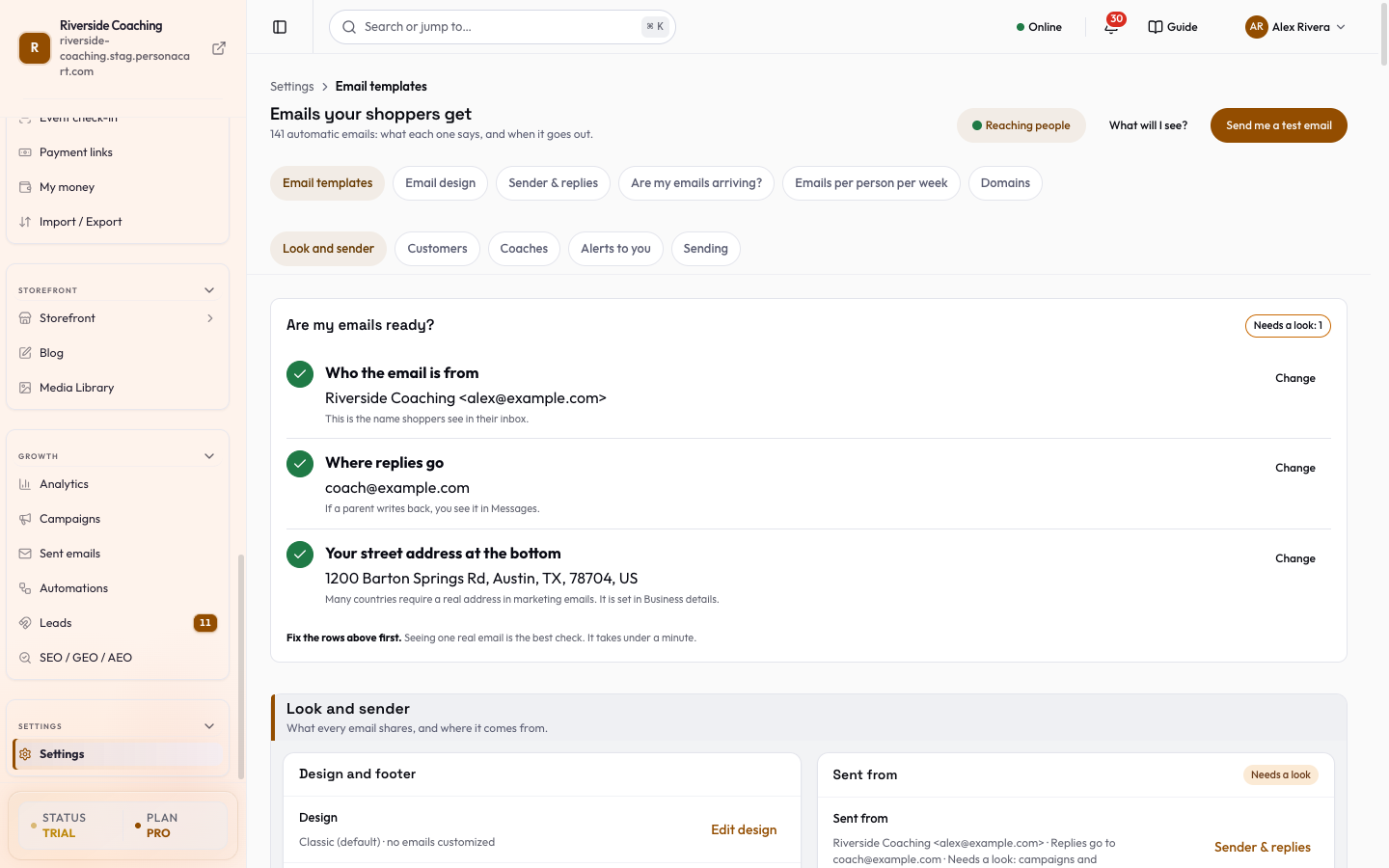
Are my emails ready?
A card at the top answers the question in three rows, with a status chip (Ready, Needs a look: N, Send a test to be sure or Not checked yet):
-
Who the email is from: the name shoppers see in their inbox. Change goes to Sender & replies.
-
Where replies go: if a customer writes back, you see it in your messages.
-
Your street address at the bottom: many countries require a real address in marketing emails. It is set in Business details. Add address takes you there.
-
Press Send me a test email to get one real email.
-
It goes only to you, never to your shoppers.
-
The result window says
Test email sent, then asks you to check in order: open your inbox; if it is not there, look in Spam or Junk and tap Not spam; still nothing after 5 minutes, tap I cannot find it. -
If you do not see it, Ask a person reaches the team.
-
Only an editor can send the test, and you can send another after a short wait.
Look and sender
A Design and footer card shows your current design (for example Classic (default) · 2 emails customized), your footer address, and the sender. Edit design opens Email design.
The list of emails
-
Emails are grouped by moment, and a switch at the top chooses who gets them: Customers, Coaches or Alerts to you.
-
Moments include After they buy, When something goes wrong, Bookings and events, Courses, Welcome and sign-in, Memberships, Reminders, reviews and referrals, Support and chat, Classes and Academy, Your coaches, Money, Your shop and Your site and team.
-
Each group shows
N on,N offandN always sent. -
Find an email with the search box (
Search emails, e.g. receipt, refund, password) or the filters All, On, Off, Your wording and Always sent. -
A row shows the email's name, a short description, and its state: On, Off, Always on, Standard wording or Your wording (with the date you changed it), and Phone alert only for emails that go to a coach's phone.
On each row:
-
The switch turns the email On or Off. Its label reads Disable: <name> or Enable: <name>.
-
Emails customers usually expect ask you to confirm before they go off, and a message at the bottom offers Undo.
-
Look at it opens that email in the editor, with a live preview beside it.
-
From the editor, More has Send a test to myself and Reset to standard wording.
-
Always-sent emails cannot be switched off, and the row says why: they tell a person about their money, their booking or their account access, they are about a child's safety, your coach needs them to do the job, or your store needs them to keep working.
- You can still change the words of most of them.
-
Select lets you tick several emails and press Turn on or Turn off at once.
-
Always-sent emails are skipped.
-
A group menu offers Turn all on and Turn all off.
-
If emails customers usually expect are off, a notice says so and Show them jumps to them.
-
For stores starting out, Most stores start with these suggests the usual set.
Sent by PersonaCart (marked Locked) lists account and sign-in emails such as login links, password resets and email verification. PersonaCart sends and brands them, so they cannot be switched off or changed.
Emails that go out by themselves from automations are described under Emails that go out by themselves (N on, N off). Cart reminders you send by hand come from Abandoned carts; automatic ones are written in Automations → Abandoned cart.
Transactional and marketing
- Order, shipping, authentication and similar emails are required communications, and no unsubscribe link is shown on them.
- Marketing and other promotional emails always carry a one-click unsubscribe link in the footer, added automatically.
- If your business address is missing, a warning says that a physical address is required on every commercial email and offers Add address.
The email editor
Press Look at it on any email. The page shows the email from top to bottom, with a live preview beside it.
- Subject: write it like a normal sentence.
- Highlighted details (like the customer's name) are filled in for each customer.
- Click a detail to choose what shows when it is missing: Leave it out, Use another detail instead or Say a word instead.
- A character count warns when a subject
may be cut off on phones.
- The email, top to bottom: the parts you can write have a coloured edge, with the badge You write this.
- Other parts are labelled Fills itself in or Fixed wording, and each says why you cannot change it.
- Add a detail inserts a detail that is filled in for each customer (an order number, a date, a name).
- Preview as: choose the sample customer and Desktop or Phone. The preview is exactly what customers get, because the same code builds the preview and the sent email.
- More → Send a test to myself sends to the address you are signed in with, including changes you have not saved yet. The test email uses a sample customer.
- Save keeps your wording, and the next email uses this version.
- More → Reset to standard wording asks you to confirm with Reset email, then restores the standard text (your logo and colours are not touched). Undo my changes here reverts a single part.
- Open Email design changes how the email looks (not what it says). An email can have its own look: Only this email uses this look or This email follows the store's look.
- Hide parts for one product: in a product's own Email tab you can switch parts of the email off for that product only. A custom product email is sent in addition to the order confirmation, never instead of it.
- A short chat message for WhatsApp or copy (Chat message (WhatsApp / copy)) can be written for some Academy emails. It is a text you send from your own phone with Send on WhatsApp or Copy message. Leave it empty to use the built-in text.
Email design
- Edit design opens Email design, where you give every email one look: a style, one colour, a font, fine-tuning for the logo, colours and shape, your header image and footer, a desktop and phone preview, and Apply to all emails or Only Order confirmed.
- Your postal address and the unsubscribe link are always included because email law requires them.
Good to know
- Turning off an email stops it for every customer. Most stores keep the standard set on, because people look for these emails in their inbox.
- Changing wording affects only the next email sent. Emails already sent do not change.
- A test email is sent to your own address only, never to a customer.
- Marketing emails are limited per person; see Emails per person per week.
Can I turn off the order confirmation?
Emails that tell a person about their money, booking or account access are always sent, so the switch is locked and the row explains why. You can still change the words.
Why can I not edit my login or password-reset email?
Account and sign-in emails protect your account, so PersonaCart sends and brands them. They are listed as Locked under Sent by PersonaCart.
Where do I change the logo and colours in emails?
On the Email design page, reached from Edit design on this page. Pick a style, a colour and a font, then Apply to all emails or to one.
Will the test email go to my customers?
No. A test goes only to the address you are signed in with, using a sample customer.
What does Reset do?
It puts the standard wording back for that email. Your logo and colours are not touched.
Related
Part of Store Settings Guide · Product page: PersonaCart features