Sender & replies
In short: Choose the name your store emails come from, where replies go, and how to send from your own domain. Includes a test email and a delivery check.
Sender & replies decides who your store's emails come from and where a customer's reply goes. It applies to every email your store sends to customers: orders, bookings, reminders and campaigns. It does not change your name on account emails or plan receipts from PersonaCart.
Where to find it
Sidebar → SETTINGS → Emails and web address → Sender & replies. Business details, Domains and Email design link here when you need to change the sender, and a Back to ... button returns you to where you came from.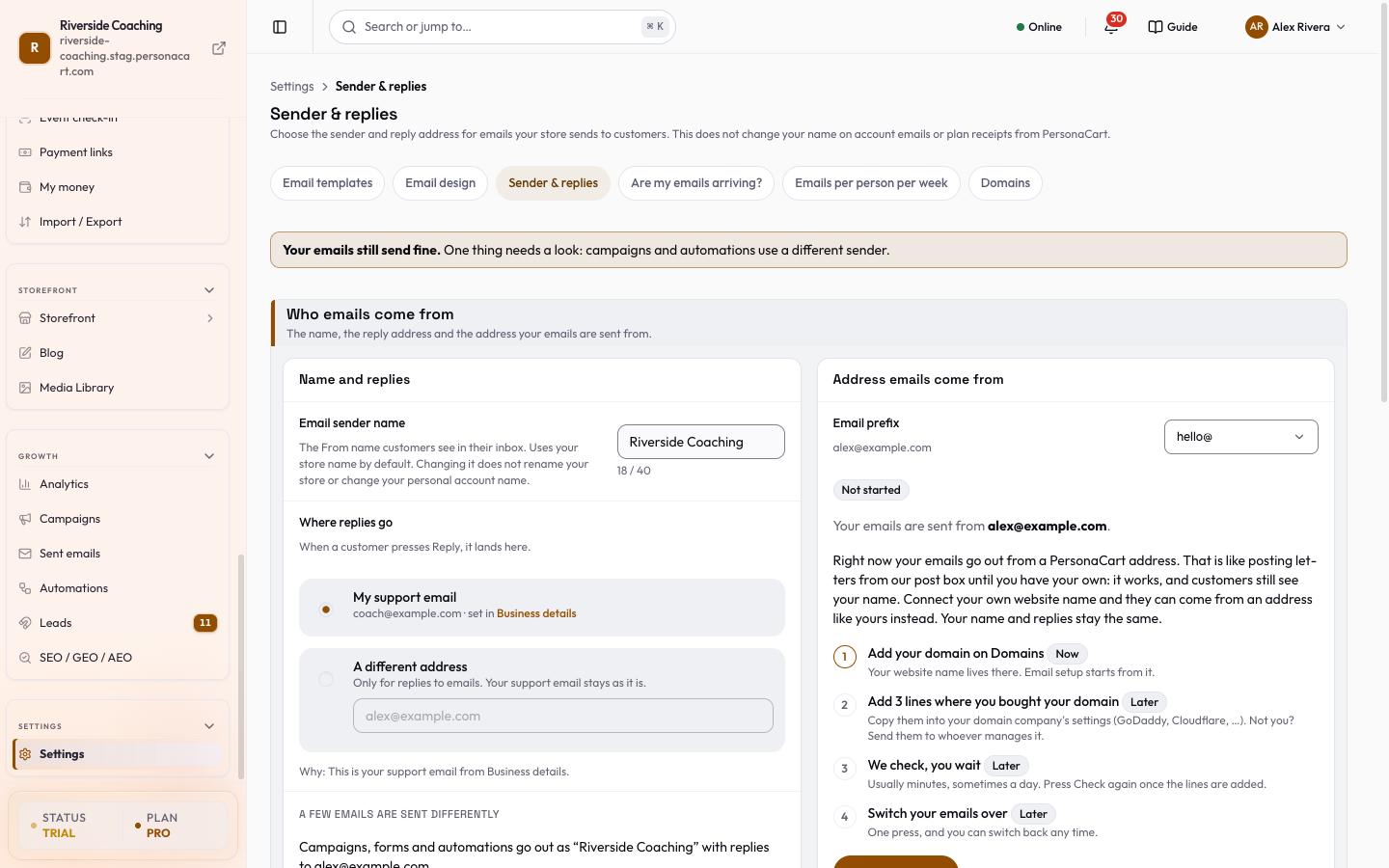
What is on the page
At the top, a notice (Your emails still send fine. One thing needs a look) lists anything to fix, for example no support email, a few kinds of email sending differently, own domain not finished, many emails bouncing, or someone reporting you as spam.
What your customer sees
- A preview with two tabs, Inbox and Opened email, shows your real name and addresses with a sample customer (Jane).
- It shows From, To, Reply-to and a line
When Jane presses Reply, her message goes to <address>. - Each value says Why, for example
This is your store name from Business details.Unsaved changes are markednot saved yet.
Name and replies
- Email sender name: the From name customers see in the inbox.
- It uses your store name by default (Use my store name).
- It is only for emails: your store name on the storefront and your own account name do not change.
- Do not put an email address in it, and a name longer than 40 characters may be cut off in some inboxes (
N / 40).
- Where replies go: My support email (set in Business details; if none is set, replies go to the address you log in with, and the page tells you to add one) or A different address (Different reply address, for replies to emails only; your support email stays as it is).
Address emails come from
Your emails are sent from a PersonaCart address until you connect your own domain. The card shows the state: Not started, Waiting for DNS, Verified or Verified · in use.
- Add your domain on Domains. Press Set up on Domains.
- Add N lines where you bought your domain. The card lists the lines with Type, Name and Value, a Copy button each, and
N of N found. Not you? Email these steps to my web person. - We check, you wait. Usually minutes, sometimes a day. Press Check again now once the lines are added. Until all lines are found your emails keep coming from the PersonaCart address. Nothing is broken.
- Switch your emails over with Switch my emails to my own address. You can switch back any time.
On a store with its own domain connected, the Domains page's Store emails section also shows Your store emails are sent from <address> with Manage sender. Only the part before the @ (the Email prefix) is chosen there.
A few emails are sent differently
- If some kinds of email (or campaigns, forms and automations) use a different sender name or reply address, the page shows A few emails are sent differently.
- Make every email match saves what is shown above as your choice for all of them.
- If you have older settings saved from before this page existed, Older settings found lets you choose once (Use it for all emails, Use my store name or Use my support email).
- Nothing is deleted.
Send me a test
- Send me a test sends a real
Order confirmedemail to the address you log in with, built the way customers get it. - If you have unsaved changes the button reads Save & send me a test.
- Then tick four lines: it arrived in my inbox, not Spam; the name on top says your sender name; the address under the name looks right; pressing Reply shows the To box with your reply address (close it, do not send).
- When all four look right, the page says
All four look right. You are set.There is a limit on tests per hour.
Are my emails arriving?
- A short summary:
N of N emails got through in the last N days, with Delivered, Could not deliver (addresses that do not exist, which PersonaCart stops trying) and Marked as spam. - A new store with no sends says
Too early to tell. - See more about sending opens Are my emails arriving?.
Changes on this page save together: a bar shows Unsaved changes, Discard and Save changes, and after saving Every email uses this now.
Good to know
- Your emails still reach customers while your own domain is being set up. They come from PersonaCart's address until you switch.
- Monthly marketing-email limits depend on your plan. See Plans, limits and what is included.
- To send marketing through your own email service, see Connected apps.
Will changing the sender name rename my store?
No. The name here is only used on emails. Your store name on the storefront and your account name stay as they are.
Where do customer replies go?
To your support email by default, or to a different address you choose here. If you have neither, they go to the address you log in with.
Do I need my own domain to send emails?
No. Emails go out from a PersonaCart address that works out of the box. Your own domain is optional and makes the emails look like they come from you.
My emails land in Spam. What do I do?
Send yourself the test, mark it Not spam once, and check Are my emails arriving? for bounce and spam rates.
Related
Part of Store Settings Guide · Product page: PersonaCart features