Email design
In short: Give every email your store sends one look: pick a style, colour and font, set the header image and footer, preview on desktop and phone, and apply it to all.
Email design gives every email your store sends one look. You edit a copy with a live preview of your real order-confirmed email, and customers see nothing change until you press Apply.
Where to find it
Sidebar → SETTINGS → Emails and web address → Email design, or Edit design on Email templates. It is available on every plan. The old Brand kit link (/settings/brand) opens this page at its header-image section.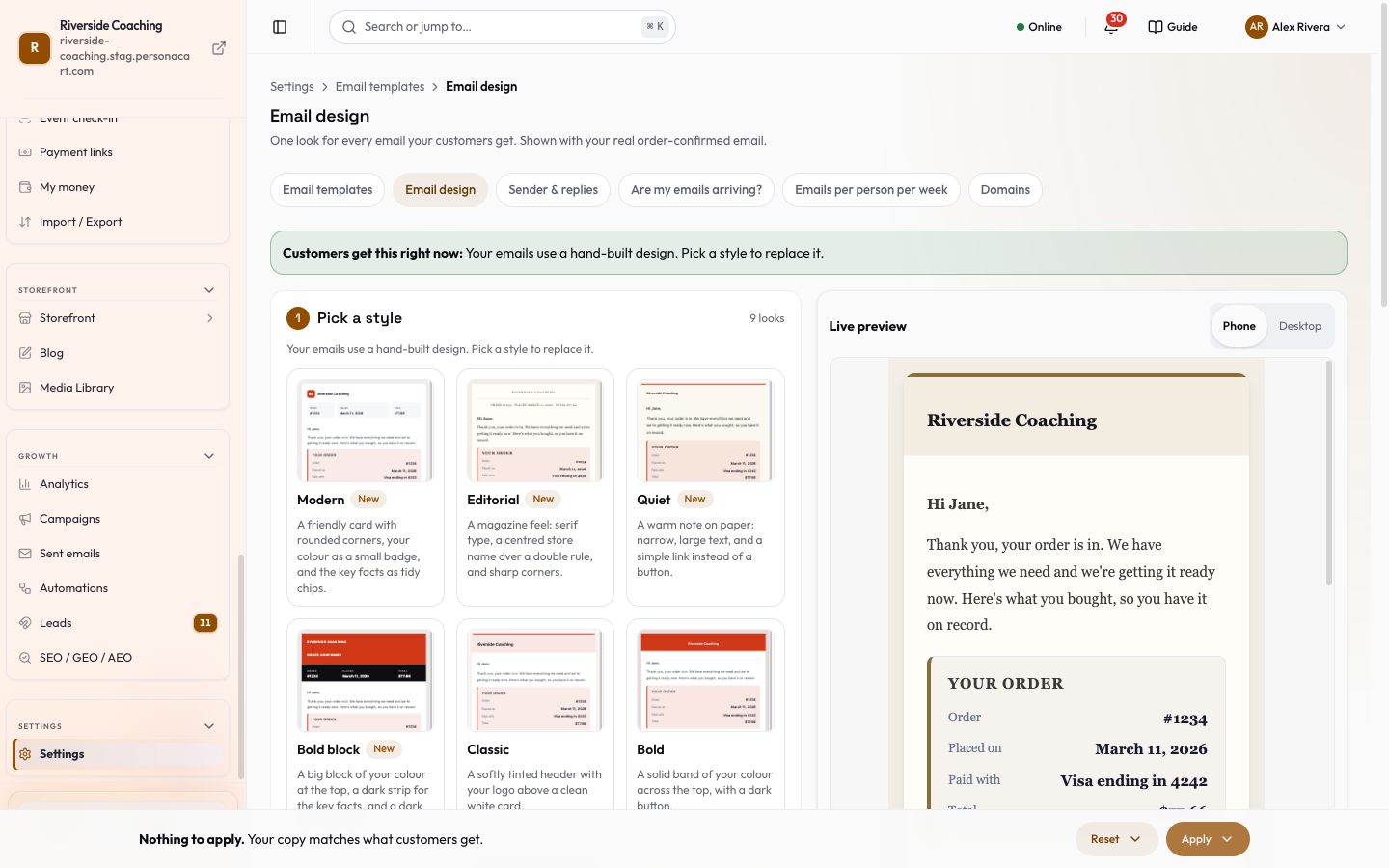
Edit your copy
The page says: One look for every email your customers get. Shown with your real order-confirmed email. A banner tells you what customers get right now (Used by all N emails, or the different looks in use), and you edit a copy until you press Apply.
- Pick a style. Choose from the looks shown. A hand-built design from before shows as Hand-built, and you pick a style to replace it.
- Your colour. Pick one colour (your store colour, or a swatch such as Ink, Forest, Ocean, Plum, or any colour code like
#1d4ed8). Header, buttons, links and highlight boxes all follow it. If the colour is hard to read on white, links are darkened automatically. - Font. Three pairings: Editorial (serif headings, simple text), Clean and Friendly. Only email-safe fonts are used, because Gmail and Outlook strip custom web fonts. Some styles, such as Plain text, do not support fonts, and then this step says so instead of showing the three choices.
- Fine-tune (everything starts as Auto and follows your style and colour; Back to auto undoes a change).
- Tabs: Logo & name (Show logo, Logo size, Logo position, Logo shape Square/Rounded/Circle, Show brand name), Colours (Header colour, Button colour, Accent colour, Link colour, Canvas background, Footer background) and Shape & items (Button shape Square/Rounded/Pill, Corners, Content width Narrow/Standard/Wide, Product card style Compact/Detailed).
- Header image, footer and details: your header image (
Shown at the top of every email, in every design; leave empty to use your store logo), footer text, contact line, social links, signature, and whether to Show "Powered by PersonaCart" (white-label is tied to your plan).- These belong to your saved template.
- Set elsewhere: the sender name, sent-from address, reply-to and footer address are used by every email and are changed where they live, with a link to each.
- The preview toggles between Desktop and Phone. Once you change something, Your copy and Customers get now also appear so you can compare.
- Apply stays greyed out until you change something.
- The bar at the bottom shows the number of changes, and Apply has two choices: Apply to all N emails or Only Order confirmed.
- After applying you can Undo.
- Reset offers Discard my changes or Reset to PersonaCart default (Classic, your store colour, Editorial font, no fine-tuning).
Your postal address and the unsubscribe link are always included, because email law requires them, so they cannot be removed.
Good to know
- Your edits are a copy until you press Apply. The banner
You are editing a copy. Customers still get <style> until you press Apply.reminds you. - After applying, Undo puts back what customers got before.
- Fonts are email-safe on purpose: Gmail and Outlook strip custom web fonts, so each choice maps to a curated stack that renders everywhere.
- The sender name, sent-from address and reply-to are not set here. They are shared by every email and live in Sender & replies.
Will my customers see changes while I edit?
No. You edit a copy with a live preview. Customers only see it after you press Apply.
Can one email look different from the rest?
Yes. In an email's own editor you can give just that email its own look, or have it follow the store's look again.
Where do I change the sender name?
In Sender & replies. Email design links to it under 'Set elsewhere'.
Can I remove the unsubscribe link or my address?
No. Email law requires them on marketing email, so they are always included.
Related
Part of Store Settings Guide · Product page: PersonaCart features