Domains
Domains settings put your store on your own web address — yourbrand.com instead of the free subdomain you got at signup. You connect the domain, verify it through DNS, and PersonaCart provisions SSL so it loads securely.
Where to find it
Sidebar → SETTINGS → Settings → Domains.
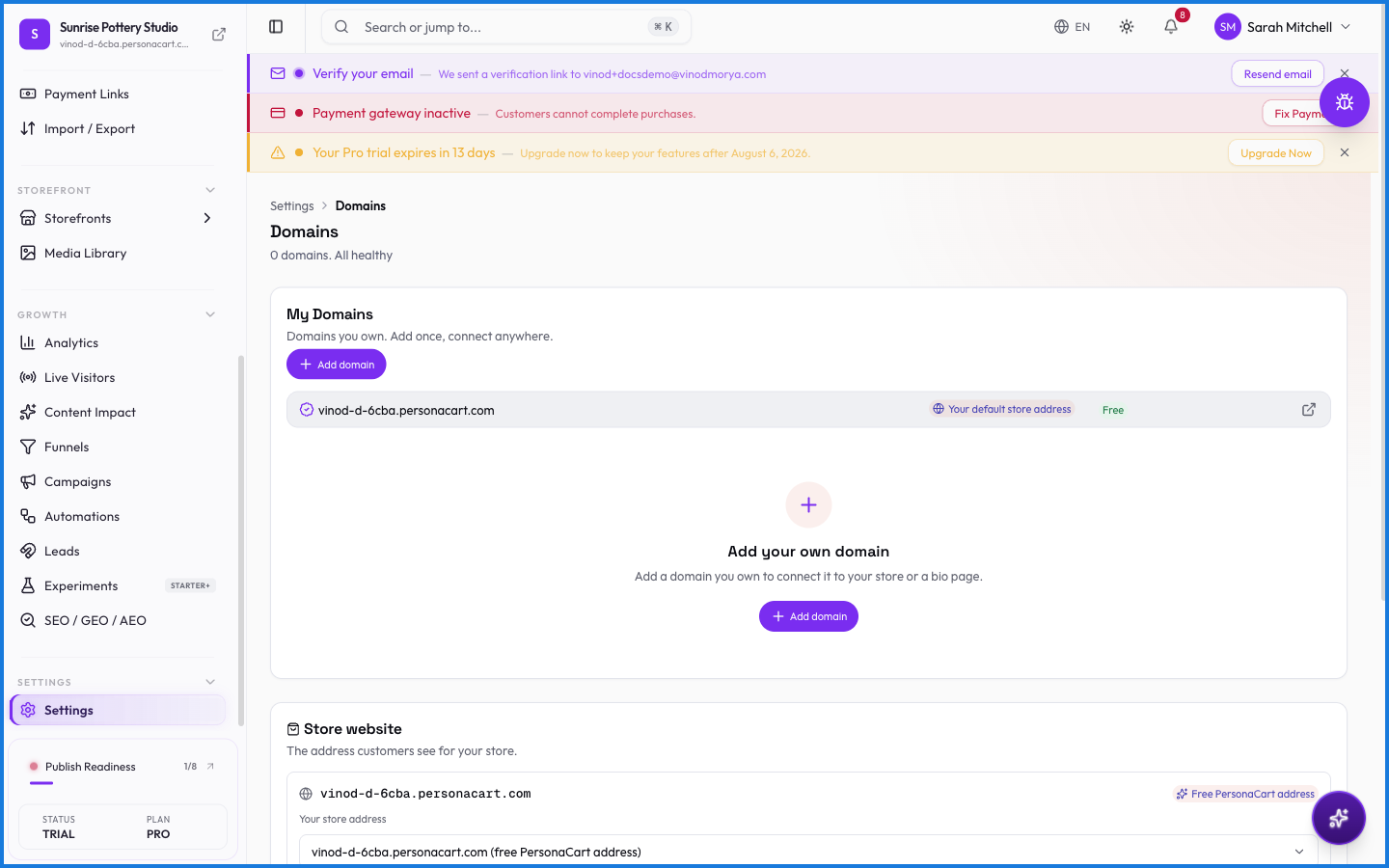
Connecting a domain
- Enter the domain you own. PersonaCart detects whether it's a root domain or a subdomain and shows you the exact records for that case.
- Add those records at your domain registrar — wherever you bought the domain (GoDaddy, Namecheap, Cloudflare, and so on).
- Come back and verify. PersonaCart checks whether the records have taken effect.
- SSL is provisioned automatically once verification passes, so the site loads over HTTPS.
The records depend on the kind of domain
This is the step most connections get stuck on, because the two cases need different records.
| What you're connecting | Example | Record |
|---|---|---|
| Subdomain | shop.yourbrand.com | A CNAME pointing at shops.personacart.com |
| Root domain (also called apex) | yourbrand.com | A records — not a CNAME |
A root domain cannot take a CNAME. That's a rule of DNS itself, not a PersonaCart limitation, and most registrars will refuse to save one. PersonaCart shows you the specific A record values after you add the domain, because those point at our edge and can change.
Always copy the records from the screen rather than typing them from memory or from another guide. The value shown is the one the server actually verifies against.
If verification keeps failing
- Give it time. DNS changes usually take effect in 5–15 minutes, but registrars can take up to 48 hours. Verification failing during that window is the DNS catching up, not a problem with the domain.
- Check the Cloudflare proxy. If your domain is on Cloudflare, set the record to DNS only (grey cloud), not proxied (orange cloud). A proxied record hides the real value behind Cloudflare's own IPs, so verification can't see what you set.
- Check you used the right record type for a root domain versus a subdomain — see the table above.
What happens — and what doesn't
- SSL is automatic — you don't buy or install a certificate; PersonaCart handles it once the domain verifies.
- Your primary domain is the address buyers see. Any other connected domain redirects to it, so links you've already shared keep working.
- Until a custom domain is connected, your store runs on its free subdomain, which keeps working.
- Your primary domain shows on the Storefronts infrastructure strip with its SSL status.
Do I need to buy an SSL certificate?
No. PersonaCart provisions SSL automatically once your domain is verified, so your store loads securely over HTTPS without any manual setup.
What CNAME do I point my domain at?
A subdomain such as shop.yourbrand.com takes a CNAME pointing at shops.personacart.com. A root domain such as yourbrand.com cannot take a CNAME — it takes A records instead, and PersonaCart shows you those values after you add the domain.
Can I connect a root domain like yourbrand.com?
Yes. Root domains use A records rather than a CNAME, because DNS does not allow a CNAME at the root of a zone. PersonaCart detects that you entered a root domain and gives you the right records.
Why isn't my domain connecting right away?
DNS changes take time to propagate after you add the records — usually 5 to 15 minutes, occasionally up to 48 hours. If it is still failing after that, check that the record type matches the kind of domain, and that any Cloudflare proxy is set to DNS only rather than proxied.
My domain is on Cloudflare and won't verify. Why?
Cloudflare's proxy (the orange cloud) replaces your record with Cloudflare's own IPs in public DNS, so verification cannot see the value you set. Switch that record to DNS only — the grey cloud — and verify again.
What this screen looks like in every state
| State | When you'll see it | What you see, and what to do |
|---|---|---|
| Loading | The screen is fetching your data | A skeleton in the shape of the finished page. It should be brief — if it persists, the load has failed rather than stalled. |
| Error | The data couldn't be loaded | A message with a retry. Retry first: most of these are a dropped request, not a broken store. If it repeats, the outage is upstream and reloading won't help. |
| No access | Your role doesn't include this screen | A permission notice instead of the page. An owner or admin can grant access under Settings → Team. |
When something goes wrong
These are the messages this screen can show you, and what each one means.
| If you see | What to do |
|---|---|
| Couldn't remove the domain. | Retry the action. If it keeps happening, contact support with what you were doing. |
| Couldn't update the store domain. | The change didn't save. Retry — if it keeps failing, the request isn't reaching the server. |
| Failed to save email settings | The change didn't save. Retry — if it keeps failing, the request isn't reaching the server. |