Developers
In short: A short doorway to the two tools for people who connect their own code or apps to a store: Webhooks, and Connect AI with API keys.
Most coaches and creators never need this page. It is for people who connect their own code, a website or an AI app to a store. The page itself has no settings. It lists the developer tools you are allowed to open and takes you to them.
Where to find it
Settings → Developers. The page reads Developers: For people who build on top of your store. Most coaches never need this page.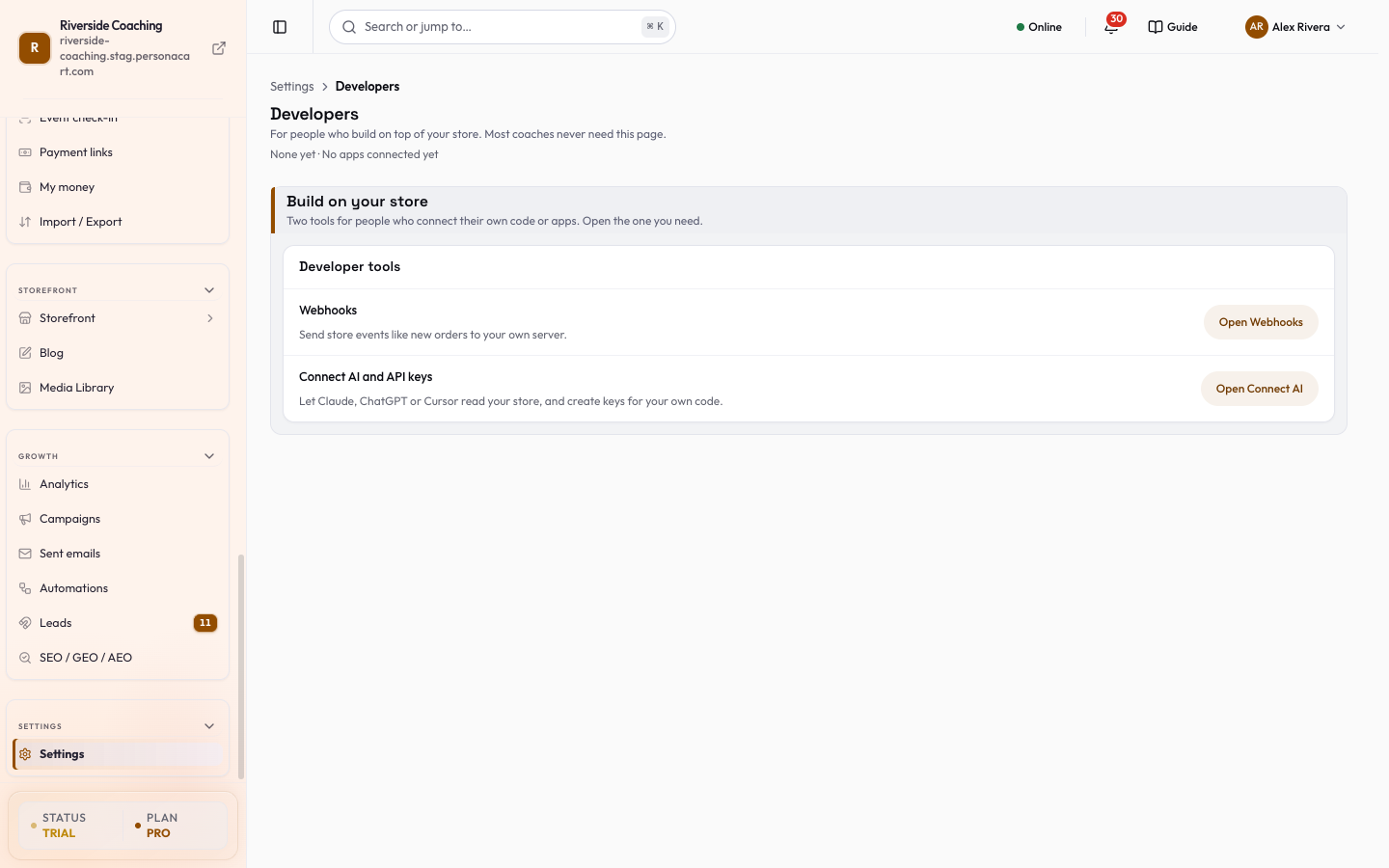
What is on it
One card, Developer tools, under the heading Build on your store: "Two tools for people who connect their own code or apps. Open the one you need." Each row has a short line and a button.
| Row | What it is for | Button |
|---|---|---|
| Webhooks | Send store events like new orders to your own server. | Open Webhooks |
| Connect AI and API keys | Let Claude, ChatGPT or Cursor read your store, and create keys for your own code. | Open Connect AI |
Rows follow your role. A row you cannot use is not shown at all, rather than shown greyed out. If neither row is available for your role the page says Nothing on this page is available for your role.
If Connect AI has been switched off for the platform, the second row changes to say "AI Connect is off. Remove the keys and AI apps you already connected." and its button still opens Connect AI so you can remove what is connected.
Try both tools in a minute
- Press Open Webhooks, then New endpoint.
- Type a web address into Endpoint URL, pick events, then Create endpoint (or Cancel to leave without saving).
- Go back to Developers and press Open Connect AI.
- In API keys, press Create key, type a name, choose Read only and press Create key.
- Copy the key now, because it is shown only once, then press Done.
- To switch a key off, open its Actions menu and choose Revoke key.
Old links keep working
The address /settings/api-keys is no longer a separate page. It opens the API keys tab of Connect AI, with any Approvals or Activity tab you were heading to. So an old bookmark or an email link still lands in the right place.
Where each tool is explained
- Webhooks: add an endpoint, choose events, check the signature, read the delivery log.
- Connect AI and API keys: connect an AI app, choose what it can do, approve live actions, create or revoke a key.
Good to know
- API keys and webhook secrets belong to the store, not to a person. When a team member leaves, revoke any key they could reach; see Team.
- Every change made through a key, an AI app or Pie is recorded in the Activity log.
Do I need the Developers page?
Only if you connect your own code, a website or an AI app. If you do not, you can ignore it.
Where did the API keys page go?
API keys are a tab inside Connect AI. The old address opens that tab.
Why do I only see one row?
Rows follow your role. You see only the tools your role can open.
Related
Part of Store Settings Guide · Product page: PersonaCart features