Connect AI and API keys
In short: Run your store by talking to Claude, ChatGPT, Codex or Cursor. Connect an app, choose what it can do, approve live actions, use API keys and switch it off.
- Connect AI lets an AI app you already use work in your store when you ask it to.
- You say it in plain words ("How much did I sell last week?", "Make a draft product: Yoga Mat, 999") and the app does it through a secure connection.
- You choose what it can see, and anything that goes live waits for your yes.
It works through MCP, a standard way for AI apps to connect to a service. You do not need to know how it works to use it.
Where to find it
Settings → Developer tools → Connect AI apps. It is one page you scroll, with a jump bar at the top: Connect an app, Your AI apps, How it works, Help, API keys, Approvals, Activity and Danger zone. Links can point straight to a part of it:
-
?tab=apps,?tab=keys,?tab=approvalsand?tab=activityscroll to that section, and?tab=keys&create=1opens the Create key dialog. -
The old address
/settings/api-keystakes you to the same page, on the matching section, so old bookmarks and approval emails still land in the right place. -
Before you connect anything, Connect an app comes first. Once an app is connected, Your AI apps moves to the top.
-
You need permission to manage settings.
-
Every plan includes Connect AI; your plan sets how many connections and calls per day you get (see Plans, limits and what is included).
-
Approvals and Activity appear once the approvals service answers.
-
If Connect AI has been switched off for your store, a notice says "AI Connect is turned off": you can still see and remove the keys and apps you already connected, but you cannot make new ones.
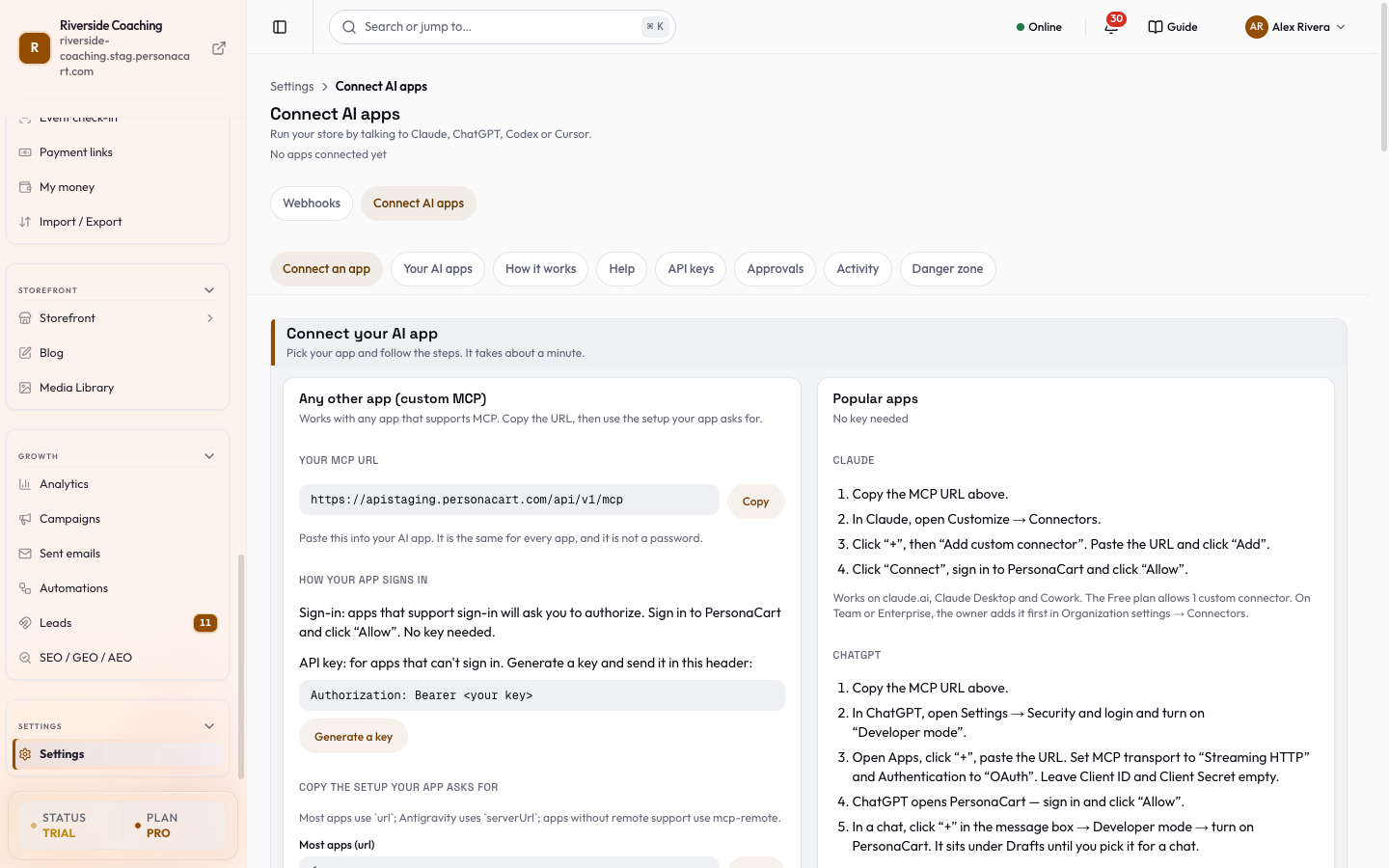
Connect an app
The Connect an app section has two cards. Once you have an app connected, the steps fold away under Connect another app.
Any other app (custom MCP)
This card comes first, so any app that supports MCP works:
- Your MCP URL: press Copy MCP URL. It is the same for every app and it is not a password. It starts with https and ends with
/api/v1/mcp. - How your app signs in: apps that support sign-in ask you to authorize; you sign in to PersonaCart and press Allow, and no key is needed. For apps that cannot sign in, Generate a key opens the key dialog and the app sends it in an
Authorization: Bearer <your key>header. - Copy the setup your app asks for: one copy box per shape. Most apps (url), serverUrl (Google Antigravity), With an API key (headers) and Apps without remote support (mcp-remote).
Popular apps (no key needed)
The consent screen
When an app starts connecting, PersonaCart opens /oauth/consent in your browser. If you are signed out you are asked to sign in first. The screen shows:
- "[App] wants to connect to your store" and It will send you back to a web address. The app picks its own name, so check this address instead of the name; hover it for the hint.
- A warning: Only approve apps you started connecting yourself.
- Store: your store's name, and Connections: how many of your plan's connections are used.
- It will be able to: the same permission board as the app's Permissions dialog (below). The app's request preselects a starting point, Read only or Assistant, always held to what your plan allows, and customer details start off. Change anything before you approve.
- Not on your plan: anything the app asked for that your plan does not include, each with a short reason.
- A note if you already connected this app: Approving replaces the old connection.
- Approve or Deny. If the request is no longer valid you see Request expired: start Connect again from your AI app. If your plan cannot connect more apps, the screen says so and offers Upgrade.
After you decide, the browser returns to the app. The decision is yours alone: nothing is connected until you press Approve.
Your AI apps
-
Your AI apps lists every app that can reach your store right now, whether it signed in with Connect or uses a key.
-
Each row shows the app's name (a new app shows its name after it next connects), "Signed in with one-click Connect" or "Uses key [name]", Connected date, an Active state, and a summary of what it may do:
-
Can see: the areas set to Read. Can draft: the areas set to Draft. Can't see or change anything when everything is off.
-
Asks you first: live actions set to ask. Does by itself: live actions it may do without asking.
-
Customer details stay hidden or Can see customer details.
-
Live actions paused if the app was paused (see Approvals).
-
Each row has Permissions (opens "What [app] can do"), View activity (jumps to Activity filtered to that app) and Disconnect.
-
Below the list is the Pie's read tools for your AI assistants switch: Let my AI assistants use Pie's read tools (analytics, inventory, bookings).
-
They can only read, never change anything, and you can switch this off any time.
-
Guest names and emails also need the separate customer-details switch.
Permissions
Open Permissions on an app. Changes apply to that AI's next request.
- Quick setup: Read only (can look, cannot change anything), Assistant (can look at everything and write product drafts for you to check) or Custom (your own mix).
- What the AI can see and do: set each area to Off, Read or Draft:
| Area | What it covers |
|---|---|
| Insights | Sales numbers, visits and trends. |
| Orders | Your orders and where each one is. |
| Customers | Your buyers. Names and contact details stay hidden unless you turn them on below. |
| Products | Products, prices and stock. Draft lets it write product drafts. |
| Bookings | Calls and appointments people booked with you. |
| Webhooks | Links that send your store's updates to other apps. |
| Pages | Your store's pages. Draft lets it edit page drafts; putting a page live is a separate switch below. |
Off hides that part of your store from the AI. Read lets it look. Draft lets it write things that you still publish yourself. An area only offers the levels that exist for it.
- Let AI see customer names, emails, phone numbers and addresses: off by default. When it is off, the AI sees orders and customers without anything that tells who the person is.
- Live actions: these change your real store right away.
- For each one choose Off or Ask me first: Send store data to a new website, Put a product live, Publish a page, Change a price, Change stock, Mark an order shipped.
- Each shows what it does; some show a note that it always asks you first.
Scopes
A key and a connection carry scopes, the short list of what it was allowed. They show on each key and on the consent screen as:
| Scope | Label | Meaning |
|---|---|---|
read | Read store | Look at your store. |
write:drafts | Create drafts | Create things as drafts you review before anything goes live. |
webhooks | Webhooks | Manage your webhook endpoints. |
webhooks:test | Test webhooks | Send a test event to a webhook endpoint. |
audit | Audit log | Access to the audit log. |
For a key you do not pick scopes yourself: you pick an Access level, and the right scopes follow.
API keys
-
Most people never need a key, because Claude and ChatGPT sign in with Allow.
-
A key is for a tool or script that cannot sign in.
-
It works in one place only: your MCP URL; no other PersonaCart API accepts it.
-
Under When do you need an API key? the page shows where a key goes for Claude Code, Codex, Cursor and n8n or your own script, and notes that webhooks don't need a key: PersonaCart sends them to your server and each has its own signing secret (see Webhooks).
-
The API keys section ("For AI tools and scripts that can't sign in") shows a usage meter, Keys: N of M and Today: N of M calls, then each key with its name, scope badges, Last used and Expires, a Permissions button and a More actions menu with Revoke key; a short Revoke this key? window asks you to confirm.
-
When you have used every key on your plan you are told to revoke one or upgrade.
-
Copy for Claude copies a full guide to the AI connection, with your plan and limits, to paste into Claude or ChatGPT.
-
Your key is never included.
:::caution Good to know The key is shown once, like a password. If you lose it, you cannot see it again: revoke it and create a new one. Keep it private. A key belongs to the store, not to one person, so if a team member leaves, revoke any key they could reach (see Team). :::
Approvals
-
When an AI wants to do something live and that action is set to Ask me first, the request waits in Approvals ("Waiting for your OK").
-
Each request says "[App] is asking to: [action]" and shows when it Expires.
-
Reading your store and making drafts never need approval, so they never appear here.
-
If the action is Off, the app is simply blocked and you see it in Activity instead.
-
It shows what will change. For a price it shows the old and the new price; for a product it shows What buyers will see.
-
Check this before you approve and Worth knowing before you approve list things like buyers checking out with the item right now, or a parcel going to a country the carrier may not serve.
-
If something changed since the AI asked, Approving will be refused and the page says so, with the current value. Ask the AI again.
-
To approve Mark an order shipped, type the last 4 characters of the tracking number from your courier receipt; Approve stays off until you do. Email the buyer that it shipped is off by default; tick it to send the shipped email with the tracking number now.
-
Press Approve or Deny, or Deny all. A request not approved within 30 minutes shows Expired; ask your AI to try again. Recent requests lists what happened: Waiting for you, Approved, Denied, Expired, Done, Cancelled.
-
If you deny three requests from one connection in an hour, its live actions pause ("[App]: live actions are paused") until you press Resume.
:::caution Good to know Approving a live action changes your real store, and some cannot be undone. A price changes what buyers pay from the moment you approve. A shipped email cannot be unsent. Data sent to a new website cannot be taken back. Read the preview before you press Approve. :::
Activity
- Activity ("Every time an AI used your store, and what was decided") lists each call with the decision: Allowed, Asked you or Blocked.
- Filter by AI (one key or app) and by Decision, and press Load more for older calls.
- The changes also appear in the Activity log.
- Call history is kept for 7 days on Starter, 30 on Pro and 90 on Scale; blocked and approval events are kept for 90 days on every plan.
What the AI can call (MCP tools)
The tools your AI can use are tied to the permission areas above. A tool only appears for an app that has the right level; customer lookups also need the customer-details switch.
| Area | Read | Draft (runs right away, nothing goes live) | Live (waits for your approval) |
|---|---|---|---|
| Insights | Store summary: sales and orders for today, 7 and 30 days, average order value, top products | ||
| Orders | List orders, Get order | Mark order shipped | |
| Customers | Search customers, Get customer (need customer details on) | Change customer tags (customer details on) | |
| Products | List products, Get product | Create product draft | Publish product, Change a price, Set stock, Edit product details, Edit variant details |
| Bookings | List upcoming bookings, Get booking | ||
| Webhooks | List endpoints, List deliveries, List event types, and Send test webhook (a test event to an existing endpoint) | Retry failed deliveries | Create webhook endpoint |
| Pages | List pages, Get page structure, List section types, Get example pages, Get design system, Get composition guide, List media, Preview page, Get preview, Check page quality, Compare with source design | Create page, Compose into page, Update section content, Move section, Remove section, Undo last AI change, and (HTML editor stores) Add and update designed sections, Get element map | Publish page |
With Pie's read tools switched on, assistants can also read Pie's reports, such as revenue trends, traffic, funnel drop-off, inventory, discounts, subscriptions, campaigns, courses and your BioLink items.
Never possible through AI, on any plan: refunds, payouts, bank details, and deleting your store or your customers.
Revoking and switching off
- Revoke key (in the key's menu): any app using that key loses access right away. This cannot be undone; create a new key if you need one.
- Disconnect on an app: it stops on its very next request. Other tools are not affected. To use it again, connect it again and choose what it may do.
- Disconnect all AI (Danger zone, "Turn off every key and every connected app at once"): every key and every connected app stops working right away. You can connect again later.
Something not working?
The Help section answers the common ones:
- Nothing happens after I paste the URL: check it is exactly the URL shown (starts with https, ends with
/api/v1/mcp, all lowercase). In ChatGPT pick Streaming HTTP and OAuth. - The PersonaCart login didn't open: allow pop-ups for chatgpt.com or claude.ai in your browser, then try again.
- It says my plan can't do this: ChatGPT needs Plus or above with Developer mode turned on. Claude Free allows one custom connector.
- I clicked Allow but the AI can't see something: open Your AI apps, then that app's Permissions, and turn that area on.
- I want to start over: disconnect, then connect again to see the Allow screen fresh.
Will the AI change my store without asking?
Drafts and reading do not need approval. Anything live, such as a price, stock, shipping or publishing, waits for your yes in Approvals.
Can the AI see my customers' emails?
Not unless you turn on the customer-details switch for that app. It is off by default.
Where do I find my MCP URL?
On Settings → Developer tools → Connect AI apps, under Connect an app. Copy it from there. It is the same for every app.
I lost my API key. Can I see it again?
No. A key is shown once. Revoke it and create a new one.
Do I have to use a key to connect Claude or ChatGPT?
No. They sign in with Allow on the consent screen. A key is only for tools and scripts that cannot sign in.
What does it cost?
Connecting is included on every plan. Your plan sets how many connections and calls per day you get; see the plans page.
Related
Part of Store Settings Guide · Product page: PersonaCart features