Close the store
In short: Hide your whole store for a while with a message for visitors and an optional reopen date, then open it again.
Going away, or need a break from orders? Close the store hides your whole store for a while: visitors see your message instead, and orders and bookings stop. You can pick a date to open again, or reopen yourself whenever you like.
Where to find it
Settings → Close the store. It is one of the tabs along the top of Settings, next to Store status and Weekly backup. Anyone on staff can read the page; closing and reopening need the owner or an admin.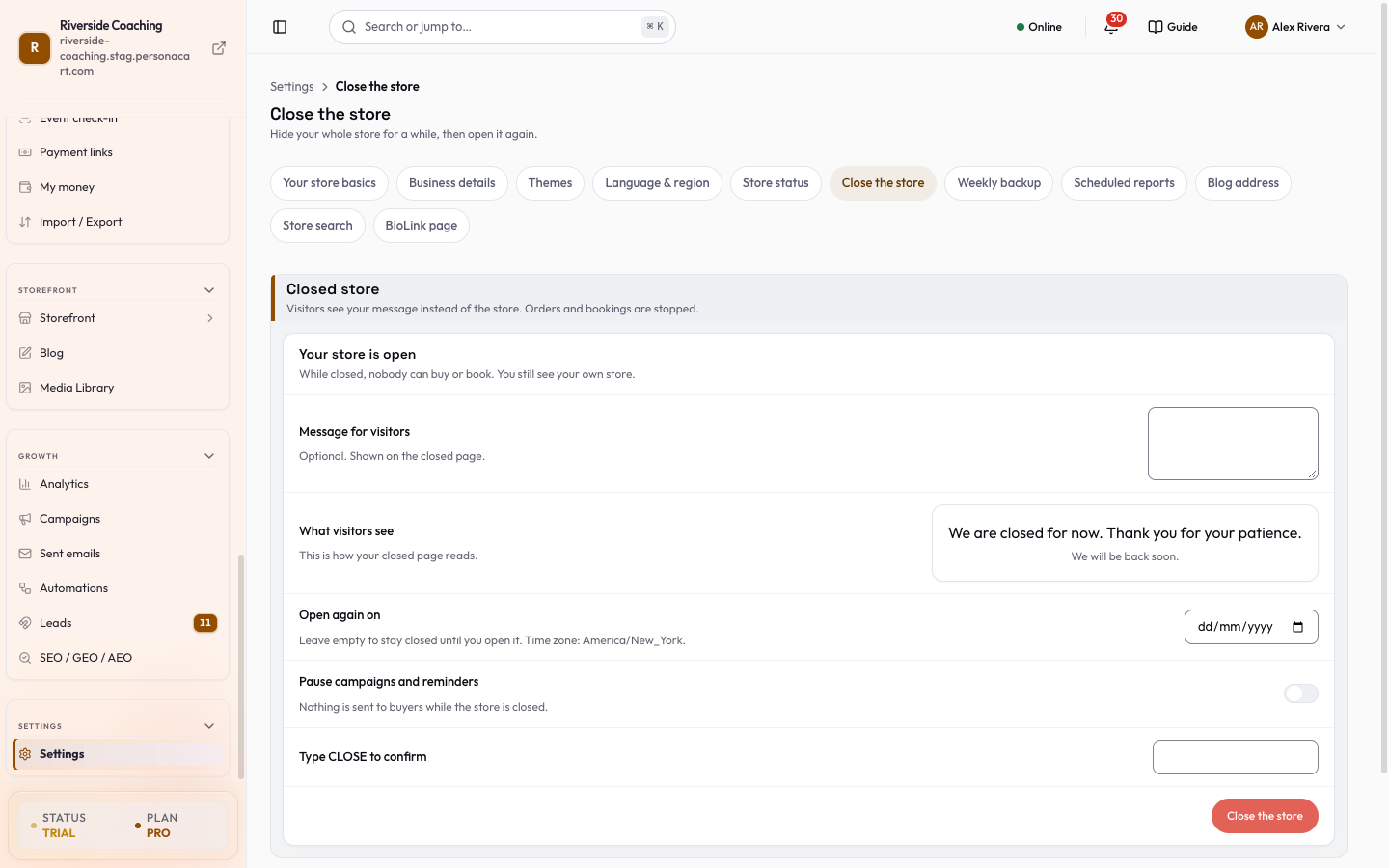
What closing does
- Visitors see your closed page instead of the store.
- Nobody can buy or book while the store is closed. You still see your own store.
- Only this store is affected.
While the store is closed, orders and bookings stop for everyone. Tell your buyers first if you can.
Steps: close the store
- Open Close the store. The card reads Your store is open.
- Write a Message for visitors (optional, up to 500 characters). It is shown on the closed page. A What visitors see card below it shows how it will read, as you type; without a message it says "We are closed for now. Thank you for your patience."
- Pick Open again on (a date) if you want the store to reopen by itself. Leave it empty to stay closed until you open it. Once a date is chosen, an At time appears (on the hour). The time zone shown is your store's time zone; if none is set, set it in Business details first.
- Optional: switch on Pause campaigns and reminders, so nothing is sent to buyers while the store is closed.
- Type
CLOSEinto Type CLOSE to confirm. The red Close the store button stays off until you do. - Press Close the store. A message says "Store closed." and the card changes to Your store is closed.
If the time you picked falls on a clock-change day, the page tells you it opens a little later (a time that does not exist) or at the first occurrence (a time that happens twice).
Steps: reopen the store
- Open Close the store. The card reads Your store is closed and shows "Opens again on ..." or "Stays closed until you open it."
- Press Open the store now. A message confirms "Store is open again."
If you set a date, the store also reopens by itself at that time.
Good to know
- If campaigns and reminders were paused, the page reminds you with "Campaigns and reminders to buyers are paused."
- Closing does not delete anything. Products, customers, orders and settings stay as they are.
- To only pause for a short while or put up a maintenance page, use the store status page, Publish your store, pause it, or put it in maintenance.
Questions
Does closing delete anything?
No. Products, customers, orders and settings stay as they are.
Can I still see my own store?
Yes. You still see your own store while it is closed.
Who can close and reopen the store?
Anyone on staff can read the page. Closing and reopening need the owner or an Admin.
Will the store open by itself?
Yes, if you pick a date under Open again on. Leave it empty to stay closed until you press Open the store now.
Related
Part of Store Settings Guide · Product page: PersonaCart features