Chat button and hours
In short: Turn on Live chat, choose how the button looks, write what buyers read, set office hours, and decide who can chat and what happens when you are away.
- The chat button is the small button in the corner of your store.
- A visitor taps it to start a conversation.
- This page controls the button itself: whether it is there, how it looks, what it says, when you are available, and who can write to you.
- What Pie says on your behalf is set separately, on Teach your buyer assistant.
- The messages themselves arrive in your Message Center.
Video transcript
In this video you will learn the chat button settings. You will see the button, the live preview, what it shows, office hours, and who can chat. It is for creators who answer visitors. Turn on live chat and a button appears on your store. Live preview shows the button as visitors see it. On the button picks what shows inside it. Office hours say when you are there. Who can chat sets who may start a chat. So: turn it on, check the preview, and set your office hours. Thank you so much for watching Persona Cart. To read the full guide, go to docs dot persona cart dot com. To try Persona Cart yourself, go to persona cart dot com. And subscribe, so you do not miss the next tutorial.
There is no Save button. Every control commits as soon as you change it, and the Live preview on the right shows what a visitor on a phone sees. Text boxes save when you click out of them.
Where to find it
Settings → Tools you connect → Chat button and hours. The same screen is also the Chat button tab of the Support Inbox, next to Tickets and Chats.
The page needs a Starter plan or higher and permission to manage customers. A team member on a support seat sees an access-denied message here, because the chat settings cannot be changed from that seat.
The page has three sections: The button, Words and Hours.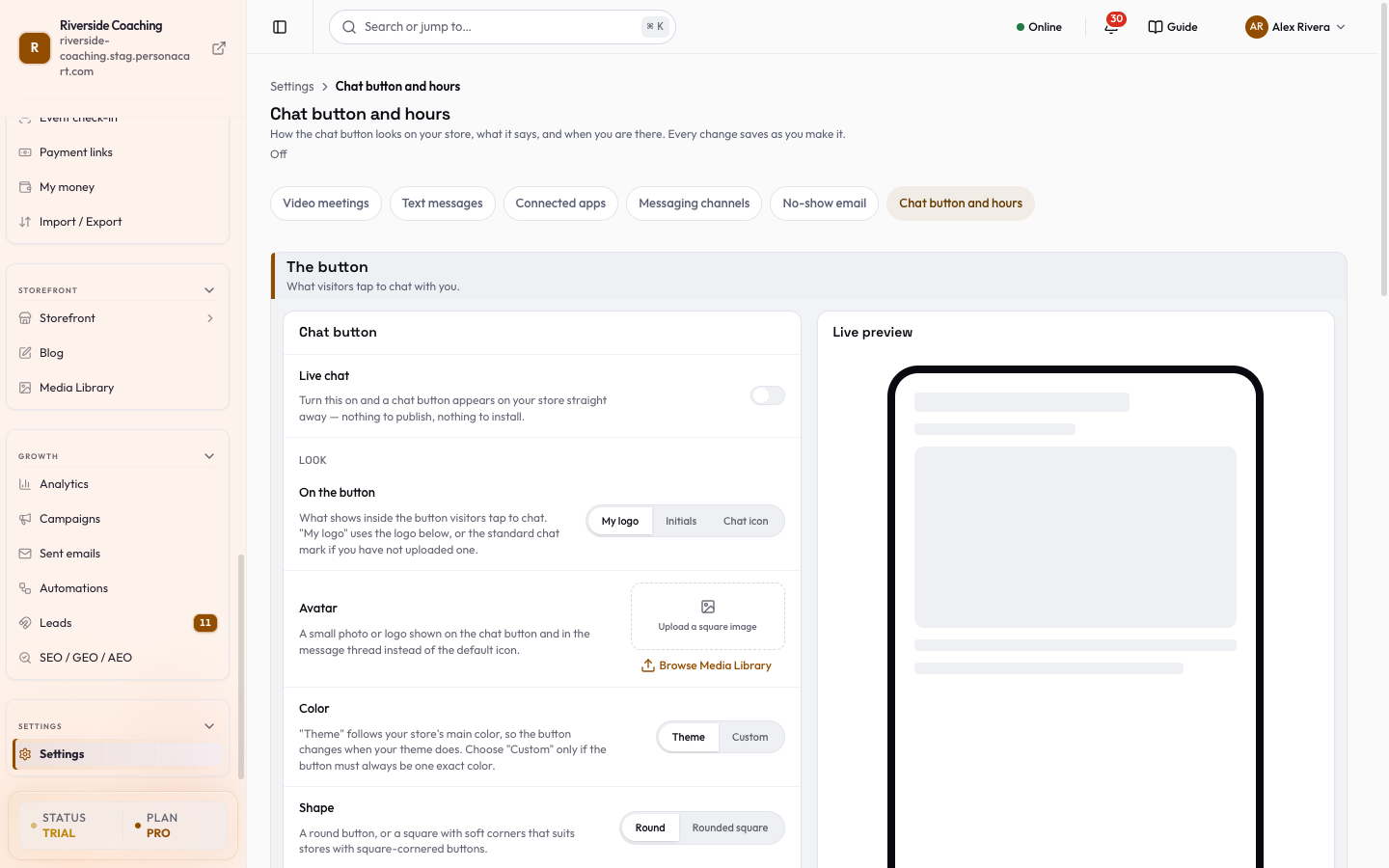
The button
Card Chat button:
- Live chat: the master switch. It starts off for every store. Turn it on and the button appears on your store straight away, with nothing to publish and nothing to install. Turn it off and the button disappears and nobody can reach you here. Conversations you already have are kept.
Under Look:
- On the button: what shows inside the button: My logo (the picture from Avatar below, or the standard chat mark if you have not uploaded one), Initials, or Chat icon.
- Avatar: a small square photo or logo used on the button and in the conversation. Upload a square image.
- Color: Theme follows your store's main color, so the button changes when your theme does. Custom keeps one exact color: choose it with Pick a color. A color must look like
#1A73E8; otherwise you see "Use a color like #1A73E8." - Shape: Round or Rounded square.
Image in the button appears when the button shows My logo and an avatar is uploaded. Drag the picture to place it, then fine-tune:
- Move: drag the picture, or nudge it with the arrow keys.
- Fit: Whole image shows all of it and is best for logos. Fill button covers the whole button and trims the edges, best for photos.
- Zoom: makes the picture bigger or smaller inside the button.
- Space around image: empty space between the picture and the edge of the button, so a logo never touches the edge.
- Behind the image: what shows around a logo with a see-through background: Page (your page's background), Button color, or Custom with Pick a background color.
- Outline: an optional ring, None, Thin or Thick, in the button color or a color you pick.
- Reset image puts the picture back to its default.
Under Where:
- Widget Position: Bottom Left or Bottom right. Move it if it covers something on your store.
- Show on phones: turn off if the button covers something important on small screens. Computers and tablets still show it.
- Show on checkout: turn off to keep checkout free of distractions so buyers finish paying. The button still shows on every other page.
The Live preview card shows what a visitor on a phone sees. Tap the button in it to see your greeting.
Words
Card On the button:
- Button text: a few words shown next to the button, such as "Questions? Chat with us". Up to 40 characters. Leave it empty to show only the button.
- Assistant name: what buyers see as who they are chatting with, for example "Priya" or your business name. Blank uses your store name.
- Tagline: a one-line intro under the name, in your own voice, such as "Here to help with your order".
Card In the chat:
- Greeting Message: the first line a buyer sees when they open the chat. If you leave it blank, buyers see "Hi! How can we help you today?"
- Offline Message: shown outside your office hours. Say when you will be back.
Hours
Card Office hours:
- Hours are in: the timezone your hours are read in. The default is Use my store timezone; pick another only if you answer chat from a different place.
- A switch for each day, Monday to Sunday. Off means Closed. On shows an Opening and closing time (from, then to). A closing time must be after the opening time ("Closing time must be after opening time"), and a day needs both times ("Enter both times").
If you set no hours at all, your chat is treated as always open. With hours set, outside them buyers are told you are away instead of waiting on nobody.
Card Who can chat:
- Who can chat: Anyone visiting my store, Only signed-in buyers, or Only people who have ordered. Use a narrower option if your store gets spam; it narrows who can write to you without switching chat off. Buyers who cannot chat are told why.
- Outside your hours: what a buyer can do when you are away. Let them leave a message, Ask for an email and reply later, or Hide the chat completely. Choose the last one if you never answer messages left overnight.
Good to know
- If you switch Live chat off, nobody can reach you through the chat. Make sure your support email is on your store, or that another way to reach you is visible.
- Pie, your buyer assistant, answers inside this chat only when you have turned it on and it is included in your plan. Switching off Live chat hides the assistant too. See Storefront chat.
- Two settings that look similar are kept in different places: this page holds the button, its words, hours and who can chat.
- How Pie answers, handover to a person, files, team seats and notifications are in the Chat widget section of Buyer AI (the Chat settings button in the Chats tab).
- See Message Center.
- Chats from visitors can include personal details. Use Only signed-in buyers or Only people who have ordered if you want to limit who writes to you.
Is the chat button on by default?
No. Live chat starts off for every store. You turn it on from this page.
Do I need to publish after changing the button?
No. Every change saves as you make it and appears on your store straight away.
Can I hide the button on checkout?
Yes. Turn off Show on checkout. It still appears on every other page.
What do buyers see when I'm away?
Your offline message, plus whichever option you chose under Outside your hours: leave a message, leave an email, or no chat at all.
Where do the messages go?
Into your Message Center, in the Live chat tab and the Chats tab of the Support Inbox, where you reply from the dashboard.
Related
Part of Store Settings Guide · Product page: PersonaCart features