Buyer accounts
In short: Choose how the account area on your store looks to buyers: menu style, pages, welcome banner, accent colour and background pattern, with preview and reset.
Buyer accounts is where you decide what the account area of your store looks like to the people who buy from you. Your buyers already have a working account with the standard look: they sign in, see their orders, downloads, bookings and more. Change anything here only if you want it different.
What buyers do inside their account is described in Buying: the account dashboard. This page covers the settings you control.
Where to find it
Settings → Cart & checkout → Buyer accounts. It sits in the tab row with Shipping, Waivers and Policy pages.
It needs the Storefront permission with edit rights, so the owner and Admins can change it.
The page heading reads Buyer accounts: Customize how buyers see their account section. A note at the top says Already working. and reminds you the standard look is safe to keep.
Two buttons sit at the top:
- Preview opens a preview of the account page in a new tab, using your current (even unsaved) choices.
- Open my account page opens your store's real account page in a new tab, where buyers log in.
A jump bar lets you move between the four sections: Layout, Menu pages, Welcome banner and Colour and background.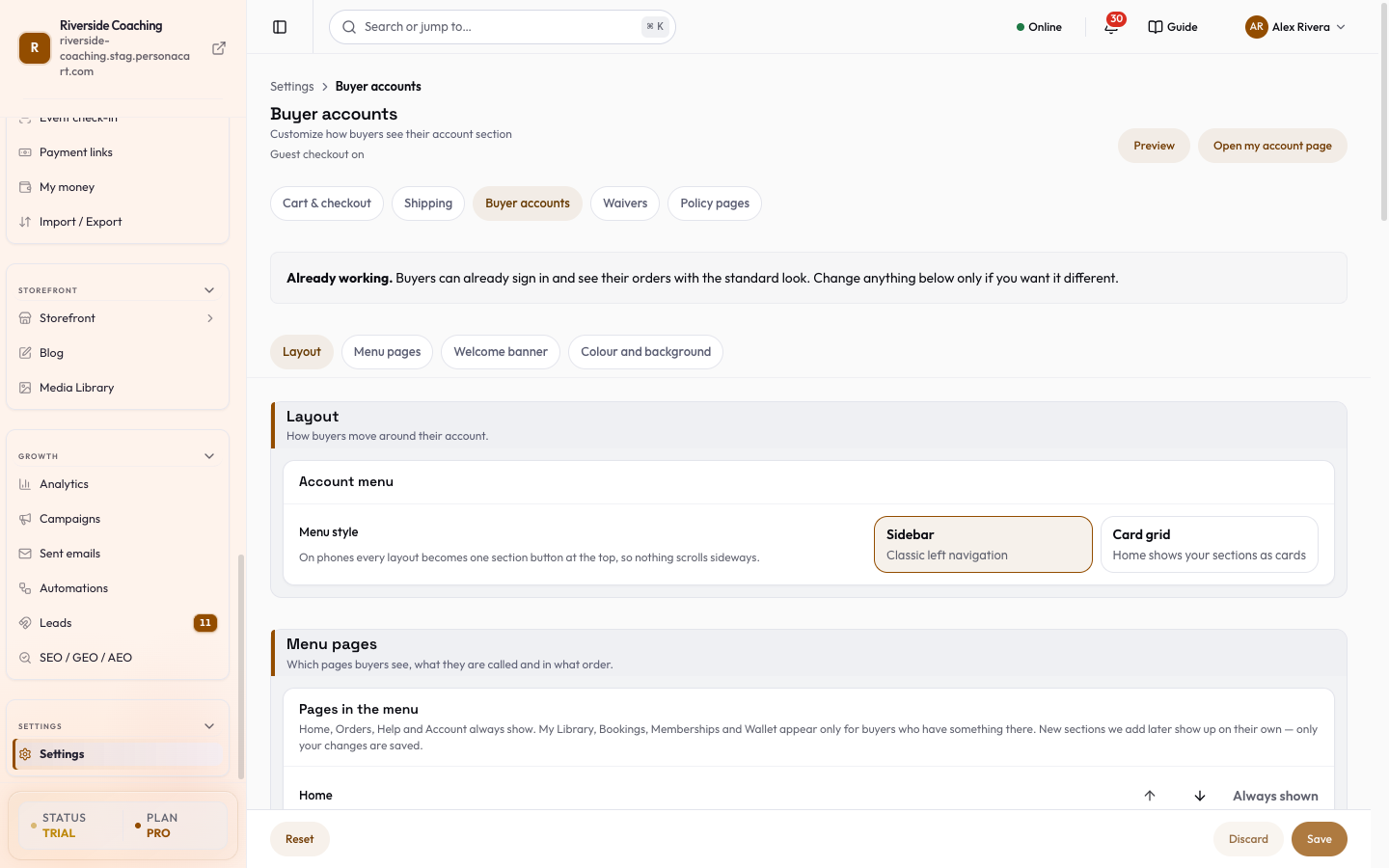
Layout
How buyers move around their account. The card Account menu has one choice, Menu style:
| Choice | What buyers see |
|---|---|
| Sidebar | A menu on the left on computers. "Classic left navigation." |
| Card grid | Buyers land on a Home page that shows every section as a card. Other pages keep the side menu. |
On phones every layout turns into one section button at the top, so nothing scrolls sideways. An older "tabs" choice, if your store had saved it, now shows as Sidebar.
Menu pages
Which pages buyers see, what they are called and in what order. The card Pages in the menu lists the sections in the order buyers see them. For each section you can:
- Move it up or down with the arrow buttons.
- Switch it on or off. Four sections are marked Always shown and cannot be hidden: Home, Orders, Help and Account. You can still rename and move them.
- Type a Name buyers see. Leave it empty to use the standard name, which is translated for every buyer's language.
- Where a section holds more than one page, switch each page on or off.
| Section | Pages inside |
|---|---|
| Home | Home |
| Orders | Orders, Refund requests, My reviews (only while your store's Reviews switch is on), Wishlist |
| My Library | Courses, Downloads, Certificates |
| Bookings | Bookings |
| My family | My family (for Academy parents) |
| Memberships | Memberships |
| Wallet | Store credit, Refer a friend |
| Help | Support tickets, AI assistant, Notifications |
| Account | Profile & security, Addresses & payment |
- A section that a buyer has nothing in does not show for that buyer.
- For example My Library, Bookings, Memberships and Wallet appear only for buyers who have something there, and My family appears once a buyer has added a child.
- The settings here decide what is allowed; the buyer's own activity decides what is shown.
- New sections PersonaCart adds later show up on their own: only the changes you make are saved.
If your Academy runs the parent app, parents with children see a shorter menu (Home, Sessions, Classes, Messages, Account) in place of this one. See Academy.
Welcome banner
The greeting at the top of the buyer's home page. The card Banner has:
| Control | What it does |
|---|---|
| Show the welcome banner | Switch the whole banner on or off. The rest only show while it is on. |
| Greeting | The headline. Put {{first_name}} in the text to use the buyer's first name. The standard is Welcome back, {{first_name}}. |
| Subtitle | The line under it. The standard is "Here's an overview of your account activity." |
| Banner background | An optional CSS gradient such as linear-gradient(135deg, #10b981 0%, #06b6d4 100%). Empty uses the default. |
| Show stats | Show small stat cards (orders, subscriptions, courses, bookings and so on) in the banner. |
| Button text | Optional text for a button in the banner, for example "Browse Products". |
| Button link | Where that button goes, for example /products. |
Colour and background
The accent colour and pattern on the account pages. The card Look has:
- Accent colour. Used for active states, progress bars and badges. Pick it with the colour box or type a colour code like
#10b981in the Accent colour code field. If the code is not a six-digit hex colour you see "Use a colour code like #10b981." and Save stays off. - Background pattern. None, Dots, Grid, Diagonal or Waves.
Save, discard, reset
A bar at the bottom shows You have unsaved changes once you change anything.
- Save publishes your choices to your store. It stays off until you change something.
- Discard drops the changes you made since the last save.
- Reset asks Put the standard look back?: "This puts back the standard menu, banner and colours in the form. Your website does not change until you press Save." Press Put the standard look back or Keep my look. After you put the standard look back, press Save to apply it to your store.
Leaving the page with unsaved changes asks whether to save or discard first.
Good to know
- Nothing you do here changes buyers' data. It changes only how the account area looks.
- Hiding a page hides it from the menu for every buyer. To stop a feature entirely, turn it off where it is managed (for example Reviews in Settings → Reviews).
- Buyers manage their own name, password and saved details under Profile & security in their account.
Do I need to change anything here?
No. Buyers can already sign in and see their orders with the standard look. Change settings only if you want a different look.
Can I hide the Orders page?
No. Home, Orders, Help and Account are always shown. You can rename and move them.
Why does a buyer not see My Library?
That section appears only for buyers who have courses, downloads or certificates.
How do I see my changes before buyers do?
Press Preview. It opens the account page with your current choices, saved or not. Buyers see them only after you press Save.
How do I undo everything?
Press Reset and then Put the standard look back. Then press Save to apply it to your store.
Related
Part of Store Settings Guide · Product page: PersonaCart features