Business details
In short: Your legal name, contact details, address, tax IDs, opening hours, store clock, policy links and social links, plus answers that tailor PersonaCart to you.
Business details is where you tell PersonaCart (and your buyers) who you are: the names printed on invoices, how to reach you, where you are, your hours, your policy links and your social links. It is one long page with a single Save bar. In this video you will learn the Taxes and the Policies and social links sections of your business details. It is for creators who charge tax and want clear rules for buyers. Taxes is where your tax setup lives. Automatic tax and rules shows how tax is worked out. Tax Rules lists the rules you can set yourself. Policies and social links come next. Policies are the rules buyers read about your store. So: set your taxes, then your policies and social links. Thank you so much for watching PersonaCart. To read the full guide, go to docs dot personacart dot com. To try PersonaCart yourself, go to personacart dot com. And subscribe, so you do not miss the next tutorial.Video transcript
Where to find it
Settings → Your store → Business details. Included from the Starter plan up. Owners, admins and other roles with settings access can open it; the two sections about the store clock and your work can be changed only by an owner or admin.
At the top, a Jump to a section bar takes you to Your store, Opening hours & location, Taxes, Policies and social links, About your work and Set up elsewhere. A "Needs a look" card appears if your legal name or address is empty, because invoices print both.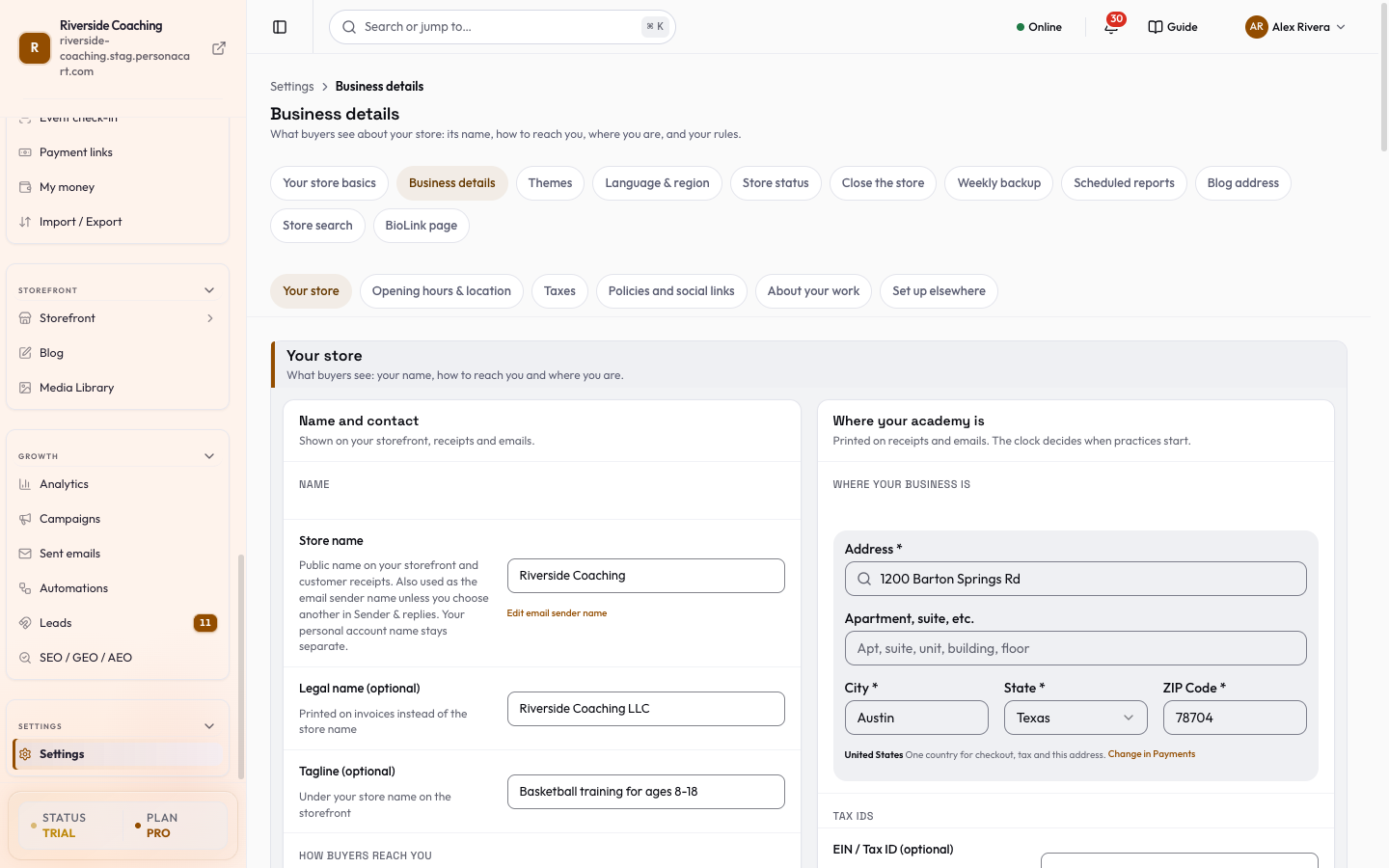
How saving works
- One Save bar at the bottom covers the whole page. It appears only after you change something; until then there is no Save button.
- It counts your unsaved changes ("2 unsaved changes"), saves them together and shows "... saved".
- If one section cannot save, the bar names it, keeps the other sections' edits and offers Retry.
- Discard drops your edits.
- Changing the time zone also offers Undo for 10 seconds.
Change as many sections as you like, then press Save once. If one section cannot save, the bar names it and keeps your other edits.
Your store
Name and contact
The first card on the page is called Name and contact.
- Store name (100 characters). Shown on your storefront, receipts and emails. A link, Edit email sender name, opens Sender & replies.
- Legal name (200 characters, optional). Printed on invoices instead of the store name, for example "Acme Pvt Ltd".
- Tagline (160 characters, optional). Shown under your store name on the storefront.
How buyers reach you
- Support email. Used on order emails, invoices and your storefront, and it is where email replies go. A link, Send replies somewhere else, opens Sender & replies. An invalid address shows "Enter a valid email address".
- Support phone. Appears on invoices and your storefront contact block. If the number's country code does not match your business country, a warning tells you buyers may see a foreign number.
Where your business is
In an academy store this card is titled Where your academy is.
- Address (with address suggestions as you type), Apartment, suite, etc., City, state or region and postal code. It is printed on invoices and in every email footer, which anti-spam law requires.
- Country is shown but not editable here. Change it under Payments or in Store basics, so there is one country for checkout, tax and the address.
- Tax IDs. Once a country is chosen, the right field appears: GSTIN (India, 15 characters), VAT number, EIN / Tax ID (United States) or a generic Tax registration ID, plus PAN (India only, 10 characters).
- Each is optional and printed on invoices.
- A format check shows an example if the value looks wrong.
- Store clock (owners and admins).
- Pick the Time zone your whole store runs on.
- It decides when booking slots open, when discounts start and end, when automations stay quiet at night and when dashboard days begin.
- A line shows the time "in your store right now"; if the zone is unset, bookings and discounts can start at the wrong hour.
Opening hours & location
- For each day Monday to Sunday choose Not set, Open or Closed, and set the opening and closing times. Opening time must be before closing time, and both times are needed when a day is open. Times are read in your store time zone, with a Change time zone link.
- Latitude and Longitude place you on a map (decimal degrees, between -90 and 90, and -180 and 180). Fill in both or neither.
- Business facts are short trust-building numbers such as "Years in business: 12".
- Add a Fact name and a Fact value with Add a fact; Remove fact deletes a row.
- Both are needed, and each has a length limit that the page tells you.
- Example facts are shown until you add your own; nothing is saved from the examples.
Hours, map position and facts appear in contact, visit and event sections of your storefront.
Taxes
The Automatic tax and rules card holds the automatic tax switch and your tax rules. See Taxes for how they work.
Policies and social links
- Terms of service and Privacy policy links. Enter a full link starting with https://. They appear in the storefront footer, payment pages and email footers. To write the pages themselves, see Privacy and legal pages.
- Social links. Use Add a link and choose Instagram, YouTube, X / Twitter, TikTok, Facebook, LinkedIn or Custom Link, then paste the address.
- Each platform can be added once; Remove deletes it (with an undo).
- This is the one list your storefront footer and your emails both use.
- The footer shows the icons only when your theme's social row is on; Check in Theme takes you there.
About your work (owners and admins)
Optional answers that let PersonaCart tailor itself. Each says what it changes:
- What you do (industry) and Speciality. These change starter themes in the Builder, ideas in your Home feed and pages Pie writes for you. Choose what you do first, then the speciality.
- What you mostly sell: Products, Services & sessions, Courses & content, or A mix. This changes how Pie drafts course outlines.
- Where you are now: Just starting, Growing, or Moving from another platform. This changes how Pie pitches its advice.
- Your revenue goal is not here; it lives in Forecast, where it tracks real sales.
Set up elsewhere
A Related settings card links to pages that hold the rest, so nothing is edited twice: Payments (gateway, currency and country), Shipping (places, rates and local pickup), Look & logo (logo, colours and fonts live in Theme) and Language & dates.
Good to know
- If the page cannot load a part of your details, it shows "We couldn't load this part of your store details" with Try again, and never draws an empty form, so saving cannot wipe what you stored.
- Your logo is not on this page; set it in your Theme. The email header image is in the email design editor.
Questions
Do I have to fill in everything?
No. Only the fields you need. But invoices print your legal name and address, so fill those in. A 'Needs a look' card reminds you when they are empty.
Where do I change my country or currency?
Not here. Country is shown but not editable on this page. Change it under Payments or in Store basics.
Why does the store clock matter?
It decides when booking slots open, when discounts start and end, when automations stay quiet at night and when dashboard days begin.
Is my logo on this page?
No. Set your logo in Theme. The email header image is in the email design editor.
Related
Part of Store Settings Guide · Product page: PersonaCart features