Billing & plans
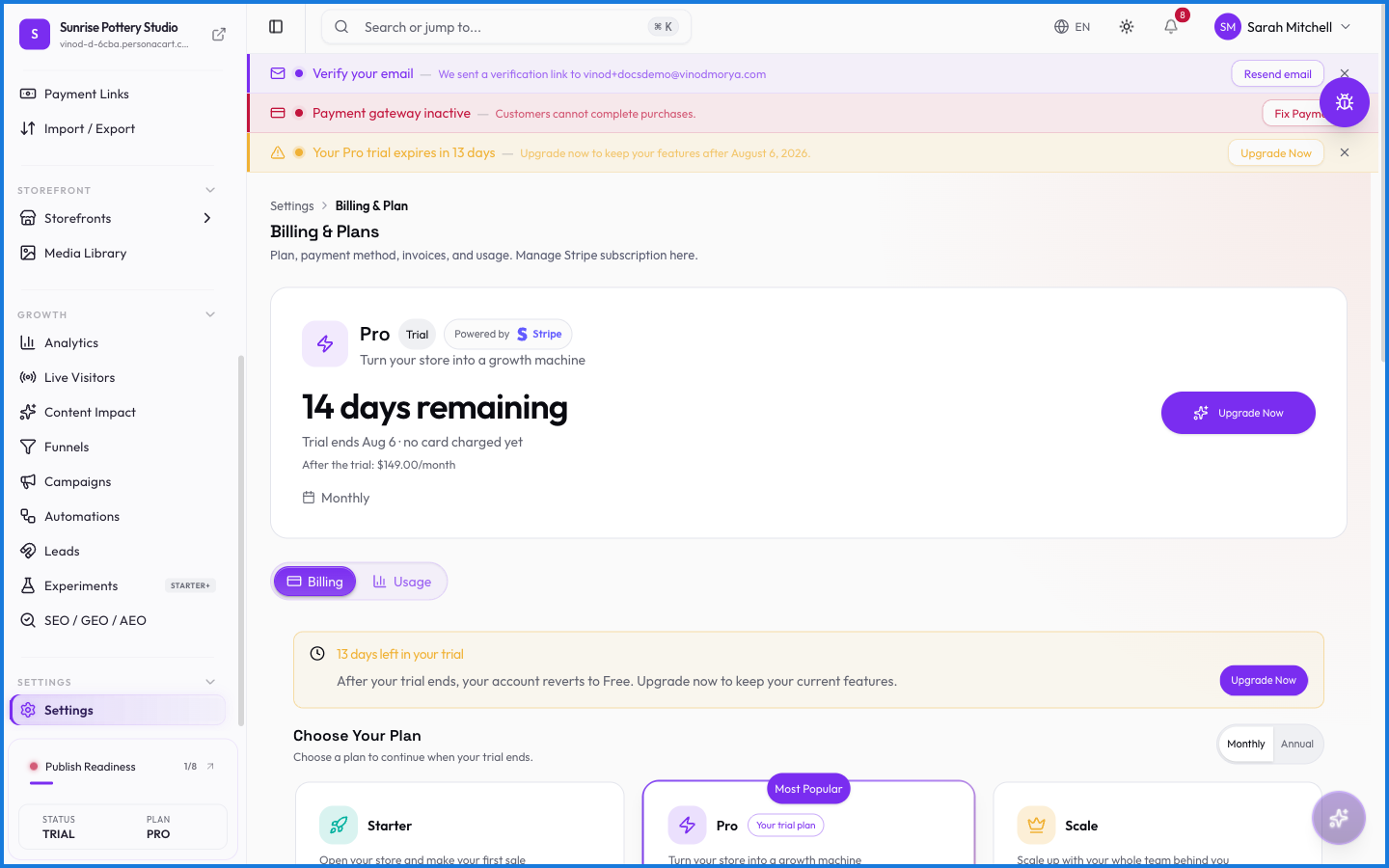
Billing is your subscription control: which plan you're on, what it costs, your invoices, and how much of your plan's allowance you've used. Upgrades and downgrades happen here.
Where to find it
Sidebar → SETTINGS → Settings → Billing & Plan, or the plan chip in your profile menu.
What you manage
Your current plan and its price, an upgrade/downgrade path, your invoice history, and a usage meter for plan-limited features. New stores often start on a trial; the page shows when it ends and what changes after.
What happens — and what doesn't
- Current plans and prices are always on personacart.com/pricing — the source of truth.
- Plans are per store, so each store has its own subscription and invoices.
- Usage tracks platform features (like AI actions), not your sales — selling more doesn't consume it.
- Downgrading may turn off features tied to a higher plan; the page tells you what you'd lose.
Where do I see current pricing?
On personacart.com/pricing, which always has the latest plans and prices. The Billing page shows your specific subscription and invoices.
Does each of my stores have its own plan?
Yes. Billing is per store — each has its own subscription, usage, and invoices.
What does the usage meter track?
Platform usage like AI actions, against your plan's monthly allowance — not your sales. Your revenue never counts against it.
What this screen looks like in every state
| State | When you'll see it | What you see, and what to do |
|---|---|---|
| Loading | The screen is fetching your data | A skeleton in the shape of the finished page. It should be brief — if it persists, the load has failed rather than stalled. |
| Error | The data couldn't be loaded | A message with a retry. Retry first: most of these are a dropped request, not a broken store. If it repeats, the outage is upstream and reloading won't help. |
| No access | Your role doesn't include this screen | A permission notice instead of the page. An owner or admin can grant access under Settings → Team. |
When something goes wrong
These are the messages this screen can show you, and what each one means.
| If you see | What to do |
|---|---|
| Mandate authorization was cancelled or failed. Please try again. | Retry the action. If it keeps happening, contact support with what you were doing. |
| Mandate not yet confirmed — please refresh in a moment. | Retry the action. If it keeps happening, contact support with what you were doing. |