Background work
In short: See your imports and other long jobs in one place: what is running, what needs you, what has finished. Stop a job or download the rows that failed.
When you import customers, products, orders or leads, the work happens on PersonaCart's side. Background work is the one list of those jobs: running now, needing your attention, and finished. You can close the page and come back. The list stays up to date.
Where to find it
- Sidebar → SETTINGS → Background work (the row reads "Check on imports and other long jobs").
- A small tray also shows a progress ring and See all background work while a job runs.
- Every signed-in staff member can open it, and it lists your own jobs.
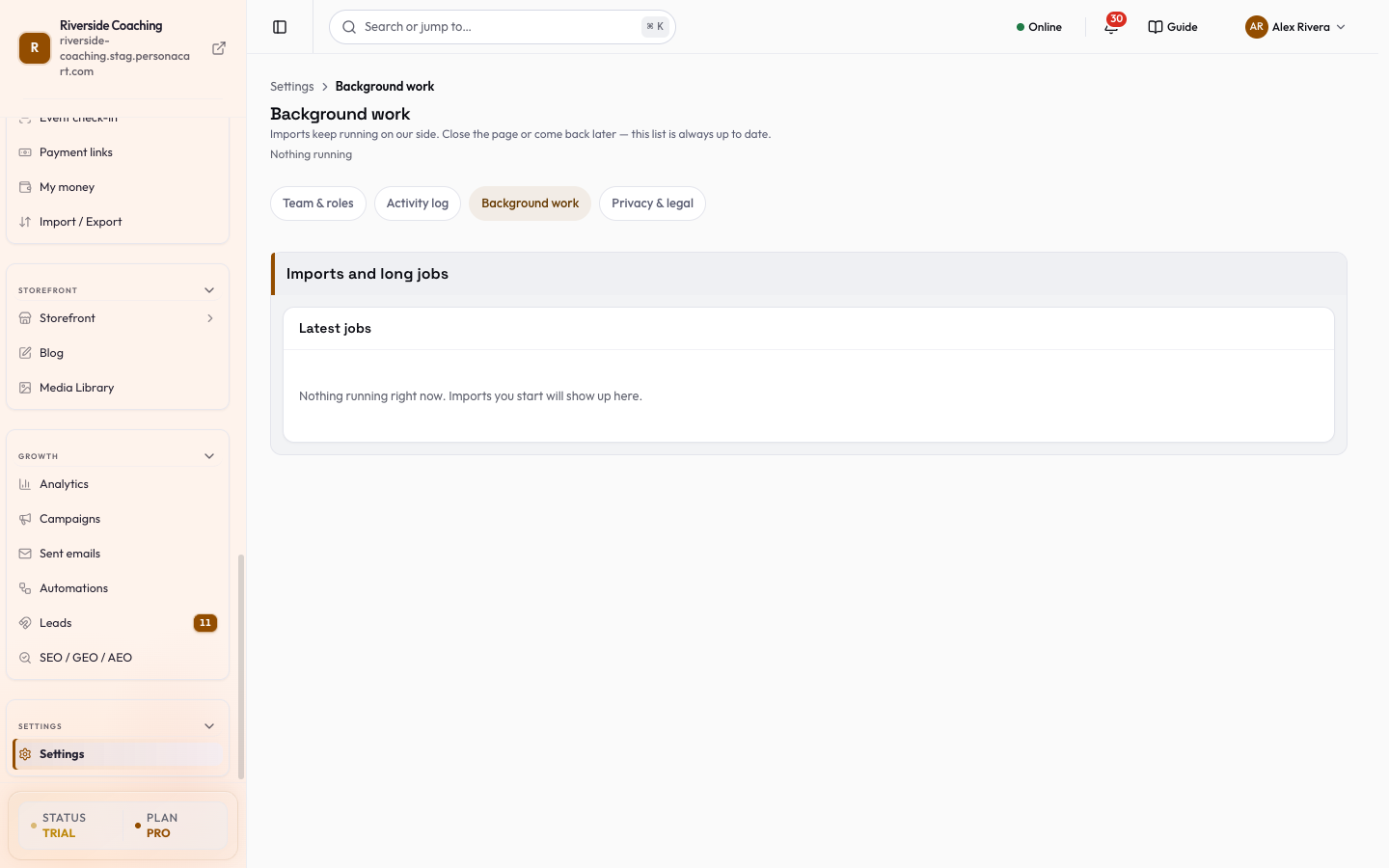
Read the list
The page has a section, Imports and long jobs, with a card, Latest jobs. It has four tabs, each with a count: All, Running now, Needs your attention and Finished. Each job is a row with a status badge (Reading, Adding, Waits for you, Stuck, Could not finish, Finished or Stopped). The tabs group the jobs like this:
- Running now. Each job reads like "Bringing in customers from a file", with a progress bar ("120 of 400 done · 280 to go", or "120 read so far" while reading), a time estimate ("A few minutes left", "About 5 min left") and a reminder: You can close this page — we keep going.
- Needs your attention. Jobs that are ready to start ("Check the preview and start it when you're ready"), look stuck (no progress for over 30 minutes), or stopped with a problem ("Open it to see what went wrong").
- Finished. "Brought in products from Google Sheets", the finish time, and counts: Added, Updated, Already here and Couldn't add. A job that was reversed shows Undone.
A job's source is named as a file, Google Sheets or a website. When nothing is running the card says "Nothing running right now. Imports you start will show up here."
Act on a job
Pick a row to see its details. On a wide window they open beside the list; on a narrow window they open in a panel over the page. The details show the job card and a Steps list with four steps, ticked as they happen: Read the source, Check the rows, Add the [products/customers/...] and All finished. The steps come from the job's real progress.
- Open shows the job's details.
- Stop asks "Stop this import?". Confirm with Yes, stop or choose Keep going.
- Rows we couldn't add downloads the rows that did not import, so you can fix them and try again.
Background work shows jobs. It does not show who changed what. For that, use the Activity log.
Questions
Do I have to keep the page open?
No. Imports keep running on our side. Close the page and come back later.
What if a job looks stuck?
If there is no progress for over 30 minutes it moves to Needs your attention. Stop it and start it again, or open it for details.
How do I fix rows that did not import?
Press Rows we couldn't add to download them, fix them, and import them again.
Which jobs are listed?
Imports of customers, products, orders and leads. Other long jobs will appear here as they are added.
Related
Part of Store Settings Guide · Product page: PersonaCart features