Dashboard appearance
In short: Change how your PersonaCart dashboard looks for you: theme, light or dark, accent colour, heading and body fonts, and sidebar style and background.
Dashboard appearance changes how your own dashboard looks. It does not change your storefront. Your choices are saved for you personally, so each teammate can pick their own look.
Where to find it
Sidebar → SETTINGS → Dashboard appearance. It is on every plan, for every role that can open Settings. Three jump links at the top take you to Look, Fonts & sidebar and Shortcuts.
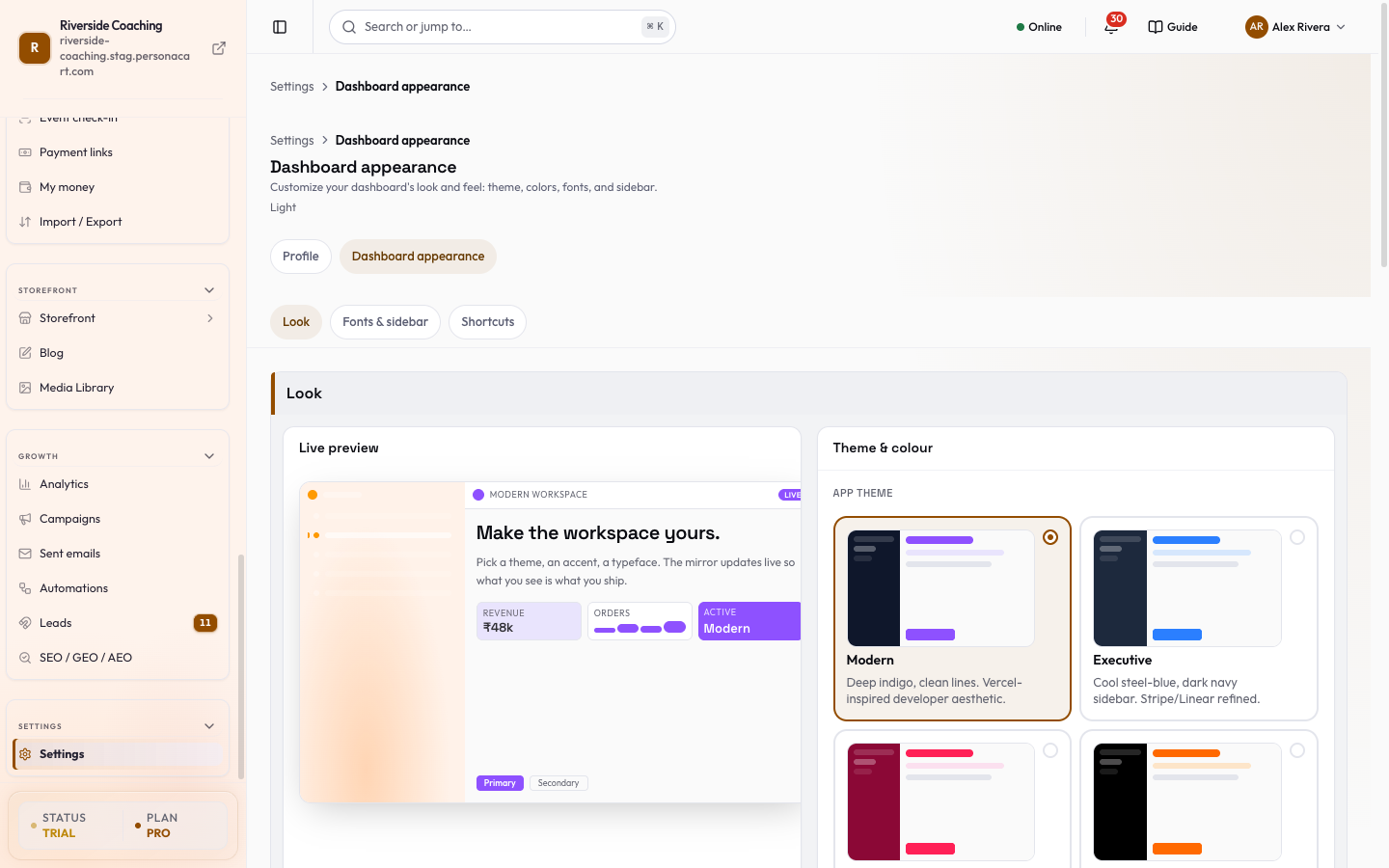
Choose the look
- Live preview. A small copy of your dashboard (headline, Revenue, Orders and Active tiles, and Primary and Secondary buttons) updates the moment you change anything, labelled LIVE.
- App Theme. A visual style for the dashboard, in both light and dark modes.
- Six are offered: Modern (deep indigo, clean lines), Executive (cool steel blue, dark navy sidebar), Creative (warm rose and cream), Brutalist (sharp corners, hard shadows, bold orange), Oceanic (cool teal and cyan) and BS Premium (emerald green, spacious whitespace).
- Light or dark. The same choice as the theme button in the top bar.
- Accent color. Replaces the main colour on buttons, links and active states. Choose Default, Blue, Purple, Rose, Amber, Emerald or Teal.
Choose fonts and sidebar
- Heading font: Plus Jakarta Sans, Inter, Space Grotesk, Geist, DM Sans or Sora. Each option has a one-line description and a sample.
- Body font: Outfit, Inter, Plus Jakarta Sans, Geist, DM Sans or Sora.
- Sidebar Style (how the page you are on is highlighted): Neon (a glowing highlight), Clean (a soft, rounded highlight) or Edge (a thin bar beside the page, with tighter rows).
- Sidebar Background: Default (clean flat), Aurora (mesh gradient), Midnight (deep vertical gradient), Ember (warm amber glow), Frost (frosted glass with blur), Obsidian (matte with fine grain) or Prism (bold multicolour mesh).
- The effect adapts to your accent colour and theme.
Changing the sidebar style or background shows a message such as "Sidebar style set to Clean" with an Undo button.
See the keyboard shortcuts
Show shortcuts opens the list of keys that open search and move you around the dashboard.
This page never changes what buyers see. To change how your storefront looks, use Theme. The buyer's account area has its own styling in Buyer account.
Questions
Does this change my storefront?
No. It only changes your own dashboard. Use Theme for the storefront.
Do my teammates see my choices?
No. The choices are saved for you personally, so each person can pick their own look.
Is there a Save button?
No. Each choice saves as you make it. Sidebar changes show an Undo button for a moment.
Can I switch to dark mode somewhere faster?
Yes. Light or dark can also be switched from the top bar.
Related
Part of Store Settings Guide · Product page: PersonaCart features