Learn PieOS
In short: Learn PieOS shows what Pie can do for your store: Pie apps to start with and the full list of tools. Search, try one in chat and see your progress.
Learn PieOS answers "what can Pie do for my store?" It has two tabs: Pie apps, a short set that is the easiest place to start, and All tools, the complete list. In this video you will learn the Learn Pie page. You will see your progress, and how Pie's apps are grouped. This is your progress. It counts what you tried in the last thirty days. Memory is the first group. It is about what Pie knows about you. Voice covers how Pie writes for you. Events cover dates and moments that matter to your store. So: check your progress, then open any group to see what Pie can do. Thank you so much for watching Persona Cart. To read the full guide, go to docs dot persona cart dot com. To try Persona Cart yourself, go to persona cart dot com. And subscribe, so you do not miss the next tutorial.Video transcript
- Trying something never changes your store until you say yes.
Where to find it
HOME → PieOS → Learn PieOS. It has no row in the PieOS rail. Open it by this address. The old addresses /pie-os/capabilities, /pie-os/capabilities/app-library and /pie-os/capabilities/all-tools open it too. The last one opens the All tools tab.
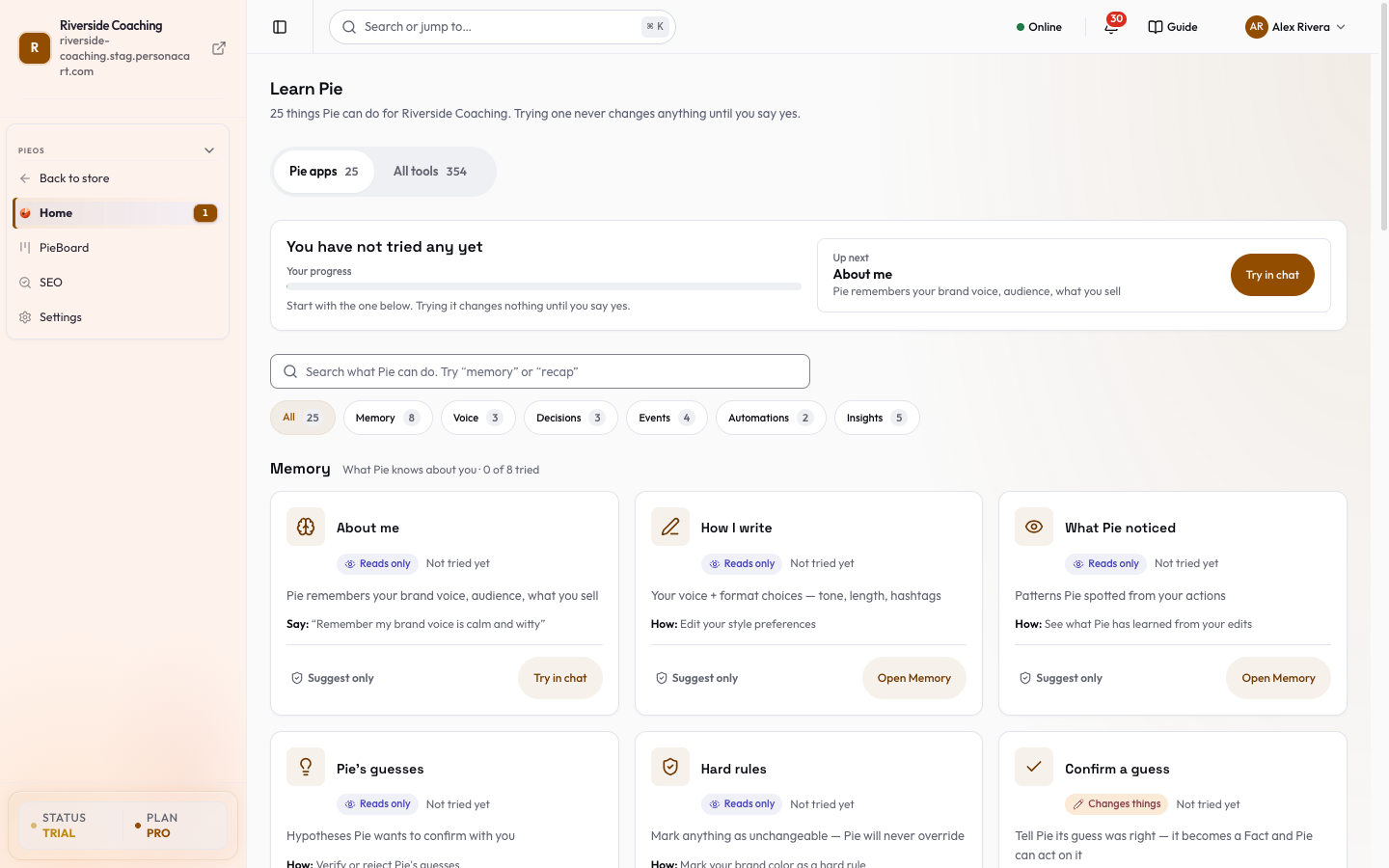
The title is Learn Pie: "[N] things Pie can do for [your store]. Trying one never changes anything until you say yes."
Choose a tab
| Tab | What it is | More |
|---|---|---|
| Pie apps (with a count) | A short list grouped as Memory, Voice, Decisions, Events, Automations and Insights. Shows your progress. | Pie apps |
| All tools (with a count) | Every tool Pie can use, grouped by what it helps with. Each shows a risk label, which is not the same as whether Pie asks first. | All tools |
The tab you are on stays in the address (?view=all), so you can bookmark it.
Find and try a Pie app
- Use the search box ("Search what Pie can do. Try “memory” or “recap”") or the category chips. If nothing matches, the page says "0 of [total] match".
- Each group says how many you have tried, such as "2 of 4 tried". Each card says Not tried yet until you press its button. The count covers the last 30 days, so a card goes back to Not tried yet after that.
- Open a card by pressing its title. A side sheet shows What happens when you try it, the sentence, and a tag: Reads only or Changes things. It also has Ask Pie about this.
- Press Try in chat if the card has it (only a few do), or the button that opens the page where the thing lives, such as Open Memory or Open Events catalog.
- Try in chat opens Pie's chat with a sample sentence typed in. You can edit it. Read the sentence first: if you press Send, Pie acts on it. For example, the memory sample teaches Pie a brand voice.
- Nothing is sent until you press Send.
- If Pie is paused, the chat shows a note that Pie is paused and a Resume Pie button. Resume it first.
- The page buttons take you to a screen. Nothing changes until you do something there.
Check your progress
The Your progress card says "You have tried [N] of [total]" and shows Up next. It counts what you tried in the last 30 days, so there is nothing to tick. A try is counted when you press the card's button, not when you finish the task. The total includes the Learn Pie card itself, which has no button to press, so the bar may stop one short of full.
Questions
Where did Capabilities and Explore go?
They are Learn PieOS now. The old addresses open it.
Does trying an app change my store?
Trying opens the chat with a sample sentence, or opens the screen where the feature lives. Nothing is sent until you press Send. Read the sentence first, because Pie acts on it once sent.
What is the difference between Pie apps and All tools?
Pie apps is a short list for getting started. All tools is the complete list of what Pie can do, with a risk label on each.
Does the list show other creators' activity?
No. The list is the same for every store, plus your own usage counts.
Related
Part of PieOS: Business Operating System · Product page: PersonaCart with PieOS