PieOS Home
In short: The first screen of PieOS: today's summary, what waits for your yes, what Pie did this week, a Scan now button, and the Ask Pie chat. Every part explained.
PieOS Home is where you land when you open PieOS. It shows how the store is today, what is waiting for your yes, and what Pie did for you. Ask Pie, the chat, sits on the right. In this video you will learn how the Pie inbox works. It is for owners who want every waiting message in one list. After it you will know how to filter by who wrote, read what is waiting, and snooze everything to Monday. These chips filter by who is waiting: all, to approve, coaches, parents and snoozed. Each row is one person waiting for you, with how long and the start of their message. One row has its own Reply and Snooze to Monday buttons for just that message. Snooze all to Monday clears the list for now. It comes back on Monday. So: filter with the chips, read each waiting row, reply, or snooze everything to Monday. Thank you so much for watching PersonaCart. To read the full guide, go to docs dot personacart dot com. To try PersonaCart yourself, go to personacart dot com. And subscribe, so you do not miss the next tutorial.Video transcript
Where to find it
Open HOME → PieOS in the sidebar. The left rail switches to the PieOS rail, with four rows: Home, PieBoard, SEO and Settings. Use Back to store at the top of the rail to return to your store menu.
- Home has two tabs at the top: Home and Log.
- The old addresses
/pie-os/chatand/pie-os/logstill work and open Home and the Log tab. - No paid plan: a card says Pie comes with a paid plan with a See plans button.
- Nothing you set up is lost. Pie switches on as soon as a plan is active.
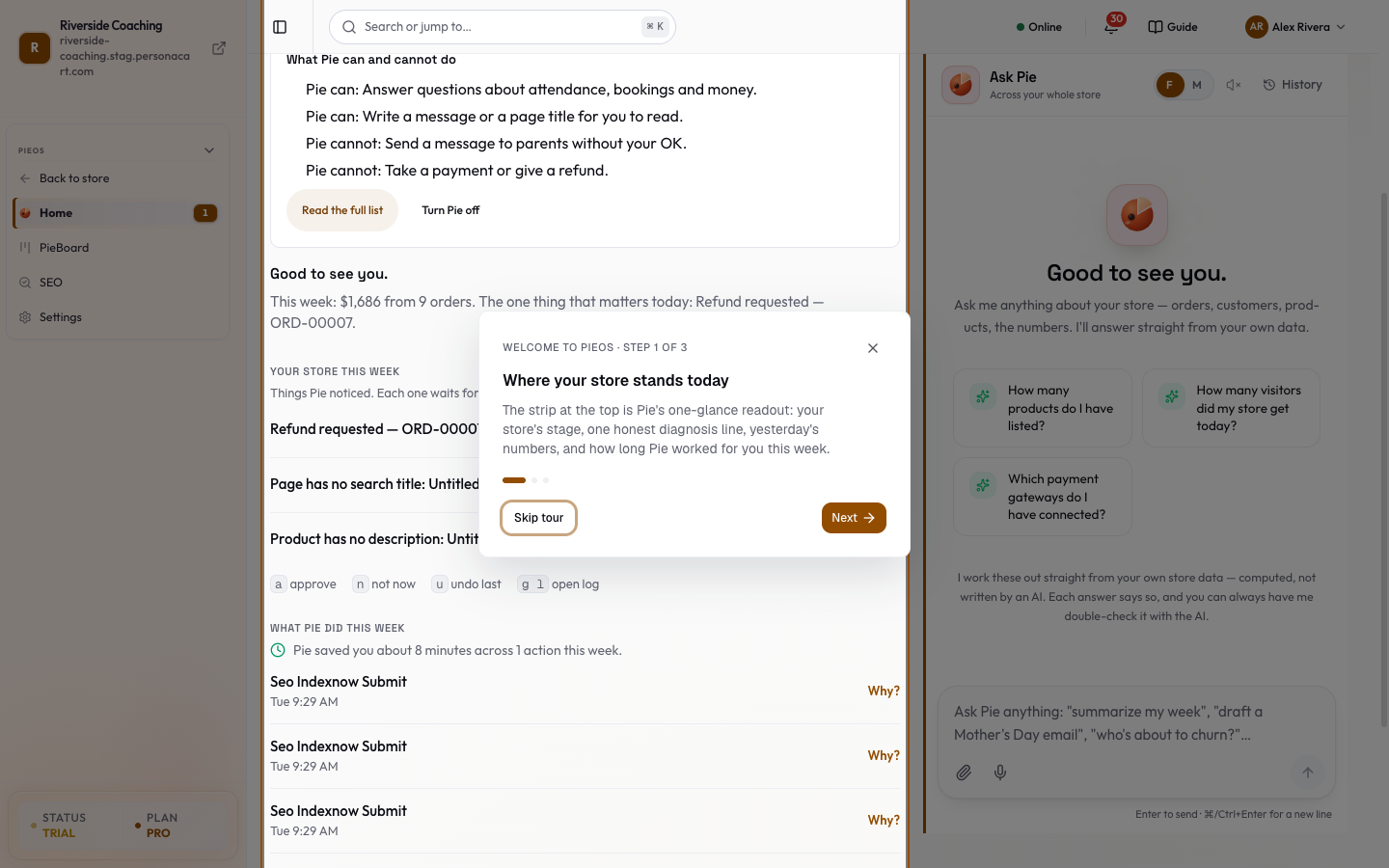
Read the screen, top to bottom
The Pie header and example questions
- Pie, your helper with one sentence on what Pie does.
- Try one of these: three example questions as buttons. Press one and it fills the chat box for you. If you have typed nothing, a hint reads "Type a question, or press an example, to turn on Ask Pie."
- The first time Pie answers a question, a green card says Pie answered your first question! with a Next: what Pie can do button.
What Pie can and cannot do
A short card lists what Pie can do (answer questions, write drafts, check things each morning) and what it cannot (send a message to customers without your OK, take a payment or refund, delete data).
- Read the full list opens the full can / cannot sheet and a Your control note.
- Turn Pie off opens a sheet that explains what changes (Pie stops answering and writing drafts), who is told (nobody), and what stays the same (your pages, products, orders and data). If proposals are waiting for you, you tick a box to confirm. Press Turn Pie off to stop it, or Keep Pie on. A message afterwards offers Turn on again. Only the owner or an admin can turn Pie off. The same switch lives in Settings as Pause Pie for my store.
Today's summary
A line under Good to see you. gives your money this week ("This week: [amount] from [N] orders"), or the number of visitors looking around right now, or "No orders yet this week". A second line names the one thing that matters today, or says Nothing needs you today.
Your store this week / Waiting for you
This list holds Pie's proposals that need your yes, biggest money first, up to five.
- With items: the heading is Your store this week, with the text "Things Pie noticed. Each one waits for your yes." and a count.
- With none: the heading is Waiting for you and it says Nothing is waiting for you. "That is normal. When Pie needs your OK on something, it shows up here first."
For each item:
- Look opens the item on its own page (see Work item), or the PieBoard if it has no page of its own.
- Not now holds the item. A note says "Held. Pie will stop reminding you about this." and Undo brings it back.
On a computer, keyboard shortcuts appear under the first item: a (approve, opens the item), n (not now), u (undo last) and g then l (open the Activity list).
What Pie did this week
- A line such as "Pie has worked [time] on your store this week" and "Pie saved you about [time] across [N] actions". It hides when it would be zero.
- Changes Pie made that you can still reverse are listed first with Undo. After you undo one, the row says Reverted.
- Up to five recent actions, each with a Why? button that opens the reason and a Download receipt button. Download receipt saves a small file in JSON format. Press Why? again to close the reason. If Pie has done nothing yet, three clearly marked example rows (labelled as examples, nothing saved) show what the list will look like.
- See everything Pie did opens the Activity tab of the chat.
Buyers waiting
When shoppers are waiting in the Support Inbox, a row says "[N] buyers are waiting in the Support Inbox" with Open inbox.
Start here (new stores only)
Until your first sale, a Start here card lists the next steps in order, such as adding your first product, connecting a payment provider, branding the store, publishing policy pages, shipping, a domain or buyer emails. Each step is a link. It disappears after your first order.
Scan now
Scan now asks Pie to look at your store right now instead of waiting for its next round. Findings land on the PieBoard. A short message appears when the scan starts. It does not show how many findings were found. If you press it again within a minute, the button counts down ("Try again in [N]s"). If Pie is paused or its worker is offline, a message says so.
Ask Pie
The chat is described on Chat with Pie.
Press Turn Pie off on Home, or use Pause Pie for my store in PieOS Settings. Your store, orders and settings stay exactly as they are.
What happens and what doesn't
- Home only shows and proposes. Nothing consequential happens until you approve it.
- Pie never sends a message to your customers, spends money or deletes data without your OK. See Autonomy.
- Not now hides an item from Home. It does not delete it. You can find it again on the PieBoard in the Hidden for now card.
- Pie keeps working when you are away. Open Home to see what changed.
Questions
Where did the Chat page go?
The chat is on Home now. The address /pie-os/chat opens Home. A smaller version of the same chat is also available as the floating Pie button on other screens.
What does Not now do?
It holds that item so Pie stops reminding you about it. Undo brings it back straight away. You can also bring it back from the PieBoard.
Can I stop Pie completely?
Yes. Turn Pie off from Home, or use Pause Pie for my store in PieOS Settings. Your store, orders and settings stay exactly as they are.
Why does the example list say Example?
Before Pie has done anything, example rows show what the list will look like. They are marked as examples, nothing is saved, and they go away after Pie's first job.
Related
Part of PieOS: Business Operating System · Product page: PersonaCart with PieOS