Teach your buyer assistant
In short: Field by field guide to the Buyer AI page: name, greeting, tone, rules, store policies, products Pie may mention, saving and publishing, and Try it.
When a visitor asks your storefront chat a question, Pie answers for you. The Buyer AI page decides what Pie knows, how it talks, what it must never say and what it may do. It is included on Pro and Scale. On Starter the page shows an upgrade notice.
Where to find it
PieOS → Buyer AI. You can also open it from the Chats tab of the Support Inbox, from PieOS Settings (In your store → Open Buyer AI), and by the older addresses /commerce/support/ai-training and /ai/training. The address remembers the tab (?ai=ready, knows, talks, rules, may, chat).
Save and publish
A bar stays at the top of the page:
- A status badge: On — answering buyers, Off, or Can't turn on yet — [N] steps left (see Get ready, below).
- You have unsaved changes, Discard and Save. Saving covers the tabs that use Save (business profile, rules, name, greeting, support email and policies).
- Preview (on narrower screens) opens the buyer preview.
- When you have switched on or off any action in What it may do: Discard and Publish [N] change(s).
If you change tab with unsaved changes, a dialog asks Discard unsaved changes? with Keep editing or Discard.
Get ready
A check list headed How ready is your assistant? ("[N] of [max]"). Each item says Done or what to do next, with a button that takes you to the right tab:
- Assistant has a name (How it talks)
- You decided what it may do (What it may do)
- At least 3 FAQ answers (What it knows)
- Support email is set (What it may do)
When all are done: "Your assistant is ready for shoppers." Beside it, an AI usage card shows how much of the weekly allowance is used (see Pie assistant credits).
Turning the assistant on needs two of these first: a name and a decision on what it may do. The status badge counts the steps still left.
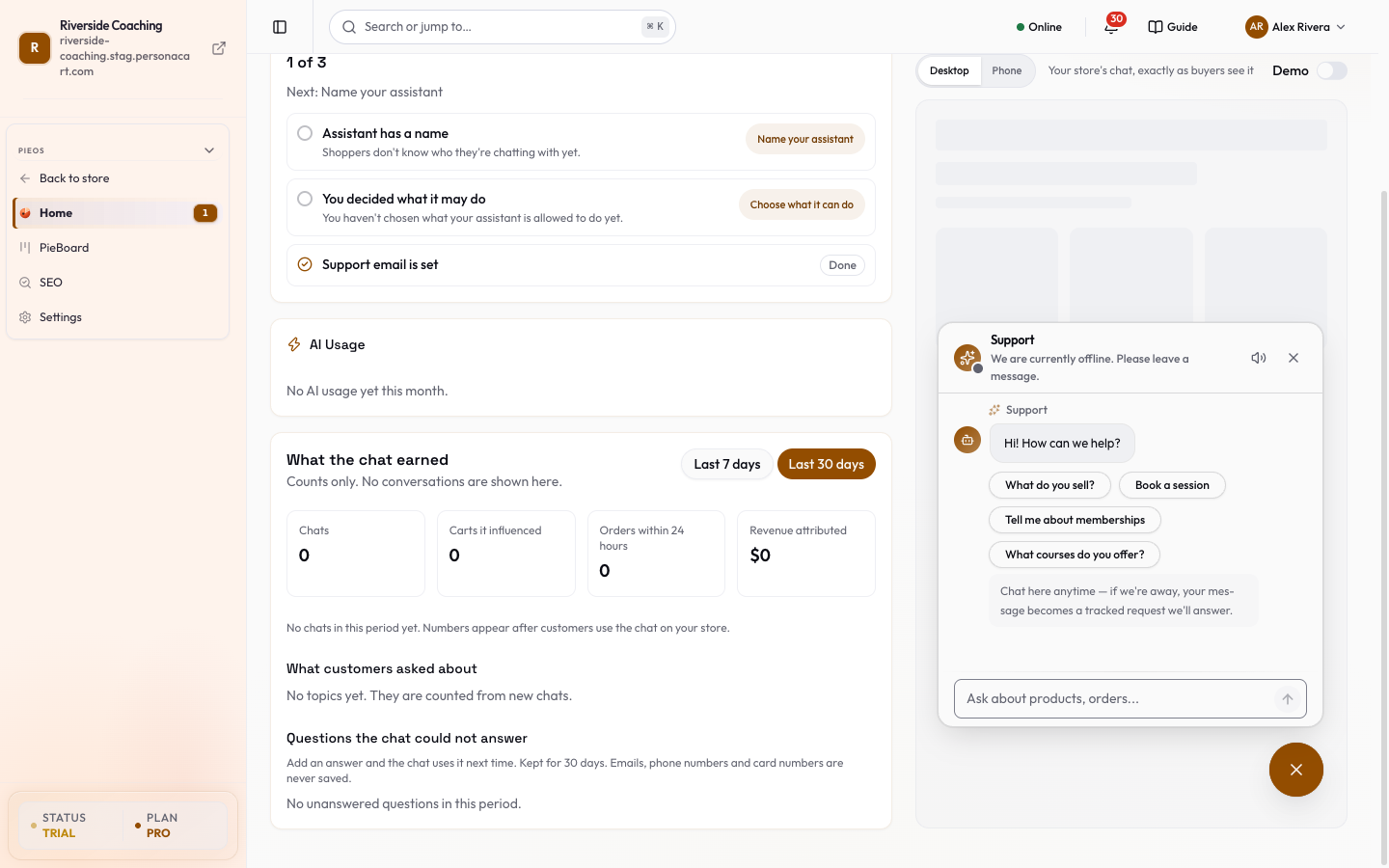
What the chat earned
Under the check list, What the chat earned shows what the storefront chat did for the Last 7 days or Last 30 days (your choice):
| Number | What it counts |
|---|---|
| Chats | Conversations Pie answered. |
| Carts it influenced | Shoppers whose cart Pie added an item to. |
| Orders within 24 hours | Orders from those shoppers, placed within 24 hours of Pie adding an item or a discount code to their cart. |
| Revenue attributed | The total of those orders, in your store currency. |
Test orders, cancelled orders, refunded orders and orders in another currency are left out. The numbers are counts only: no conversation is shown.
- Below them, What customers asked about lists the kinds of question the chat dealt with (Products, Cart, Discount codes, Orders, Classes and schedule, Store questions (FAQ), Booking, Contacting the store, Other).
- Topics are counted from new chats, so the list starts empty.
Questions the chat could not answer
When Pie finds nothing in your Help Center articles or the FAQ items on your pages, it keeps the question so you can answer it. The list shows each question and how many times it was asked, most asked first.
- Add answer opens a box titled Add to your FAQ with the question filled in. Type your answer and press Save answer. It is saved as a published Help Center article, and the chat uses it from then on. The question leaves the list.
- Dismiss removes a question you do not want to answer.
Questions are kept for 30 days. A question that contains an email address, phone number or card number is not kept at all. The list is only for a signed-in team member who can see analytics.
Teach it what it knows
Your store card:
- Business Description: what you sell, in your own words.
- Target audience: who your ideal customers are.
- Key Differentiators: what makes your store unique.
Store policies card (Pie answers shipping and returns questions word for word from these; a blank field means Pie says it doesn't know):
| Field | What it holds |
|---|---|
| Ships to | Countries. Taken from your shipping zones; Edit in Shipping to change. Includes Rest of world. |
| Delivery time (days) | From and To. |
| Cash on delivery | Yes, No or Not set. |
| Returns | Whether returns are accepted. |
| Return window (days) | How long a buyer has. |
| Exchanges | Whether exchanges are accepted. |
| Warranty (months) | Leave blank if none. |
"Make sure this matches your Refund policy page."
Products & courses: "Pie can find, mention and recommend what's included when a buyer asks. Switch a row off and Pie never brings it up." Filters All, Products, Courses, Not included; search; "[N] of [total] included". Each row has an Included switch, the name, whether it is a product or a course, and the price. A draft shows "Draft — the assistant sees it once published". Changes save at once and a message offers Undo. If the list can't be fetched you see "We couldn't load your products and courses. Nothing was changed — try again."
Customer data: Pie can look up a signed-in shopper's own order history and account details to answer their questions, never another shopper's. Chat conversations are not used for customer segmentation.
Help Center answers: Pie uses your published Help Center articles and the FAQ items on your published pages. Edit the FAQ blocks on your pages as usual. To answer a question the chat missed, use Add answer under Questions the chat could not answer on Get ready.
Set how it talks
- Name: shown at the top of the chat window.
- Greeting: the first message buyers see.
- Tone: Professional, Friendly, Casual, Authoritative or Playful. Each shows an example sentence.
- Voice notes: a line in your own words, such as "short sentences, no slang, call buyers by first name".
Write the rules
"What Pie must always get right, and what it must never say. These override everything else."
| Rule type | Example |
|---|---|
| Always true | Coaching calls are 45 minutes |
| Never claim | results in 7 days |
| Never talk about | other coaches' prices |
| Avoid words | cheap |
Pick a Rule type, type the Rule and press Add. A meter shows "[used] of [budget] characters used". If you go over, rules marked Not reaching Pie are not used until you shorten or remove some. Suggest starter rules for [your industry] offers a few to tick; press Add selected or Cancel. Remove a rule with its x.
Choose what it may do
"Switch on only what you're happy for Pie to do without you." The switches and the draft and publish process are on Storefront chat (Buyer AI). On this tab you also set:
- When Pie can't help, send buyers to: the Support email Pie gives buyers.
- Suggest add-ons: your Add-on rules, which Pie mentions when they fit. Create one with New rule, or press Find ideas from my orders for suggestions from products people buy together. A rule says: when a buyer has this (a product, something from a collection or category, a cart total, or any order), Pie may offer these add-ons (pick a few), where (Product page, Cart, Checkout or Anywhere), with an optional hint for how Pie should say it. Rules have a check order (higher numbers first), a Rule on switch and Delete rule. Starter templates: Cart total boost, Bought together and Repeat order.
Set up the chat widget
The chat's own settings: whether Pie answers, who can reach a person, files, alerts, who answers and the embed code. See When Pie hands over. The button's look, words and hours are in Settings → Chat button.
Try it before buyers see it
The What buyers see panel (a side panel on wide screens, Preview on narrow ones) lets you choose Desktop or Phone and ask a question the way a buyer would.
- Under each answer, Answered from shows its source: Store policy, A correction, AI or Built-in answer.
- Suggested questions come from your own policies and first product.
- Try it tests your saved settings ("Save your changes to test them.").
- Demo plays a sample chat that saves nothing and sends nothing to your inbox; Exit demo leaves it.
Chats may mention children's classes or health. PersonaCart does not claim to support HIPAA, so keep protected health information out of chats, notes and rules.
Good to know
- Pie only knows what you teach it and what your store publishes. If a policy is not written down, it will not invent one.
- Chats may mention children's classes or health. PersonaCart does not claim to support HIPAA, so keep protected health information out of chats, notes and rules.
- Pie never starts a return, exchange or refund, and does not book appointments.
Questions
Can I stop Pie from talking about a product?
Yes. Switch its Included toggle off under What it knows. Pie will not mention it.
Where do I write FAQ answers for Pie?
Pie reads the published FAQ items on your pages and your published Help Center articles. For a question the chat could not answer, press Add answer on Get ready. For anything else, edit the FAQ blocks on your pages.
Can I read what shoppers typed?
No. What the chat earned shows counts, and the unanswered list shows the question text with personal details removed. Whole conversations are not shown there.
Why is Revenue attributed lower than my chat sales feel like?
Only orders placed within 24 hours of Pie adding an item or a discount code to that shopper's cart are counted, and only in your store currency. Test, cancelled and refunded orders are left out.
Does Try it use my real settings?
It tests the settings you have saved. Save your changes first, then ask your question.
Which plans include this?
Pro and Scale. On Starter every buyer message goes to a person.
Why can't I turn the assistant on?
It needs a name and a decision on what it may do. The status badge counts the steps left.
Related
Part of PieOS: Business Operating System · Product page: PersonaCart with PieOS