PieBoard
In short: PieBoard is the one place for everything Pie tracks: what needs you, what Pie is doing, what it did, and what is coming. How to approve, hold, dismiss and undo.
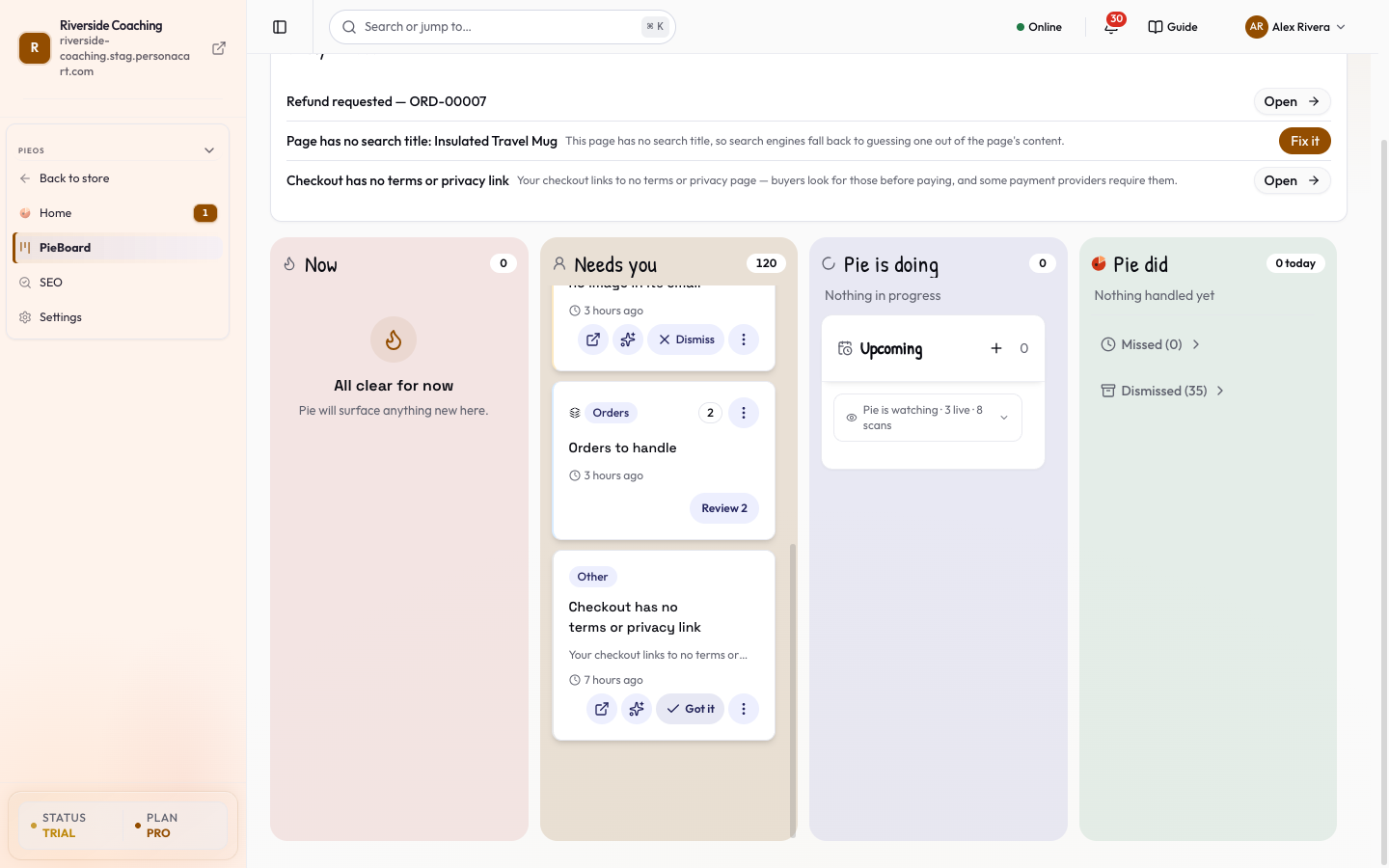
PieBoard is the single queue for Pie. Approvals, store-health findings, search suggestions and Pie's own work appear as cards in four lanes. This is where you approve Pie's proposals. In this video you will learn the Pie board. You will see what is urgent, what needs you, and what Pie did. Now shows what to look at first. Needs you lists the groups where Pie waits for your decision. Pie is doing shows work in progress. Pie did lists what Pie finished. So: start with Now, then work through Needs you. Thank you so much for watching Persona Cart. To read the full guide, go to docs dot persona cart dot com. To try Persona Cart yourself, go to persona cart dot com. And subscribe, so you do not miss the next tutorial.Video transcript
Where to find it
Open HOME → PieOS → PieBoard. The addresses /pie-os/approvals and /pie-os/health also open PieBoard.
Read the header
- A greeting ("Good morning, [name]") and Updated [time].
- Three chips: [N] urgent, [N] groups need you and Pie did [N] today.
- A banner appears when live updates are offline ("Live updates are offline — showing the last known board state"). The board then shows what it last knew and catches up when the connection returns.
Start with today's three
A card above the lanes lists the three things that matter most today. Each row has one button: Approve, Fix it or Open, depending on what the item needs. A message confirms ("Done — Pie is on it."). When nothing is pressing it says Nothing needs you today.
Find a card
A bar sits above the lanes.
- Search cards finds a card by its words. If nothing matches it says "No cards match this search." and offers Clear filters.
- The first row of chips is All, Needs you and Pie's turn. They show every card, only the ones waiting on you, or only the ones waiting on Pie.
- A second row, Asked by, shows who started the card: Anyone, Store checks, Events, Buyers or Other. A chip only appears when a card of that kind is on the board.
- Density switches between Comfortable and Compact. Compact fits more cards on the screen.
When Pie did [N] today is above zero, a band under the header says each one is in the Pie did column. Press See Pie did to jump there.
Work through the lanes
On a computer the lanes sit side by side. On a phone they are tabs named Now, Needs you, Doing and Did, each with a count. The phone opens on Needs you.
| Lane | What is in it |
|---|---|
| Now | Urgent items. A pinned card shows Urgent. Empty text: "All clear for now. Pie will surface anything new here." |
| Needs you | Decisions waiting for your yes. Empty: "You're all caught up — no decisions waiting." |
| Pie is doing | Work Pie is running. It also holds the Upcoming block (below). Empty: "Nothing running right now". |
| Pie did | What Pie resolved on its own. Ends with two folded lists: Missed ([N]), anything that ran out of time, and Dismissed ([N]), cards you dismissed, so you can find them again. |
Cards of the same kind stack into one tile ("[Category] — [N] items, needs your decision"). The lane count counts tiles, so it can be smaller than the number of items inside. In Needs you, cards are grouped under headings such as Orders to handle, How Google sees your pages, What people search for, Product fixes, Emails to customers, Store changes, Customers and reviews, Ideas and news and Other things.
Act on a card
The buttons depend on the kind of card. These are the ones you will meet:
- Approve applies Pie's proposal. Reject or Dismiss discards it. Nothing in Needs you has happened yet.
- Review (or Review [N]) on a stack opens the Review and approve sheet: "Everything Pie will do, on one screen. Untick any you don't want. Nothing changes until you press Approve." Each row says in one line what Pie will change, for example "Pie will update this page's title and description in Google." Press Approve [N]. If some fail, the toast says how many were approved and the rest stay on the board. On a phone a bar at the bottom offers [Group]: review and approve [N].
- Fix with Pie and Not relevant to me appear on store-health findings. Pie prepares a fix that waits for your yes. Not relevant to me means Pie will not raise it again.
- Later opens "Hide this for a while?" with Hide for 24 hours, Hide for 7 days, Hide until I bring it back, or Dismiss — remove for good. Hidden cards collect in a card called Hidden for now, grouped as Overdue, Back within 24 hours, Back within 7 days and Until you bring them back, with Show again.
- Got it closes an informational card.
- Pin to top / Unpin keeps a card at the top of its lane.
- Ask Pie opens the chat with a question about that card typed in. Go to source opens the screen the card is about.
- Undo reverses a change Pie already made. A dialog says "Pie will put this back to what it was before. You can undo until [date]." Some changes cannot be undone and say why ("The money leaves through your payment provider and cannot be pulled back.", "Once it is sent, the email is in someone's inbox."). Messages explain a window that closed, an already-undone change, or a change with no saved earlier version.
- Restore brings back a dismissed card. If the thing it was about no longer exists it says "This one's source is gone".
- More actions holds the rest.
Open a card to see What, Urgency (Urgent, Worth a look, For info), Stage, Arrived, Why, and why it was dismissed or paused. Open full page opens it as its own page (see Work item). A line reading Pie wrote this marks text Pie drafted.
If Pie tried a card and it failed, it says "Pie tried this and it failed:" with the reason.
Upcoming
In the Pie is doing lane, Upcoming shows the next 24h or 7 days of scheduled work:
- Scheduled scans run on a clock, with "next in [time]".
- Always watching monitors react as things happen, grouped as Commerce, Support and Domain & Email. Each shows Live, Up to [N] min behind or Checked every [N]s, and Incident when something is wrong.
- Email reminder rows show items you added. After one is sent it reads "Sent — will be removed in 24 hours".
- Add creates a Reminder or a Task. Fields: What's this about?, When (After 1 day, After 2 days, After 7 days or Custom, with Time and Timezone), Category, Notify me by (Email, Push notification or Both) and Send to (team members or another email; leave blank to just remind yourself). Press Add. Use Edit to change one.
Nothing in the Needs you lane has changed your store. Approving is what makes it real. Dismissed and hidden cards are kept, not deleted.
What happens and what doesn't
- Nothing in Needs you has changed your store yet. Approving is what makes it real.
- Pie never spends money, emails your customers or publishes without your approval. Money, store settings and deleting data always ask, whatever your Autonomy choices.
- Stacks can be dismissed all at once. The confirmation names how many ("Dismiss all [N]?").
- Dismissed and hidden cards are kept, not deleted.
Questions
Where are my approvals?
On PieBoard, in the Needs you lane. The old Approvals page opens PieBoard.
What does Later do?
It hides the card for 24 hours, 7 days or until you bring it back. Hidden cards wait in the Hidden for now card, where Show again puts them back on the board.
Why is the lane number smaller than the items I see?
Similar cards stack into one tile, and the number counts tiles.
Can I undo what Pie did?
Many changes can be undone for a number of days. The Undo button shows the deadline. Money that has left through your payment provider and emails already sent cannot be undone.
What is Fix with Pie?
On a store-health finding it asks Pie to prepare the fix. The fix waits for your yes. A passed re-check is what marks it resolved.
Related
Part of PieOS: Business Operating System · Product page: PersonaCart with PieOS