PieOS
In short: PieOS is the home of Pie, the assistant built into PersonaCart: it watches your store, prepares the next step and waits for your yes.
PieOS is the business operating system inside PersonaCart. It watches your store, works out what needs doing, prepares the work and brings you the decisions, while you stay in control of everything that matters. Its name for itself is Pie. In this video you will learn the Pie board. You will see what is urgent, what needs you, and what Pie did. Now shows what to look at first. Needs you lists the groups where Pie waits for your decision. Pie is doing shows work in progress. Pie did lists what Pie finished. So: start with Now, then work through Needs you. Thank you so much for watching Persona Cart. To read the full guide, go to docs dot persona cart dot com. To try Persona Cart yourself, go to persona cart dot com. And subscribe, so you do not miss the next tutorial.Video transcript
- It is not only a chatbot. Chat is one way in.
- PieOS keeps watching and preparing when nobody is talking to it.
What is PieOS?
PieOS is where Pie works. Pie knows your store: it drafts product descriptions and emails, spots problems and prepares the fix, sends a short morning briefing, and answers buyers on your store. Money, prices and refunds always ask you first.
What you can do
- See today, what waits for your yes and what Pie did on PieOS Home
- Approve, hold or dismiss Pie’s work on the PieBoard
- Ask anything about your business in chat
- Get a morning briefing by email
- Fix titles and descriptions for Google with Pie SEO, and run store health checks
- Let Pie answer buyers on your store with storefront chat
- Choose how much Pie may do alone in Autonomy and Approvals
- Correct what Pie remembers in Memory, or pause it with the kill-switch
Who uses it
- Store owners who want help with the daily work.
- Team members you allow in Permissions.
See it
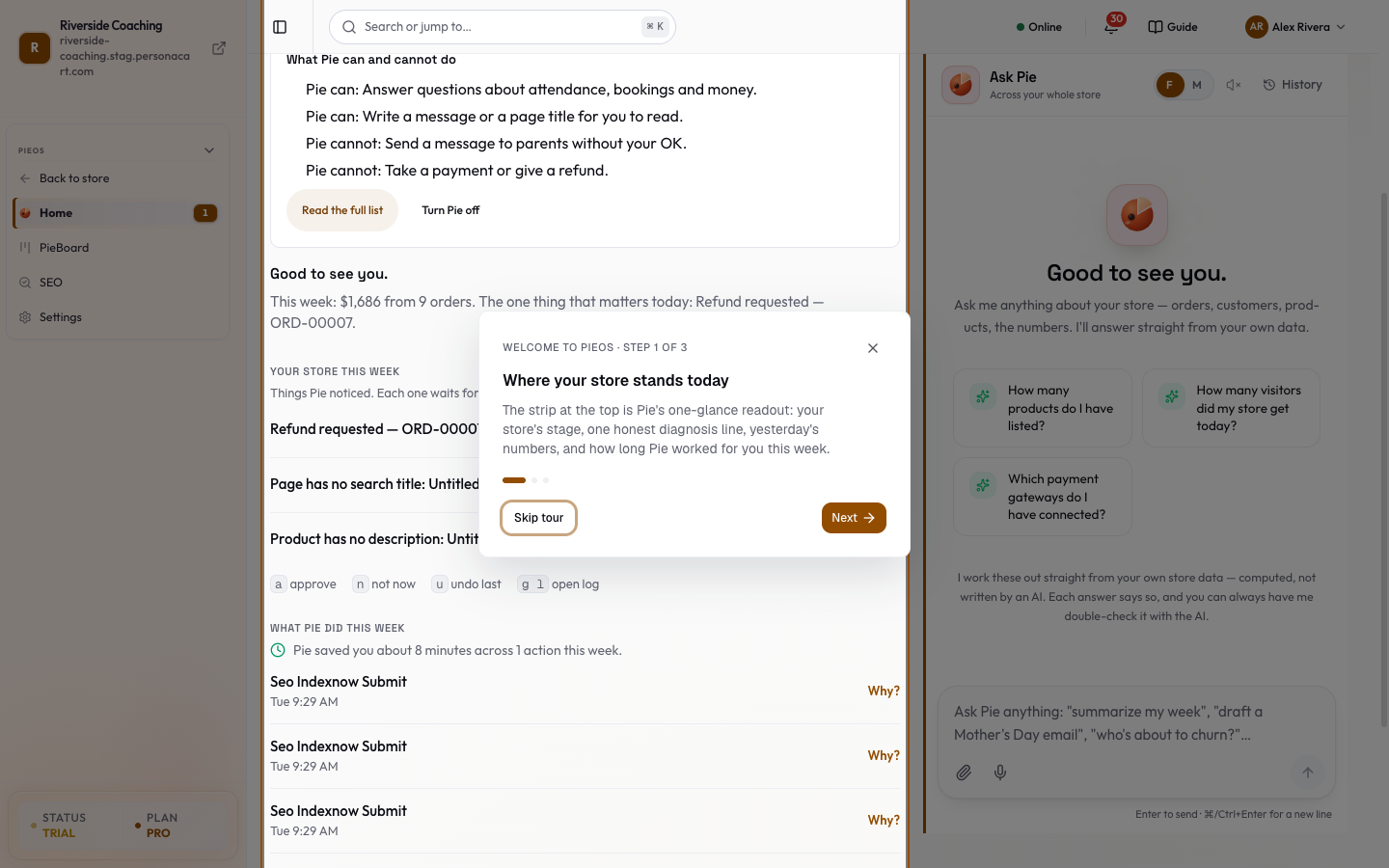
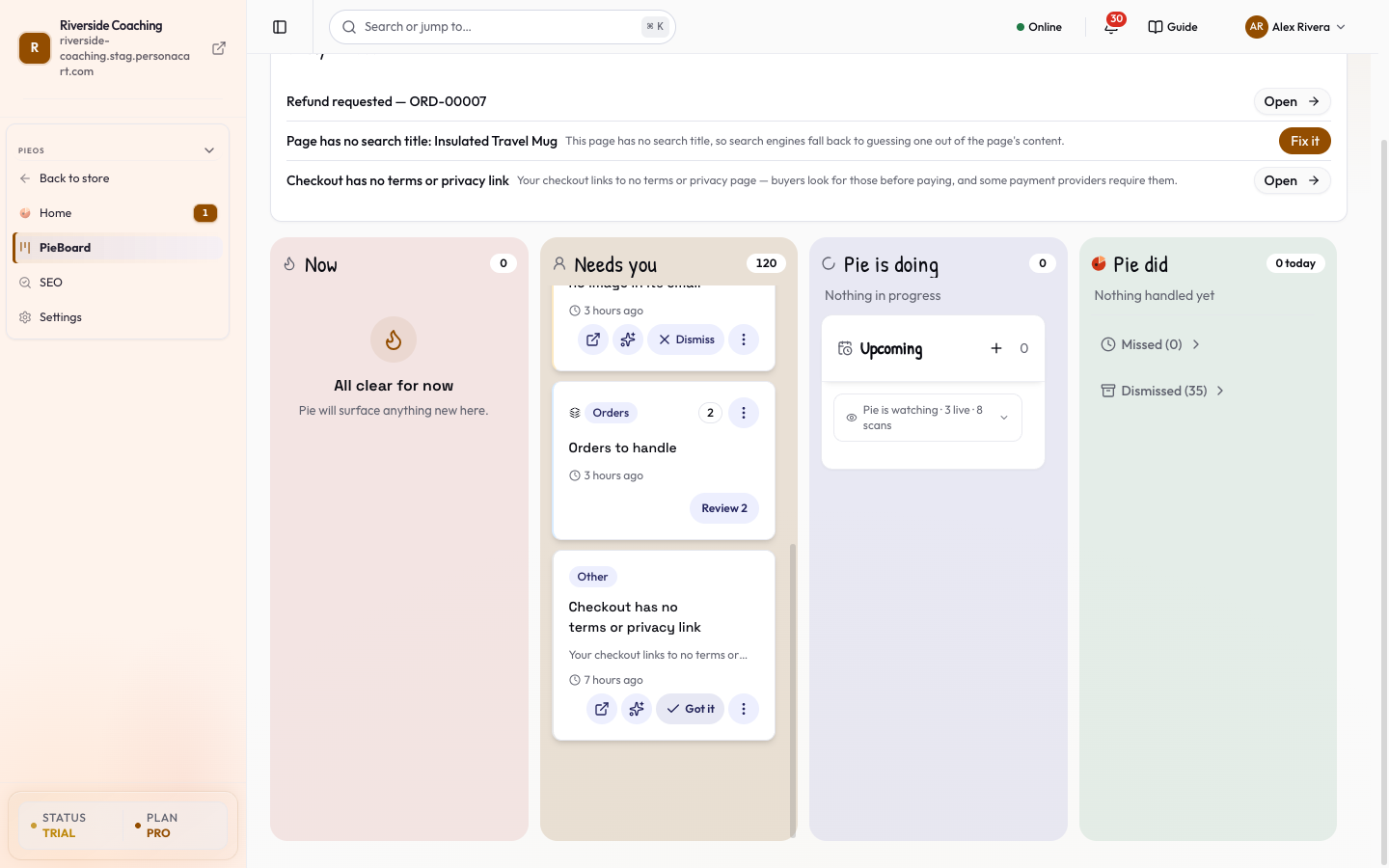
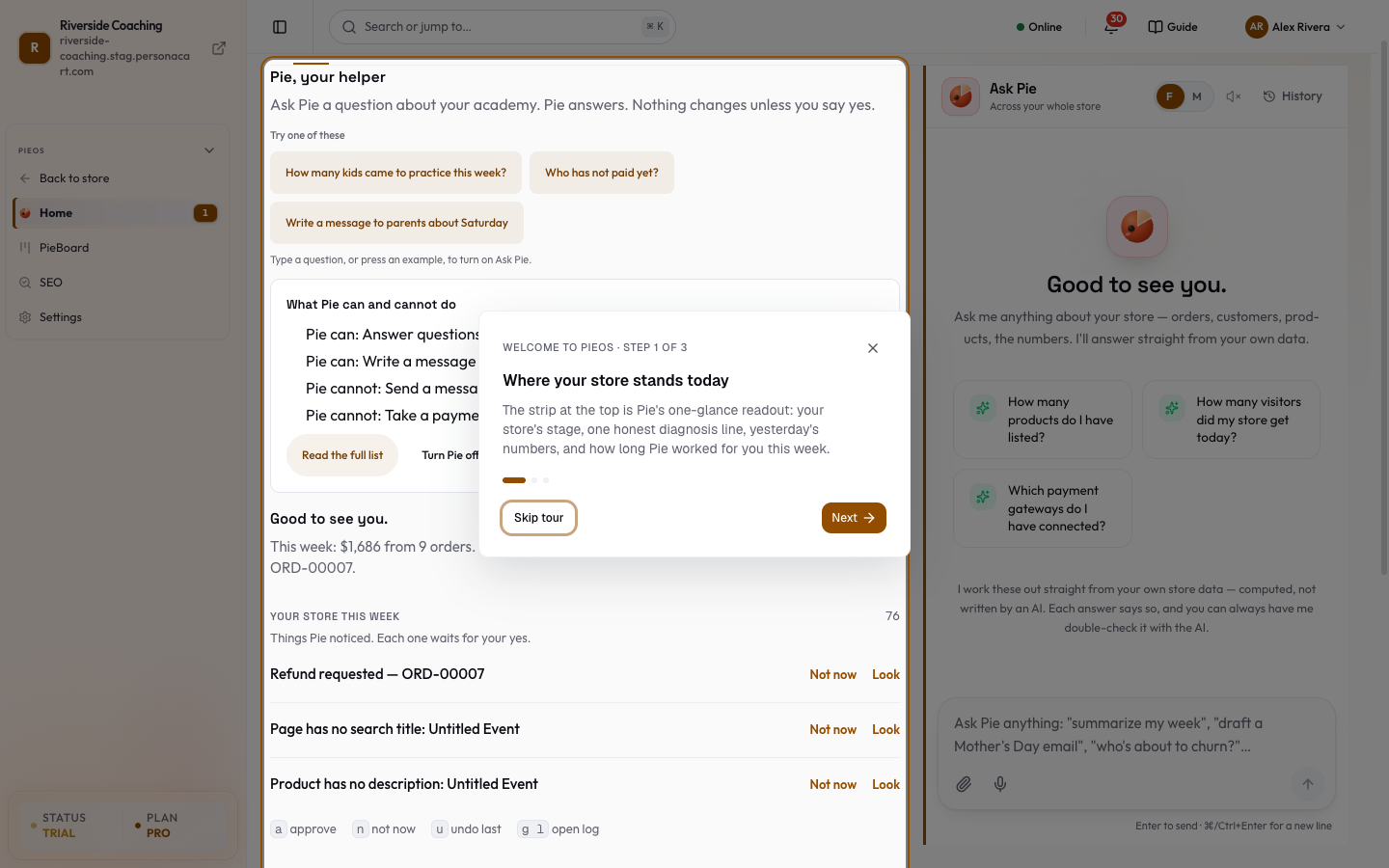
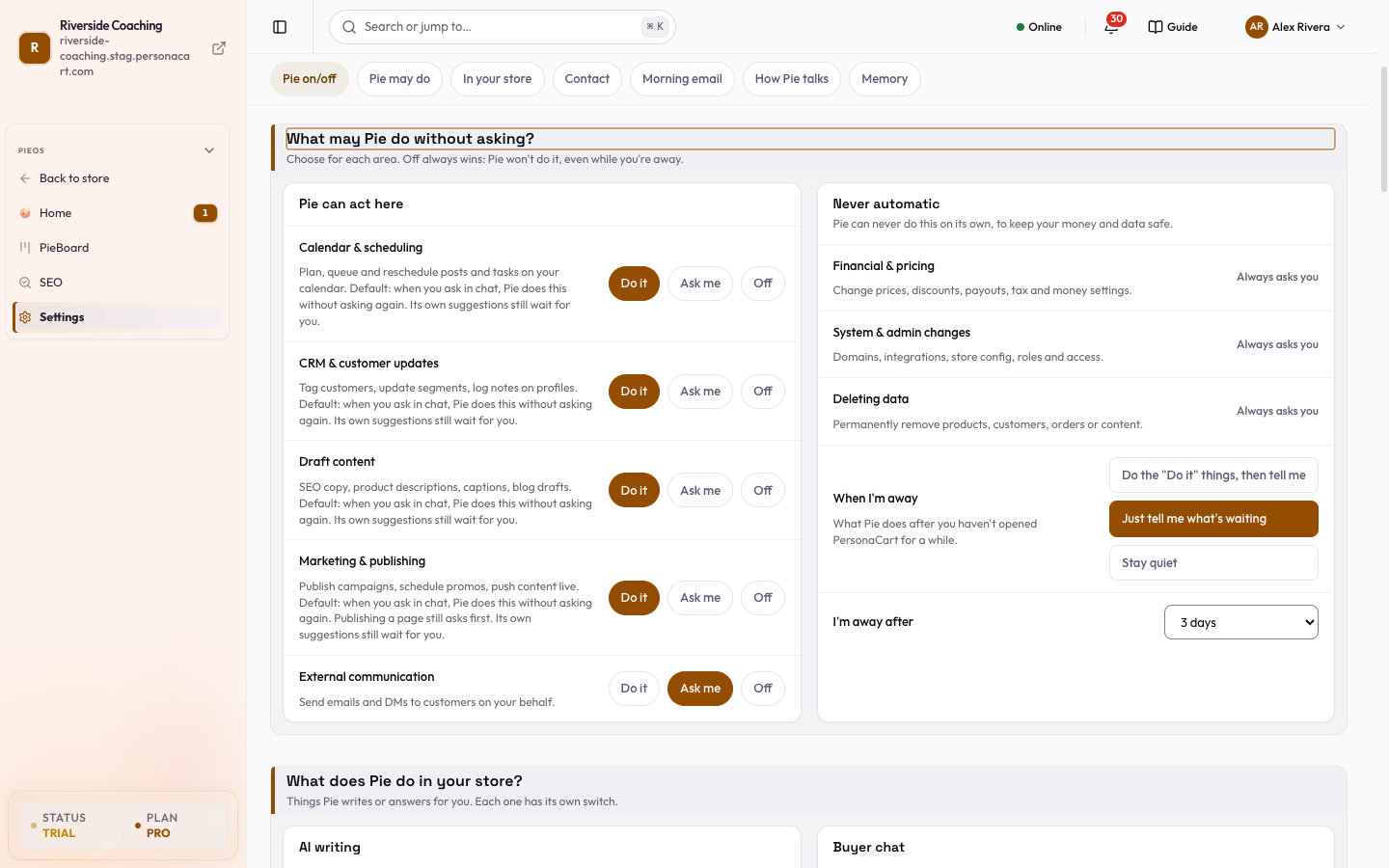
Watch it in the introduction film: Meet Pie (3:03), Pie works overnight (3:47).
Where to find it
HOME → PieOS. The left menu changes to the PieOS menu, with Back to store at the top. Rows: Home, PieBoard, SEO and Settings. Other screens open from the cards below or from Pie's search (Cmd/Ctrl + K).
Start here
What it takes care of
Where you stay in control
What it remembers and costs
Every PieOS screen
| Screen | Where | Page |
|---|---|---|
| Home (Home and Log tabs) | PieOS → Home | PieOS Home, Log |
| PieBoard | PieOS → PieBoard | PieBoard, Work item |
| SEO | PieOS → SEO | SEO, SEO activity |
| Settings | PieOS → Settings | Settings, Autonomy, Kill-switch, Memory, Morning briefing |
| Grow and Customers | Search (Cmd/Ctrl + K) | Grow, Customers, Event catalog |
| Learn PieOS | Search (Cmd/Ctrl + K) | Learn, Pie apps, All tools |
| Buyer AI | Settings → In your store | Teach your buyer assistant, Storefront chat, When Pie hands over |
| Full memory | Settings → Memory | Full memory page |
| Approve link | Approve link | |
| Inbox (Academy) | Academy links | Pie inbox |
| Moved or retired | old addresses | Insights, Market, Pie ledger |
PieOS is scoped to your store. It cannot see or act on another creator's data, and no instruction can talk it into it.
Questions
Where do I start?
Open PieOS Home. It shows what is waiting for your yes and what Pie did. Then open the PieBoard to see everything Pie is tracking.
Does Pie change my store on its own?
Not for anything consequential. Money, store settings and deleting data always wait for your approval. Pause Pie for my store stops everything.
Why can't I find an old PieOS page?
Several screens were folded into others. The old addresses still work and open where that content lives now.
Related
Product page: PersonaCart with PieOS