SEO, GEO & AEO
In short: Get found on Google and in AI answers. Fix page titles and descriptions, connect Search Console, let AI assistants read your store and let Pie do the work.
This is the one place to make your store findable. It does three jobs: In this video you will learn how to fix one page so Google shows a clear title and description for it. It is for anyone who sells on PersonaCart and wants to be found. You will read the three checks, open the fix panel, and know what Save does before you press it. The title is the blue line Google shows. Keep it under sixty letters. The description is the grey text under it. Write one or two short sentences. This chip counts the pages that still need work: three of nineteen here. Fix these first lists your weakest pages. FAQ scores sixty out of one hundred. Pie can write the title for you. You read it first, and nothing changes until Save. In Your pages, Small fixes counts pages with a gap to close: twelve. Ready means nothing to do. Seven pages are already ready. Press Fix on the FAQ row. That opens the fix for this page. A panel opens for this page. It asks what Google should show, with a preview. Common mistake: a title over sixty letters. Google cuts it, and the counter warns you. I will not press Save, as it changes a real page. Google updates days after Save. So: press Fix, write a short title, read the preview, then Save. Thank you so much for watching PersonaCart. To read the full guide, go to docs dot personacart dot com. To try PersonaCart yourself, go to personacart dot com. And subscribe, so you do not miss the next tutorial. In this video you will learn the store-wide side of search: the three things to do first, your search health score, and the Setup section you set once. It is for store owners who want Google and AI assistants to find the whole store. You will know what each part does and what never to switch on by mistake. Do these 3 things today is ranked by how much each one helps. First, connect Google. It takes about a minute and fills in your Google numbers. Second, a basic thing is missing on one page, like a title. Third, seven pages can be improved. Pie can fix them once you confirm. The health score is for the whole store. The bar counts pages. Setup holds the things you set once for the whole store. This is where it starts. Getting found takes your Google and Bing codes, and your store visibility. Common mistake: Hide from search hides every page. I will not touch it. AI assistants has one master switch and one switch for each assistant. Each saves when tapped. Sharing defaults set how the store looks when shared. I read it, but save nothing. So: do the three things today, watch the score, and set up the store once. Thank you so much for watching PersonaCart. To read the full guide, go to docs dot personacart dot com. To try PersonaCart yourself, go to personacart dot com. And subscribe, so you do not miss the next tutorial.Video transcript
Video transcript
- SEO (search engine optimization): being easy to find when someone types a question into Google or Bing. What Google shows is a title (the blue line) and a description (the grey text under it).
- GEO and AEO (generative and answer engine optimization): being named when someone asks an AI assistant such as ChatGPT, Gemini, Perplexity or Claude. The same clear titles, descriptions, questions and answers help here too.
You can do everything yourself, or let Pie, PersonaCart's assistant, write the words and run the routine work every day.
Where to find it
Sidebar → GROWTH → SEO / GEO / AEO. The same screen is the SEO row inside PieOS. The older address /settings/growth/seo opens this page. The page title reads Be easy to find on Google.
Team members need the right to manage storefronts. Without it the page can be read and its controls are off.
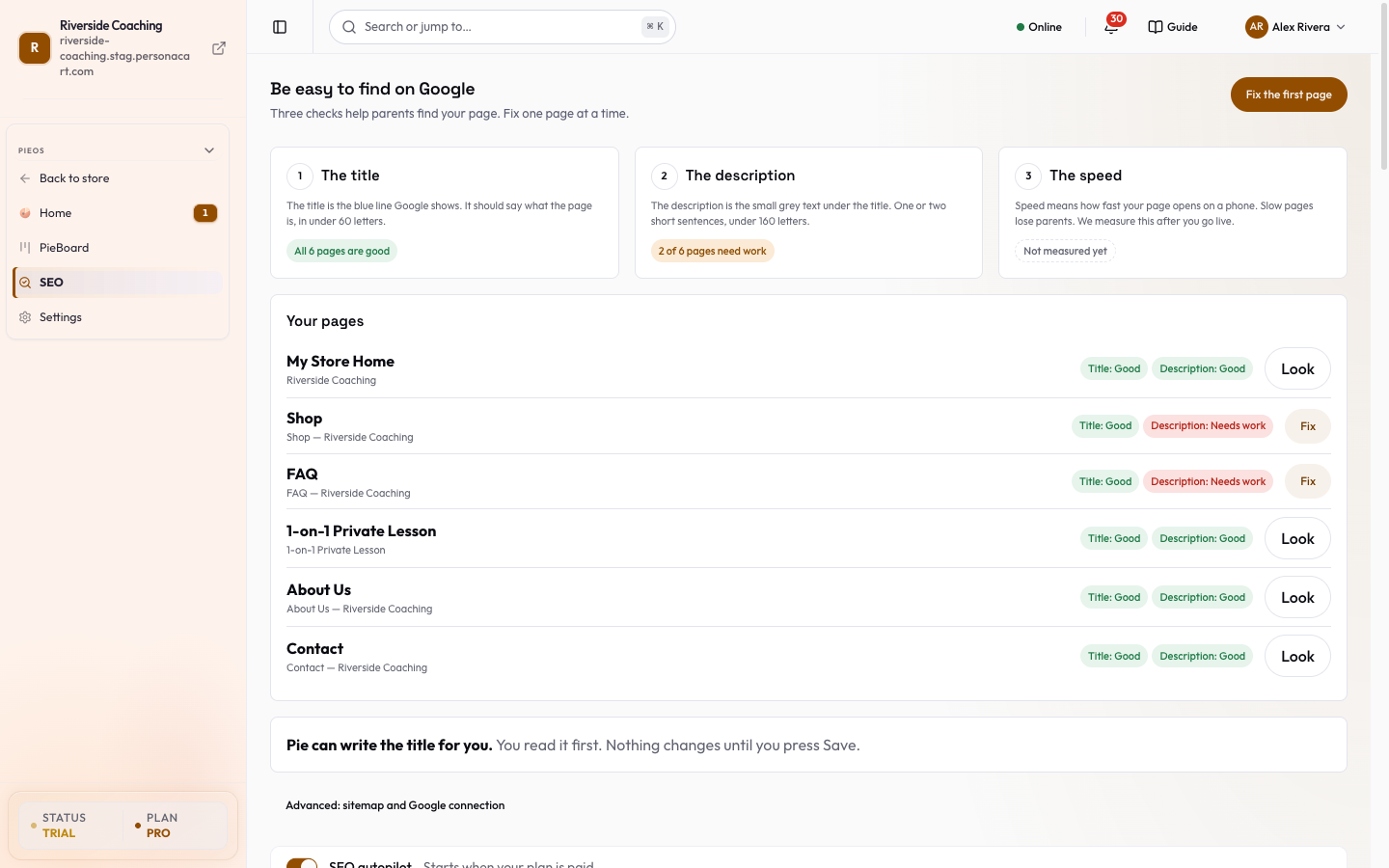
Read the page from top to bottom
A bar with six links stays at the top as you scroll: Today, Pages, Get found, Sharing, AI assistants and Workbench. Press one to jump to it.
Check your pages (three checks)
Three cards teach what Google looks at on each page, and say how many pages need work (for example "3 of 12 pages need work"):
| Check | What it means |
|---|---|
| The title | The blue line Google shows. It should say what the page is, in under 60 letters. |
| The description | The small grey text under the title. One or two short sentences, under 160 letters. |
| The speed | How fast your page opens on a phone. Shown as Not measured yet until your store has visitors. |
- The one filled button at the top right is Fix the first page: it opens the page with the lowest score, starting with its title. Let Pie write one only shows when Pie already has a suggestion for that line.
- When everything is fine the button says Everything is good. A list of your pages follows, each marked Good, Could be better or Needs work. Fix appears only on a page that needs work; on a good page, Look opens the live page in a new tab.
- Advanced: sitemap and Google connection opens a short list of the advanced tools.
Turn on SEO autopilot
- A switch named SEO autopilot: Pie keeps your pages' search, AI-answer and Google visibility work running every day.
- Next to it, the status says Running every day or why it is not running, for example "You turned it off" or "PieOS is paused".
- If PersonaCart has turned it on for your store, the switch is locked and says "Turned on by PersonaCart".
Do these things today
- A ranked list of the next actions, with "Ranked by how much each helps".
- Examples: Connect Google first, Sign in to Google again, pages that may not load for visitors, pages with a basic problem Google can see, pages that need a clearer name, buyer questions to answer on your FAQ page, and pages Pie can improve.
- Each item has its own button, such as Go to Google setup, Check pages again, Choose new names, See the questions or Fix with Pie.
- Fix all with Pie applies Pie's fixes to many pages at once, behind a confirmation.
- With nothing to do, it says "Nothing needs you today".
Your pages
Every live page of your store with its health:
- Search health score for the whole site (0 to 100) and a bar counting pages that are ready, need small fixes or are not loading.
- Filters, each with a count: All, Not loading, Small fixes, Ready, Rename. Pressing one shrinks the list of page cards.
- A card per page with its score, its issues and Fix with Pie. Press the page name to open its SEO panel (see below). The home page is marked
this is "/". - Show drafts and hidden pages lists pages Google cannot see: drafts, archived, hidden or set to not appear in search.
- Check again re-reads your live pages. The card says when it last checked.
The score comes from your live, published pages, as search engines see them.
Connect Google
- Google Search Console card.
- Connect it once and Pie sets it up for you: it signs in with your Google account, adds and verifies your site, sends your sitemap, then shows searches, clicks, click rate and average position for the last 28 days, Top pages and Top searches.
- A step tracker shows Signed in, Verified, Sent and Numbers are in.
- Google's data runs 2 to 3 days behind, so a new connection stays empty for a day or so.
- If Google stops accepting the connection, the card offers Sign in to Google or Reconnect.
- Choose site lets you pick which Google site is your store, and Disconnect removes Pie's access (numbers already saved stay in your account).
- A Let Pie fix this button next to a page in Top pages rewrites that page.
- What Google shows for your homepage: the title and description read from your live homepage, Change homepage to choose which published page is the homepage, and Test in Google.
- Keyword ideas come only from real searches in Search Console. Until you connect it, the card says so instead of guessing numbers.
See what AI says about you
- What AI assistants read about you: the summary taken from your AI file (see File for AI assistants below), with how many pages are listed and an Open link.
- How AI assistants see you: Pie asks AI assistants the questions a buyer might ask and shows whether they name your store.
- Check now starts a check.
- It takes 1 to 4 minutes and you can leave the page; one check is allowed per day, and it uses AI credits.
- A big number shows "questions where at least one AI named your store", then each assistant shows "Named you in N of M".
- An assistant that is not available says Turns on when the platform adds a [name] key.
- Questions and answers: Questions a buyer might ask an AI are the questions Pie asks at each check.
- Edit them to match what your buyers really ask: 1 to 15 questions, each 5 to 300 characters, then Save questions.
- Full AI answers with sources shows each answer, who else was named (Named instead of you), and a table of who the AI named question by question.
- What would make AI name you more lists fixes, such as allowing a crawler your robots file blocks, or answering unanswered questions on your FAQ page.
Open the advanced tools
A closed section with three parts:
- Sitemap (Auto-generated or a Custom… address, the number of URLs, Copy, Open in Search Console).
- File for AI assistants (your
llms.txt: "Your AI feed is live · N pages mirrored", "Auto-generated from your published pages" or "Using your custom override", View file). - Tell search engines about new pages (IndexNow: "IndexNow pushed N pages this week", sent to Bing and Yandex every time you publish).
Set up things once
- Get found: paste your Google Verification code (and a Bing code if you use Bing Webmaster Tools), your Google Analytics Measurement ID (it starts with
G-), choose Show in search or Hide from search (hiding asks you to confirm and sets all your pages to hidden), and copy your sitemap URL. - AI assistants: the master switch Let AI assistants read my store, then one switch for each AI assistant listed there (for example ChatGPT, Gemini, Perplexity and Claude).
- Each switch saves when you tap it.
- Turning one off blocks that assistant from your store, so it cannot recommend your products.
- This does not change what Google or Bing show.
- Sharing defaults: how your store looks when shared.
- Social share image (1200 x 630 pixels is best), Meta title, Meta description, X (Twitter) handle, X (Twitter) card type (Small card (text only) or Large card (with image)) and Canonical base URL (must start with
https://and have no path; leave empty to use your main domain). - A Live preview shows Google, Facebook and X.
- Press Save changes.
- For one page's own settings, open that page in the editor and use its SEO tab.
- Social share image (1200 x 630 pixels is best), Meta title, Meta description, X (Twitter) handle, X (Twitter) card type (Small card (text only) or Large card (with image)) and Canonical base URL (must start with
Use Pie's workbench
A closed section of eight tools:
- Optimize all your pages: one click and Pie rewrites titles, descriptions, structured data and FAQ answers for your lowest-scoring pages, one at a time. You can leave the page.
- Keyword visibility: real keyword results from Bing Webmaster Tools (Keyword, Rank, Impressions, Clicks).
- Pie's ranking wins this week: pages that moved up in Google this week ("Position: 4 (was #9)").
- Pie wins this week: times an AI engine or search engine cited one of your pages, with View cited page.
- Reddit traffic feedback: upvotes, comments and visits when a Reddit thread you used earns traction.
- Competitor leaderboard: AI citations this week for you and the competitor domains you add (Manage competitors), plus Keyword gaps.
- Tomorrow's publish queue: ready drafts from Pie, each tagged Gap vs competitor, Buyer asked on Reddit or Page diagnostic with an impact level, Show preview and a button such as Open draft, Apply schema or Apply fix, or Dismiss.
- Pie · SEO brief: what Pie did this week (pages enriched, titles rewritten, alt texts, structured data updated), what it is on now and what is next. Full log opens the log (below).
Open one page's SEO panel
Press a page name in Your pages to open its panel. It shows the page's Google score and AI-answer score, the title, description, keywords, structured data and FAQ answers, and what to improve.
- Pie, fix everything improves the page. Ask Pie to re-check scores it again.
- Research & optimise this page has Pie look at trends, your Search Console data and a live web read and choose one winnable keyword. If none is worth targeting it leaves the page alone and says so. Pie does not invent search volumes.
- Keywords: Find keyword ideas, then Implement to set one as the target.
- AI-answer readiness: FAQ answer capsules, whether the page is in your AI file, structured data and AI crawler visits in the last 7 days.
- Reddit & Quora: Find questions to answer. Pie finds threads where a link to this page would help; you write and post the reply yourself. Nothing is posted for you. When live Reddit discovery is not available, the panel gives you Search Reddit and Search Quora links instead.
- What Pie changed lists the edits made to this page.
Do the common jobs
Fix a page title or description
- Press Fix the first page (or Fix on a page card).
- A panel asks "What should Google show for" the page. Type the title; the counter says how many letters you have.
- Or press Let Pie write one, read it, change it and press Save this title. The same goes for the description with Save this description.
- Your page looks exactly the same; only the line Google shows changes, when Google next visits. Undo puts the old line back.
Connect Google Search Console
- In On Google press Connect Search Console and sign in with the Google account that owns your store's site.
- Allow the pop-up if your browser blocks it. Pie adds and verifies your site and sends your sitemap.
- Come back after a day or two for the first numbers.
Check what AI says about you
- Open Questions a buyer might ask an AI (a closed list under Questions and answers).
- Press Add a question, type it in your buyer's words and press Save questions. The cross next to a question removes it; save again.
- Press Check now.
- Read the answers, then follow What would make AI name you more.
Let Pie fix many pages
- Press Fix all with Pie under Do these things today.
- Read the list of what Pie will work on (titles, search summaries, photo descriptions, share images) and the number of pages. Pages that did not load are left out.
- Press Apply.
- Fix all with Pie and Optimize all pages write the words for you and save them straight to your pages.
- There is no Undo for these two yet, so look at a few pages afterwards.
- Hiding your store from search tells search engines not to list your pages for every page at once, and you can switch it back.
Read Pie's SEO log
- Pie's SEO log (address
/pie-os/seo/activity) lists everything Pie did on its own for your search visibility, newest first: titles and descriptions filled in, FAQ answers added, canonical fixes, alt text, structured data, search engines told about pages, llms.txt refreshed, sitemap sent, Search Console added, and optimize-all runs. - Filter by action type and press Load more.
- Back to SEO returns to the page.
Questions
What's the difference between SEO and AEO?
SEO is about classic search engines such as Google and Bing. AEO is about AI assistants such as ChatGPT, Gemini, Perplexity and Claude naming your store in their answers. Clear titles, descriptions, questions and answers help both.
Can I break my page by changing a title?
No. A title or description only changes the line search engines show. Your page looks the same, and Undo puts the old line back.
How long until Google shows my change?
Google decides. It usually takes a few days after it next visits your page.
Does Pie post on Reddit or Quora for me?
No. Pie finds threads where you can help and drafts the answer. You post it yourself.
Related
Part of Marketing and Analytics Guides · Product page: PersonaCart features