Sent emails
In short: See the emails you wrote to a customer from PersonaCart, newest first: who got it, when, whether it was sent, and a one-tap way to send failed ones again.
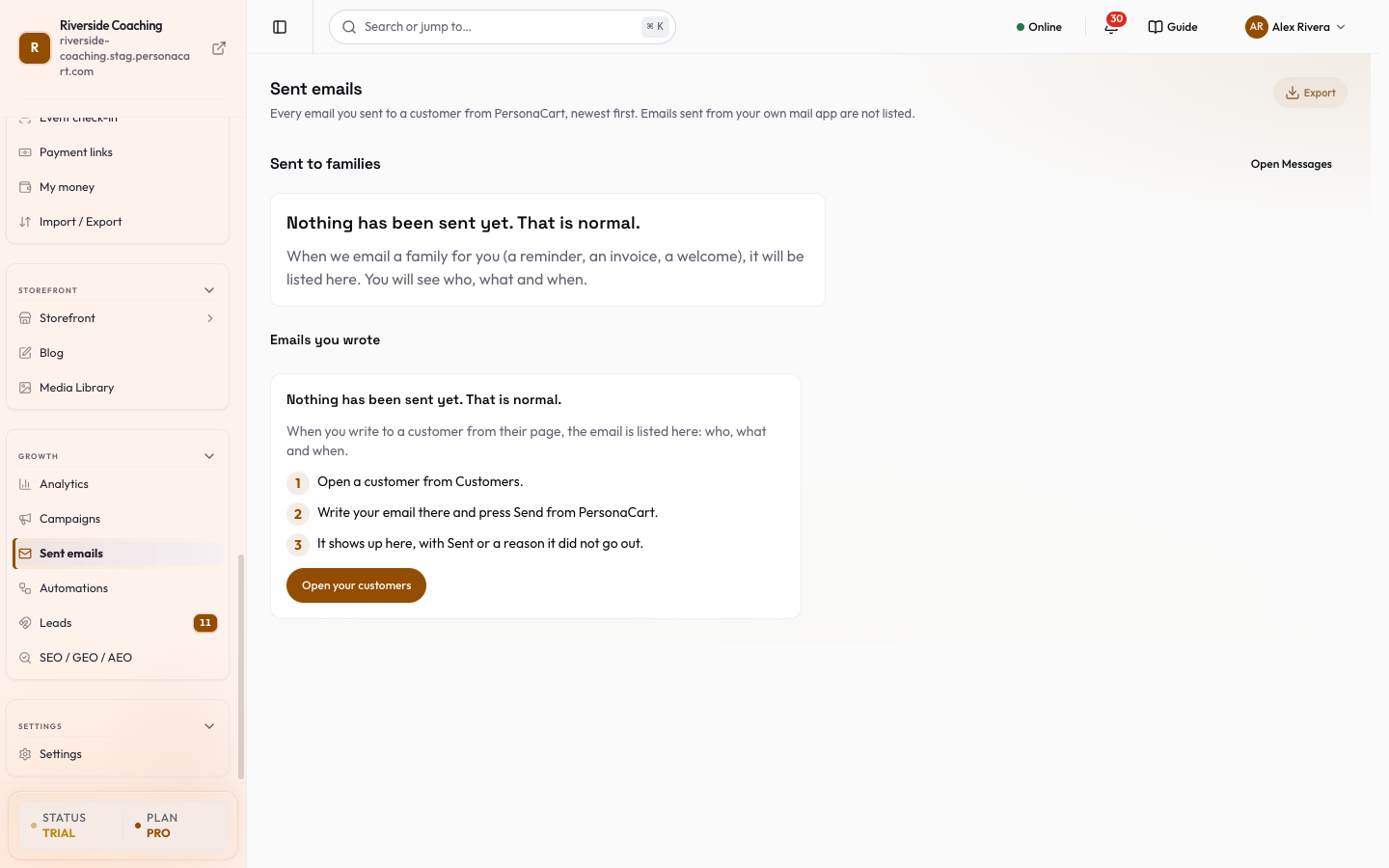
One list of the emails you wrote to a customer from PersonaCart, newest first. Each row says who it went to, when, what it was about, and whether it went out. If one did not go out, the row says why and offers Send again. In this video you will learn how to read your Sent emails page. You will see automatic mail, mail you wrote, and what is still waiting. Nothing is sent or changed. The first tab shows mail we send for you, like reminders to families. Written by you holds the emails you wrote yourself. These counts show all mail, what was sent, and what is still waiting. Search finds a message by who it went to. A waiting row has not gone out yet. It shows the subject and time. A sent row has already reached the family. Export saves this list. We do not press it here. So: pick a tab, read the counts, and check which mail is waiting. Thank you so much for watching PersonaCart. To read the full guide, go to docs dot personacart dot com. To try PersonaCart yourself, go to personacart dot com. And subscribe, so you do not miss the next tutorial.Video transcript
Emails you send from your own mail app are not listed. Neither are automatic emails such as order confirmations, automation emails, review requests and coupon emails, and neither are the people who receive a campaign: a campaign has its own report with a row for every recipient.
Where to find it
Sidebar → GROWTH → Sent emails. You can also see one customer's emails on that customer's page, in the Sent emails tab of their profile. Only team members who can see customers can open this list; it is not visible outside your account.
Find an email
Export the list
- Export downloads every email the current filter matches (not only the rows loaded on screen) as a CSV file. When the list is empty the button is off.
Fix what needs you
When emails did not go out, cards at the top say so in plain words, one card per cause:
| Card says | What it means |
|---|---|
| "N emails went to addresses that do not work" | The address bounced or is not valid |
| "N emails waited because you hit the daily limit" | Your store reached its sending limit for the day |
| "N emails were held back because the people unsubscribed" | They asked not to hear from you |
| "N emails failed for other reasons" | Something else went wrong |
- Under the sentence a grey line names up to three of the customers and, when some would only fail again until the address is corrected, adds "N need the customer's address fixed first".
- Each card has one button: Send N again when some of those emails can go out again, otherwise Show them, which filters the table to those emails.
- Three cards show at once; the rest are behind Show N more.
Search and filter
- Search: "Search by customer, address or subject".
- Result chips with their counts: All, Delivered, Failed, Bounced, Waiting. Delivered means PersonaCart handed the email to the mail provider. The app does not know whether it reached the inbox.
- When you pick Failed, Show failed emails by cause narrows it to Any cause, Bad address, Over the daily limit, Unsubscribed or Something else.
- Views saves a filter (for example "Bad addresses this month"). Deleting a saved view does not touch your emails. See the shared Growth controls.
If nothing matches, the page says "No email matches" with a Clear filters button.
Read the table
| Column | What it shows |
|---|---|
| Select | A tick box, only on emails that failed or bounced (they are the only ones that can be sent again). The header tick selects all of those that are loaded. |
| Date | When it was sent. You can sort by it; newest first by default. |
| Customer | The customer's name (click it to open their page) and their short customer number. A grey line adds their orders, what they spent and their segment, or "No orders yet". Never a raw ID. |
| Subject | The subject line. |
| Type | Service message (a personal note about an order, booking or account; nothing is added at the bottom) or Promotional (an offer or news; an unsubscribe line and your store address are added). |
| Look | Plain text or Designed with the style name. |
| Status | Sending, Sent, Failed or Bounced. A failed or bounced row also explains itself, for example "We could not reach this person: the email address bounced. Nothing else was lost.", and links Fix the email address to the customer. |
Show older at the bottom loads the next page of older emails. If that fails, the rows above stay as they are and you can try again.
Send failed emails again
- Tick the failed or bounced emails (or use Select all N matching to take every one the filter matches).
- Press Send again (key
r) in the bar, or Send N again on a card. - A Send N emails again? box checks first: "N will be sent. M will be left out," with the reasons under Left out, and why. Nothing has happened yet.
- Confirm with Send N again. The emails go out in a few seconds, to each customer's address as it is now, and a message offers Undo while they are still waiting ("Stopped. Nothing was sent.").
An email is left out, and the reason is shown, when:
- the address bounced and has not been fixed yet (fix it from the Fix the email address link first),
- the customer asked not to be contacted,
- this email can no longer be sent again (write a new one from the customer's page),
- your store has used this month's emails, or too many were sent a moment ago (wait a minute and try again).
Open customers in the bar opens the people behind the ticked emails: one person opens their page, several open a short list of links, so you can fix addresses quickly.
Sent emails shows that an email was sent. It does not show whether it reached the inbox or whether the customer opened it.
Check Academy notices
- If your store runs Academy classes, the page begins with a section for Sent to families: the notices the system sent for you (class reminders, changes, and so on) with filters such as Held by Pause and Did not send, and a quick answer to "did this family get it?".
- The emails you wrote by hand follow in their own section below.
Questions
Who can see this list?
Only people on your team with access to customers. Nobody outside your account.
Can I see if the customer opened it?
No. This list only knows whether an email was sent. Campaign reports show opens and clicks.
What does Sending mean?
The email is waiting to leave. It changes to Sent once it has gone out.
A customer says they never got it. What do I do?
Search for them. If the row says Sent, ask them to check spam. If it says Bounced or Failed, use Fix the email address, then Send again.
Related
Part of Marketing and Analytics Guides · Product page: PersonaCart features