Reviews
In short: Collect and moderate product reviews: turn reviews on, ask buyers for a review after delivery, approve or reject what they write and reply in public.
- Reviews are what your buyers write about the products they bought, with a star rating, a short text and sometimes photos.
- Approved reviews appear on your product pages and help new buyers trust you.
- This page covers turning reviews on, asking for them automatically, and approving, rejecting and answering them.
Where to find it
Sidebar → SETTINGS → Reviews. It has two parts: Collect reviews (the switches) and Buyer reviews (the moderation list).
Two links at the top, Collect reviews and Buyer reviews, jump between them. While reviews are off, only the first part is shown.
Team members need the right to manage products to change anything here.
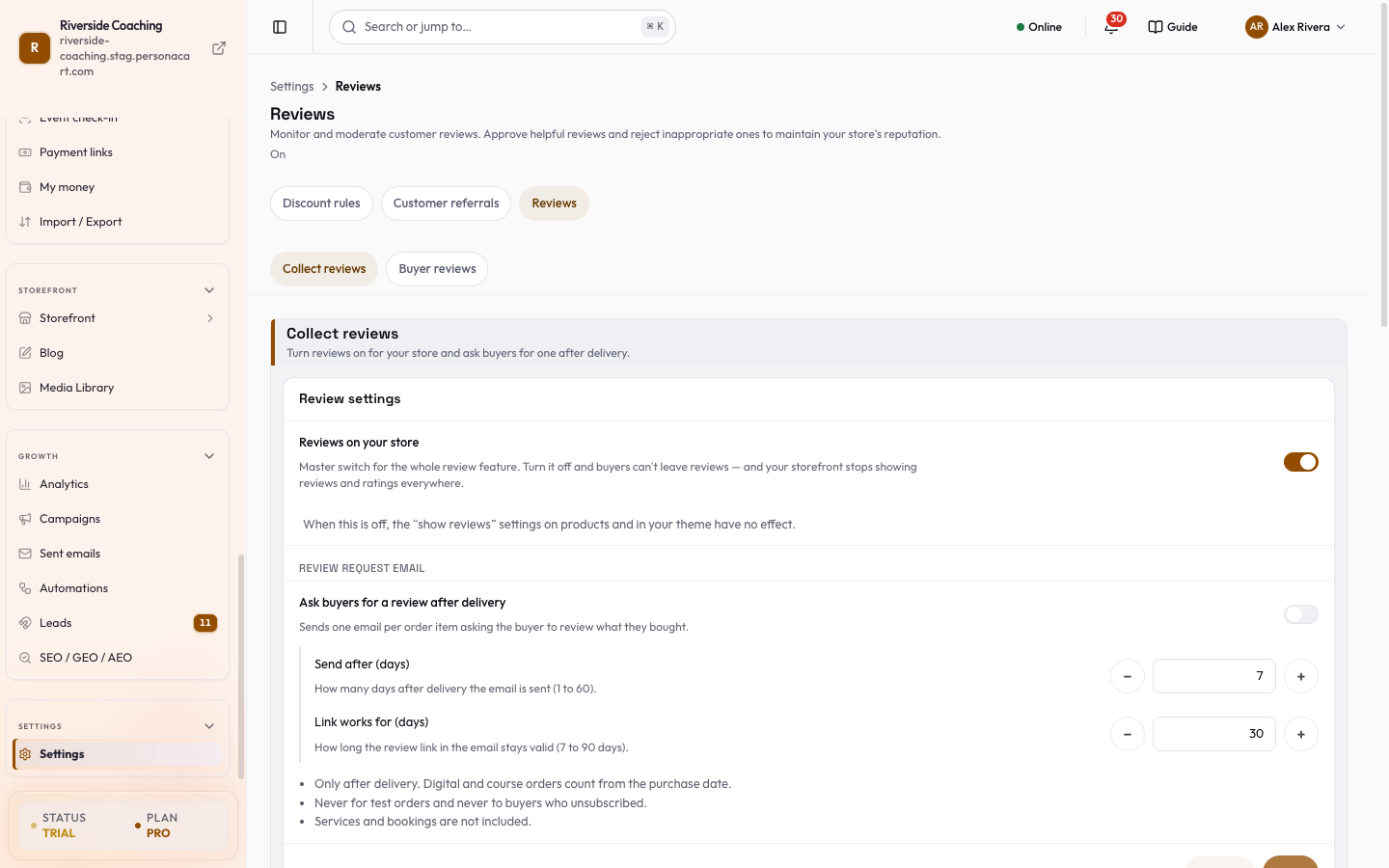
Turn on and collect reviews
The card is named Review settings.
Reviews on your store
- A master switch, Reviews on your store.
- It is on unless you have turned it off.
- Turn it on and buyers can leave reviews and your storefront can show reviews and ratings.
- Turn it off and buyers cannot leave reviews, and your storefront stops showing reviews and ratings everywhere.
- While it is off the card says "Reviews are off. Nothing about reviews is shown to your buyers or in your panel."
A line under it adds: when this is off, the "show reviews" settings on products and in your theme have no effect.
Review request email
When reviews are on, a section named Review request email appears:
| Setting | What it does |
|---|---|
| Ask buyers for a review after delivery | A switch. When on, buyers get a single review-request email for each item they ordered, after it was delivered. |
| Send after (days) | How many days after delivery the email is sent: 1 to 60. |
| Link works for (days) | How long the review link in the email stays valid: 7 to 90 days. |
Under the settings, three rules are listed:
- Only after delivery. Digital and course orders count from the purchase date.
- Never for test orders and never to buyers who unsubscribed.
- Services and bookings are not included.
Press Save; Discard drops your changes. The message Review request settings saved confirms it. If the number is out of range the field says "Choose a number of days from 1 to 60" (or 7 to 90). If reviews are off, these settings are locked with "Turn on "Reviews" above to use this."
Moderate buyer reviews
The card is named All reviews. When reviews are waiting, it says "N review(s) pending moderation".
Who can write a review
Only buyers who bought the product can review it, and every review is marked as a verified purchase. A new review arrives as Pending; nothing is shown on your storefront until you approve it.
Filter and find
- Four summary numbers sit on top: Total Reviews, Pending, Approved and Avg Rating.
- Three dropdown filters:
- Status: All, Pending, Approved or Rejected, each with a count.
- Rating: All Ratings or 1 to 5 stars.
- Product: All products or one product.
- Refresh reviews reads the list again.
A review row
- Each review shows the buyer's name (or Anonymous), the date, the stars, a status tag, the title, the text (Read more and Show less for a long one), any photos the buyer added (press one to open it) and the product with a View link.
- A product that no longer exists shows Product removed.
Approve or reject a review
- On a Pending review press Approve to publish it ("Review approved and published.") or Reject to hide it. Rejecting asks you to confirm: "Reject this review? This review from [name] will be hidden from your storefront."
- To handle many at once, tick the boxes on pending reviews (or Select all pending), then press Approve N or Reject N. Clear unticks them.
Only pending reviews have these buttons.
Reply in public
- On an Approved review, press Reply to this review.
- Write your answer in "Write a public response to this reviewer…".
- Press Post reply. It appears under the review as Your response.
- Edit changes it.
- To remove it, open Actions, choose Delete, then press Delete again at "Delete your reply?" (Keep cancels).
- An empty reply is refused.
Start collecting reviews
- Open Settings → Reviews and check that Reviews on your store is on.
- Switch on Ask buyers for a review after delivery.
- Set Send after (days), for example 7, and Link works for (days), for example 30.
- Press Save.
- Come back to All reviews each week, filter by Pending, and approve the real ones.
A rejected review is hidden from your storefront and stays listed when you set Status to Rejected. Reviews are written by your buyers and may contain their names and photos, so only approve what you are happy to show publicly. A reply is public.
Questions
Why do I not see any reviews yet?
Reviews appear once a buyer who bought a product writes one. Switch on the review request email so buyers are asked after delivery.
Can anyone leave a review?
No. Only buyers who bought the product can, so reviews on your store are from real customers.
What happens when I turn reviews off?
Buyers can no longer submit reviews and your storefront stops showing reviews and ratings.
Do buyers get the review email for a test order?
No. Test orders and buyers who unsubscribed are never emailed.
Can I reply to a pending review?
Approve it first. Replies are for approved reviews.
Related
Part of Marketing and Analytics Guides · Product page: PersonaCart features