Email templates
In short: See every automatic email your store sends. Switch each one on or off, change its words, choose one look for all of them and set who they come from.
Your store sends emails on its own: a receipt after someone pays, a note when an order ships, a reminder before a booking.
This area is where you see all of them in one list. Switch each one on or off, change what it says, choose how every email looks, and decide who the emails come from.
It has four screens:
| Screen | Address | What it is for |
|---|---|---|
| Email templates (the list) | Settings → Email templates | Every email, grouped by when it goes out. On/off switches, search, test sends. |
| Edit one email | opens from a row | Change the subject and words of a single email, see it exactly as sent, send a test. |
| Email design | Settings → Email templates → Email design | One look for every email: style, colour, font, logo, footer. |
| Sender & replies | Settings → Email templates → Sender & replies | The name emails come from, where replies go, your own sending address, and a delivery check. |
The shorter address /settings/email takes you to the list. Account and sign-in mail for your own PersonaCart login (login links, password resets, receipts for your plan) is sent and branded by PersonaCart itself and cannot be edited here; the list shows it greyed out as Sent by PersonaCart.
Where to find it
Sidebar → SETTINGS → Email templates. The list is the front door; the other three screens open from it.
Switch emails on or off
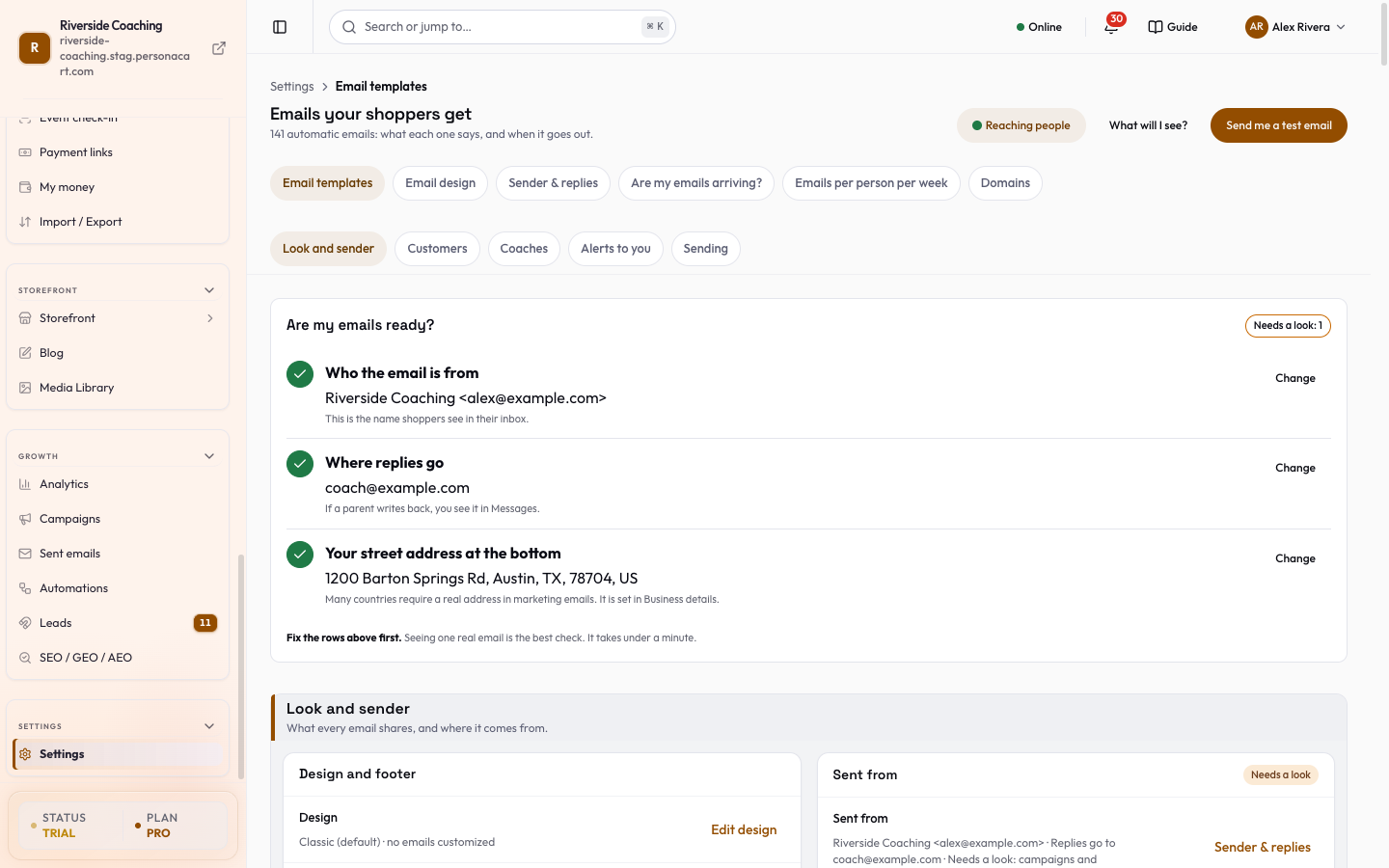
At the top, a health line says whether your emails are Reaching people, Not enough sends yet, or Needs a fix, with Fix the sender when it does.
Look and sender (a short panel) shows:
- Sent from: the name and address, with Change.
- Replies go to an address, or "your account email".
- Design: your email style and how many emails have their own look, with Edit design.
- Footer address: your business postal address, or "Missing" with Add address. Marketing emails must show one.
- Are my emails ready?: a card showing who the email is from, where replies go and whether your street address is there, with the chip Ready, Needs a look: N, or Send a test to be sure.
- Send me a test email sends one real email to your own inbox only, and then tells you what to check, in this order: look in your Inbox; if it is not there, look in Spam or Junk and tap "Not spam"; if there is still nothing after 5 minutes, tap I cannot find it (or Ask a person).
- Tap I got it when it arrives.
- Only an editor can send the test, and you can send another after a short wait.
If you have set an unusual combination, a banner says "N emails customers usually expect are off" and gives Show them.
Find an email
- Search emails, e.g. receipt, refund, password. Search also matches everyday words (for example "invoice" finds the receipt) and says why it matched ("Found because it is also known as…").
- Chips: All, On, Off, Your wording, Always sent.
- Most stores start with these lists the usual first five: Order confirmed, Order shipped, Booking confirmed, New customer welcome, and Payment receipt.
See which emails are in which group
Emails are listed under Who gets it: Customers, Coaches, Alerts to you. Inside each, they are grouped by the moment they go out. A jump bar at the top takes you to a section. Each group has All in this group → Turn all on / Turn all off (always-sent emails stay on).
| Group | Emails in it |
|---|---|
| After they buy | Order confirmed, Payment requested, Payment receipt, Payment link sent, Tip received, Download ready, Order shipped, Out for delivery, Tracking updated, Order delivered |
| When something goes wrong | Order cancelled, Order refunded, Subscription payment failed, Subscription cancelled, Subscription expired, Booking cancelled, Event cancelled |
| Bookings and events | Booking confirmed, Booking rescheduled, Booking reminder, Booking completed, Event booked, Event reminders (7 days and 24 hours), Event rescheduled, Waitlist: a spot opened up |
| Courses | Course enrolled, Course completed, Quiz results, Certificate issued, Certificate expiring |
| Welcome and sign-in | New customer welcome, Newsletter confirmation, Buyer account activation, Buyer password reset, BioLink lead welcome, Store credit added |
| Memberships | Subscription started, renewed, renewal reminder, Trial ending soon, paused, resumed |
| Reminders, reviews and referrals | Cart abandoned (steps 1, 2 and 3), Review request, Review reply, Course progress reminder, referral emails, Restock notification |
| Support and chat | Ticket auto-reply, Ticket assigned, Awaiting your reply, Ticket resolved, Chat reply waiting |
| Classes and Academy (Academy stores) | What parents and students get about classes, in sub-groups: Joining, Class changes, Class day, Money and credit, Forms and safety |
| Your coaches (Academy stores) | Sessions, cover, check-ins, weekly digest (Schedule); answers to approvals, leave and availability (Answers); a private coach's new client and bookings (Private coaching) |
| Money (alerts to you) | You got paid, Dispute received, Dispute lost, Dispute won |
| Your shop (alerts to you) | New review received, Review reply (your copy), Product import finished or failed, Product taken off sale, AI filled empty product info, Course ready to publish, Course needs a retry |
| Your site and team (alerts to you) | Domain verified, Domain disconnected, Team invitation accepted or declined |
| Your academy (alerts to you) | What needs your attention in classes, such as three absences or approvals waiting |
A few coach notices go to the coach's phone as a Phone alert only, with one switch for you.
Try it: reword one email
- Type tip in Search emails; the list narrows.
- Flip the switch Disable: Tip received, then press Undo in the message that pops up.
- Search order confirmed and press Look at it.
- Click into Subject and add your own words; the preview changes as you type.
- Press Phone to check the preview on a phone, then Save.
- To go back, open More → Reset to standard wording → Reset email.
Read one row
Each row shows the email's name, a one-line description, and a status:
- On / Off with a switch, or Always sent with no switch.
- Standard wording or Your wording (with "changed" and the date).
- A Look at it link that opens the email's editor, with a live preview beside it.
- Marketing emails say they carry an unsubscribe line.
Click the name, or Look at it, to open the editor. There you can change the words, send yourself a test, or put the email back to its standard wording.
Always sent emails cannot be switched off, and the page tells you why in plain words:
| Reason | Why |
|---|---|
| Payment | It tells the person about their money. |
| Booking | It tells the person their booking changed. |
| Access | It is how the person gets into their account. |
| Safety | It is about a child's safety. |
| Team | Your coach needs it to do the job. |
| System | Your store needs it to keep working. |
You can still change the words of an always-sent email.
Three emails can be switched off but customers look for them in their inbox: Order confirmed, Download ready and Order refunded. Switching one off asks first ("Turn off “Order confirmed”?") with Keep it on and Turn it off.
Turn emails on or off in bulk
Select puts a tick box on each row. Choose rows, then Turn on or Turn off; always-sent emails are skipped. After any switch, a message offers Undo for about 8 seconds ("“Order shipped” is now off").
Change the words of one email
Open a row to edit it. The page header has Back, the save state (Saved or Unsaved changes), a More menu with Send a test to myself and Reset to standard wording, and Save. On a phone, a Preview button opens the preview in a sheet.
A short notice at the top tells you what kind of email it is: either "This email is always sent and can't be turned off. You can still edit its content." or "This is a promotional email. An unsubscribe link is added automatically to comply with anti-spam rules."
Edit the email, top to bottom
- Subject: write it as a normal sentence. A character count warns when a subject "may be cut off on phones". Highlighted details are filled in for each customer; click one to choose what shows if a customer has none: Say a word instead, Use another detail instead, or Leave it out.
- Blocks: the body is shown top to bottom. Each block is marked You write this, Fills itself in, or Fixed wording, and a fixed one explains why you cannot change it ("Why you cannot change it:"). Parts you write have a coloured edge.
- Add a detail inserts something that is filled in for each customer, such as their name or order number.
- Preview shows the email as a customer receives it, on Desktop or Phone, for a sample customer (Preview as changes the sample). The preview and the real email are made the same way.
- Look: by default an email follows the store's look. Pick another look to give just this email its own; Undo puts it back.
- For some emails you can hide parts for a single product, in that product's Email tab.
- Some Academy notices also have a Chat message (WhatsApp / copy) box: a short text you send from your own phone with Send on WhatsApp or Copy message. Leave it empty to use the built-in text in each parent's language, or press Use the built-in text.
Press Save. "Saved. The next email uses this version." Emails already sent do not change.
Send a test
- More → Send a test to myself opens Send a test to yourself.
- It shows the subject and the sample customer, and says it goes to the address you are signed in with.
- It uses the saved version unless you have unsaved changes, in which case it says it includes them.
- Press Send test; a message confirms "Test sent to you@…. It can take a minute to arrive." Nothing is sent to your customers.
Put an email back to standard
More → Reset to standard wording asks "Put this email back to the standard wording?" and says what will go: the wording you saved, and any unsaved changes. Press Reset email to confirm. Your logo and colours are not touched.
Resetting an email discards the wording you wrote for it and cannot be undone. Copy your text somewhere first if you may want it back.
Choose one look for every email
Email design sets one look for every email. It shows your real "Order confirmed" email, so you see what customers see.
At the top, a banner tells you what customers get right now (style and font) and whether all emails use it. When you edit, you are working on a copy: customers keep getting the live design until you press Apply.
- Pick a style. A gallery of looks, each a different layout. One is marked Live now and the one you are editing is marked Editing.
- Your colour. Choose a swatch (Your store colour, Ink, Forest, Ocean, Plum) or type a colour code like #1d4ed8. The header, buttons, links and highlight boxes all follow it. If the colour is hard to read on white, links are darkened automatically.
- Font. Three tidy pairings: Editorial (serif headings, simple text), Clean (one neat typeface) and Friendly (round and open).
- Fine-tune. Everything starts as Auto, following your style and colour.
- Change only what you must; the preview outlines what moved.
- Groups: Logo & name (show logo, logo shape, logo size, logo position, show brand name), Colours (header colour, button colour, accent colour, link colour, canvas background, footer background), Shape & items (button shape: square, rounded or pill; corners; content width: narrow, standard or wide; product card style: compact or detailed).
- Back to auto undoes a single row.
- Header image, footer and details. Your header image (shown at the top of every email; empty uses your store logo), footer text, social links and signature. These belong to your saved template.
- Preview on Desktop or Phone, with Full size.
- Then press Apply: Apply to all N emails (any email with its own style is replaced) or Only Order confirmed.
- A message offers Undo ("Undone. Customers get what they got before.").
- Reset → Discard my changes goes back to what customers get now, or Reset to PersonaCart default returns to Classic with your store colour.
Your postal address and the unsubscribe link are always in the footer of marketing email. Email law requires them, so they cannot be removed.
Edit a saved design
- Each saved design also has its own editor at
/settings/email-templates/design/<design>: Template name, Heading font, Body font, Base font size, Line height (Tight, Normal, Relaxed), Heading color, Text color, Link color, Button fill, Button shape (Square, Rounded, Pill), Button style (Filled, Outline), Content width, Corners, Spacing, Canvas background, Footer text, Contact line, Website, Footer background, Divider (None, Line, Shadow), Top banner image URL, Preheader (inbox preview line), Signature / sign-off, Show “Powered by PersonaCart” (white-label depends on your plan), Dark-mode safe, and Product card style. - Press Save template, Set as default to use it for every email, Send test email, or Delete (emails using it fall back to the default).
- Only email-safe fonts are offered, because Gmail and Outlook remove custom web fonts.
Set the sender and replies
Sender & replies controls who your customers' emails come from.
It does not change your name on account emails or plan receipts from PersonaCart. A picture on the page, What your customer sees, shows the Inbox and the opened email using your real name and addresses (the customer and order are samples).
- Email sender name: the From name customers see. Empty uses your store name; Use my store name fills it. Past 40 characters the page warns it may be cut off, and 100 is the most; do not put an email address in the name.
- Where replies go: My support email (set in Business details) or A different address. If you have no support email, replies go to the address you log in with.
- Address emails come from: by default a PersonaCart address.
- To use your own, follow the steps: add your domain on Domains, add the listed DNS lines (each shows a Type, Name and Value with Copy) where you bought the domain, press Check again now (it can take minutes, sometimes a day), then Switch my emails to my own address.
- You can switch back any time.
- Email these steps to my web person opens a ready-made message.
- If a few kinds of email still send as a different name or reply address, A few emails are sent differently offers Make every email match.
- Test and delivery: Send me a test sends a real "Order confirmed" email to your address, then a four-line check: it arrived in your inbox and not Spam, the name on top is right, the address looks right, and pressing Reply shows the right address.
- Are my emails arriving? shows how many of the last 30 days' emails got through, how many could not be delivered, and how many people reported you as spam.
Changes are saved with Save changes in the bar at the bottom; Discard drops them. "Saved. Every email uses this now."
Questions
Which emails can I turn off?
Any that is not marked Always sent. Three of them (Order confirmed, Download ready and Order refunded) ask you to confirm first because customers look for them.
Why can't I turn off the password reset email?
It is how the person gets into their account, so it is always sent. You can still change its words.
Do my changes affect emails already sent?
No. The next email uses the new wording or design; emails already sent stay as they were.
Can I send a test without emailing customers?
Yes. Every test goes only to the address you are signed in with, with sample details filled in.
Where does the unsubscribe link come from?
It is added automatically to marketing emails, together with your postal address. You can edit the sentence around them, not remove them.
Related
Part of Marketing and Analytics Guides · Product page: PersonaCart features