Store speed and performance
In short: See how fast your storefront feels to real buyers: loading, steadiness and response, your slowest page for each, every page ranked, and what usually helps.
- The Speed tab of Analytics shows how quickly your store opens and reacts for real buyers.
- Slow pages lose sales, so use it to spot problems early and to see whether a change helped.
- The numbers come from real visits, using the same three checks Google uses in search results (Core Web Vitals).
Video transcript
In this video you will learn how to read your store speed. You will see the period, the three checks, what helps, and the list of pages. It is for anyone who wants pages to load fast. Pick the period: twenty-four hours, seven days, thirty days, or your own dates. This line says how many checks are slow for buyers. Loading, steadiness and response are the three checks Google also uses. Each check ends with what usually helps, like a smaller hero photo. Every page is listed here, slowest first. So: pick a period, read the three checks, then fix the slowest page first. Thank you so much for watching PersonaCart. To read the full guide, go to docs dot personacart dot com. To try PersonaCart yourself, go to personacart dot com. And subscribe, so you do not miss the next tutorial.
Video transcript
In this video you will learn how to read the Store speed page. You will see the period buttons, the three checks, and the list of pages with their loading time. Nothing is changed. These buttons set the period: 24 hours, 7 days or 30 days. The three checks sum up how your store loads. Every page lists each page with its visits and how long it took to load. Slowest loading first puts the pages that load slowest at the top. A row shows the page, its visits and a Slow or Fast label. Show 10 more adds ten more pages to the list. So: pick a period, read the three checks, then look at the slowest pages. Thank you so much for watching Persona Cart. To read the full guide, go to docs dot persona cart dot com. To try Persona Cart yourself, go to persona cart dot com. And subscribe, so you do not miss the next tutorial.
Where to find it
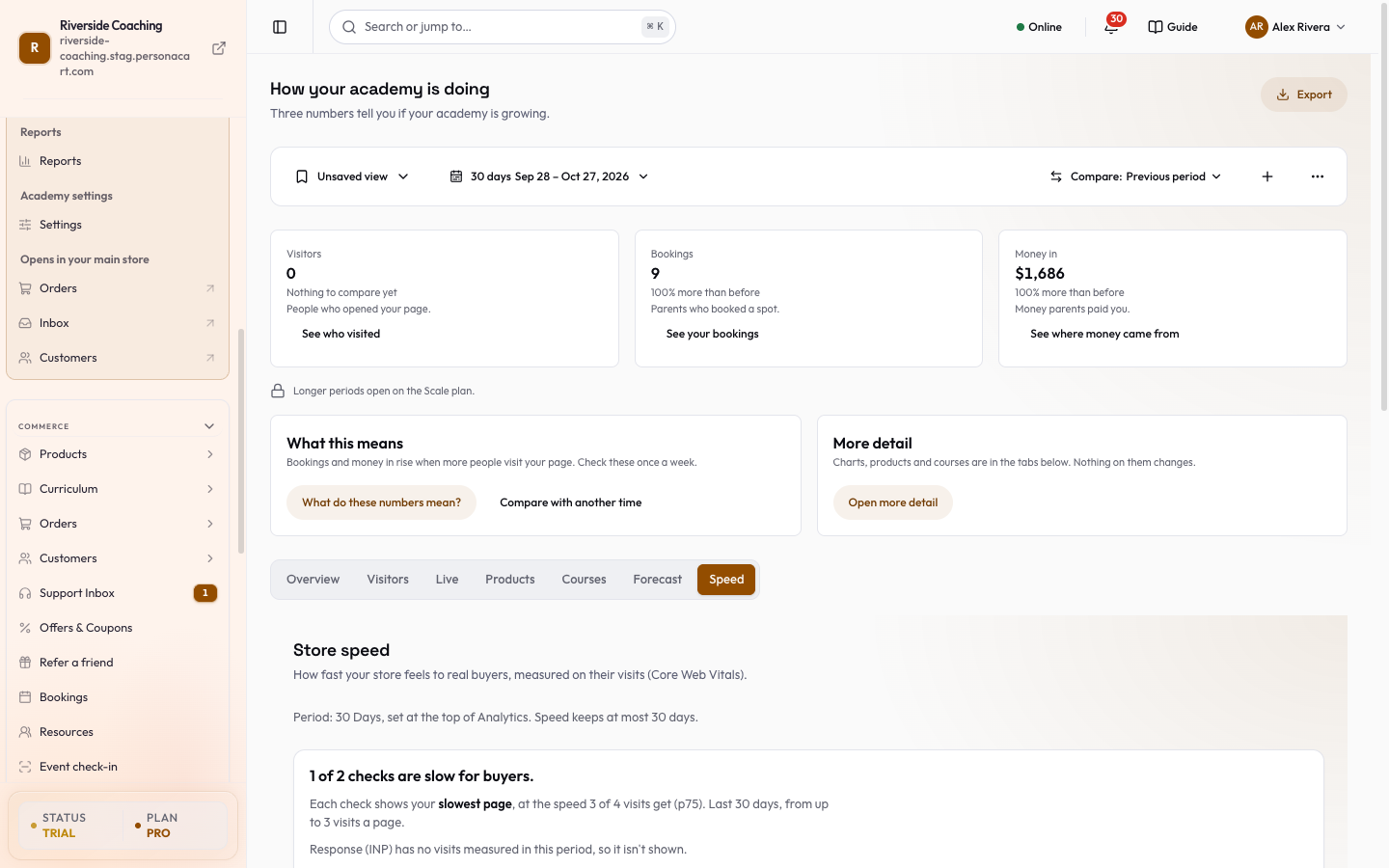
Sidebar → GROWTH → Analytics → Speed. The page title is Store speed. It is on Starter and higher plans.
Pick the days
Inside Analytics the days come from the period bar at the top. Speed keeps at most 30 days, so a longer period shows the last 30.
On its own address the page has its own buttons: 24 hours, 7 days, 30 days and Pick dates (a Start date and an End date). If the end is not after the start, it asks you to pick an end date after the start.
Read the three checks
The headline says either "Your store feels fast to buyers", "N of M checks need work" or "N of M checks are slow for buyers". Under it, The three checks show three cards:
| Card | What it measures | Good is |
|---|---|---|
| Loading (LCP) | How long the main picture or headline takes to show | 2.5 seconds or less |
| Steadiness (CLS) | How much the page jumps while it loads | 0.1 or less |
| Response (INP) | How fast the page reacts to a tap | 200 milliseconds or less |
Each card shows the value, a tag (Good, Needs work or Slow), a bar against the target, and Good is … or less. It also names your Slowest page, how many visits were measured, and What usually helps:
- Loading: use a smaller hero photo (under 300 KB) and put videos lower on the page.
- Steadiness: give images and embeds a fixed size, so text doesn't move when they load.
- Response: fewer pop-ups, chat widgets and embeds on that page usually help.
The speed shown is what 3 of 4 visits get or better (called p75). A card with fewer than 20 visits says it is too few to be sure.
Fix your slowest pages
Every page lists pages slowest first, with their visit count and the checks they have visits for. Press Show N more to load more. Open this page on a card opens that page on your live store in a new tab.
When there is no data
- Before buyers visit, the page says No buyer visits measured yet.
- Speed comes from real visits to your live store, so open it on your phone or share a product link.
- The first numbers show within minutes.
- The button reads Open your store, or Connect a domain if the store has no address yet.
Visits from your own preview do not count. If a check has no visits in the period, the page tells you it isn't shown.
Questions
Why does the tab say No buyer visits measured yet?
Speed is measured on real visits to your live store. Share your store link and the numbers appear. Visits from your own preview are not counted.
What is p75?
The speed that 3 out of 4 visits get or better. It is the value Google uses to rate a page.
How long are the numbers kept?
The last 30 days. Numbers update as visits come in.
Related
Part of Marketing and Analytics Guides · Product page: PersonaCart features