Activity history
In short: Read the full list of what visitors did on your store: page views, carts, checkouts and purchases. Filter by time, event type, visitor and page.
Activity history is the full, searchable list of what visitors did on your store: page views, product views, adds to cart, checkouts and purchases, newest first. Use it when a number on Analytics makes you ask "what exactly happened?", for example to follow one visitor's steps or to see who looked at one page.
Where to find it
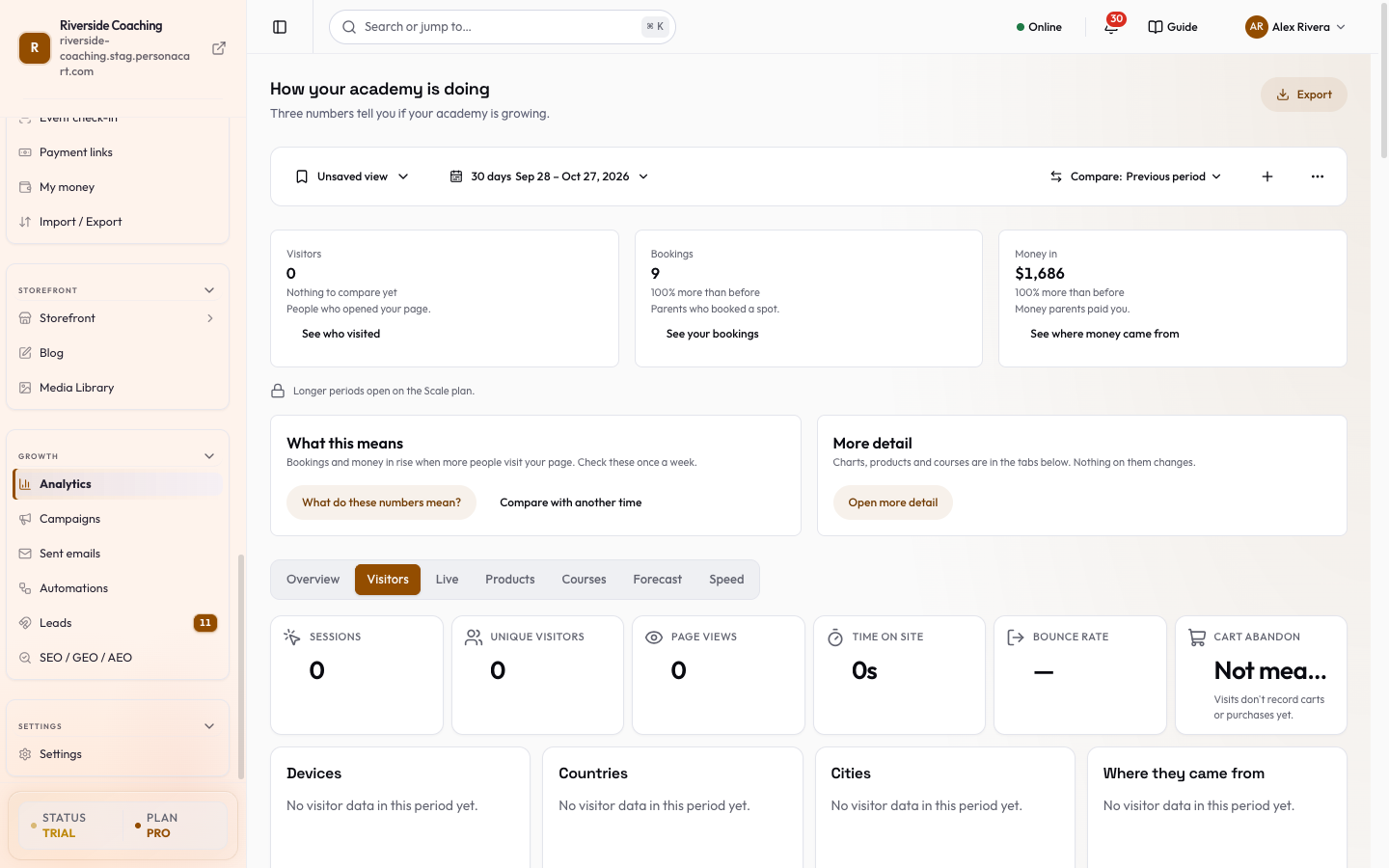
It sits at the bottom of the Visitors tab: Sidebar → GROWTH → Analytics → Visitors, then scroll down. The older address /growth/analytics/activity opens the same tab.
Activity history is on the Pro and Scale plans. On a plan without it, the section tells you which plan opens it.
Read the list
The heading is Activity history, with a count of events shown. Refresh reads the list again. Each row shows:
- an icon and the kind of event: Page view, Product view, Added to cart, Cart viewed, Removed from cart, Checkout started, Purchase, Cart abandoned or User identified;
- the page, and the product name when there is one;
- a short label for who it was, the place (city and country) and how long ago it happened. Hover the time for the exact date and second.
Press a row to open its details: When, Event type, Bucket, Session, Anonymous, User, Customer, IP, Location, Device, User agent, Page, Referrer, Product and Value (the order amount for a purchase). Only the details that exist for that event are shown.
The list loads 50 events at a time. Press Load more to add the next 50 without losing your place. With no matches it says No events match your filters and suggests widening the time range or removing filters. Very frequent background "heartbeat" events are left out, because they are noise.
Narrow the list
The Filters card is always open above the list. Clear (it appears once a filter is on) resets everything, and each active text filter shows as a removable chip after Active:.
| Filter | What it does |
|---|---|
| Time range | Press 24h, 7 days (the starting choice), 30 days or 90 days. |
| Event type | Switch on one or more kinds of event to see only those. With none selected, all kinds show. The list only shows kinds your store has really recorded, and you may see Other for events without a kind. |
| Identifier (IP, session, user, customer) | Paste any identifier you have, such as an IP address or a session, user or customer reference. It matches part of the text, ignoring capital letters. Press Search. |
| Page path | Type part of an address such as /products/ or /checkout, then press Enter or Search, to see events on matching pages. |
Follow one visitor
- Open the event you care about (for example a Purchase or Cart abandoned).
- Read the Session or Customer detail and copy it.
- Paste it into Identifier, press Enter or Search, and read their events from newest to oldest.
- If they are a customer, open them from Customers to see the same trail inside their visitor profile.
Details such as IP address and user agent are technical data about people. Keep screenshots of this list private, and answer deletion requests with Forget this visitor on the visitor profile.
Questions
Why can I not pick my own dates here?
This list works in rolling windows: 24 hours, 7, 30 or 90 days. For exact dates use the period bar at the top of Analytics for the headline numbers.
Why do I not see a name?
Visitors are anonymous until they give an email or buy. Customers show a customer reference.
Related
Part of Marketing and Analytics Guides · Product page: PersonaCart features