Growth
In short: Growth is where you see your numbers and reach more people: analytics, emails, automations, leads, referrals and reviews.
What's working, what isn't, and the tools to get more of the first. Pick a card to open its guide. This page also covers the Growth summary and the controls that the Growth lists (Campaigns, Automations, Sent emails and Leads) have in common, so you learn them once. In this video, you will learn how to use the Growth homepage. It is for store owners who want one place to see sales, leads, and what needs attention. By the end, you can read the numbers and jump to each Growth tool. This box lists what needs you now and show them opens the list. Five numbers for the period you pick: earned, orders, customers, leads, and carts left. Automations shows how many run now, how many are paused, and drafts. A guess for the next 30 days based on recent sales. It is not money you have. Everything in Growth is a shortcut list to every tool below. Each card has a button that opens that tool, such as leads. So, check what needs you, read the five numbers, then open the tool you need. Thank you so much for watching Personacard. To read the full guide, go to docs.personacard.com. To try Personacard yourself, go to personacard.com, and subscribe so you do not miss the next tutorial.Video transcript
What is Growth?
Growth is the marketing side of PersonaCart. It shows what is working (sales, visitors and products) and gives you the tools to bring buyers back: emails, automations, referrals and reviews.
What you can do
- Read your business numbers in Analytics, with product analytics and a revenue forecast
- See who is visiting in Visitors and Live visitors
- Send one email to a group with campaigns, and check sent emails
- Let messages send themselves with automations: a welcome email when someone joins, a reminder when a cart is left behind
- Collect emails as leads
- Reward buyers who bring a friend with referrals, or let partners sell for you as affiliates
- Collect and show reviews
- Be found by search engines and AI assistants with SEO, GEO and AEO
Who uses it
- Store owners who want more sales from the people who already visit.
- Coaches who email parents and players on a schedule.
See it
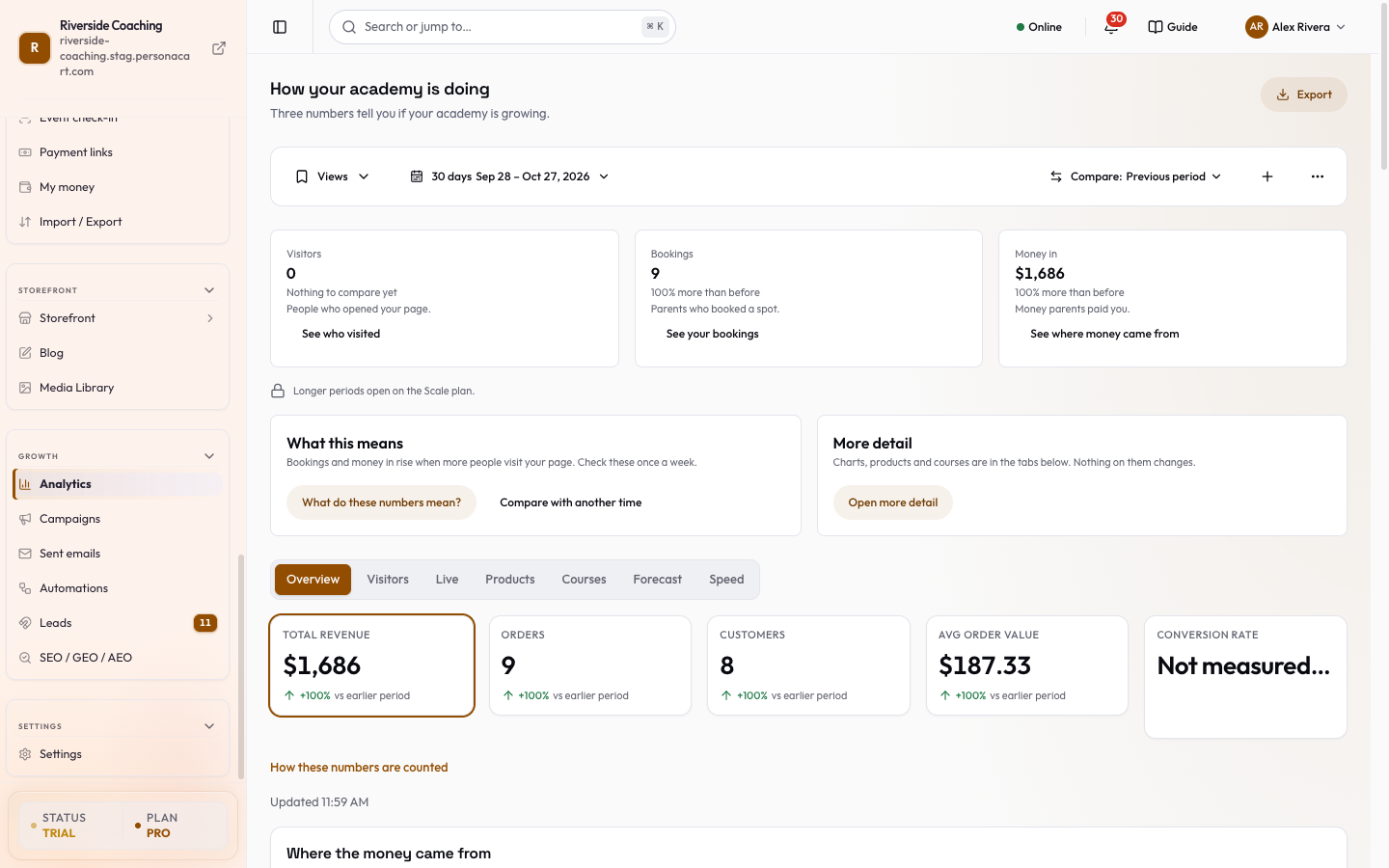
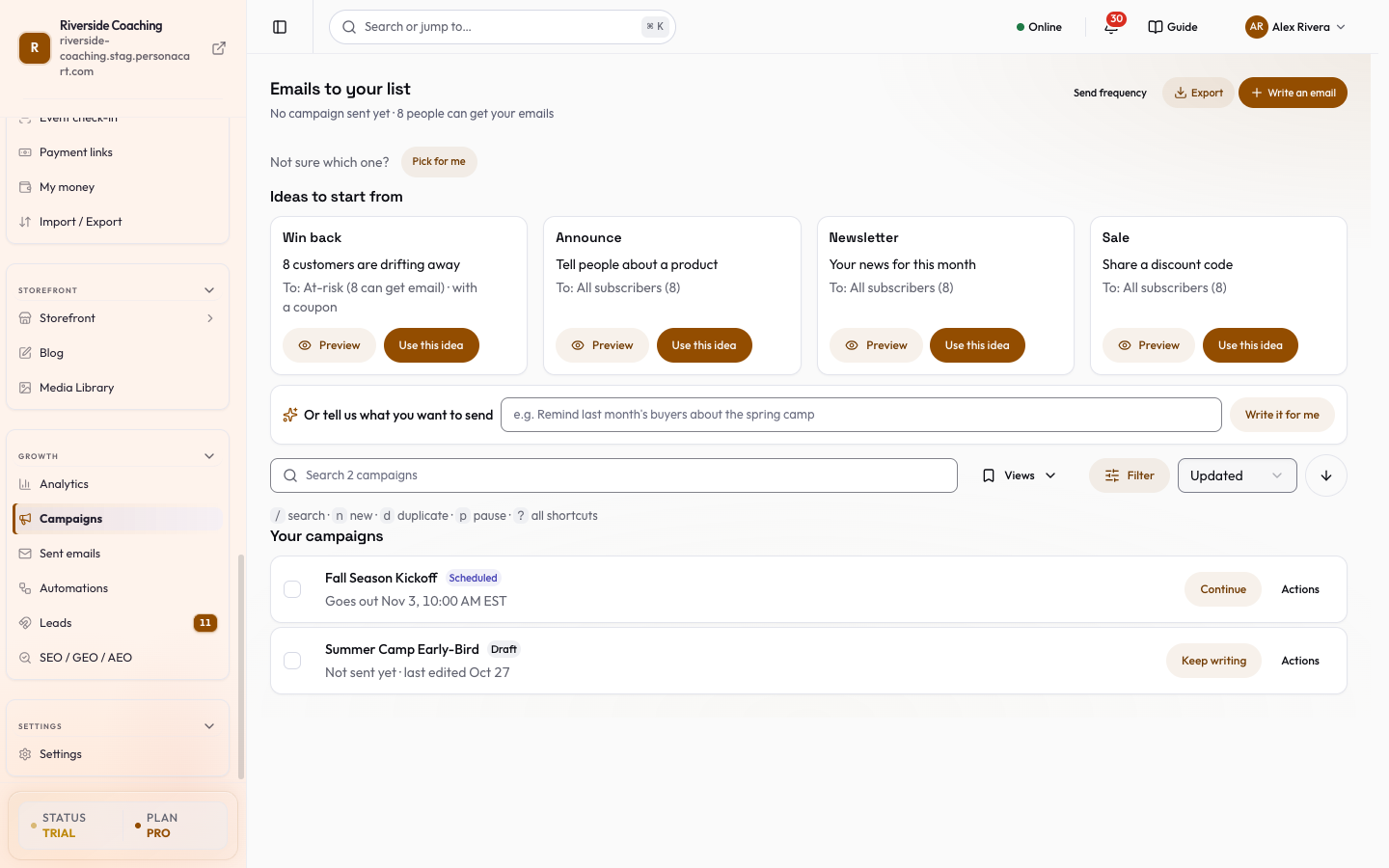
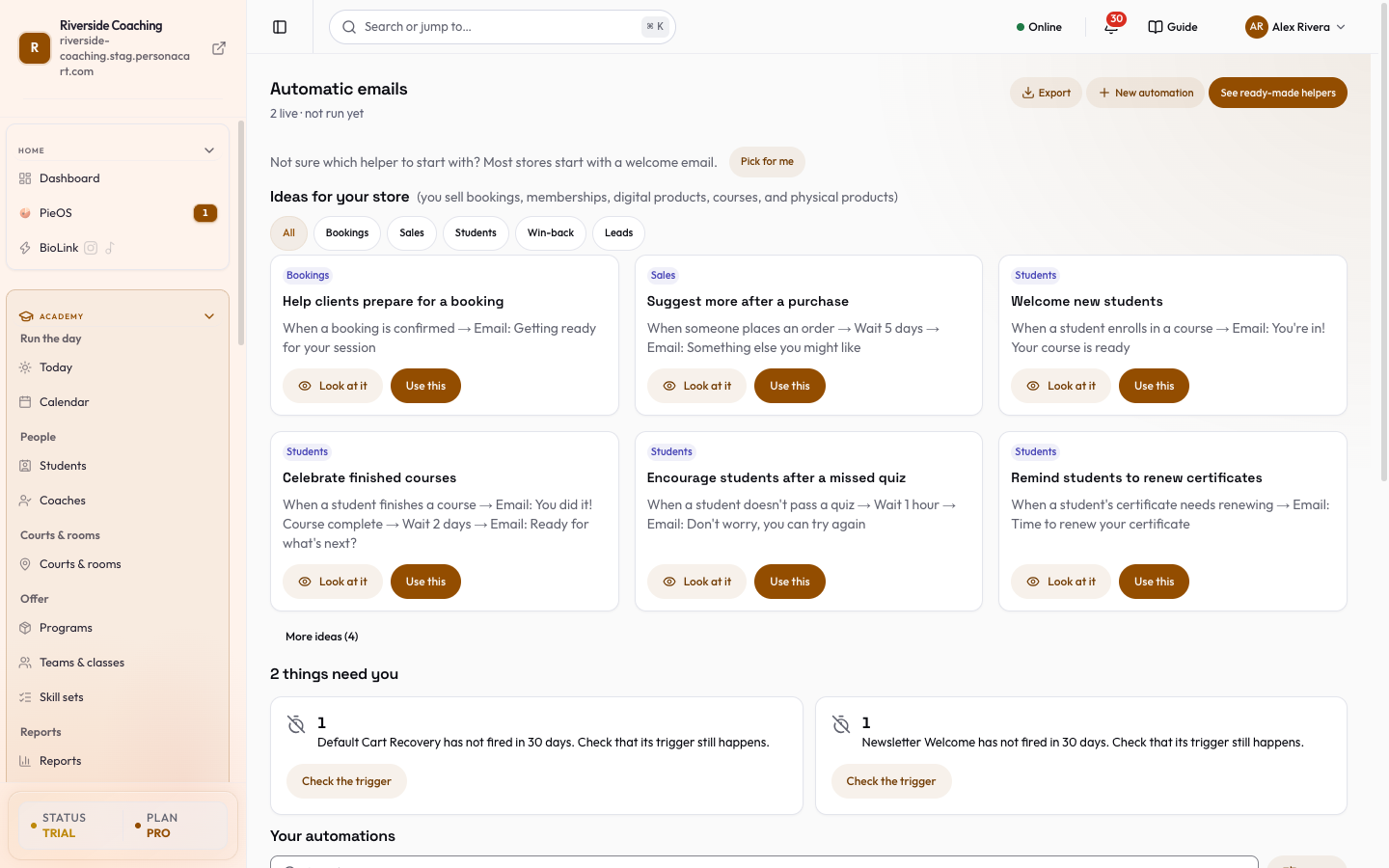
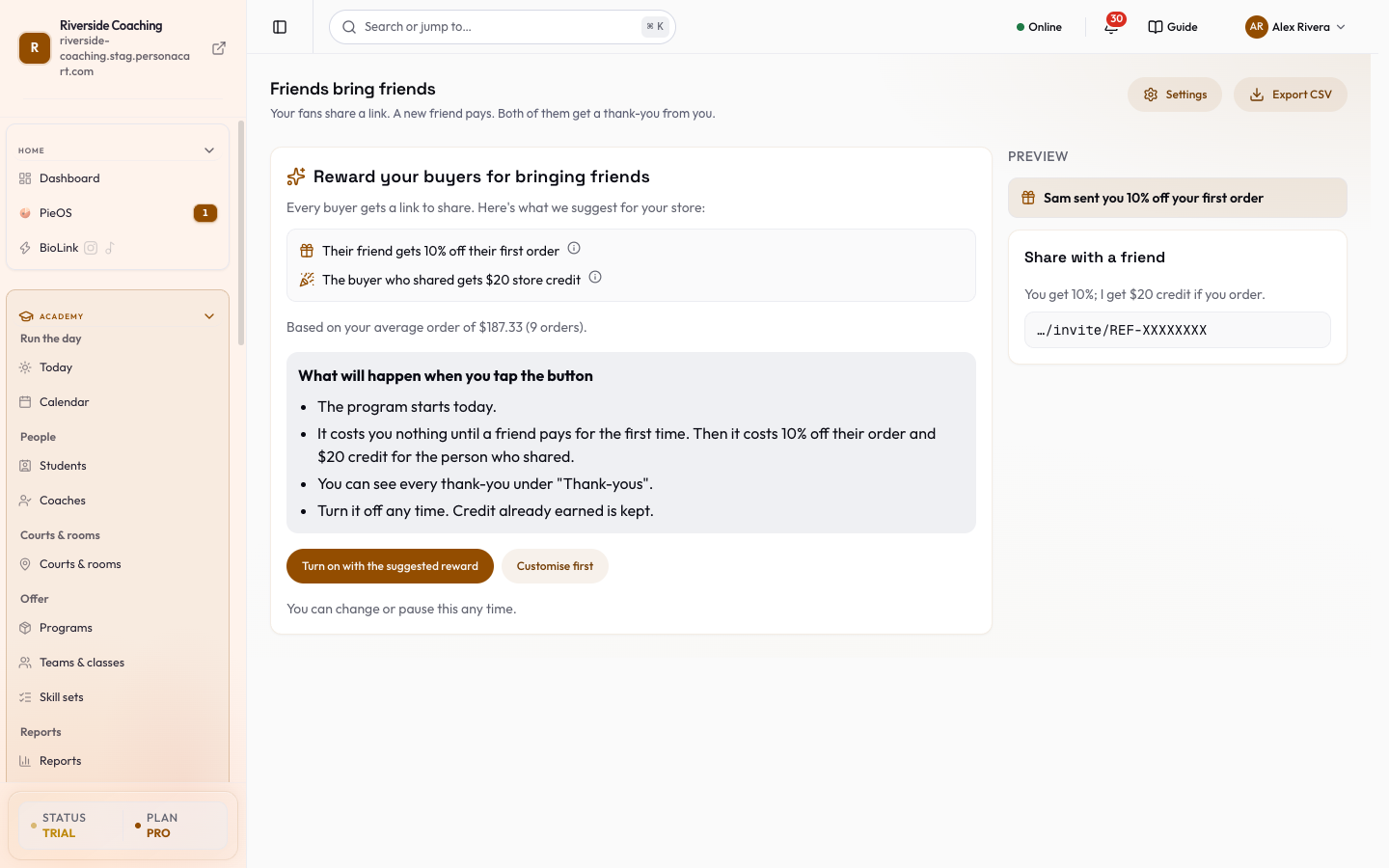
Watch it in the introduction film: Automations (2:45).
Measure
Reach
Read the Growth summary
Sidebar → GROWTH opens the Growth summary. It shows what needs you, five numbers for the days you pick, your automations and ideas from Pie, then Everything in Growth. Nothing on this page changes your store: the numbers come from your sales and customers.
The page is for owners and team members who can see analytics, and it needs a paid plan (Starter or higher).
| What you see | What it means |
|---|---|
| Last 7 days / Last 30 days / Last 90 days | The days every number below follows. |
| Needs you | What waits on you now. Show them opens the list. |
| Earned, Orders, Customers, Leads, Carts left | Five numbers for the days you picked: money earned, orders, customers, new leads and carts left behind. |
| Automations | How many are live, how many are paused and how many are drafts (for example "2 live · 0 paused · 6 drafts"). |
| 30d Forecast | A guess for the next 30 days from your recent sales, not money you have. A small arrow says whether it is up, down or flat against the previous 30d. Before you have sales it shows a dash. |
| Ideas from Pie | Ideas Pie has ready for you ("N ready to apply"). |
| Everything in Growth | A card for every tool (Analytics, Leads, Campaigns, Automations, Sent emails and more), each with a button that opens it, such as Open Leads. |
If the numbers are empty, you simply have no sales yet. That is normal; they fill in as sales come in.
A short tour runs the first time you open the page: it points at the forecast, the active customers, and the ideas from Pie.
Use the controls every Growth list shares
The Campaigns, Automations and Sent emails lists are built the same way, and Leads shares the search, saved views and bulk bar. Here is each piece once.
Ask bar
- A line under the ideas: Or tell us what you want to send on Campaigns, Or tell us what you need on Automations.
- Type one sentence in your own words and press the button next to it (Write it for me on Campaigns, Build it on Automations).
- Campaigns opens the new-campaign page with Pie's first draft; Automations opens the "describe it" dialog.
- Nothing is sent or turned on until you confirm it yourself.
Needs you
- When something costs you sends or customers, a row of cards at the top says so, for example "2 things need you".
- Each card has one number, one plain sentence and one button that does the work or opens it.
- Three cards show at once; the rest sit behind Show N more (and Show fewer to fold them back).
Find: search, filter, sort and saved views
- Search filters the list as you type (it waits a moment after you pause). The × inside the box clears it.
- Filter opens a small panel of one-tap chips. Each chip shows how many rows it holds, and a chip whose count is not known shows no number rather than a guess. Clear filters resets them.
- Sort changes the order (for example by last edited, name or status).
- Saved views keeps a filter you use often.
- Choose Save this view, give it a name (up to 60 characters; names must be different), and it appears in the Views menu with its own count.
- You can keep up to 30 views.
- Deleting a view only removes the view; your campaigns, emails or leads are not touched.
Tick boxes and the bulk bar
- Tick rows and a bar appears: N selected, Select all N matching (the whole filtered list, not only the rows loaded on screen), the actions for that screen, and Clear.
- If the filter matches more rows than can be done at once, the bar says **Too many to do at once.
- Narrow the filter first.**
Preview before it runs
Some bulk actions first show a preview box: how many rows will change, how many will be left out, and a plain reason for each group under Left out, and why. Nothing has happened yet. Go back cancels; the confirm button runs it.
Undo
After a bulk action a message at the bottom offers Undo for about 10 seconds. After that, undoing says "Too late to undo this one."
Keyboard keys
On a computer a hint line under the filters lists the keys. They never fire while you type in a box or when a dialog is open.
| Key | Does |
|---|---|
/ | Jump to the search box |
n | New (campaign or automation) |
d | Duplicate the ticked rows (Campaigns) |
p | Pause the ticked rows (Campaigns, Automations) |
r | Send again the ticked emails (Sent emails) |
? | Open the list of all shortcuts |
The hint line is hidden on phones and tablets, where there is no keyboard.
Loading and examples
- While a list loads you see a short line such as "Loading your campaigns…".
- After 10 seconds it adds "Still loading after 10 seconds? Your data is safe." with a Try again button.
- When a list is empty, a labelled Example only block shows what a filled list looks like; nothing in it is saved and it disappears with your first real row.
Questions
Why is there no Funnels or Experiments page any more?
They were retired from the sidebar. The conversion funnel now lives as a card on the Analytics page; the Funnels page in these docs explains it.
Where did Live visitors go?
It is now a tab inside Analytics. The Live visitors page in these docs explains it.
Does the Growth summary change anything?
No. It only reads your sales and customers. Applying an idea is a separate step you choose.
Related
Product page: PersonaCart features