Your workspace
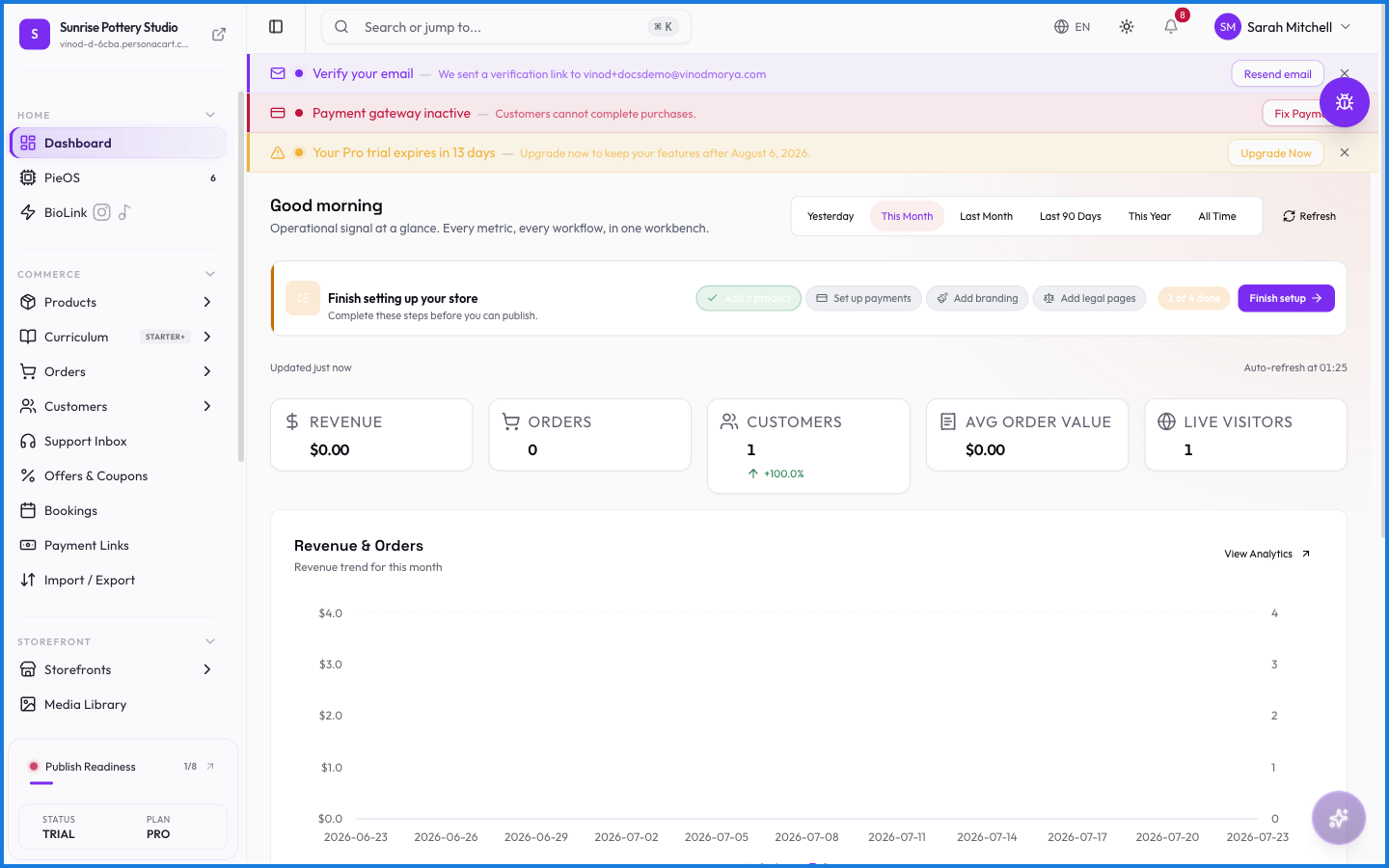
Everything you do in PersonaCart starts from the same frame: a sidebar on the left, your content in the middle, and a small set of account tools in the top right. Five minutes here saves you an hour of hunting later.
The sidebar
The sidebar is grouped by what you're doing, and these docs mirror it section for section:
- HOME — Dashboard, PieOS, BioLink.
- COMMERCE — Products, Curriculum, Orders, Customers, Support Inbox, Offers & Coupons, Bookings, Payment Links, and Import / Export.
- STOREFRONT — Storefronts and the Media Library.
- GROWTH — Analytics, Live Visitors, Content Impact, Funnels, Campaigns, Automations, Leads, Experiments, and SEO / GEO / AEO.
- SETTINGS — every configuration screen. See Settings.
Two more things live down there: a STATUS indicator (whether your store is Live) and your PLAN name. Items marked with a plan tag in the sidebar need an upgrade to open — the same features carry a Pro badge in these docs.
Menu items can differ slightly per store. Your plan and enabled features decide what shows; a Free store sees a shorter list than a paid one.
The top bar
- Search / command palette. Click the search box or press ⌘K (Ctrl+K on Windows). Jump to any page or run a command by typing.
- Language. The interface ships in multiple languages; EN is the default.
- Notifications. The bell shows a count of unread items — orders, mentions, things PieOS wants you to look at.
- Profile menu. Your avatar, top right. This is where account-level tools hide.
The profile menu
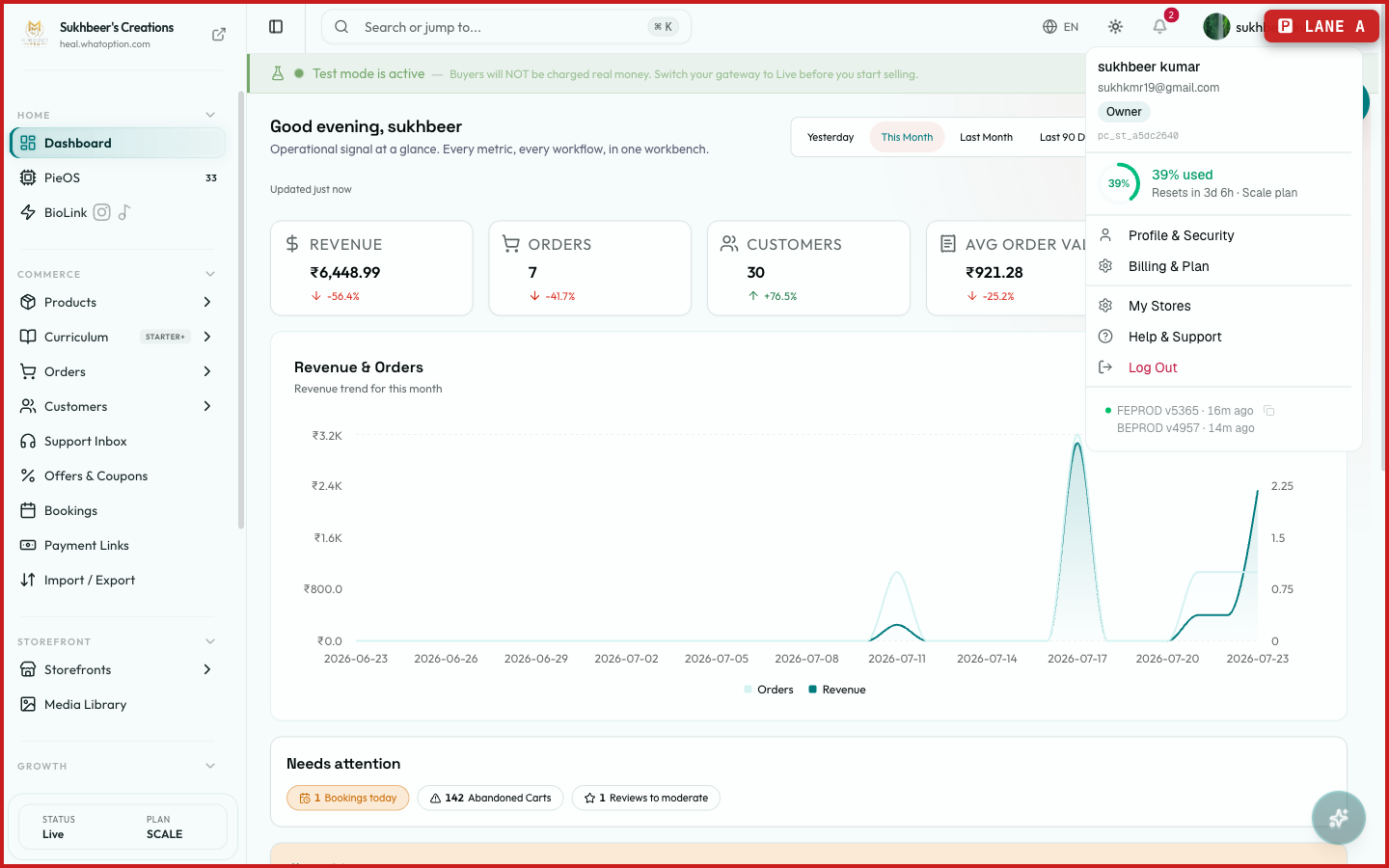
From top to bottom:
- Theme — Light, Dark, or System.
- Usage meter — how much of your plan's monthly allowance you've used, and when it resets.
- Profile & Security — your name, email, password, and two-factor auth.
- Billing & Plan — your subscription, invoices, and upgrades.
- My Stores — switch stores or create a new one. See Switching between stores.
- Help & Support — email, live chat, or book a meeting. See Help & Support.
- Log Out.
Test mode
New stores start with the payment gateway in test mode, and a banner across the top says so: buyers can't be charged real money. Nothing you sell is actually collectable until you switch your gateway to Live from Settings → Payments. It's a safety net, not a bug.
What happens — and what doesn't
- The dashboard's revenue, orders, and visitor cards compare against the previous period, so trends are visible at a glance.
- Sidebar contents are per store. Switching stores switches the whole workspace: products, orders, settings, everything.
- The plan usage meter tracks platform usage (like AI actions), not your sales. Selling more doesn't consume it.
What does the ⌘K shortcut do?
It opens the command palette. Type to jump to any page or run a command — usually the fastest way to move around the dashboard.
Why is there a 'Test mode is active' banner?
Your payment gateway is still in test mode, so no real charges can happen. Switch the gateway to Live in Settings → Payments when you're ready to sell.
Why don't I see a menu item these docs mention?
Sidebar items depend on your plan and enabled features. Items tagged with a plan name need an upgrade; a few features are rolled out per store.
What this screen looks like in every state
| State | When you'll see it | What you see, and what to do |
|---|---|---|
| Loading | The screen is fetching your data | A skeleton in the shape of the finished page. It should be brief — if it persists, the load has failed rather than stalled. |
| Error | The data couldn't be loaded | A message with a retry. Retry first: most of these are a dropped request, not a broken store. If it repeats, the outage is upstream and reloading won't help. |