The Guide and the ? help
In short: The Guide button opens a help side sheet for the screen you are on: search, a one-minute tour, highlights, common questions and a link to the full docs.
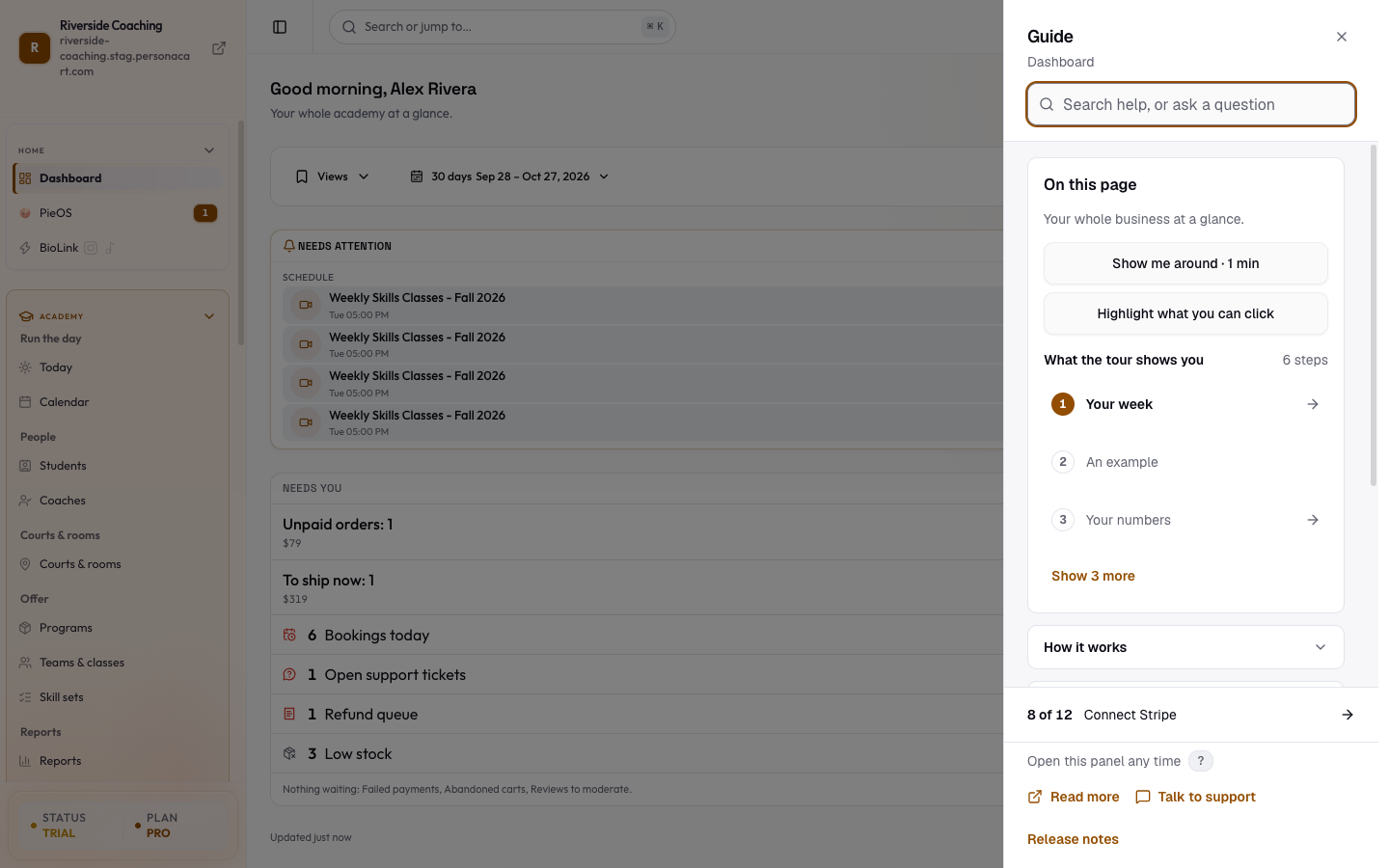
Every creator screen has a Guide button in the top bar (a book icon and the word Guide). It opens a side sheet of help written for the screen you are on. You do not have to leave your work: close the sheet and you are exactly where you were.
On phones the button is a square book icon and the sheet slides up from the bottom. On a computer the sheet opens on the right.
Where to find it
- Press Guide in the top bar. A small number on the button counts setup steps still open on this screen (when it shows one).
- Press ? anywhere outside a text box.
- Hover the button to see the tip "Help for this page. Shortcut: ?".
On your very first visit the button glows once and a small note says "Stuck? Press here. The Guide walks you through this page step by step." It does not glow again.
What is in the sheet
The sheet is titled Guide and, under the title, shows the screen name (and the area it belongs to).
Search
- The box at the top reads Search help, or ask a question.
- Type a few words (for example "refund" or "domain").
- You get a count of results; each result is a screen or help topic, and pressing it takes you there and closes the sheet.
- If nothing matches the sheet says We found nothing. and offers Ask a person.
- If your language has no matching text, the sheet says so and shows English results instead.
On this page
- A one-line statement of what the screen is for.
- Show me around · 1 min starts a tour of the screen. Once you have finished it the button reads Replay.
- Highlight what you can click puts a numbered marker on each control. A bar at the bottom reads Highlights on. Tap a number to see what it does. Press Done when finished.
- What the tour shows you lists the tour's steps in order (three at first, then Show N more for the rest). Press a row, or Show me where, to jump straight to that control. The screen name, the step count (for example "5 steps") and, once finished, Done are shown beside it.
Not every screen has a tour. Screens without one still have search, how it works, and the help rows below.
How it works and Common questions
- Two folded sections.
- How it works explains the screen in plain words, sometimes with numbered steps and a short list of common mistakes.
- At its bottom, Read the full guide in the docs opens the docs page for this screen in a new tab, and Related in the docs lists other docs pages about the same screen when there are any.
- Common questions answers the questions people ask most about this screen.
- See Use the in-app Guide with these docs.
Need help?
"Pick the fastest way."
| Row | What it does |
|---|---|
| Ask Pie | Opens the Pie chat. Type your question and Pie answers in plain words. |
| Something looks wrong | Opens the bug report form. It takes about a minute. |
| Ask a person | Opens Help & Support. We reply by email, usually the same day. |
- On the marketing screens (discounts, email setup, campaigns and automations) the sheet can also show Your first steps in marketing: make a discount, check your email setup, send a first email and turn on one automatic helper.
- Each step ticks itself when the real thing exists and you can do them in any order.
- The owner and admins see it when the setup guide is on for the store.
Your setup
For a new or half-set-up store, a strip pinned at the bottom of the sheet shows Your setup: how many steps are done (for example "1 of 6"), the next step and a button that takes you there. See Your setup checklist. Once everything is done the strip goes away.
Footer
The footer says Open this panel any time with a ? key, and has links: Read more (the matching page in these docs), Talk to support and Release notes.
The tour
- Show me around closes the sheet and walks you through the screen with a pointer on each control.
- At the bottom of each stop you see Step 2 of 5, Back, Next, and Skip tour.
- The last stop says Finish, with Open the docs page next to it when the screen has a docs page.
- Skip tour ends the tour.
- Open the Guide and press Show me around to start it again.
If the tour needs part of the page that is not on screen right now (for example a panel that is closed), the sheet says "This guide needs parts of the page that are not on screen right now" and offers Open checklist instead.
Tell us what went wrong
Choosing Something looks wrong opens Tell us what went wrong. Reassurance first: "You cannot break anything by sending this."
- Under What happened? write it in your own words.
- Optionally press Add a picture.
- Press Send my report.
- We add the page you were on, your phone or computer type and the time.
- We do not see your passwords.
- After sending, you see "We got your report" and an email follows when it is fixed.
- Your earlier reports are listed under Your reports with a status: We got it, We are fixing it, Fixed, please check, We wrote back or Closed.
Short prompts on a screen
Some screens show a short one-line card at the top:
- First time on this screen? with Show me · 40 sec and No thanks, hide this.
- Stuck on this screen? with Show me, Skip for now and Ask a person.
Both are optional. They belong to the setup guide and show to the owner and admins when it is on for the store.
Good to know
- Some rows (such as Your setup) show to the owner and admins only.
- Everything in the sheet is read-only help. Nothing you press in the sheet changes your store, except sending a report.
- The sheet is translated into the dashboard language you chose. If a topic is not translated yet it shows in English.
Questions
How do I open help on a screen?
Press Guide in the top bar or press the ? key. The sheet shows help for the screen you are on.
Will the tour change my store?
No. The tour and the highlights only point at things. They never click for you.
I can't find what I'm looking for.
Search the Guide first. If it finds nothing, press Ask Pie for a quick answer or Ask a person for a reply by email.
How do I report a problem?
Open the Guide and press Something looks wrong, or use Report a bug in the profile menu.
Related
Part of Getting Started with PersonaCart · Product page: How PersonaCart works