Switching between stores
One login can run more than one business. Each store is fully separate — its own storefront, products, orders, customers, and settings — and you hop between them without logging out.
Where to find it
Open the profile menu (your avatar, top right) and click My Stores. You land on the workspace screen.
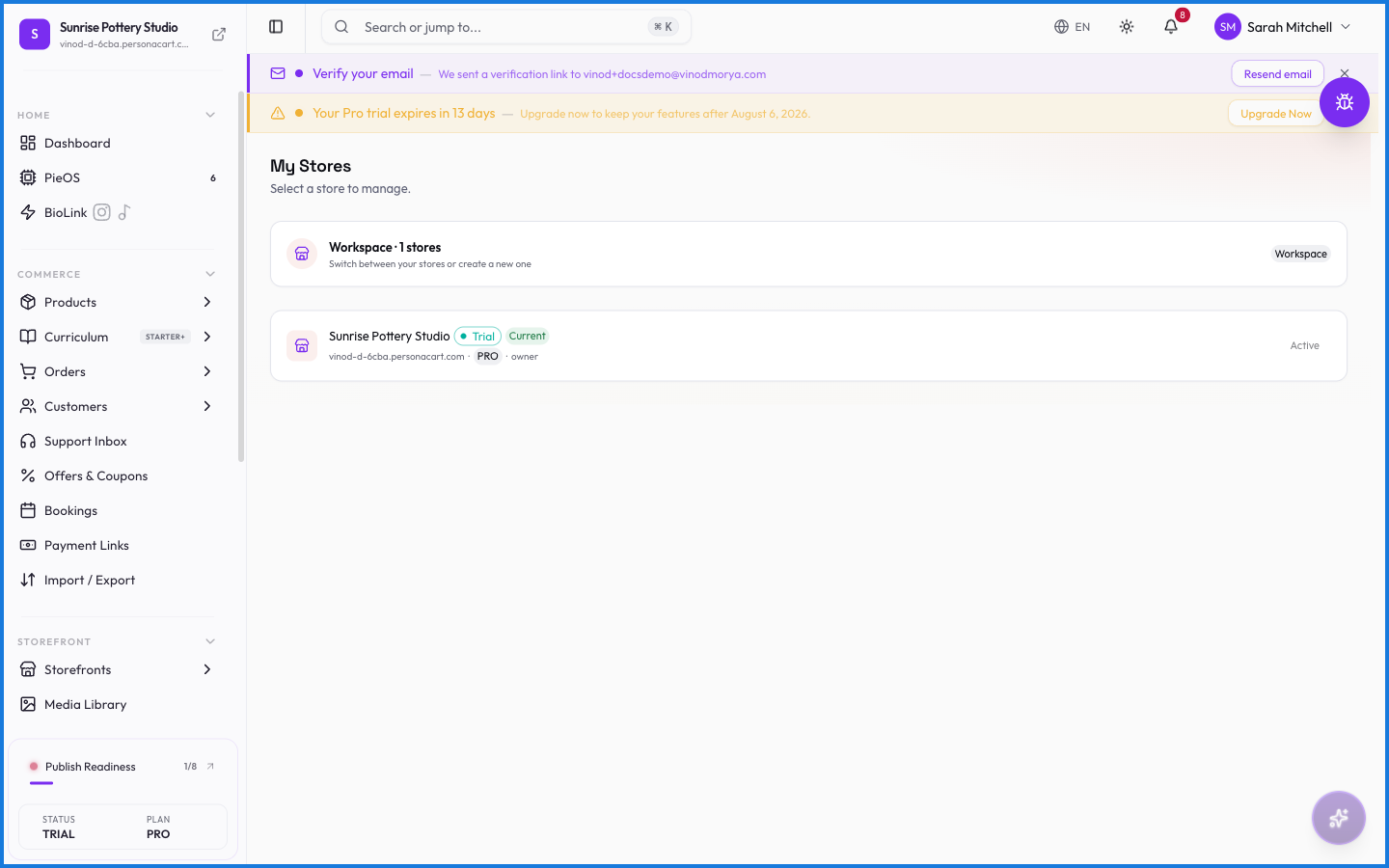
Reading the store list
Each store card shows:
- Name and its domain (custom domain if you've attached one, otherwise the free subdomain).
- Live status — whether the storefront is published.
- Current — the store your dashboard is showing right now.
- Plan — each store has its own subscription.
- Your role — owner, or a team role if someone invited you. Your permissions inside the store follow this role.
Click a store to switch. The sidebar, dashboard, and every page now belong to that store.
Creating another store
The same screen has the option to create a new store. You'll run through the same guided setup as your first one — name, type, style, country. Plans are per store, so a new store starts on the free tier regardless of what your other stores pay for.
What happens — and what doesn't
- Switching is instant and doesn't log you out of anything.
- Stores don't share data. Products, customers, and orders never leak between them.
- Your role can differ per store — you might own one and be a team member in another. What you can do inside each store follows that store's role.
- Deleting or pausing one store doesn't touch the others.
How many stores can I have on one account?
You can create multiple stores under one login, each with its own plan. Practical limits depend on your plans — see personacart.com/pricing for current details.
Do my stores share customers or products?
No. Every store is isolated: its own catalog, customer list, orders, team, and settings. If you need the same product in two stores, create it in both.
Can someone else manage one of my stores?
Yes. Invite them from that store's Settings → Team. They'll see the store in their own My Stores list with the role you gave them.
What this screen looks like in every state
| State | When you'll see it | What you see, and what to do |
|---|---|---|
| Loading | The screen is fetching your data | A skeleton in the shape of the finished page. It should be brief — if it persists, the load has failed rather than stalled. |
| Error | The data couldn't be loaded | A message with a retry. Retry first: most of these are a dropped request, not a broken store. If it repeats, the outage is upstream and reloading won't help. |
| No access | Your role doesn't include this screen | A permission notice instead of the page. An owner or admin can grant access under Settings → Team. |