Create your account
Signing up takes a couple of minutes. You create a login, then a short guided setup builds your first storefront with you — name, business type, design style, and country. At the end you have a live store, not an empty dashboard.
Where to find it
Go to app.personacart.com/signup.
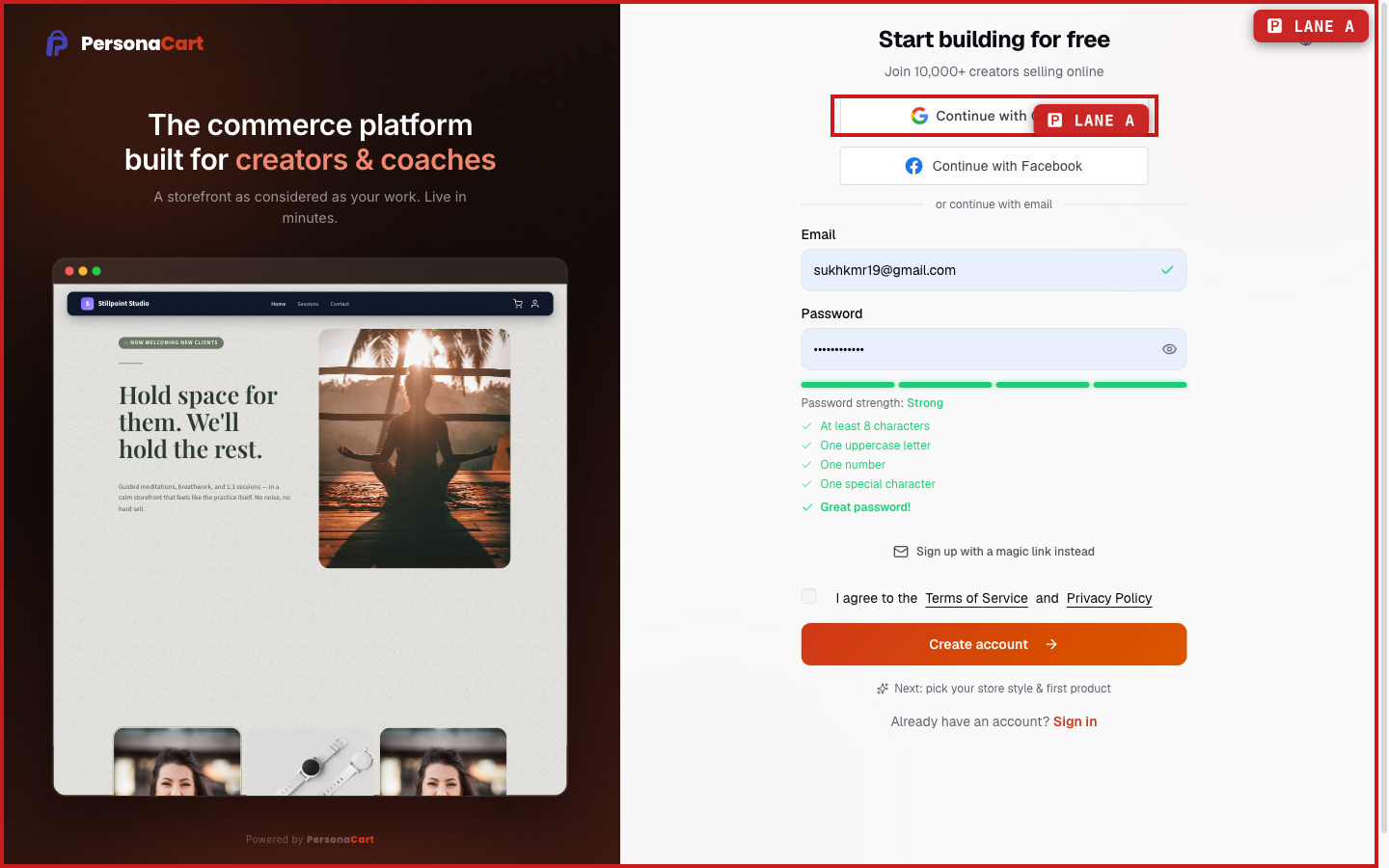
Ways to sign up
- Email and password. The password needs at least 8 characters with an uppercase letter, a number, and a special character. A strength meter checks it as you type.
- Continue with Google or Continue with Facebook. One click, no password to remember.
- Magic link. Click Sign up with a magic link instead, and PersonaCart emails you a sign-in link. No password at all.
You also have to accept the Terms of Service and Privacy Policy — the Create account button won't proceed without the checkbox, and the form tells you so.
The guided setup
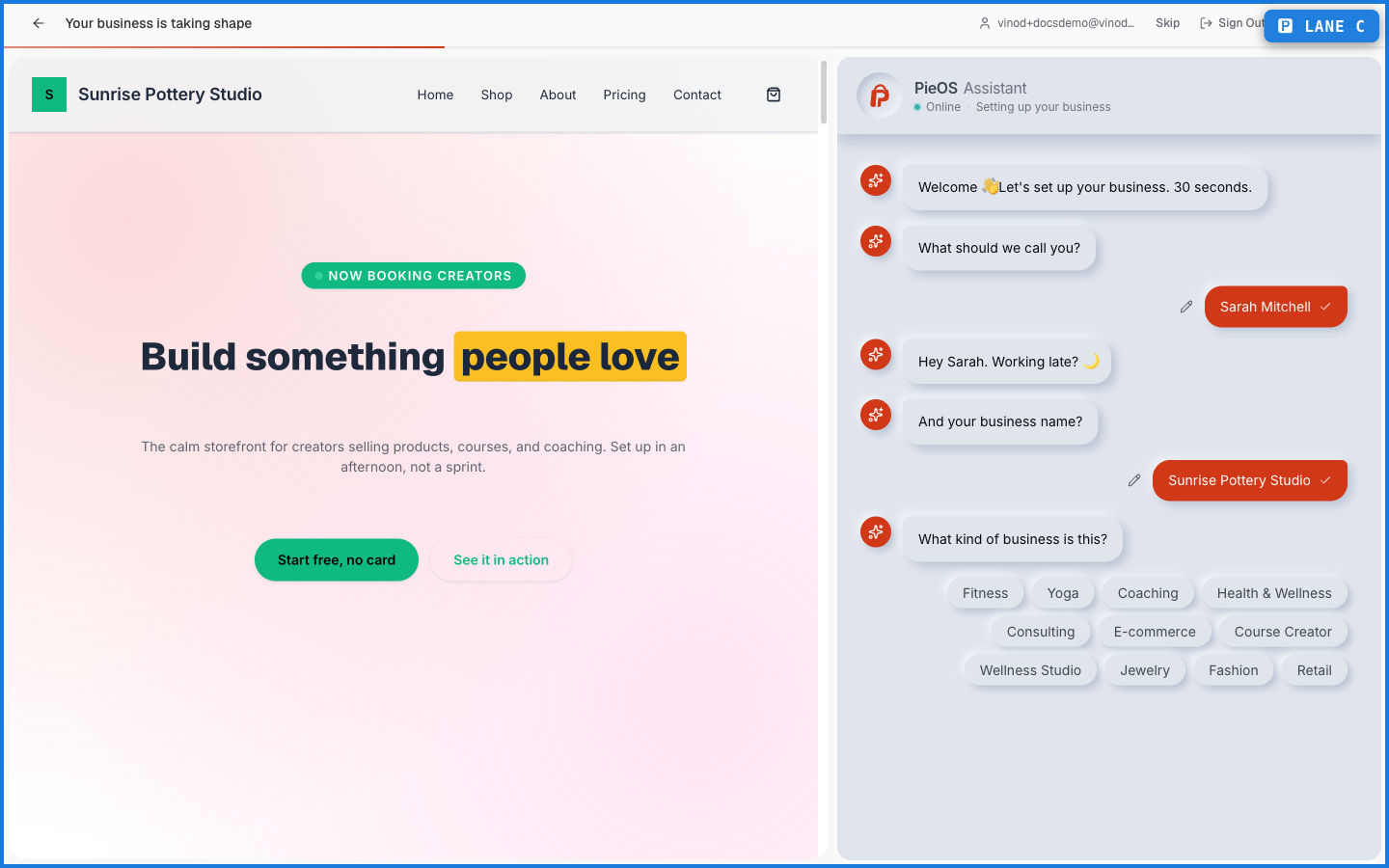
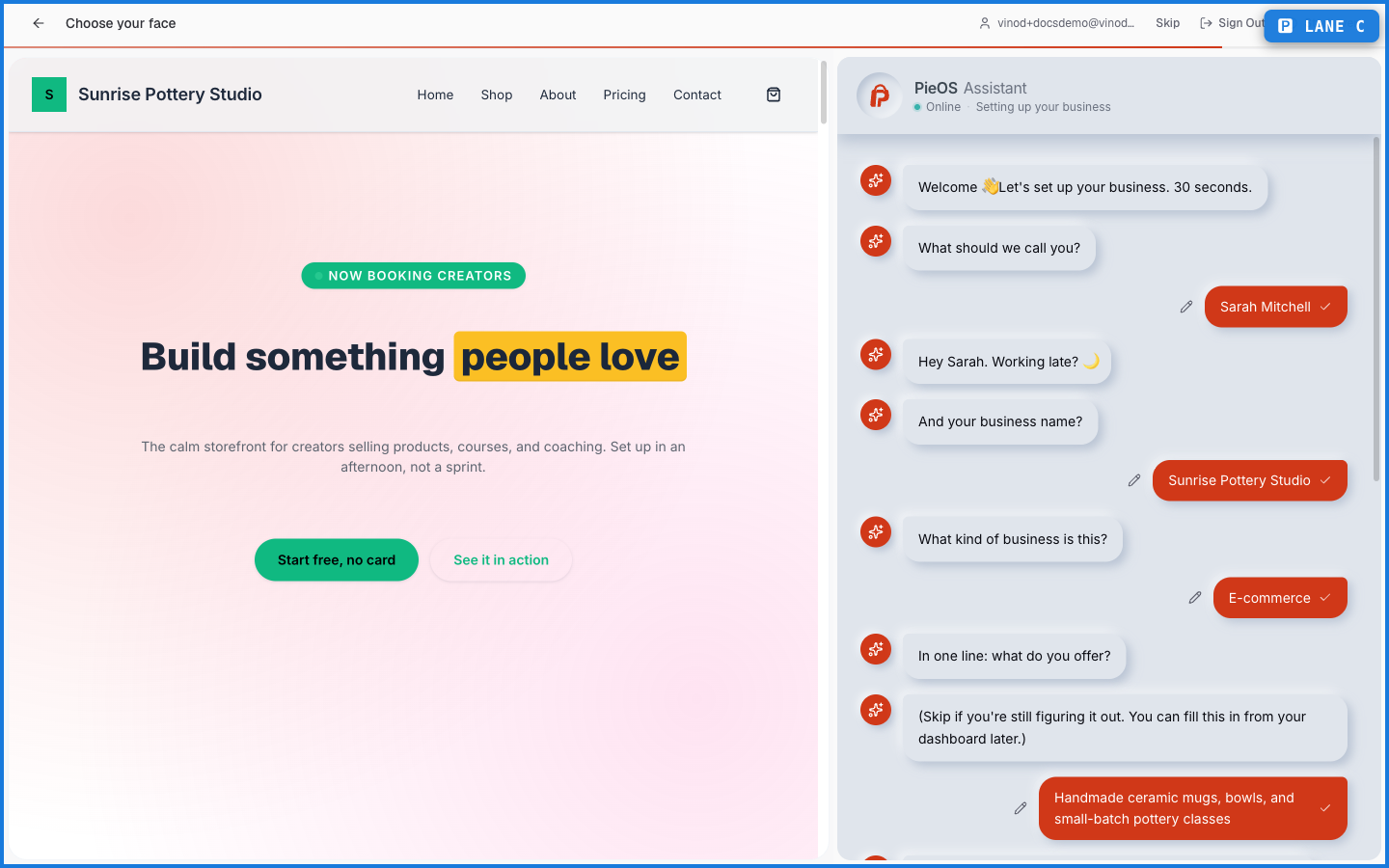
After your account is created you land in onboarding. It's a chat with PieOS, the platform's AI assistant, on the right — and a live preview of your storefront on the left. Every answer updates the preview in real time.
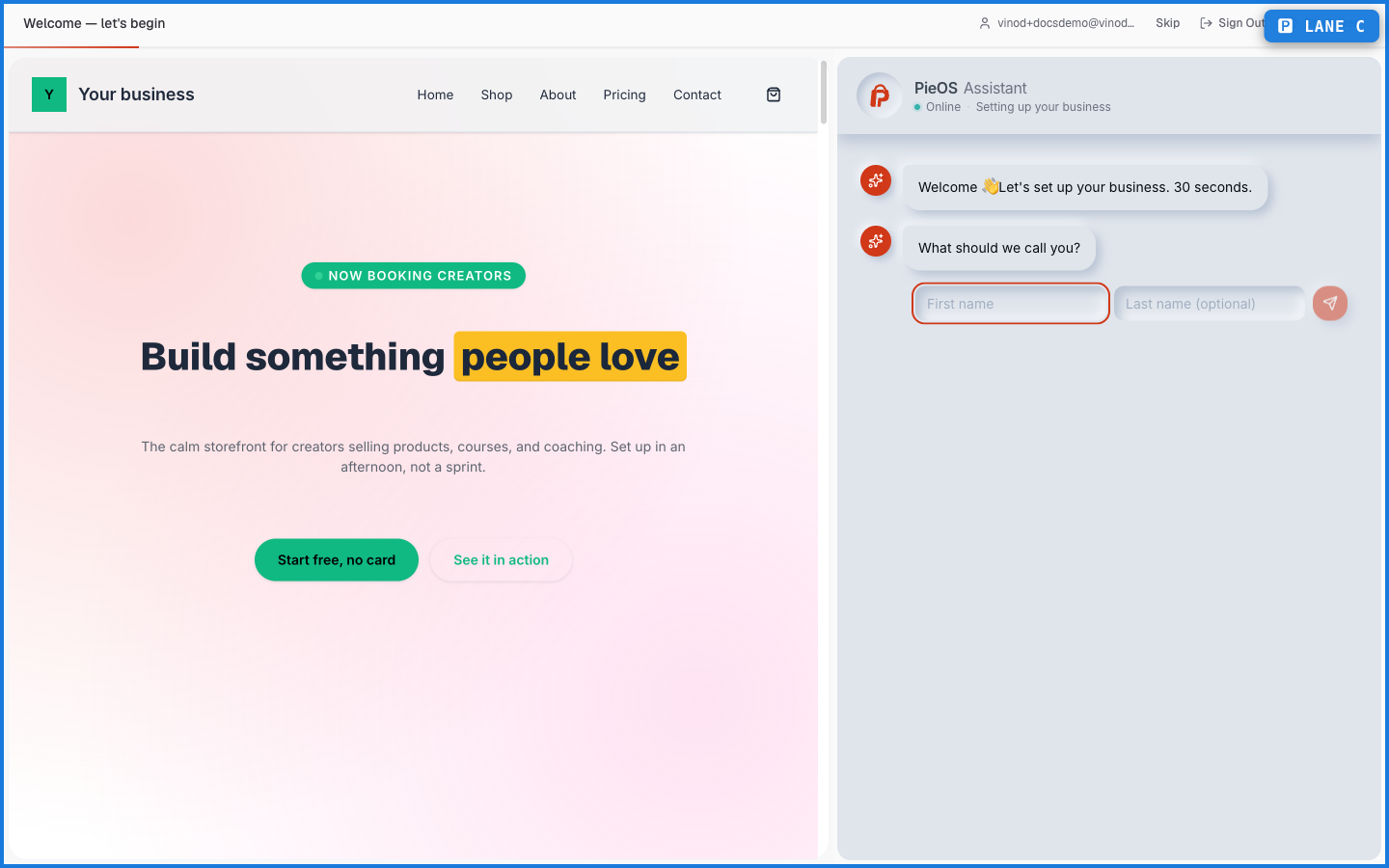
- Your name. First name required, last name optional.
- Your business name. Type it and watch the preview header change to match.
- Business type. Pick from options like Coaching, E-commerce, Course Creator, Fitness, Wellness Studio, Jewelry, Fashion, and Retail. This shapes the starter content.
- One line about what you offer. Optional — you can skip and fill it in later from the dashboard.
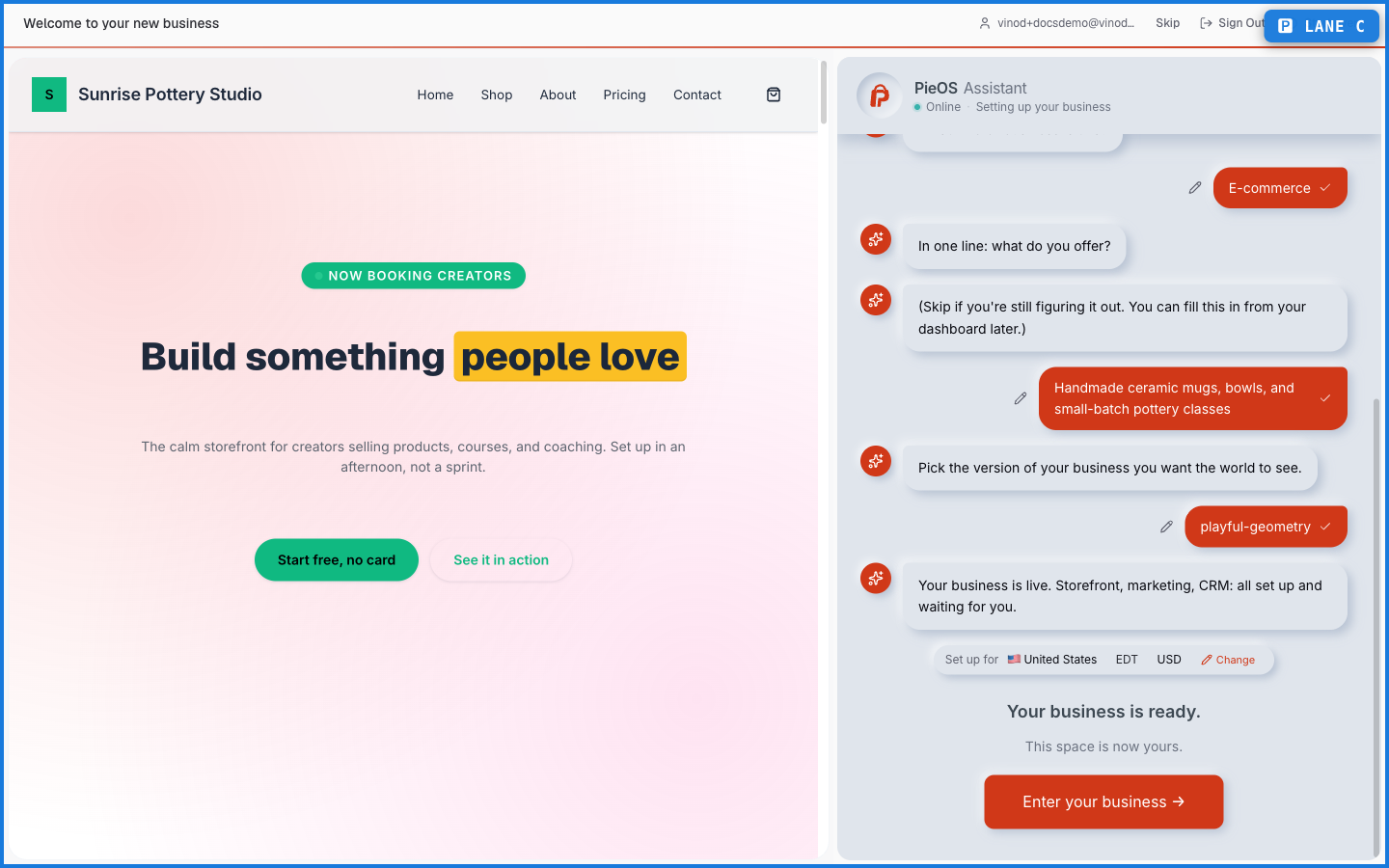
- Design style. Choose from named styles like Botanical, Sketch, Neumorphism, and Corporate Trust, each with a live sample. You can change themes any time later in Settings.
- Place of business. Your country, timezone, and currency. Pick carefully: your country is permanent, and your store currency follows it. Choosing United States sets you to USD.
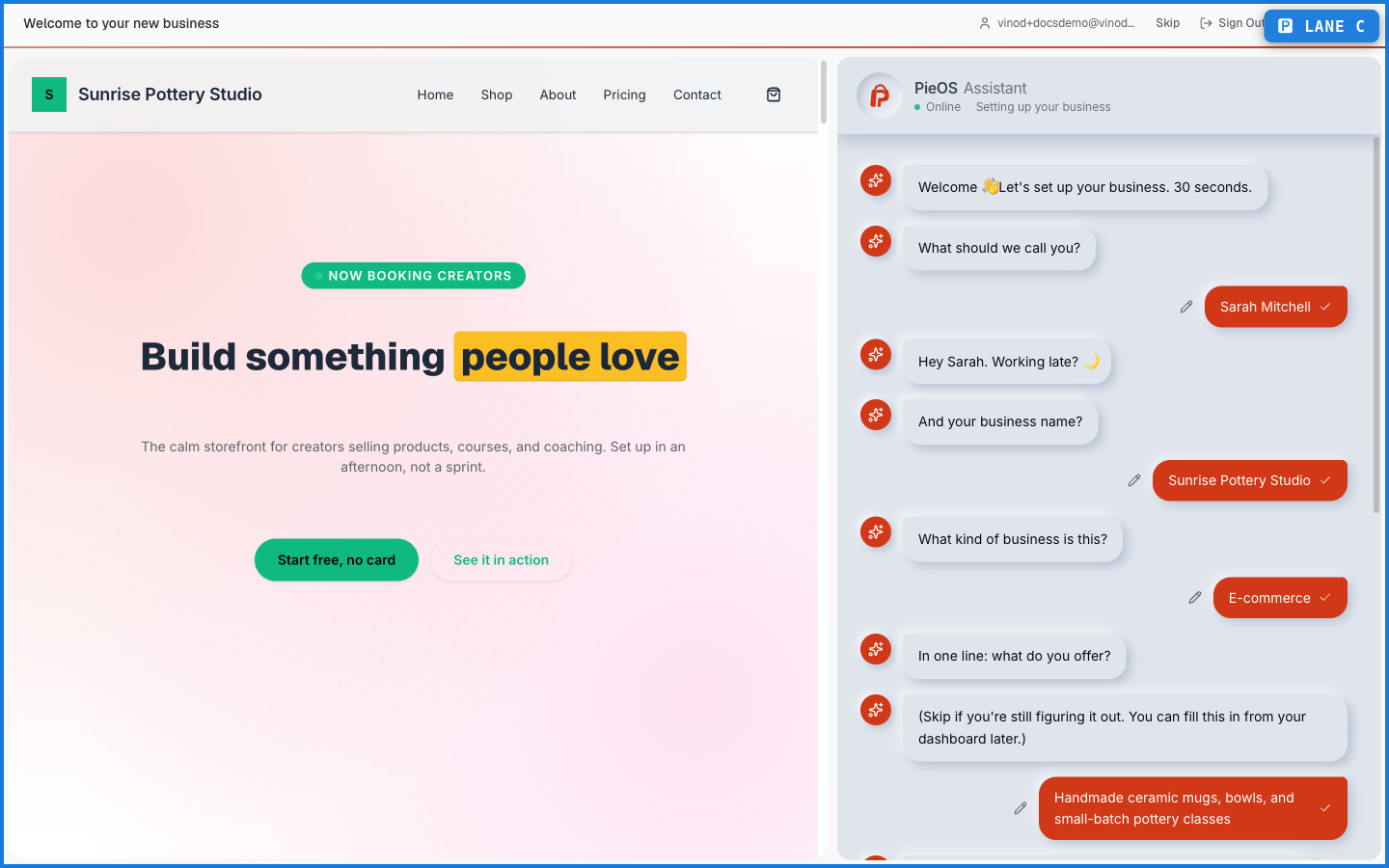
When setup finishes, PersonaCart generates the whole thing at once: storefront, marketing pages, and CRM.
What happens — and what doesn't
- Your storefront is generated and live on a free subdomain right away. You can attach a custom domain later in Settings → Domains.
- Your payment gateway starts in test mode — buyers can't be charged real money until you switch to live. The dashboard shows a banner until you do.
- The country you pick is permanent. Currency follows it. If you sell into the US, pick United States and you're a USD store.
- You can hit Skip in the wizard header to jump straight to the dashboard, or Start over to reset your answers. Skipping doesn't lose your account; the setup just stays incomplete until you return.
- No credit card is required to sign up.
Do I need a credit card to sign up?
No. You can create an account, finish setup, and publish a storefront without entering any payment details.
Can I change my store's design style later?
Yes. The style you pick during onboarding is a starting point. You can switch themes any time from Settings, and fine-tune everything in the editor.
Can I change my country after signup?
No. Your place of business is permanent because your store currency, tax context, and payment options are built on it. Pick the country you primarily sell into.
What if I skip parts of the setup?
You get a working store with defaults. Anything you skipped — like the one-line description — can be filled in later from the dashboard.