Your setup checklist
In short: The Your setup checklist walks a new store from empty to open. Each step ticks itself when the real thing exists. Pause, skip or stop it any time.
- After the guided sign-up, PersonaCart can walk the owner through the few things every store needs before it takes its first order.
- The walk-through is called Your setup.
- Each step ticks itself the moment the real thing exists, so there is nothing to tick by hand and nothing to forget.
Your setup is shown to the owner and admins, and only for stores where it is switched on. It is never shown to coaches, editors, viewers or support staff.
Where to find it
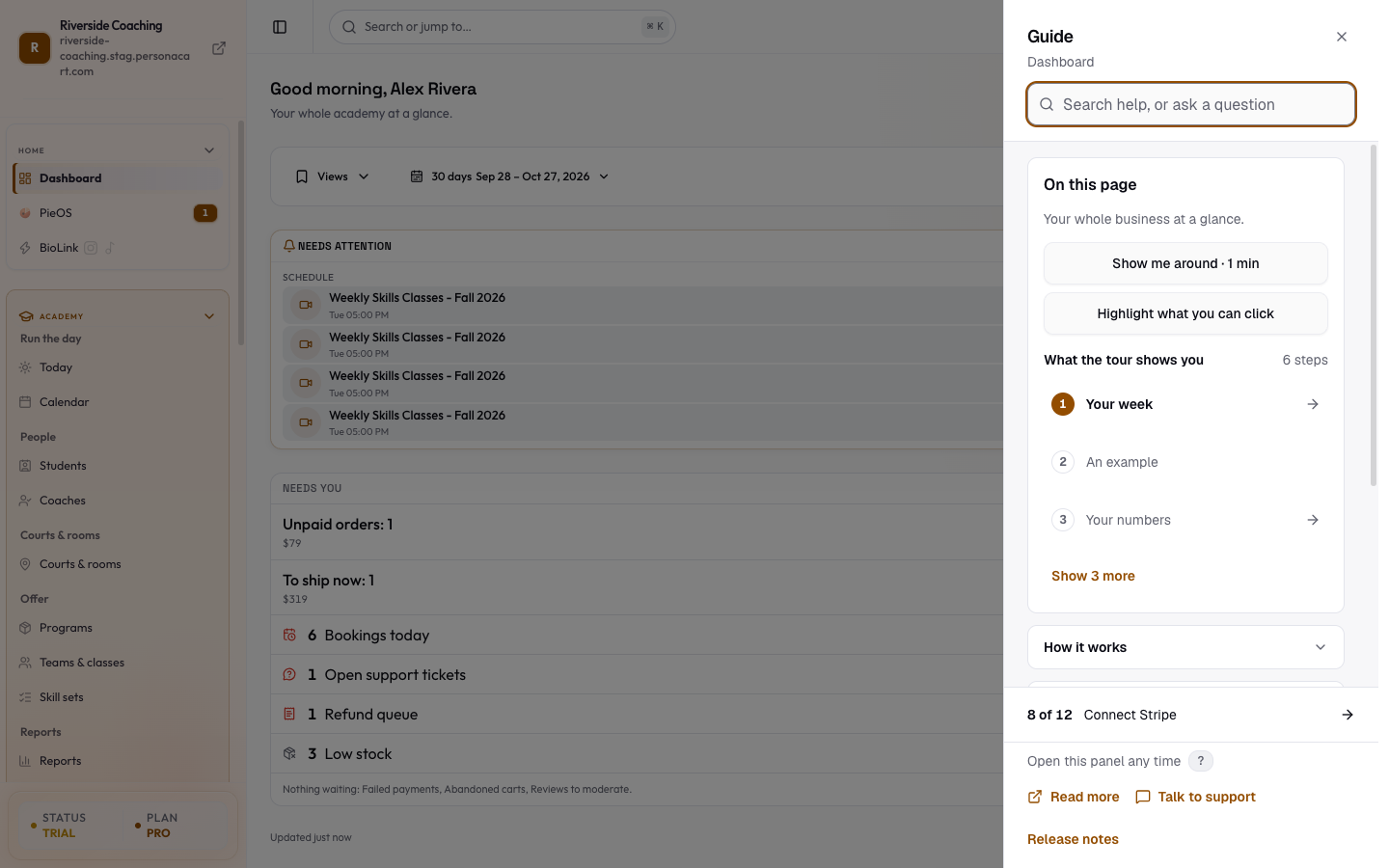
- In the Guide. Press Guide in the top bar. At the bottom of the sheet, Your setup shows how many steps are done (for example "9 of 12") and the name of the next step. Press that row to go straight to it. A store with nothing done yet sees a card with the step and its button, such as Add a product. See The Guide and the ? help.
- A rail on your pages. Once the guide has been started (Academy stores press Start setup), a slim bar appears at the top of the setup pages, reading Step 2 of 6, the step name, and a Continue button. Show all steps opens the full list; Hide steps folds it.
- A ring on the Guide button keeps your place while setup is unfinished.
- A welcome card on Academy Today for stores that run an academy.
The store steps
| Step | What it asks | Ticks when |
|---|---|---|
| Time zone and currency | Pick your time zone and currency so dates and prices show right. Button: Set your clock. | Both are set. |
| First product | Add one product that buyers can see. Button: Add a product. | At least one live product exists. |
| Connect Stripe | So customers can pay by card. Stripe may take 1 to 2 days to check you. Button: Connect Stripe. | A payment account is connected. |
| Shipping and tax | Set shipping rates and tax for where you ship. Button: Set up shipping. Skipped when you sell only digital things. | At least one shipping zone exists. |
| Open your store | Publish your store for everyone. Button: Publish your store. | The store is published. |
| First order | This ticks itself when your first real order arrives. Button: Share your store link. | A real (not test) order exists. |
If you never add a product that ships, Shipping and tax is left out. If Stripe has not approved you yet you can stop at the payments step and finish another day.
- Short helper notes appear on the page for each step, for example on Products:
- "Add your first product here. Buyers see it once your store is open." and on Orders:
- "Your first order shows up here. Share your store link to get it." If you are stuck there is a second note with a simple suggestion, such as "Add one product with a name, a price and a photo. You can change it any time."
The Academy steps
- For stores that turned Academy on, the list continues with these steps after the store steps:
- Your academy (name, time zone, Academy on), Coaches (invite one coach, it can be you), Courts & rooms (add where you train), Programs & teams (what parents buy and the group they join), Your week (sessions on the calendar, reminders on), and Families (your first student and parent).
- "Get paid and go live" is counted once, with the store's own steps.
- Details are in Academy.
The Academy welcome card asks What do you run? Pick all that fit. with Teams and seasons, Weekly classes, Private lessons and Camps and clinics, and has Start setup and Look around first buttons.
Working through the list
- Continue opens the page for the current step. If a step has two halves on two pages (for example the clock and the Academy switch), Continue takes you to the half that is still missing.
- Show me where (in the Guide) and Open or Do it now (in the list) jump to a step. Skipped steps stay on the list marked Skipped.
- A one-line Saved. Step 3 of 6 done. message appears when a step ticks.
- Later hides the rail for a while (a day the first time, longer after that). The ring on the Guide button keeps your place, and Your setup in the Guide still shows the next step.
- Stop the guide (in the full list) turns the rail off. A message says "Guide stopped. Restart it any time from the Guide button."
- A step that cannot be read just now says "We could not read this just now. The other steps carry on." with Look again.
When every step is done an academy sees Your academy is ready. with Share your page, Invite your first family and Check your week. After that, Your setup no longer appears in the Guide.
Good to know
- Ticks come from real records, not from pressing a button. If you set something up elsewhere, the step ticks anyway.
- Once the store is open you can put it on your own web address; see Domains.
Payment approval by Stripe can take a day or two. Stop and come back; nothing is lost.
Questions
Do I have to do the steps in order?
No. Continue suggests the next step, but you can open any step from the list.
A step is done but still shows as open.
Steps tick from real records. Press Look again, or open the page for that step and check the record exists.
Can my team see Your setup?
Only the owner and admins see it. Coaches, editors, viewers and support staff do not.
How do I bring the guide back after stopping it?
The message you see when you stop it says to restart it from the Guide button. Open the Guide and look for Your setup at the bottom.
Related
Part of Getting Started with PersonaCart · Product page: How PersonaCart works