Logging in
Head to app.personacart.com/login. Four ways in; pick whichever you used at signup.
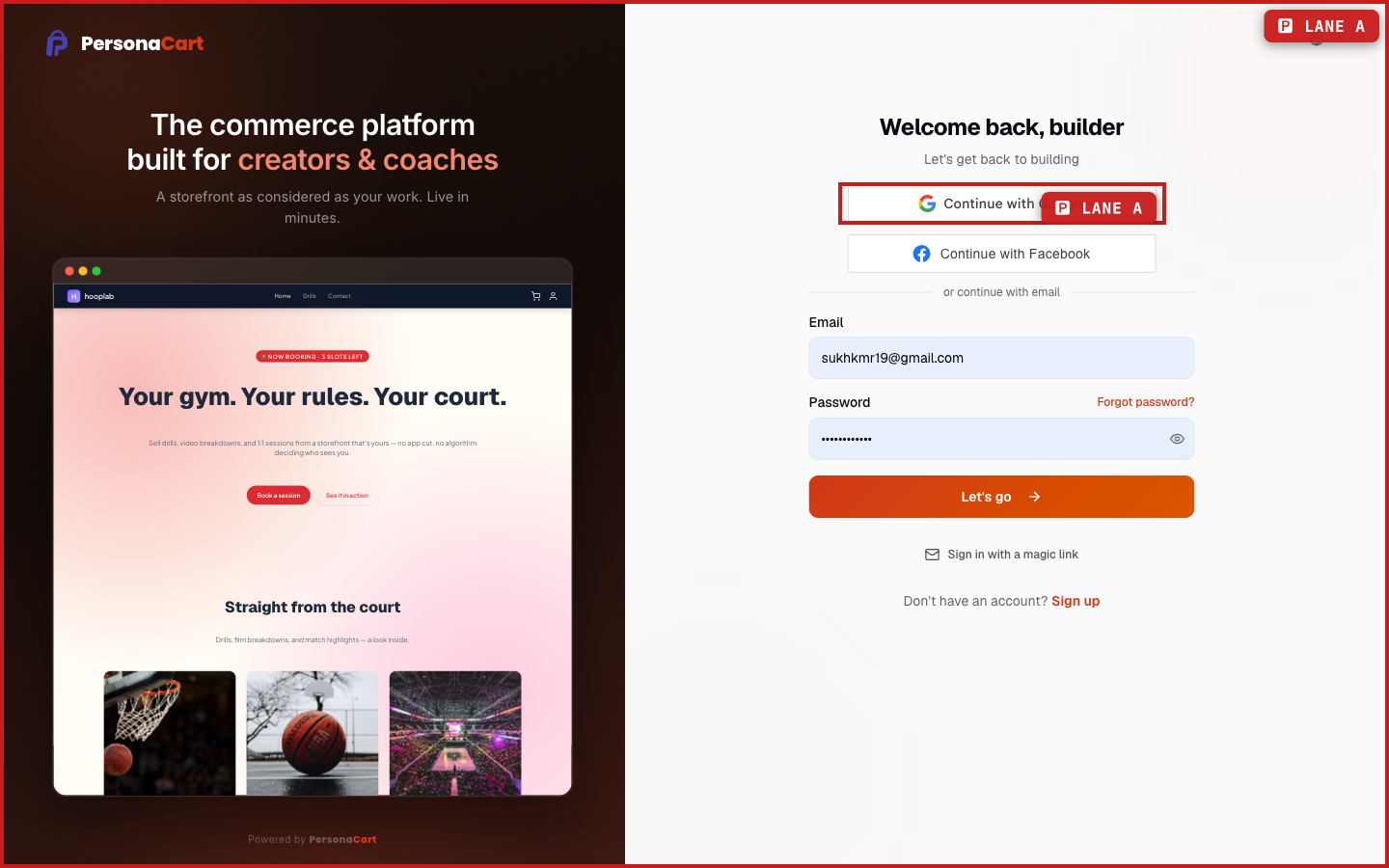
Your options
- Email + password. Fill both fields and hit Let's go.
- Continue with Google. Uses your Google account. If you signed up with Google, this is your fastest path.
- Continue with Facebook. Same idea, Facebook account.
- Magic link. Click Sign in with a magic link, enter your email, and PersonaCart sends you a one-time sign-in link. Handy when you're on a device where you'd rather not type a password.
Forgot your password?
Click Forgot password? on the login page.
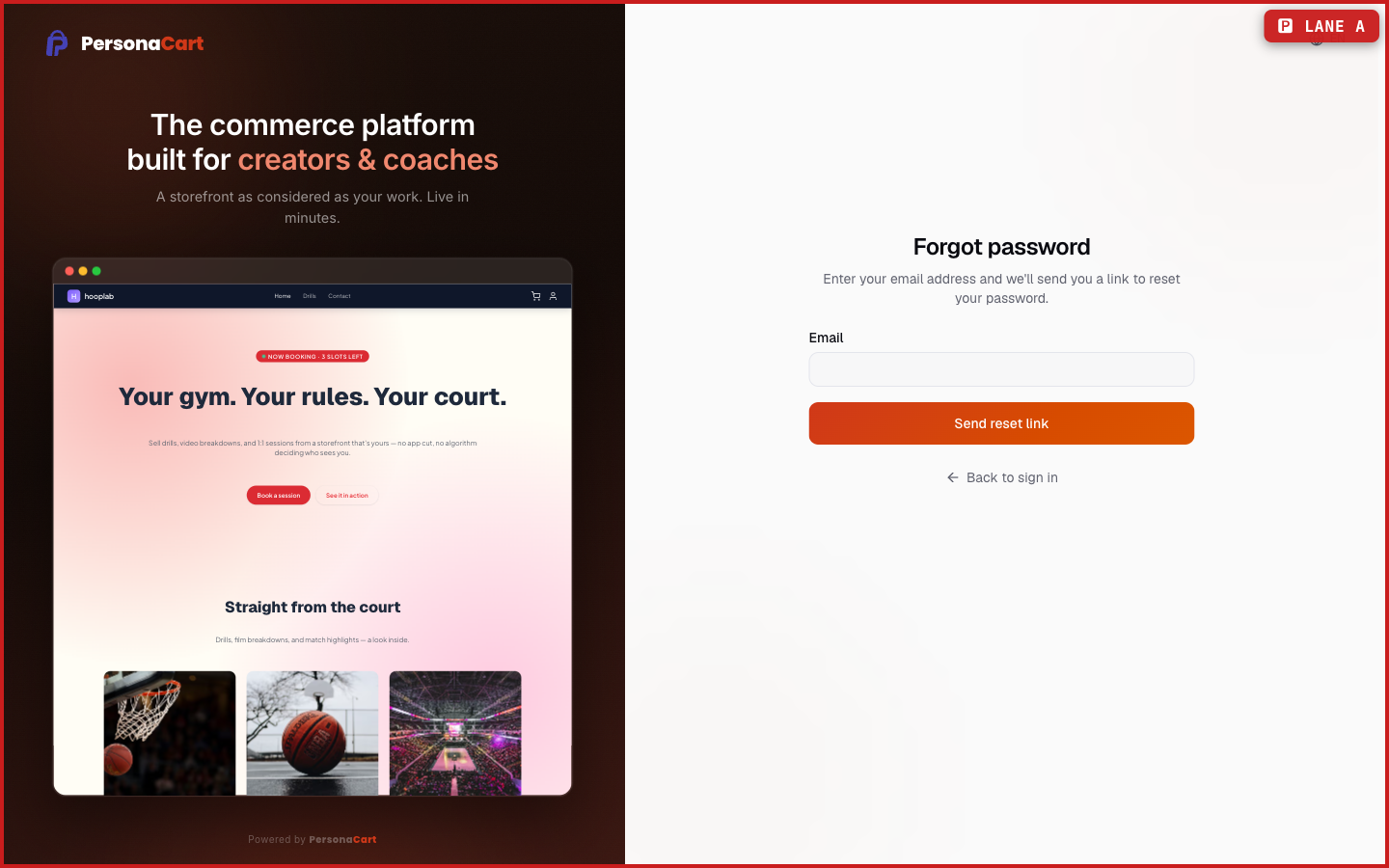
You'll get an email with a reset link. Follow it, choose a new password (same rules as signup: 8+ characters, an uppercase letter, a number, a special character), and sign in again.
What happens — and what doesn't
- A successful login drops you on your Dashboard for your current store.
- If your account owns more than one store, you land in the one you used last. Switch from the profile menu — see Switching between stores.
- Magic links and reset links are single-use and expire. If a link has gone stale, request a fresh one.
- Password reset emails only go to addresses that have an account. If nothing arrives, check spam first, then confirm you're using the email you signed up with.
I signed up with Google. Can I also set a password?
Use the password reset flow with your Google account's email. That sets a password on the account, and then both login methods work.
My magic link says it's expired. What now?
Links are single-use and time-limited. Go back to the login page and request a new one — it only takes a few seconds.
Why am I seeing a different store than I expected after login?
You land in the store you last worked in. Open the profile menu in the top right and pick My Stores to switch.