The Editor
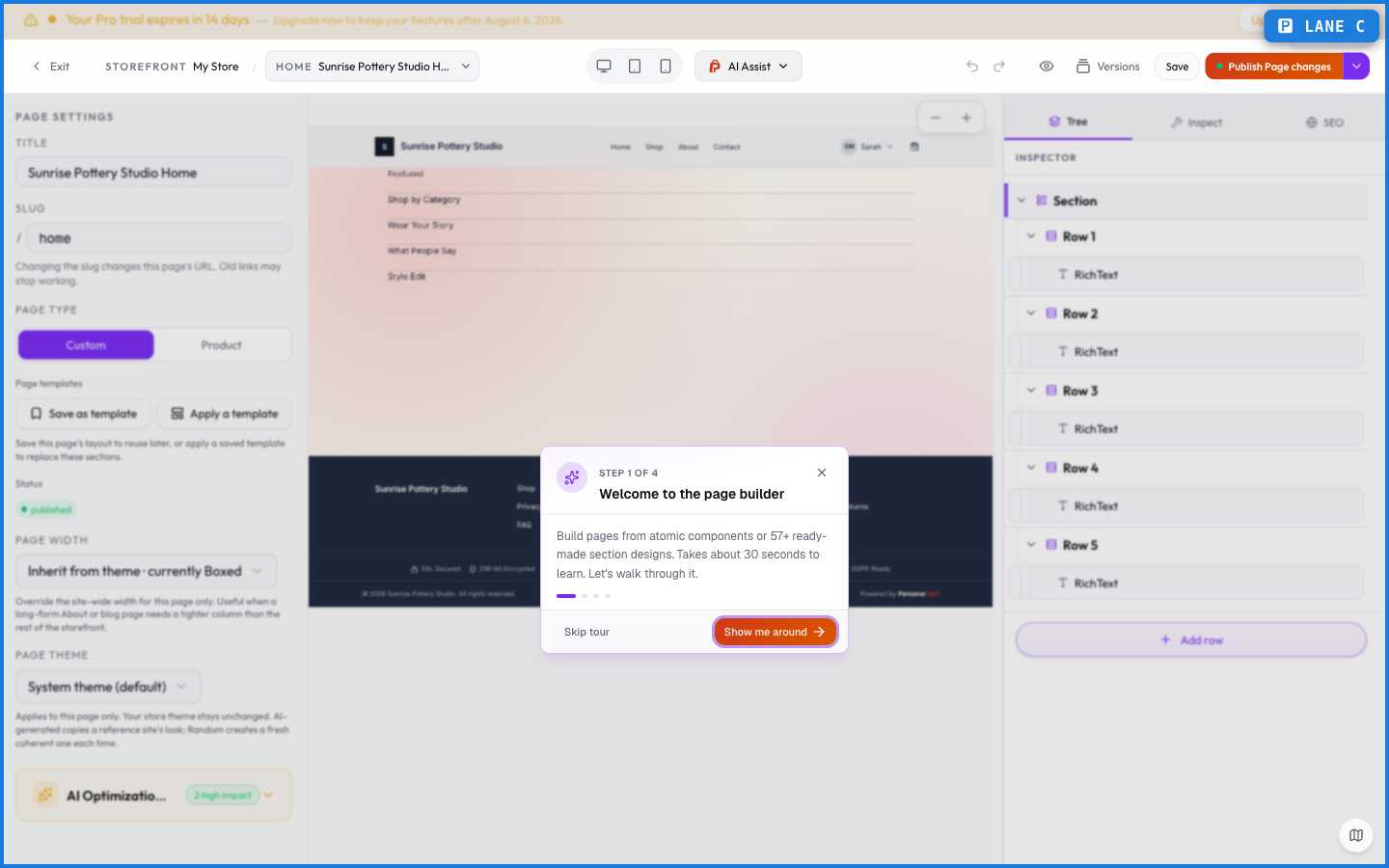
The Editor is where your storefront actually gets built. It's a visual, drag-and-drop page builder — no code. You add sections to a live canvas, drop blocks inside them, restyle anything from a panel on the right, and control the whole store's look from a panel on the left.
Where to find it
Open any page from Storefront → Pages, or edit your theme from Storefront → Theme. Both drop you into the same editor.
The three parts
- The canvas (center) — a live preview of the page. You click a section to select it, drag to reorder, and resize. What you see is what buyers get. See Canvas basics.
- The left rail — the whole storefront's look: colors, fonts, header, footer, spacing. Changes here ripple across every page. See The left rail: theme controls and the full theme reference.
- The right rail (inspector) — the selected block's own settings: its layout, typography, and spacing. See The right rail: inspector and the blocks reference.
When it's ready, you publish.
Sections and blocks
A page is a stack of sections. Inside each section are blocks (also called atoms) — a heading, an image, a product grid, a testimonial. You assemble a page by adding sections and filling them with blocks, then styling both.
What happens — and what doesn't
- The canvas is a true preview — spacing, fonts, and layout render the same for buyers as they do for you.
- Left-rail changes are store-wide; right-rail changes affect only the selected block.
- Editing doesn't go live until you publish, so you can build and rearrange freely.
- The same editor powers both page building and theme editing — one tool, two entry points.
Do I need to know how to code to use the editor?
No. The editor is fully visual — you add sections, drop in blocks, and style them with panels. There's no code involved.
What's the difference between the left rail and the right rail?
The left rail controls the whole storefront's look (colors, fonts, header, footer). The right rail — the inspector — controls just the block you've selected.
What are sections and blocks?
A page is a stack of sections. Inside each section are blocks (atoms) like a heading, image, or product grid. You build pages by combining them.
What this screen looks like in every state
| State | When you'll see it | What you see, and what to do |
|---|---|---|
| Empty | You haven't created anything here yet | “No pages found” — with a shortcut to create the first one. Nothing is wrong; there's just nothing to show yet. |
| Loading | The screen is fetching your data | A skeleton in the shape of the finished page. It should be brief — if it persists, the load has failed rather than stalled. |
| Error | The data couldn't be loaded | A message with a retry. Retry first: most of these are a dropped request, not a broken store. If it repeats, the outage is upstream and reloading won't help. |
| No access | Your role doesn't include this screen | A permission notice instead of the page. An owner or admin can grant access under Settings → Team. |
When something goes wrong
These are the messages this screen can show you, and what each one means.
| If you see | What to do |
|---|---|
| "…" is reserved for a built-in store page (like cart or checkout). Choose a different slug. | Retry the action. If it keeps happening, contact support with what you were doing. |
| Cannot delete the shop page. | The change didn't save. Retry — if it keeps failing, the request isn't reaching the server. |
| Delete the product to remove this page. | The change didn't save. Retry — if it keeps failing, the request isn't reaching the server. |
| Page title is required. | A required field is blank. Fill it in and save again. |
| This page is protected and cannot be deleted. | The change didn't save. Retry — if it keeps failing, the request isn't reaching the server. |